

Microsoft Store Download Stuck on Pending in Windows 11? Here’s What to Do
You click Get or Install in the Microsoft Store, but nothing happens. The app stays on Pending, moves to Queued, or sits at 0% without downloading.
When Microsoft Store downloads are stuck in Windows 11, the cause is often a stalled download, a Store cache issue, an account problem, or a network restriction. The good news is that you can usually narrow it down without reinstalling Windows or running complicated commands.
Start by identifying where the download is getting stuck.
First, Find Out What Is Blocking the Download
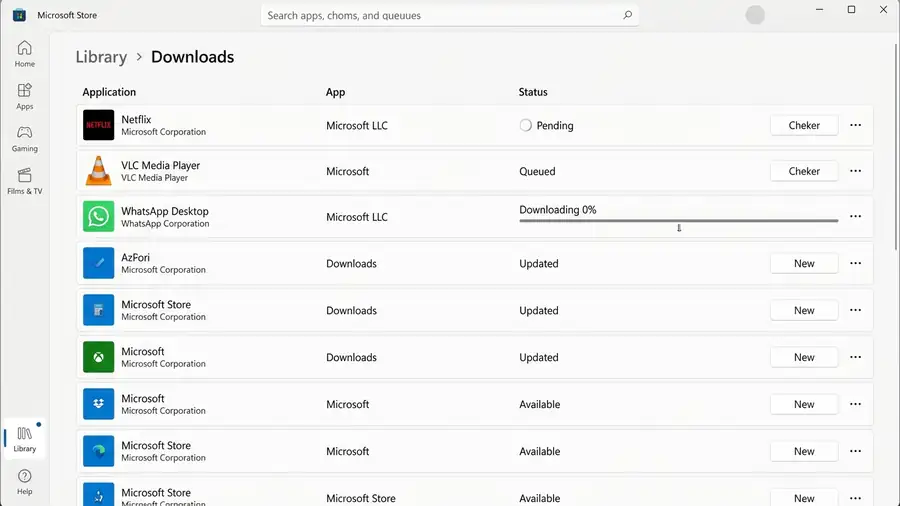
Open Microsoft Store, select Library, and check the download queue.
Look at what is happening:
- Several apps say Pending: Another download or update may be holding up the queue.
- One app stays at 0%: The problem may be related to that app or its availability.
- Every download is stuck: The Store, your account, or your network may be responsible.
If other downloads are waiting, pause them if the option is available. Then try downloading just one app.
If only one app refuses to install, check whether it is available for your Windows device and region before changing Store settings.
When Downloads Never Start, Try These Steps
1. Restart the Store Session
Close Microsoft Store completely and open it again.
Select your profile icon and check whether you are signed in with the correct Microsoft account. If the account appears disconnected, sign out and sign back in.
Now return to Library and try the download again.
2. Clear the Microsoft Store Cache
A damaged or outdated Store cache can interfere with downloads.
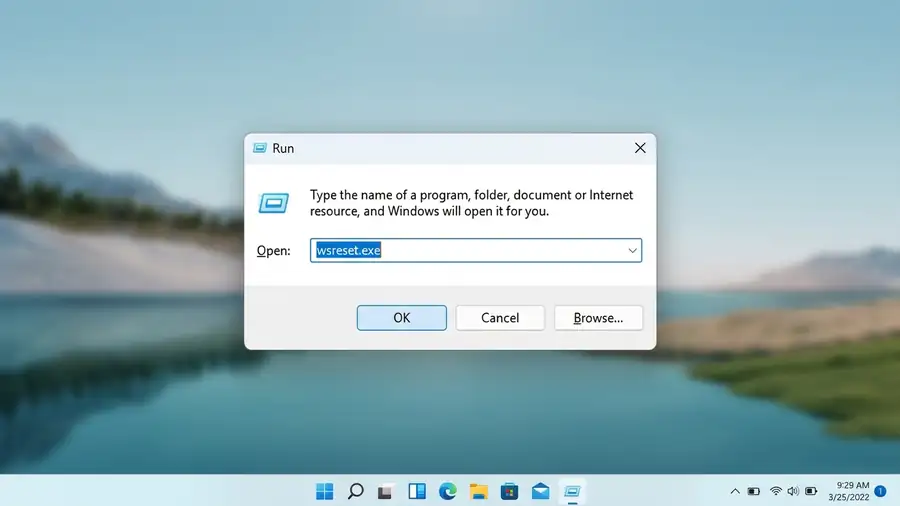
- Press Windows + R.
- Type
wsreset.exe. - Press Enter.
- Wait for the blank Command Prompt window to close and Microsoft Store to reopen.
This clears the Store cache. It does not remove your installed apps.
3. Check for Store and Windows Updates
An outdated Store app or pending Windows update can sometimes contribute to installation problems.
In Microsoft Store:
- Open Library.
- Select Get updates.
- Let available Store updates finish.
Then open Settings > Windows Update and select Check for updates.
Restart your PC if Windows installs an update.
If the Download Is Still Pending
If the queue remains stuck after the steps above, check the app itself and your Windows settings.
4. Repair Microsoft Store
Windows includes a repair option that can resolve problems without immediately resetting the app.
- Open Settings > Apps > Installed apps.
- Find Microsoft Store.
- Select the three-dot menu.
- Open Advanced options.
- Select Repair.
Return to the Store and test another download.
If Repair does not help, you can try Reset from the same page. Resetting may clear the app’s local data and sign-in preferences, so use it after Repair rather than as your first step.
5. Check Your VPN, Proxy, and Connection
A connection can appear normal while still blocking Microsoft Store downloads.
Try opening a few websites. If they work, temporarily disconnect your VPN and test the Store again.
If you use a proxy, check its settings under Settings > Network & internet > Proxy.
On a work or school network, firewall or proxy rules may prevent Store downloads. Don’t turn off Windows Firewall or your antivirus to test this. Ask the network administrator to check the connection rules instead.
For more advanced network-related causes, see Microsoft’s guide to Microsoft Store app download failures.
6. Verify Date, Time, and Region
Incorrect system settings can interfere with Microsoft services.
Open Settings > Time & language > Date & time and enable automatic time settings if appropriate.
Then check Settings > Time & language > Language & region. Make sure your country or region is correct. Changing your region just to access an unavailable app is not a reliable solution.
Quick Diagnosis: Which Situation Matches Yours?
| What you see | What to try first |
|---|---|
| Microsoft Store says Pending | Check the download queue |
| Downloads stay at 0% | Restart the Store and run wsreset.exe |
| Apps remain Queued | Pause other downloads and test one app |
| Only one app won’t install | Check app availability and compatibility |
| All apps fail to download | Repair the Store and check the network |
| Store works after Repair | The Store app may have had a local issue |
Frequently Asked Questions
Why is Microsoft Store stuck on Pending?
A download may be waiting behind another task, or the Store may have a cache, account, or connection problem. Checking the Library queue is a good first step.
Why does Microsoft Store stay at 0%?
The download may not be starting correctly. Restart the Store, clear its cache with wsreset.exe, and check whether other apps download normally.
Will resetting Microsoft Store delete my installed apps?
Resetting the Store can clear its local app data and preferences. It is not the same as uninstalling Windows apps, but try Repair first.
More Windows Troubleshooting Guides
- Windows 11 Apps Crashing After KB5124010?
- Windows 11 Taskbar Not Responding?
- Windows 11 Search Bar Not Working?
Final Thoughts
When a Microsoft Store download is stuck on Pending, don’t reset Windows or change several settings at once. Check the queue first, restart the Store, and work through the repair steps only if the download still refuses to start.
For Microsoft’s recommended troubleshooting steps, see its official guides: Fix problems with apps from Microsoft Store and Microsoft Store doesn’t open.