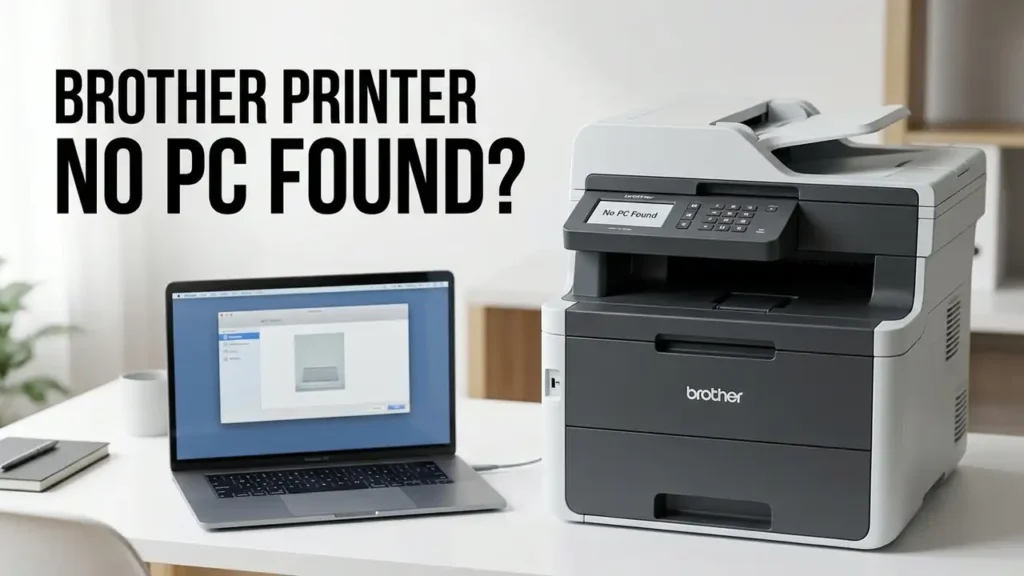

Brother Printer Says “No PC Found” When Scanning?
Your Brother printer prints documents normally, but when you press the Scan button on its control panel, it displays “No PC Found” or stays stuck on “Connecting to PC.”
This can happen even when Windows 11 recognizes the printer and Brother iPrint&Scan can scan documents successfully.
If your Brother printer says No PC Found, don’t start by reinstalling the driver. First, check whether scanning works from your computer. This helps identify whether the problem is with the scanner connection or the Scan to PC feature.
1. Test Scanning From Brother iPrint&Scan
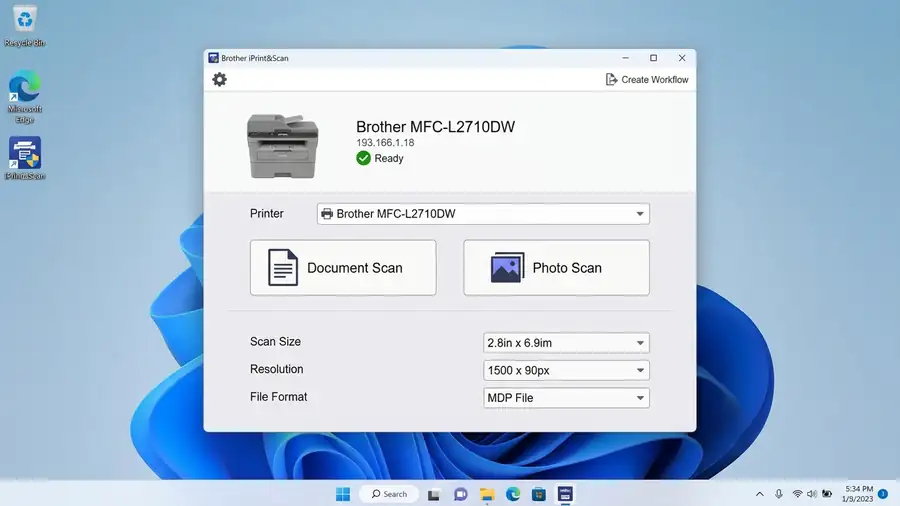
Open Brother iPrint&Scan on your Windows computer.
- Make sure your printer is turned on.
- Check whether your Brother machine appears in the application.
- If it doesn’t, select Select your Machine and search again.
- Choose the correct connection type: USB or Network.
- Load a document and try scanning.
Pay attention to what happens:
- The scan works: Your computer can communicate with the scanner. Focus on the Scan to PC settings.
- The printer isn’t detected: Check its USB or network connection.
- The application finds the printer but scanning fails: The scanner software or driver may need attention.
This is the most useful first test because scanning from the computer and scanning from the printer’s control panel aren’t the same process.
2. Set Up the Scan to PC Feature
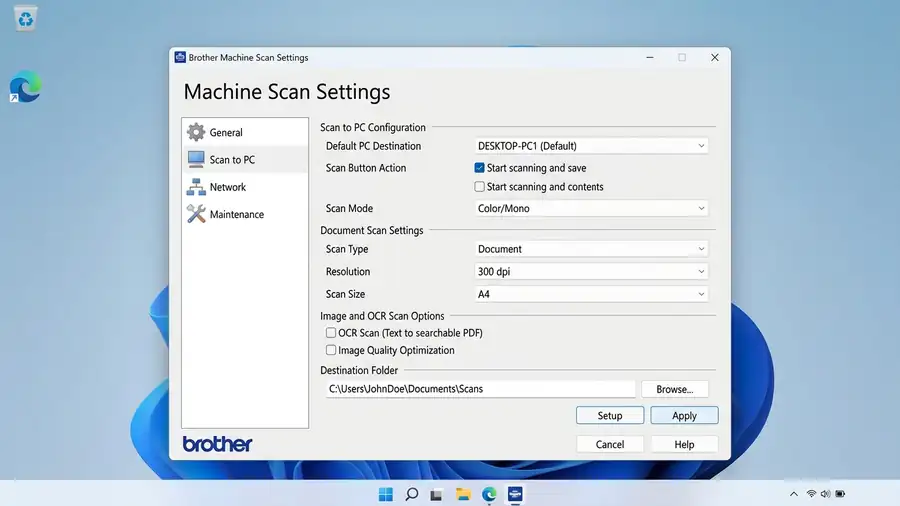
If Brother iPrint&Scan works but the printer displays “No PC Found,” check whether push scanning is configured.
Push scanning means you start the scan directly from the printer and send the document to your computer.
On supported Brother models:
- Open Brother iPrint&Scan.
- Select Machine Scan Settings.
- If you see “Complete this setting to use the scan function on the control panel of your machine,” select Setup.
- Follow the instructions on screen.
- Select the available PC scan options and configure the destination folder.
- Save the settings and try scanning from the printer again.
The available options depend on your Brother model. Some older machines use ControlCenter or a different registration method.
See Brother’s official Scan to PC troubleshooting guide.
3. Check Your Printer and Computer Network
If you’re using Wi-Fi, make sure your Brother printer and Windows PC are connected to the same local network.
Check this especially if you recently changed your router, Wi-Fi password, or network settings.
Also look for:
- A guest Wi-Fi network.
- Router settings that isolate connected devices.
- A VPN connection that may interfere with local network communication.
If you’re using a VPN, temporarily disconnect it and test scanning again.
After checking the connection, restart your Brother printer and computer.
If Windows cannot detect the printer at all, follow our guide on Printer Not Showing Up in Windows 11.
4. Check Firewall and Security Software
A firewall or security application can sometimes block communication between your Brother printer and computer.
Open Windows Security and check Firewall & network protection.
If your installed Brother scanning application needs network access, make sure it is allowed on your private network.
If you use third-party security software, check its firewall settings as well.
Don’t permanently disable your firewall. If you’re unsure which application or connection needs permission, use the instructions for your exact Brother model.
5. Check the USB Connection
If your Brother printer uses USB instead of Wi-Fi, skip the network checks.
Try these steps:
- Turn off the printer.
- Disconnect the USB cable from both ends.
- Reconnect it directly to your computer.
- Try another USB port if available.
- Turn the printer back on and test scanning.
Avoid USB hubs or docking stations while testing.
If the printer still isn’t detected, check the cable and the scanner driver for your exact model.
6. Reinstall Brother Software Only If Necessary
If the previous checks don’t help, the installed Brother software may be damaged or incorrectly configured.
Visit Brother’s official support website, enter your exact model number, and check the available downloads.
If Brother provides a compatible Full Driver & Software Package, install the package recommended for your model and Windows version.
After installation, open Brother iPrint&Scan again and complete the Scan to PC setup if prompted.
Don’t install drivers from third-party websites or use software intended for another Brother model.
Quick Diagnosis
| What happens | What to check |
|---|---|
| iPrint&Scan works, but printer says No PC Found | Scan to PC setup |
| Connecting to PC never finishes | Network communication |
| Printer missing from iPrint&Scan | USB or Wi-Fi connection |
| Scanning works over USB but not Wi-Fi | Network configuration |
| Scanning fails from the application too | Scanner software or driver |
Frequently Asked Questions
Why can my Brother printer print but not scan?
Printing and push scanning use different communication processes. Your printer may receive print jobs successfully while its Scan to PC feature isn’t configured correctly.
Why does my Brother printer say Connecting to PC?
The printer may be unable to complete communication with your computer. Check the network connection, iPrint&Scan status, and Scan to PC configuration.
Do I need to reinstall my Brother printer driver?
Not necessarily. First test scanning from Brother iPrint&Scan. If that works, check the control panel’s Scan to PC configuration before reinstalling anything.
More Printer Guides
- Printer Not Showing Up in Windows 11?
- Printer Offline in Windows 11?
- Printer Connected but Not Printing? Here’s Why
- Mac Can’t Find Printer? 7 Fixes to Try
Final Thoughts
When your Brother printer says “No PC Found,” the scanner itself may still be working correctly.
Start by testing Brother iPrint&Scan. If it scans successfully, focus on the Scan to PC setup rather than reinstalling drivers.
If the application cannot find the machine either, investigate the network, USB connection, and scanner software.
Finding out which part of the scanning process fails is the quickest way to choose the right solution.