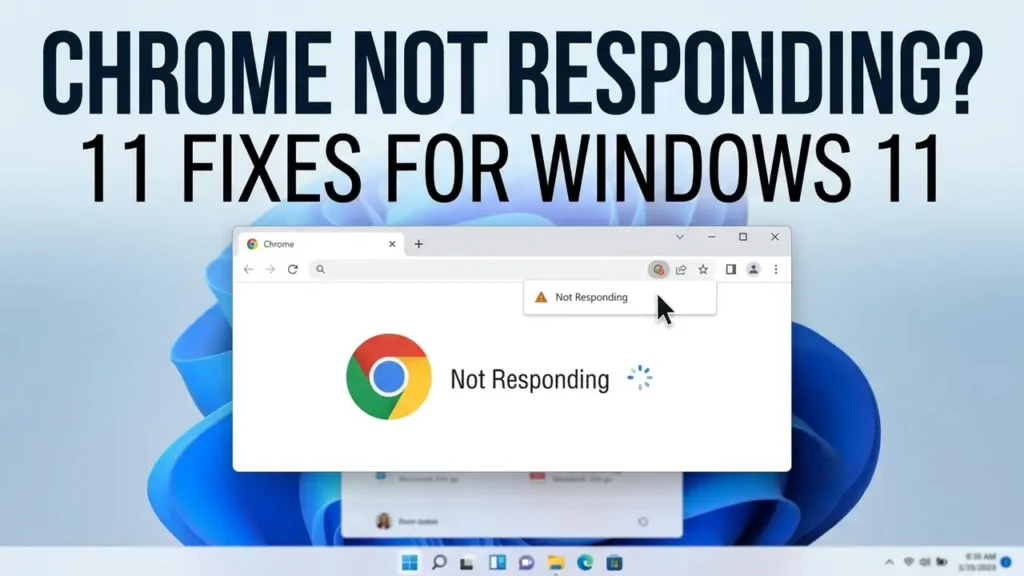

How to Fix Chrome Not Responding on Windows 11: 11 Solutions
If Chrome is not responding on Windows 11, you may see the browser freeze, stop responding to clicks, become extremely slow, or show a “Not Responding” message.
The problem can happen for several reasons. A Chrome extension may be causing conflicts, too many tabs may be consuming system resources, Chrome’s cache may be corrupted, or hardware acceleration may not work correctly with your graphics driver.
You don’t necessarily need to reinstall Chrome immediately. In many cases, a simple restart or disabling a problematic extension can solve the problem.
This guide walks you through 11 practical ways to fix Chrome not responding on Windows 11, starting with the easiest solutions and moving toward more advanced troubleshooting.
Quick tip: If Chrome freezes only on one particular website, the problem may be related to that website rather than Chrome itself. Try opening a few other websites before changing your browser settings.
Why Is Chrome Not Responding on Windows 11?
There are several possible reasons Chrome may stop responding.
Common causes include:
- Too many open tabs or browser processes
- A problematic Chrome extension
- Corrupted cached browser data
- An outdated version of Chrome
- Windows or graphics driver issues
- Hardware acceleration conflicts
- A Chrome profile problem
- High memory usage
- Temporary Windows problems
- Security software interfering with Chrome
Before trying advanced fixes, determine whether Chrome is completely frozen or simply taking a long time to respond.
1. Close Chrome Completely and Open It Again
The first thing to try is completely closing Chrome and starting it again.
Sometimes a Chrome process remains running in the background even after you close the browser window.
On Windows 11:
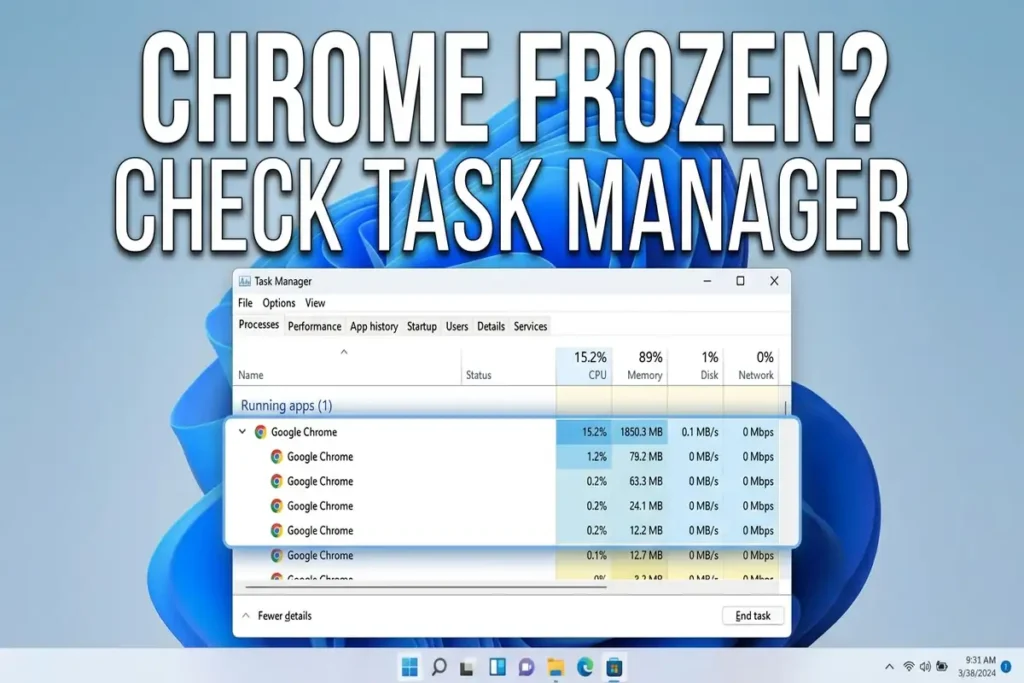
- Press Ctrl + Shift + Esc to open Task Manager.
- Find Google Chrome in the list of running processes.
- Select the Chrome process.
- Click End task.
- Close Task Manager.
- Open Chrome again.
If Chrome was temporarily stuck because of a background process, this may fix the problem immediately.
2. Restart Your Windows 11 PC
If Chrome continues to freeze, restart Windows.
A restart clears temporary system processes and can release memory or other resources that Chrome may have been using.
To restart Windows 11:
- Select Start.
- Select the Power icon.
- Click Restart.
- Wait for Windows to start again.
- Open Chrome.
After restarting, avoid opening all your previous tabs immediately. Open a few websites first and see whether Chrome remains responsive.
If Chrome works normally after the restart, the problem may have been caused by a temporary Windows or application process.
3. Check Chrome’s Task Manager
Chrome has its own built-in Task Manager.
It can show which tabs, extensions, or browser processes are consuming significant amounts of CPU or memory.
Open Chrome Task Manager
With Chrome open:
- Click the three-dot menu in the upper-right corner.
- Select More tools.
- Select Task manager.
You can also use:
Shift + Esc
Look at the Memory footprint and CPU usage columns.
If one tab or extension is using an unusually large amount of resources, select it and click End process.
Why this matters
If Chrome becomes unresponsive whenever you open a particular website, that tab may be consuming excessive resources.
This is especially useful if Chrome works normally until you open a specific page.
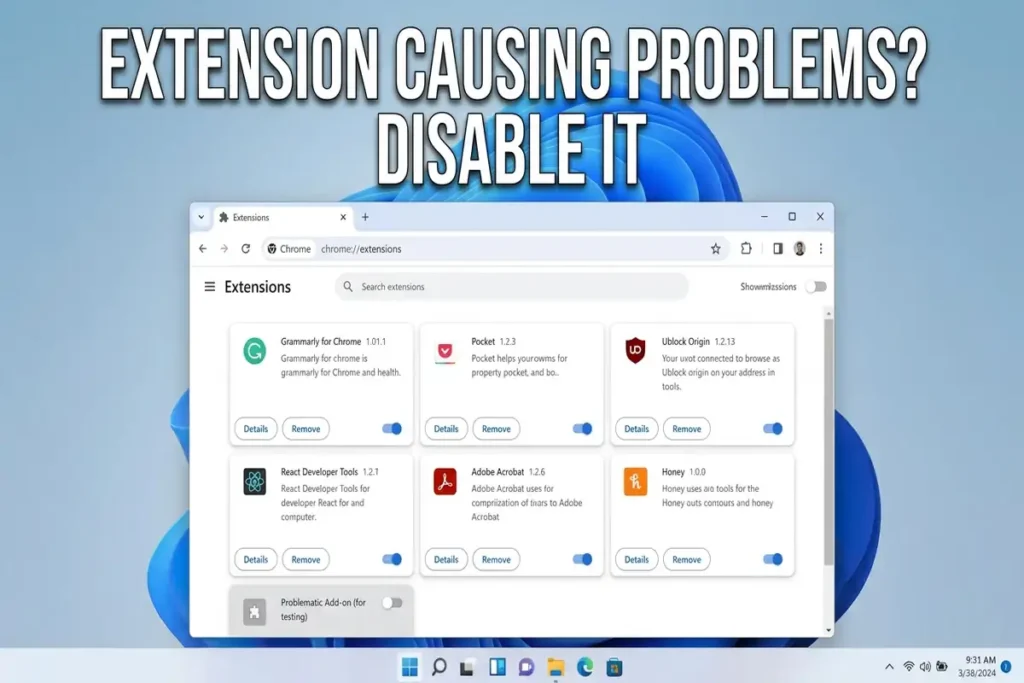
4. Disable Chrome Extensions
A faulty or outdated extension can make Chrome unstable.
If Chrome started freezing after you installed or updated an extension, that extension is one of the first things you should check.
Disable extensions
- Open Chrome.
- Select the three-dot menu.
- Go to Extensions.
- Select Manage Extensions.
- Turn off extensions one at a time.
- Test Chrome after each change.
Don’t disable everything permanently.
Instead, test the browser after disabling individual extensions so you can identify which extension may be causing the problem.
If Chrome works normally afterward
You can:
- Keep the problematic extension disabled.
- Update it.
- Remove it.
- Contact the extension developer if necessary.
5. Test Chrome in Incognito Mode
If Chrome works normally in Incognito mode but freezes or becomes unresponsive in a regular window, an extension, browser setting, or stored site data may be contributing to the problem.
Open an Incognito window
- Open Chrome.
- Click the three-dot menu in the upper-right corner.
- Select New Incognito window.
- Open a few websites and use Chrome for several minutes.
- Check whether Chrome still becomes unresponsive.
You can also use the keyboard shortcut:
Ctrl + Shift + N
If Chrome works normally in Incognito
The problem may be related to something in your regular Chrome session, such as:
- A Chrome extension
- A browser setting
- Cached or site-specific data
- A problem with your Chrome profile
Go back to your regular Chrome window and disable extensions one at a time. Then test Chrome again.
If Chrome still freezes in Incognito
The problem is less likely to be caused by a regular extension or stored browsing data. Continue with the next troubleshooting steps, such as disabling hardware acceleration, clearing cached data, and updating Chrome.
Important: Incognito mode is a diagnostic test, not a permanent fix. Extensions can still be used in Incognito if you have specifically allowed them, so check your extension settings if you want a cleaner test.
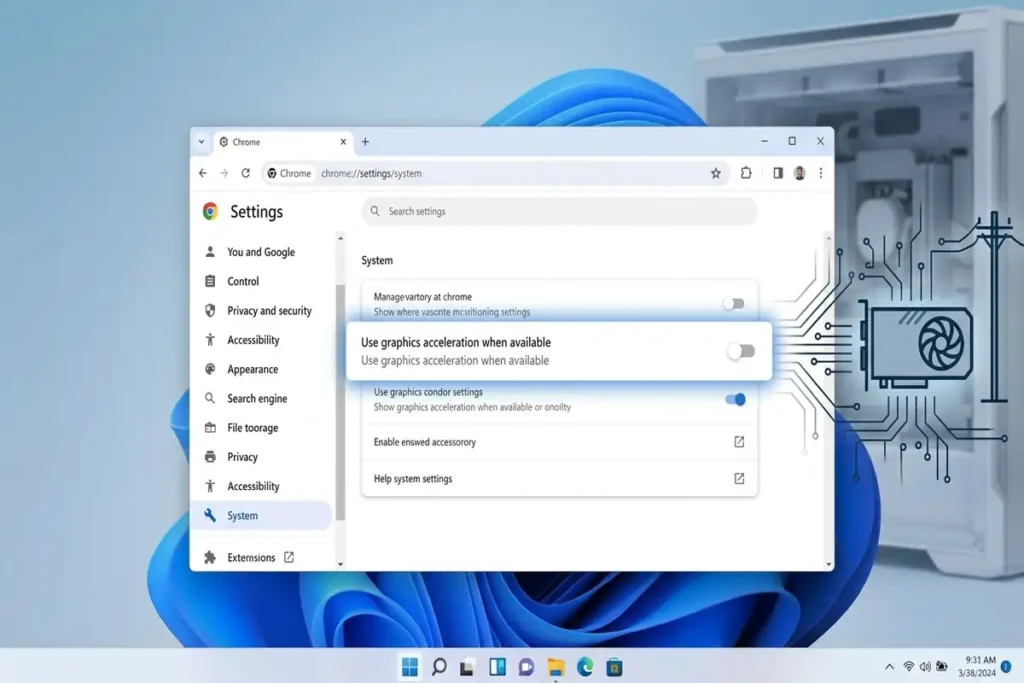
6. Turn Off Hardware Acceleration
Hardware acceleration allows Chrome to use your computer’s graphics hardware for certain tasks.
Although it can improve performance, compatibility problems involving graphics drivers can sometimes cause Chrome to freeze or behave unexpectedly.
Try disabling it
- Open Chrome.
- Select the three-dot menu.
- Select Settings.
- Open System.
- Find Use graphics acceleration when available.
- Turn the setting off.
- Restart Chrome.
Then test Chrome again.
If disabling hardware acceleration fixes the problem, the issue may be related to Chrome’s interaction with your graphics driver.
If it doesn’t make any difference, you can turn the setting back on.
7. Clear Chrome’s Cached Data
Chrome stores cached files to help websites load faster.
Normally, this is useful. However, corrupted or problematic cached data can sometimes contribute to browser issues.
Clear cached files
- Open Chrome.
- Select the three-dot menu.
- Select Delete browsing data.
- Choose a suitable time range.
- Select Cached images and files.
- Click Delete data.
You don’t necessarily need to delete your saved passwords or browsing history just to troubleshoot this problem.
Start by clearing cached files and test Chrome again.
Screenshot suggestion: Add your own screenshot of Chrome’s Delete browsing data window.
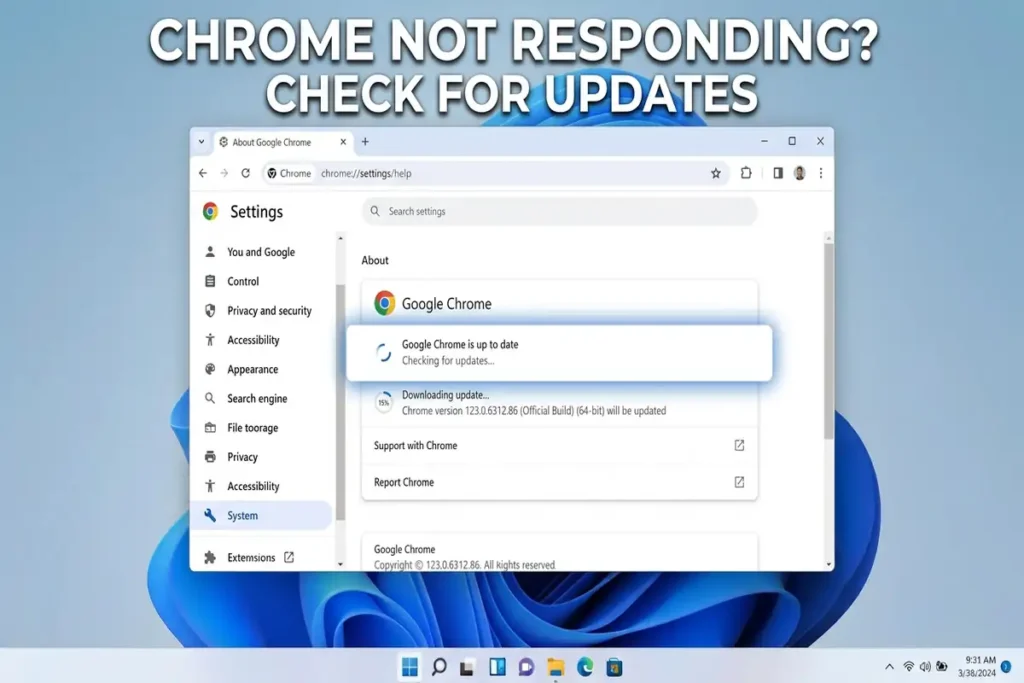
8. Update Google Chrome
Running an outdated version of Chrome can cause compatibility or stability problems.
Chrome normally updates automatically, but it’s worth checking manually when you’re troubleshooting.
Check for updates
- Open Chrome.
- Click the three-dot menu.
- Select Help.
- Select About Google Chrome.
- Allow Chrome to check for updates.
- If an update is available, install it.
- Restart Chrome.
Google recommends keeping Chrome updated when troubleshooting crashes and other browser problems. Google Chrome Help — Fix Chrome if it crashes or won’t open
Screenshot suggestion: Add a screenshot of the About Google Chrome page.
9. Check Windows and Graphics Driver Updates
If Chrome continues to freeze after updating the browser, check Windows Update and your graphics driver.
This is particularly worth trying if the problem started after a Windows update, graphics driver change, or other system modification.
Check Windows Update
Go to:
Settings → Windows Update
Then select:
Check for updates
Install available updates and restart Windows if required.
Check your graphics driver
You can also open:
Device Manager → Display adapters
Right-click your graphics adapter and check whether a driver update is available.
For the best results, you can also check the official support page for your laptop or graphics-card manufacturer.
Avoid downloading drivers from unknown third-party websites.
10. Reset Chrome Settings
If Chrome continues to freeze after trying the previous solutions, resetting Chrome’s settings can help determine whether a browser configuration is causing the problem.
Chrome provides a reset option that restores certain browser settings to their defaults.
How to reset Chrome
- Open Chrome.
- Select the three-dot menu.
- Open Settings.
- Select Reset settings.
- Choose Restore settings to their original defaults.
- Confirm the reset.
Google explains that resetting Chrome can help when unwanted settings or changes are affecting browser behavior. Google Chrome Help — Reset Chrome settings to default
11. Create a New Chrome Profile or Reinstall Chrome
If Chrome still becomes unresponsive, the problem may be related to your Chrome profile or installation.
Before completely reinstalling Chrome, try creating a new browser profile.
Create a new Chrome profile
Open Chrome and select your profile icon.
Then choose the option to add another profile and test Chrome without importing all your old settings and extensions.
If the new profile works normally while your original profile keeps freezing, the problem may be specific to the original profile.
Still not working?
As a final step, consider reinstalling Chrome.
Before doing so, make sure you know which information you need to keep, such as bookmarks, passwords, or other synced data.
Google’s official troubleshooting documentation also recommends reinstalling Chrome when other troubleshooting steps don’t resolve persistent problems. Google Chrome Help — Fix Chrome if it crashes or won’t open
Frequently Asked Questions
Why is Chrome not responding on Windows 11?
Chrome can become unresponsive because of excessive resource usage, problematic extensions, corrupted cached data, outdated software, graphics-driver issues, hardware acceleration conflicts, or browser-profile problems.
How do I fix Chrome not responding without reinstalling it?
Start by completely closing Chrome, restarting Windows, checking Chrome Task Manager, disabling extensions, clearing cached data, and updating Chrome. You can also test Chrome with hardware acceleration disabled.
Can extensions cause Chrome to freeze?
Yes. A problematic or outdated extension can interfere with Chrome. Disable extensions individually to identify whether one is responsible.
Will clearing Chrome cache delete my passwords?
Clearing only Cached images and files does not require you to delete saved passwords. Be careful when selecting other types of browsing data.
Why does Chrome work in Incognito but not normally?
If Chrome works correctly in Incognito mode, an extension or browser setting may be contributing to the problem. Test your extensions individually.
More Troubleshooting Guides
– **How to Fix Windows 11 WiFi Keeps Disconnecting**
– **How to Fix Windows 11 Black Screen: 10 Solutions**
Final Thoughts
If Chrome is not responding on Windows 11, don’t jump straight to reinstalling the browser.
Start with the simplest checks: completely close Chrome, restart Windows, and look at Chrome Task Manager. If the problem continues, test your extensions, clear cached data, update Chrome, and temporarily disable hardware acceleration.
If those steps don’t work, reset Chrome settings or test a new Chrome profile. Reinstalling Chrome can be reserved for cases where the other solutions haven’t helped.
The most important thing is to identify when Chrome becomes unresponsive. If it happens only on one website, the website or an extension may be responsible. If Chrome freezes everywhere, focus on the browser, Windows, drivers, and system resources.