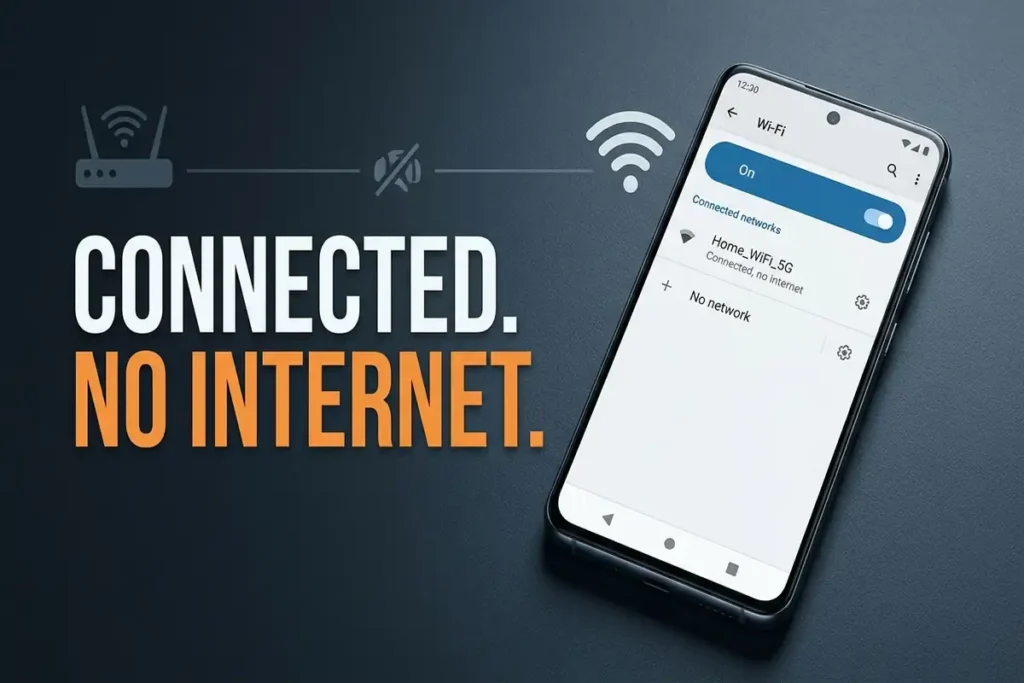

Android Connected to WiFi but No Internet? 10 Fixes That Work
Your Android phone shows Wi-Fi connected, but websites won’t load, apps stay offline, and nothing seems to work.
This can be confusing because your phone is clearly connected to the Wi-Fi network. However, being connected to a router doesn’t necessarily mean your phone has access to the internet.
The problem could be your Android phone, the Wi-Fi network, your router, DNS, a VPN, or your internet provider.
The fastest way to find the cause is to test the connection before changing advanced settings.
Quick Diagnosis: Is the Problem Your Phone or Wi-Fi?
Before trying the fixes below, perform these two simple tests.
Test 1: Connect another device to the same Wi-Fi
Use another phone, tablet, or computer.
- Other devices also have no internet: the problem is probably the Wi-Fi network, router, or internet connection.
- Other devices work normally: the problem is more likely specific to your Android phone.
Test 2: Connect your Android phone to another Wi-Fi network
Try a different Wi-Fi network if one is available.
- Your phone works on another Wi-Fi: your home network or router is probably the problem.
- Your phone still has no internet: focus on the Android device and its network settings.
Google recommends testing the connection with another device and trying another Wi-Fi network to help determine whether the problem is with your phone or the network. For more troubleshooting steps, see Google’s guide to fixing internet connection problems on Android
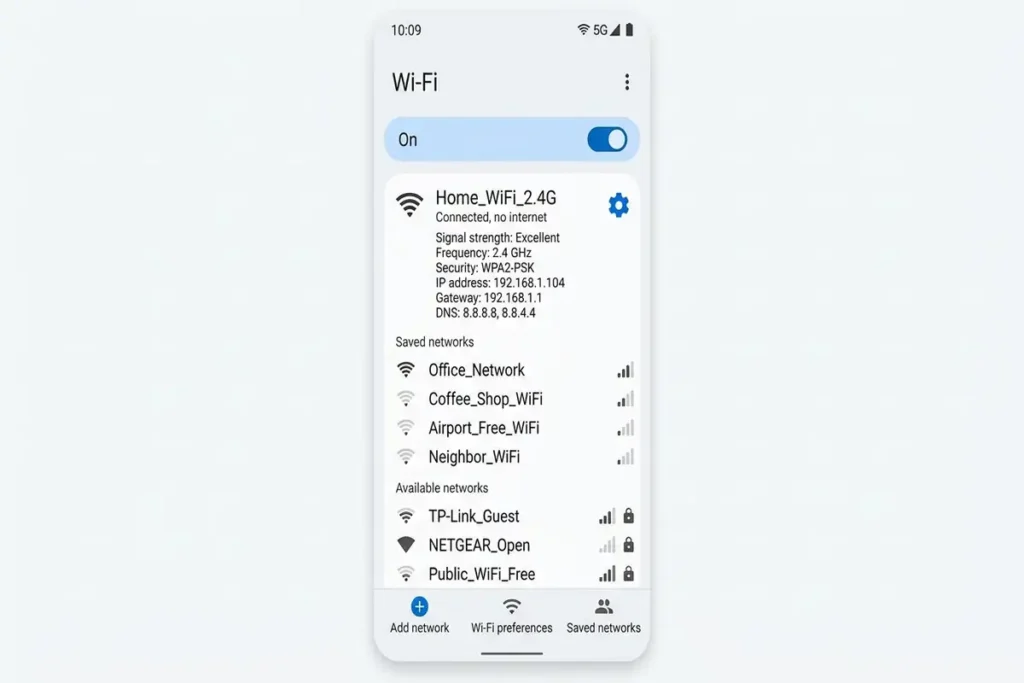
1. Turn Wi-Fi Off and Back On
Start with the simplest fix.
Open your Android phone’s Quick Settings and turn Wi-Fi off.
Wait a few seconds, then turn it back on.
Reconnect to your Wi-Fi network and try opening a website.
This forces the phone to establish the wireless connection again without changing your saved network configuration.
If the internet starts working, you don’t need to perform the more advanced fixes below.
2. Turn Airplane Mode On and Off
Airplane mode can also refresh your phone’s wireless connections.
Open Quick Settings and turn on:
Airplane mode
Wait around 10–15 seconds.
Then turn Airplane mode off and reconnect to Wi-Fi.
Google includes toggling Airplane mode as one of the basic steps for Android Wi-Fi connection problems.
Why can this help?
It temporarily disables the phone’s wireless connections and forces Android to initialize them again.
It’s a quick test and doesn’t delete any saved Wi-Fi networks.
3. Restart Your Android Phone
If Wi-Fi says connected but no internet is available, restart the phone.
Press and hold the power button and select:
Restart
After the phone boots:
- Turn Wi-Fi on.
- Connect to your network.
- Open Chrome or another browser.
- Try visiting a website.
Google and Samsung both recommend restarting the phone as an early troubleshooting step.
4. Restart Your Router and Modem
If other devices connected to the same Wi-Fi also have no internet, don’t spend an hour changing Android settings.
The problem may be outside the phone.
Restart your router and modem if you have access to them.
Safe restart method
- Turn off the router and modem.
- Unplug their power cables.
- Wait about 15–30 seconds.
- Plug them back in.
- Wait for the connection lights to stabilize.
- Reconnect your Android phone.
Google recommends restarting the router and modem when the Wi-Fi network itself may be responsible for the connection problem.
What if every device is offline?
If your laptop, TV, tablet, and other phones also can’t access the internet, the problem is unlikely to be your Android phone.
At that point, check your ISP’s service status or contact your internet provider.
5. Forget the Wi-Fi Network and Reconnect
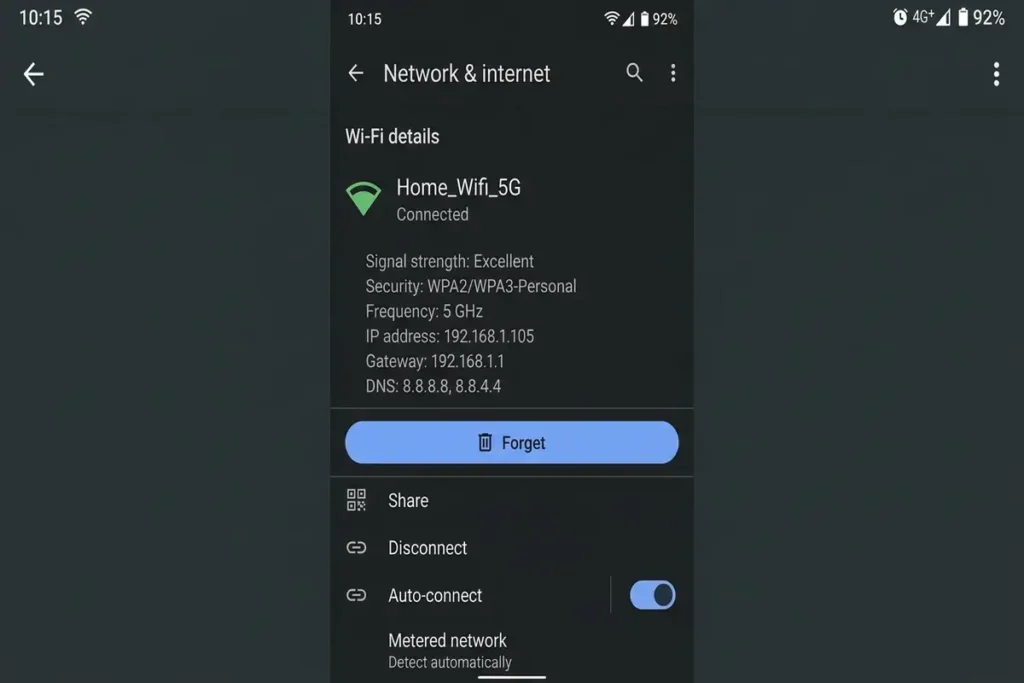
If the problem affects only your Android phone, forget the Wi-Fi network and connect again.
On many Android phones, go to:
Settings → Network & internet → Internet
Then select your Wi-Fi network and choose:
Forget
On Samsung Galaxy devices, the menu is usually:
Settings → Connections → Wi-Fi
Then select the network and choose the option to forget it.
Menu names can vary between Samsung, Pixel, OnePlus, Xiaomi, Motorola, and other Android devices.
After forgetting the network:
- Select the Wi-Fi network again.
- Enter your password.
- Connect.
- Test the internet.
Google specifically recommends deleting and re-adding the saved Wi-Fi network for connection problems.
6. Check If a VPN Is Blocking the Connection
If you use a VPN, temporarily disconnect it and test the internet again.
A VPN changes how your phone routes internet traffic, so a VPN connection problem can sometimes make apps appear offline even though Wi-Fi itself is connected.
Check:
Settings → Network & internet → VPN
The exact location can vary depending on your Android manufacturer.
Don’t uninstall your VPN immediately
First disconnect it and test.
If the internet works normally without the VPN, you’ve narrowed down the cause.
You can then update the VPN app, reconnect it, or check its settings.
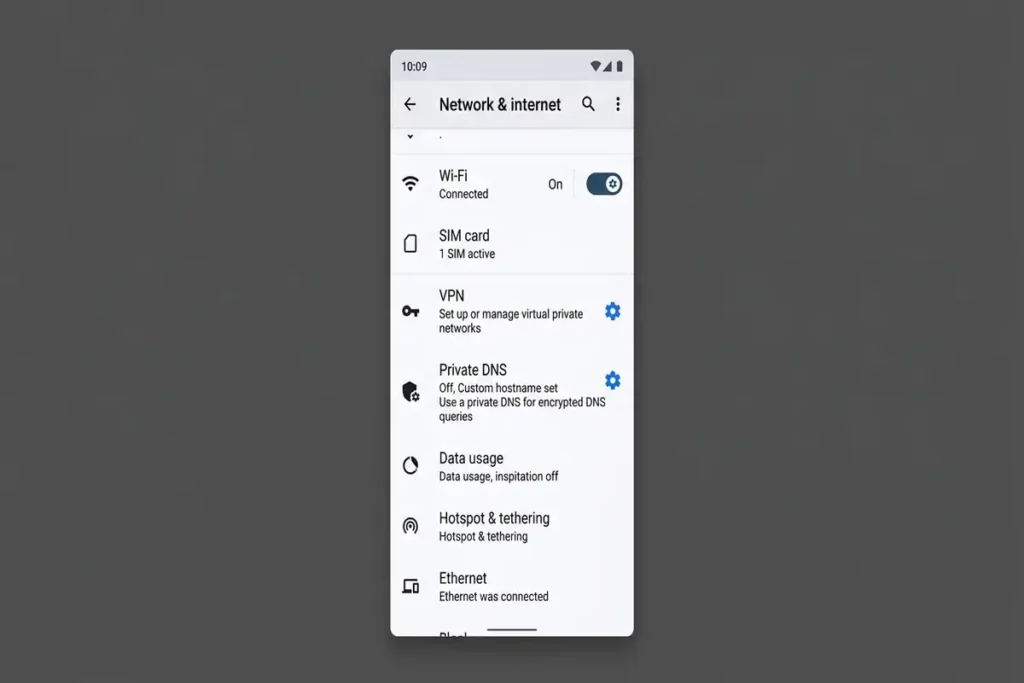
7. Check Private DNS
Android includes a Private DNS setting that can affect how domain names are resolved.
If websites don’t load but Wi-Fi appears connected, Private DNS is worth checking.
Depending on your Android version, go to:
Settings → Network & internet → Private DNS
If you’ve manually configured a Private DNS provider, temporarily switch back to the default/automatic option and test the connection.
Important
Don’t change advanced DNS settings randomly.
If your internet works normally with the default setting, there’s usually no reason to use a custom DNS provider just for troubleshooting.
This is worth checking if Wi-Fi works on other devices but your Android phone still cannot load websites or apps.
- Some websites don’t load.
- Apps fail to connect.
- Wi-Fi works on other devices.
- Your phone recently received a network configuration change.
8. Check Date and Time Settings
An incorrect date or time can interfere with secure internet connections.
Open:
Settings → System → Date & time
Make sure automatic date and time are enabled.
On some Android phones, the menu may be located under:
General management → Date and time
Make sure your phone is using the correct date and time automatically. Incorrect time settings can interfere with some secure connections.
9. Reset Network Settings
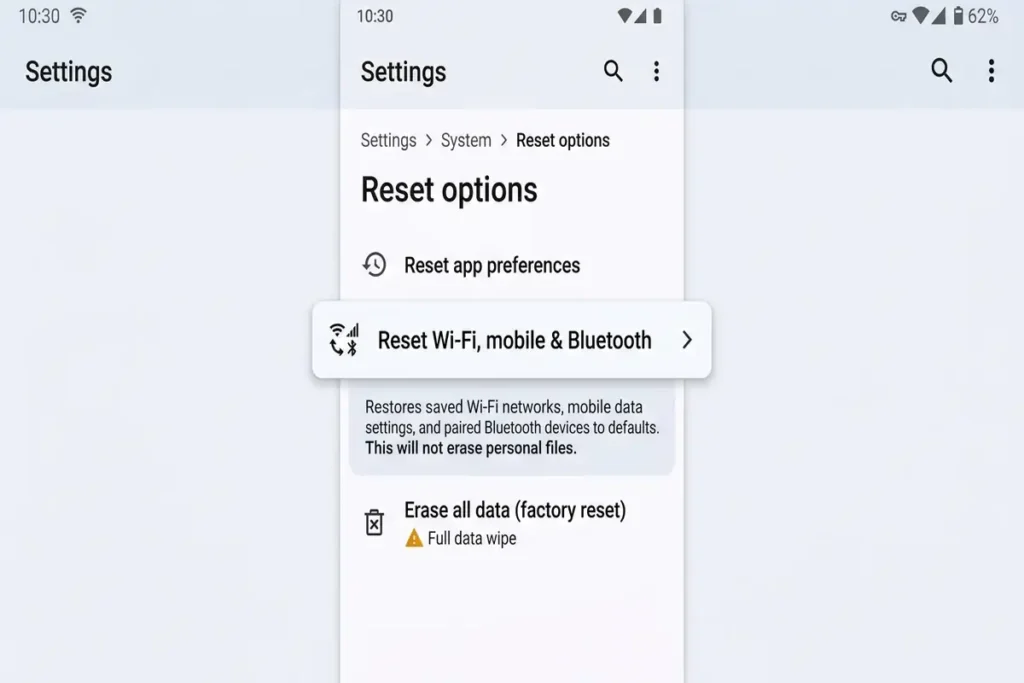
If the previous fixes haven’t worked, resetting network settings is a stronger option.
On Google Pixel phones, you may find the option under:
Settings → System → Reset options → Reset Bluetooth & Wi-Fi
On Samsung Galaxy phones, it is generally under:
Settings → General management → Reset → Reset Wi-Fi and Bluetooth settings
The exact wording can vary by Android version and manufacturer.
What does a network reset remove?
It can remove saved network information such as:
- Saved Wi-Fi networks
- Bluetooth connections
- Certain network configuration settings
It does not perform a factory reset of your phone.
Make sure you know your Wi-Fi password before doing it.
Google and Samsung both include network-setting resets in their official troubleshooting guidance. For Samsung Galaxy devices, see Samsung’s guide to Wi-Fi connection issues for additional troubleshooting steps.
10. Check Your Wi-Fi Signal and Move Closer to the Router
If your Android phone stays connected to Wi-Fi but the internet keeps stopping or pages load very slowly, check the Wi-Fi signal strength.
Move closer to your router and try loading the same website again.
Walls, floors, furniture, and other wireless devices can weaken a Wi-Fi signal, especially if you’re far away from the router.
Try this quick test
- Move your Android phone closer to the router.
- Turn Wi-Fi off and back on.
- Open a website or app that wasn’t working.
- Compare the connection with the same test from your usual location.
If the internet works normally when you’re close to the router but becomes unreliable farther away, the problem may be related to Wi-Fi coverage rather than your Android phone’s internet settings.
In that case, consider moving the router to a more central location or using a Wi-Fi extender or mesh system to improve coverage.
What If Wi-Fi Works but Only Some Apps Have No Internet?
If Chrome or YouTube works but apps like Gmail or Google Play Store don’t connect, your Wi-Fi may not be the problem.
Before resetting your network, try:
- Test the same service in a browser.
- Restart the affected app.
- Check for an app update.
- Temporarily disable your VPN.
- Check Private DNS.
- Restart your phone.
If only one or two apps remain offline while everything else works, the issue is more likely related to those apps than your Wi-Fi connection.
What If Android Connects to Wi-Fi but Says “No Internet”?
The message generally means your phone successfully connected to the local Wi-Fi network, but internet access beyond that network isn’t working.
Think of it as two separate connections:
Phone → Wi-Fi router
and
Router → Internet
The first connection can work while the second one fails.
That’s why your phone can show full Wi-Fi bars while websites still refuse to load.
Should You Factory Reset Your Android Phone?
No—not as a first step.
A factory reset deletes your personal data and returns the phone to its initial setup state.
You should only consider it after:
- Restarting the phone.
- Restarting the router.
- Forgetting/reconnecting to Wi-Fi.
- Checking updates.
- Resetting network settings.
- Testing another Wi-Fi network.
- Backing up your important data.
Samsung lists factory reset as a later troubleshooting option and warns that the process is not reversible.
If the problem continues after all reasonable troubleshooting, contact your phone manufacturer’s support before wiping the device.
Frequently Asked Questions
Why does my Android say “Connected, no internet”?
Your Android may be connected to the Wi-Fi router, but the router may not have an active internet connection. If other devices are also offline, check the router or your internet provider. If only your Android is affected, troubleshoot the phone’s network settings.
Why does Wi-Fi work on other devices but not my Android?
If your laptop or another phone works on the same Wi-Fi, the problem is likely specific to your Android. Try forgetting the network, reconnecting, disabling any VPN, checking Private DNS, and resetting network settings if necessary.
Can a VPN cause Android Wi-Fi to stop working?
Yes. A VPN can change how your internet traffic is routed and may prevent some apps or websites from connecting. Temporarily disconnect the VPN and test the connection again.
Can Private DNS cause “No internet” on Android?
It can. If you manually configured a Private DNS provider, switch back to the default or automatic setting and test the connection. This is especially worth checking if other devices work normally on the same Wi-Fi.
Should I reset network settings on Android?
If basic troubleshooting hasn’t worked, resetting network settings can be a useful next step. It removes saved Wi-Fi networks, Bluetooth connections, and some network settings, so you’ll need to reconnect afterward.
More Troubleshooting Guides
Still having problems with your devices? Check out these related troubleshooting guides:
- How to Fix Windows 11 WiFi Keeps Disconnecting
- How to Fix Chrome Not Responding on Windows 11
- iPhone Storage Full but You Have Space? 10 Fixes That Work
Final Thoughts
When your Android is connected to Wi-Fi but has no internet, don’t assume your phone is the problem—and don’t reach for a factory reset.
Start by checking another device on the same Wi-Fi. That simple test can tell you whether you’re dealing with the phone, the router, or the internet connection itself.
If the problem is limited to your Android, work through the fixes from simple to advanced until you find the culprit.
The goal isn’t to reset everything. It’s to find what’s actually breaking the connection.