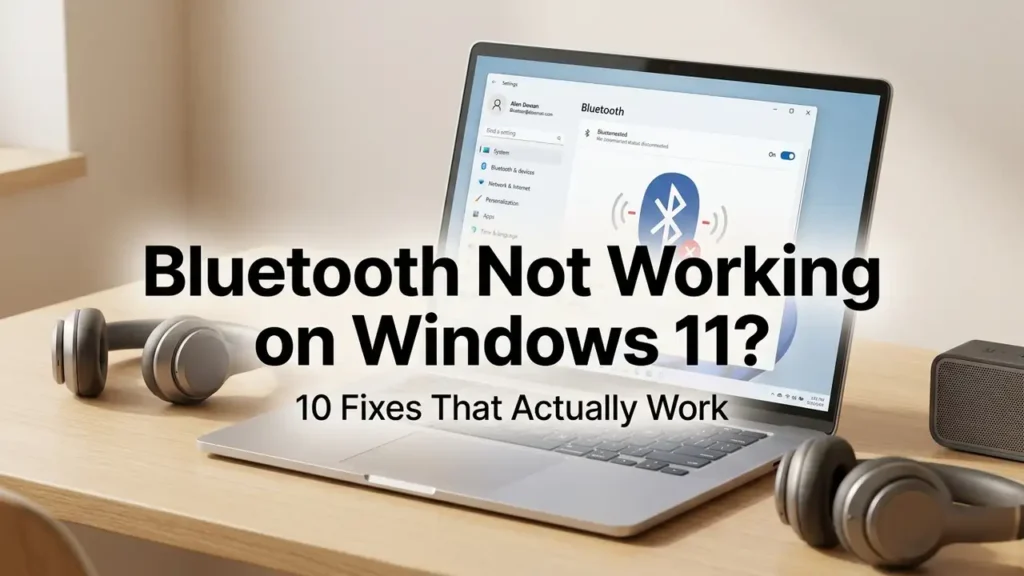

How to Fix Bluetooth Not Working on Windows 11: 10 Solutions
If Bluetooth is not working on Windows 11, you may be unable to connect headphones, speakers, keyboards, mice, phones, controllers, or other wireless devices.
The problem can appear in different ways. Bluetooth may be turned off, the Bluetooth option may disappear completely, Windows may detect your device but refuse to connect, or a device may connect and then disconnect repeatedly.
Fortunately, most Bluetooth problems can be diagnosed without reinstalling Windows.
This guide walks through 10 practical ways to fix Bluetooth problems on Windows 11, starting with the easiest checks and moving toward driver-related solutions.
Quick check: If Bluetooth is completely missing from Windows 11 rather than simply failing to connect, skip to Solution 8 and Solution 9. A missing Bluetooth option can indicate a driver, adapter, service, or hardware-detection problem.
Why Is Bluetooth Not Working on Windows 11?
Bluetooth problems can have several causes, including:
- Bluetooth is turned off
- The device isn’t in pairing mode
- The Bluetooth device has a low battery
- The device is too far from the PC
- A previous pairing is corrupted
- Bluetooth drivers are outdated or incompatible
- Windows cannot detect the Bluetooth adapter
- A recent Windows or driver update caused a compatibility problem
- Bluetooth-related services aren’t working correctly
- The PC doesn’t actually have Bluetooth hardware
Microsoft identifies outdated or incompatible Bluetooth drivers as one of the common causes of Bluetooth connection problems.
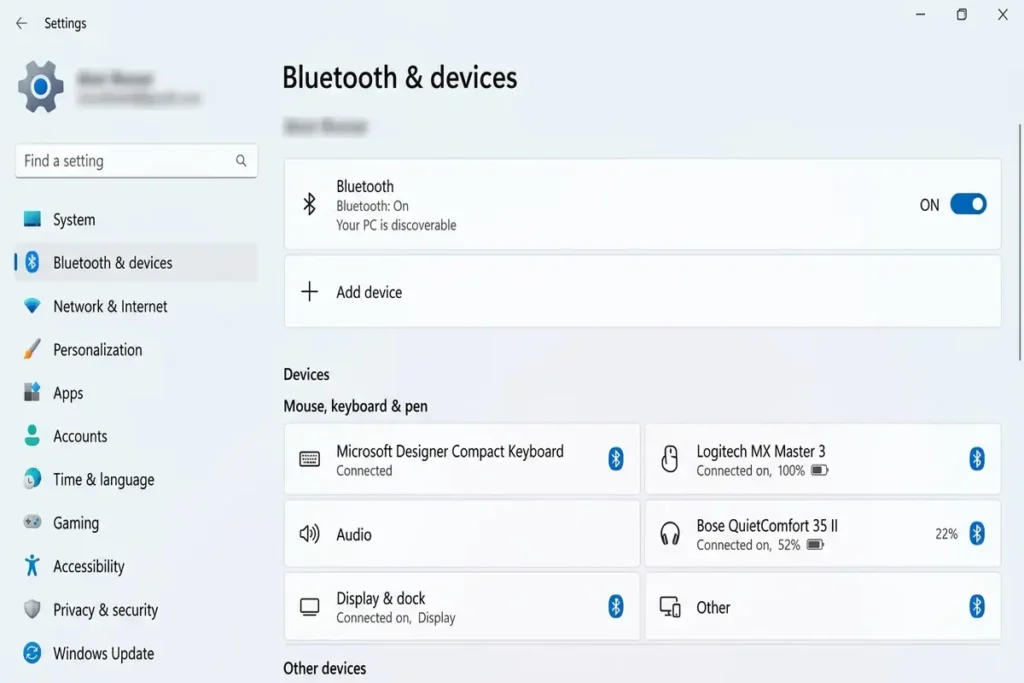
1. Make Sure Bluetooth Is Turned On
Before changing drivers or Windows settings, check that Bluetooth is actually enabled.
From Windows 11 Settings
- Open Start.
- Select Settings.
- Select Bluetooth & devices.
- Make sure Bluetooth is turned on.
You can also check Bluetooth from Windows 11 Quick Settings by selecting the Network, Sound, or Battery icons near the clock and then selecting Bluetooth.
If Bluetooth is already on, turn it off, wait about 10 seconds, and turn it back on.
This simple reset can sometimes restore a connection that has become stuck.
2. Restart Both the PC and Bluetooth Device
A temporary software or connection problem can sometimes prevent Bluetooth from working correctly.
Restart your Windows 11 PC and the Bluetooth device you’re trying to connect.
For example, if you’re connecting wireless headphones:
- Turn the headphones off.
- Restart Windows 11.
- Turn the headphones back on.
- Put them into pairing mode.
- Try connecting again.
If the Bluetooth device has a removable battery, make sure it has enough power.
Microsoft also recommends checking that the Bluetooth accessory is powered, charged, and within range of the PC.
3. Make Sure the Bluetooth Device Is in Pairing Mode
Sometimes Bluetooth works perfectly on Windows 11, but the accessory simply isn’t ready to pair.
Check the instructions for your specific device and put it into pairing or discovery mode.
Then:
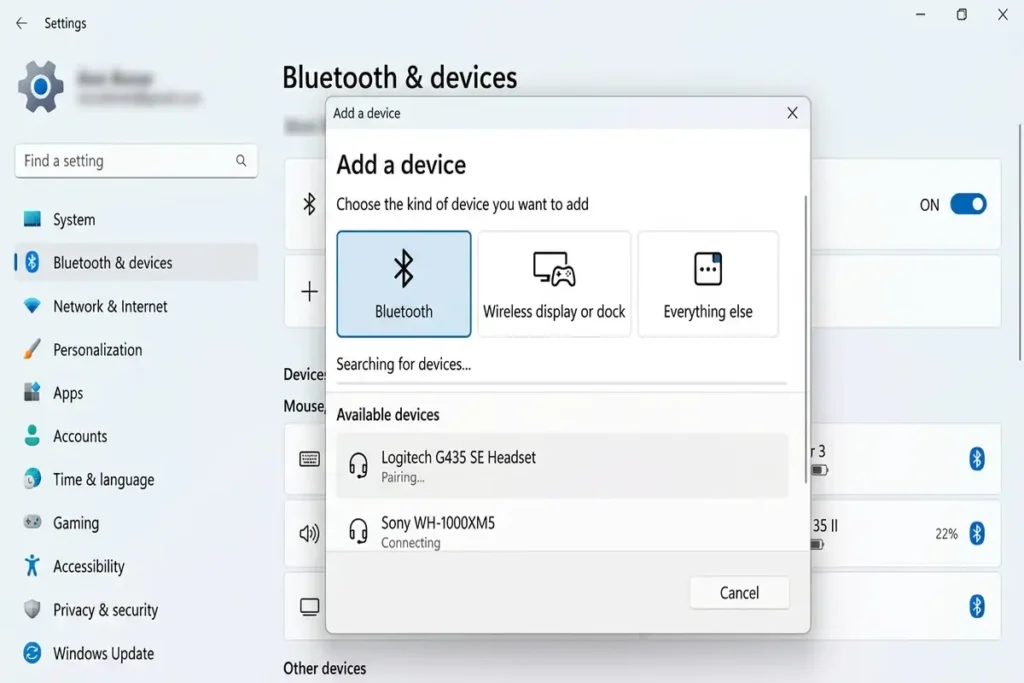
- Open Settings.
- Select Bluetooth & devices.
- Select Add device.
- Select Bluetooth.
- Wait for your device to appear.
- Select the device.
Keep the device relatively close to your computer during the pairing process.
Microsoft’s Windows 11 pairing guide confirms that devices such as headphones, keyboards, mice, phones, speakers, printers, and scanners can be paired through Bluetooth.
4. Remove the Bluetooth Device and Pair It Again
If Windows 11 sees your Bluetooth device but won’t connect to it, removing the old pairing can help.
Follow these steps:
- Open Settings.
- Select Bluetooth & devices.
- Find the problematic device.
- Select the three dots (…) next to it.
- Select Remove device.
- Restart the Bluetooth device.
- Put it back into pairing mode.
- Select Add device.
- Pair it again.
This creates a new Bluetooth connection instead of relying on the previous pairing information.
Microsoft specifically recommends removing and adding the device again when a Bluetooth device appears but won’t connect.
5. Move the Bluetooth Device Closer to Your PC
If your Bluetooth device keeps disconnecting, won’t pair, or doesn’t appear in Windows 11, the connection may be affected by distance or wireless interference.
For troubleshooting, move the Bluetooth device close to your PC and try connecting it again.
Try these steps:
- Move your Bluetooth headphones, mouse, keyboard, or other device closer to the PC.
- Make sure the device is powered on and has enough battery.
- Temporarily disconnect unnecessary USB devices from your computer.
- If you’re using a USB Bluetooth adapter, try moving it away from other USB 3.0 devices or using a short USB extension cable.
- Try pairing the Bluetooth device again.
Bluetooth signals can be affected by distance and interference from other wireless or electronic devices. Some USB 3.0 devices can also interfere with Bluetooth connections.
If Bluetooth works normally when the device is closer to the PC, distance or wireless interference may be contributing to the problem.
Tip: If other Bluetooth devices work normally but one particular device keeps disconnecting, the problem may be related to that device rather than Windows 11.
6. Run the Windows 11 Bluetooth Troubleshooter
Windows 11 includes an automated Bluetooth troubleshooter through the Get Help app.
Microsoft currently recommends starting with this automated troubleshooter for Bluetooth problems on Windows 11.
How to run it
- Open the Get Help app.
- Search for Bluetooth problems.
- Follow the troubleshooting instructions.
- Allow Windows to run its diagnostics.
- Apply any recommended fixes.
- Test Bluetooth again.
This is worth trying before making advanced changes because Windows can identify some common configuration problems automatically.
7. Check Whether the Bluetooth Adapter Appears in Device Manager
If the Bluetooth option is missing completely, check whether Windows can detect your Bluetooth adapter.
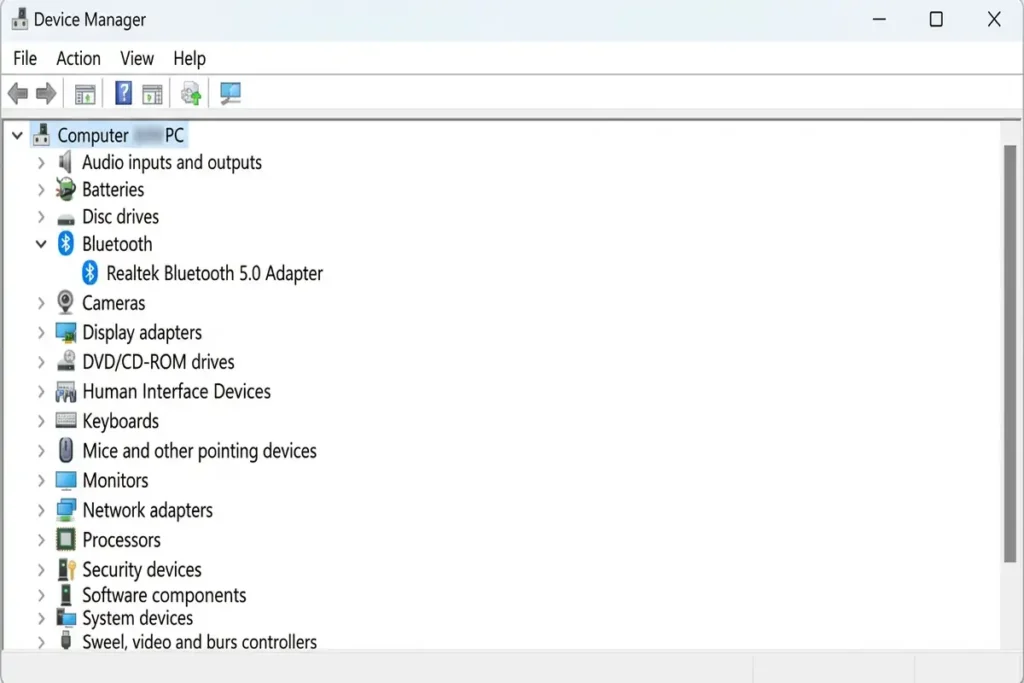
Open Device Manager
- Right-click Start.
- Select Device Manager.
- Look for Bluetooth.
- Expand the Bluetooth section.
You should normally see your Bluetooth adapter listed there.
If Bluetooth isn’t listed, check Other devices for an unidentified device.
A missing Bluetooth option can happen when Windows can’t detect the adapter or when the appropriate driver isn’t installed.
8. Update the Bluetooth Driver
An outdated or incompatible Bluetooth driver can cause connection, pairing, and detection problems.
Update it through Device Manager
- Open Device Manager.
- Expand Bluetooth.
- Find your Bluetooth adapter.
- Right-click it.
- Select Update driver.
- Select Search automatically for drivers.
- Follow the instructions.
- Restart your PC.
Microsoft recommends checking the PC manufacturer’s website if Windows can’t find a newer driver.
For example, if you have a Dell, HP, Lenovo, ASUS, or Acer laptop, use the manufacturer’s official support page and search for your exact model.
Avoid downloading Bluetooth drivers from unknown websites.
9. Reinstall the Bluetooth Driver
Important: If you rely on Bluetooth as your only way to connect an important peripheral, make sure you have another way to control the PC before uninstalling the driver.
Steps
- Open Device Manager.
- Expand Bluetooth.
- Right-click your Bluetooth adapter.
- Select Uninstall device.
- Confirm the uninstall.
- Restart Windows.
Microsoft states that Windows can automatically reinstall the Bluetooth driver after restarting.
After Windows starts again, check whether Bluetooth has returned and test your device.
10. Roll Back the Bluetooth Driver After a Recent Update
If Bluetooth worked correctly before a recent driver or Windows update, the new driver could be responsible.
In that situation, rolling back the driver may help.
Try this:
- Open Device Manager.
- Expand Bluetooth.
- Right-click your Bluetooth adapter.
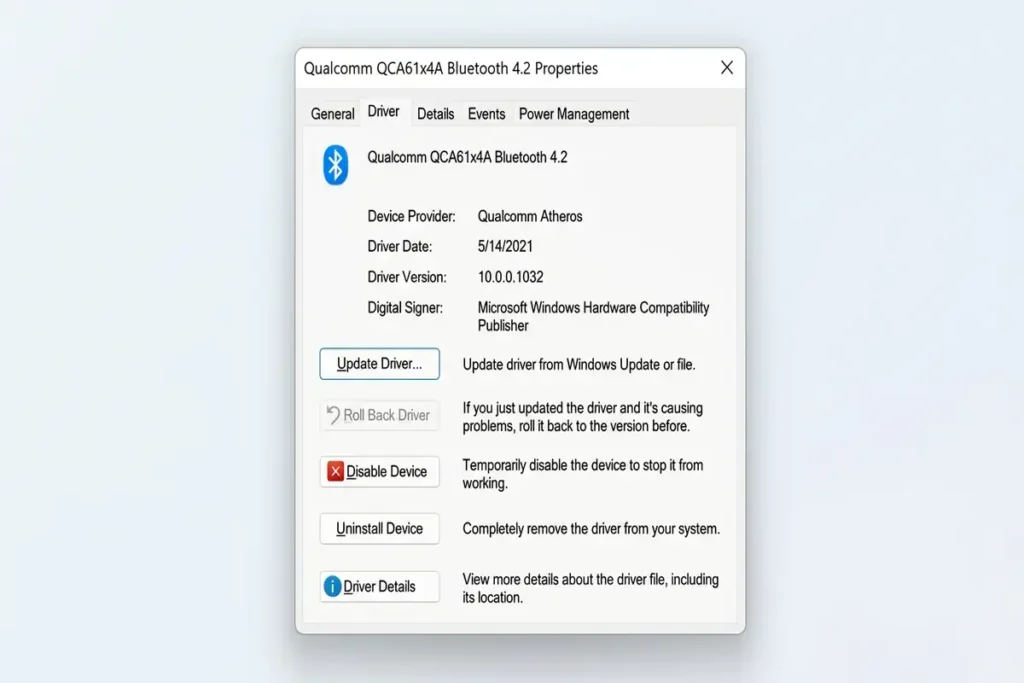
- Select Properties.
- Open the Driver tab.
- Select Roll Back Driver if the option is available.
- Follow the instructions.
- Restart Windows.
Microsoft specifically lists driver rollback as an option when Bluetooth problems begin after a recent driver or Windows update.
If Roll Back Driver is unavailable, Windows may not have an earlier driver stored on the PC.
What If Bluetooth Connects but There Is No Sound?
If your Bluetooth headphones or speaker connects successfully but you hear nothing, the problem may be related to Windows audio output rather than Bluetooth pairing.
Try:
- Select the Sound icon on the Windows taskbar.
- Check the selected output device.
- Make sure your Bluetooth headphones or speaker is selected.
- Open Settings → System → Sound.
- Check the Output section.
Microsoft has a separate troubleshooting guide for Bluetooth devices that connect but have no sound, including checking output settings, drivers, Windows updates, and pairing again.
Frequently Asked Questions
Why is Bluetooth not working on Windows 11?
Bluetooth can stop working because of driver problems, pairing issues, disabled Bluetooth, low device battery, wireless interference, Windows updates, or problems detecting the Bluetooth adapter.
How do I turn Bluetooth on in Windows 11?
Open Settings → Bluetooth & devices and turn Bluetooth on. You can also use the Bluetooth tile in Windows 11 Quick Settings.
Why can’t Windows 11 find my Bluetooth device?
Make sure the accessory is powered on, charged, within range, and in pairing mode. You can also try changing Bluetooth device discovery to Advanced and pairing the device again.
Why did Bluetooth disappear from Windows 11?
Bluetooth may disappear if Windows cannot detect the Bluetooth adapter, the driver is missing or incompatible, or a Windows update or hardware problem has affected Bluetooth. Check Device Manager and install the correct driver if necessary.
How do I reinstall Bluetooth drivers on Windows 11?
Open Device Manager, expand Bluetooth, uninstall the Bluetooth adapter, and restart the PC. Windows can reinstall the driver automatically after the restart.
More Troubleshooting Guides
Still having problems with your devices? Check out these related guides for more step-by-step solutions:
- How to Fix Windows 11 WiFi Keeps Disconnecting
- How to Fix Chrome Not Responding on Windows 11
- How to Fix Windows 11 Black Screen: 10 Solutions
Final Thoughts
If Bluetooth is not working on Windows 11, start with the simple fixes first: check Bluetooth, pairing mode, and the device connection. If the problem continues, update or reinstall the Bluetooth driver and check Device Manager.
The key is to identify whether the problem is with one device, the Bluetooth adapter, or Windows 11 itself.