

Google Pixel Camera Not Working? Try These Fixes
Your Google Pixel camera opens to a black screen, crashes when you tap the shutter, or shows a “Something went wrong” message. Sometimes, the front camera works while the rear camera doesn’t. In other cases, neither camera responds.
Before assuming the camera hardware is damaged, check whether the problem comes from the Camera app, an Android software issue, or another app using the camera.
These steps can help you troubleshoot a Google Pixel camera not working issue without jumping straight to a factory reset. You can also compare them with Google’s official Pixel Camera troubleshooting guide.
1. Turn Your Pixel Off Completely
Start with a full shutdown if the camera stopped working suddenly.
Press and hold the Power and Volume Up buttons, then tap Power off. Wait about 20 seconds before turning the phone back on.
If you own a Pixel 10 or Pixel 11 and the camera stopped working immediately after a recent update, some affected users have reported that leaving the phone completely powered off for around five minutes helped restore camera access. This is a user-reported workaround, not a guaranteed or officially confirmed fix.
Open the Camera app and test both cameras again.
2. Clear the Pixel Camera App Cache
Temporary app data can sometimes cause the Camera app to behave unexpectedly.
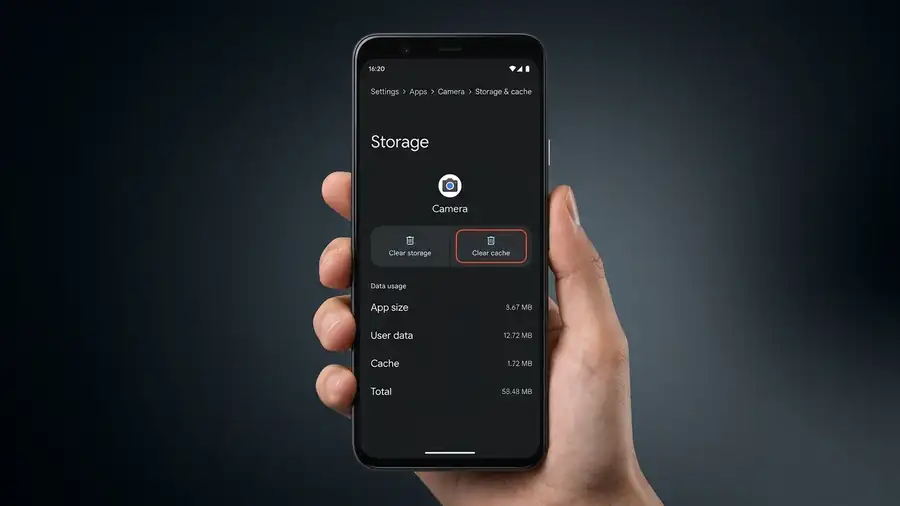
Try clearing its cache:
- Open Settings.
- Tap Apps, then See all apps.
- Select Camera.
- Tap Storage & cache.
- Choose Clear cache.
This removes temporary files, not your saved photos or videos.
Open the Camera app again and check whether the preview loads normally. Google’s official camera troubleshooting instructions also recommend clearing the Camera app cache when the app crashes or displays an error.
3. Check for Camera and Android Updates
An outdated Camera app or system component can cause compatibility problems.
First, open the Google Play Store:
- Tap your profile picture.
- Select Manage apps & device.
- Check for updates to Pixel Camera.
Then check for an Android update:
Settings → System → Software updates → System update
Install any available updates and restart your Pixel.
If the problem began immediately after an update, check whether Google has released a newer version before trying more drastic changes. You can follow Google’s official instructions for checking and updating Android.
4. Test the Front Camera and Other Apps
This test helps narrow down where the problem is coming from.
To open the selfie camera directly:
- Touch and hold the Camera app icon.
- Tap Take a selfie, if the shortcut appears.
- Check whether the front camera works.
You can also open another app that uses the camera, such as Google Meet.
Pay attention to what happens:
- Pixel Camera fails, but other apps work: The problem may be limited to the Camera app.
- Every camera app shows a black screen: The issue may involve Android’s camera system or hardware.
- Only one camera fails: There may be a problem with that specific camera.
If multiple camera apps crash when trying to access the camera, Google says a hardware issue is likely and recommends arranging a repair.
5. Test the Camera in Safe Mode
A downloaded app may interfere with camera access.
On newer Pixel phones:
- Press and hold Power + Volume Up.
- Touch and hold Power off or Restart on the screen.
- Tap OK when prompted to enter Safe Mode.
- Open the Camera app and test it.
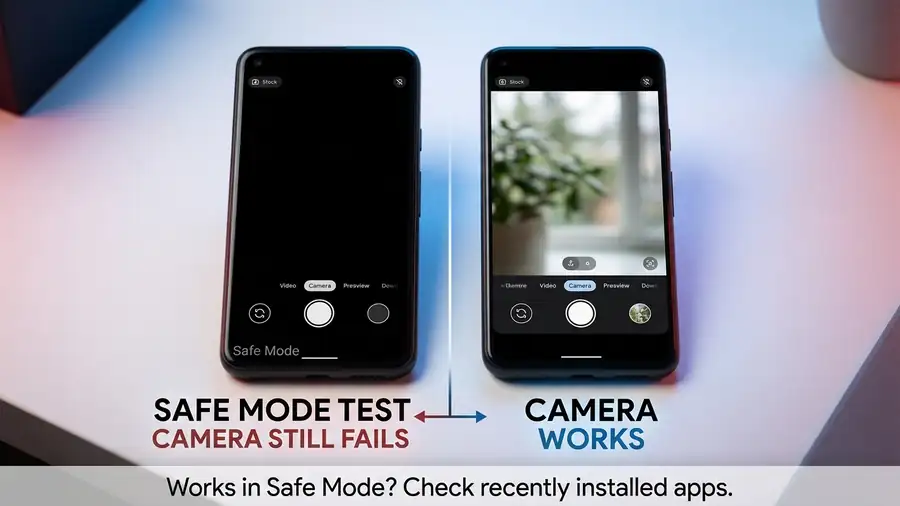
If the camera works in Safe Mode, a recently installed app may be causing the conflict.
Restart normally and remove recently installed apps one at a time, testing the camera after each removal.
If the camera still fails in Safe Mode, a third-party app is less likely to be responsible.
6. Know When It May Be a Hardware Problem
Software troubleshooting won’t repair a damaged camera module.
Consider contacting Google Pixel support or arranging a professional repair if:
- Multiple camera apps fail when accessing the camera.
- The camera problem continues in Safe Mode.
- The phone was recently dropped or exposed to liquid.
- One camera consistently fails while the other works.
Don’t factory-reset your phone as an early troubleshooting step. Back up your data before considering any reset, and remember that it may not fix a physical camera problem.
If you suspect hardware damage, check Google’s official Pixel phone repair options. Available repair services depend on your country, device, and warranty status.
Quick Diagnosis: What’s Wrong With Your Pixel Camera?
| What you’re seeing | What to check |
|---|---|
| Camera opens to a black screen | Full shutdown and restart |
| “Something went wrong” error | Clear cache and check updates |
| Camera app keeps crashing | Update Pixel Camera |
| Front camera won’t switch on | Try the Take a selfie shortcut |
| All camera apps fail | Test Safe Mode and consider repair |
| Camera works in Safe Mode | Check recently installed apps |
Frequently Asked Questions
Why is my Google Pixel camera showing a black screen?
It may be caused by a temporary camera process, an app problem, an Android software issue, or hardware damage. Test another camera app to narrow it down.
Will clearing the Camera cache delete my photos?
No. Clearing the cache removes temporary app files. It does not delete photos and videos saved in Google Photos or your phone’s storage.
Why does my Pixel camera say “Something went wrong”?
The Camera app may have failed to access the camera properly. Shut down the phone, clear the app cache, and check for updates. If every camera app shows the same error, the issue may be deeper than the Camera app itself.
More Android Troubleshooting Guides
- Pixel Lagging After Android 17 QPR1? What to Check
- Android Apps Keep Crashing? Here’s Why and What to Do
Final Thoughts
When your Google Pixel camera stops working, don’t assume the camera is broken right away. Start with a complete shutdown, clear the Camera app cache, check for updates, and test the camera in another app.
The most useful clue is whether the problem affects just Pixel Camera or every app trying to use the camera. That distinction can help you avoid unnecessary resets and identify when professional repair is the better option.