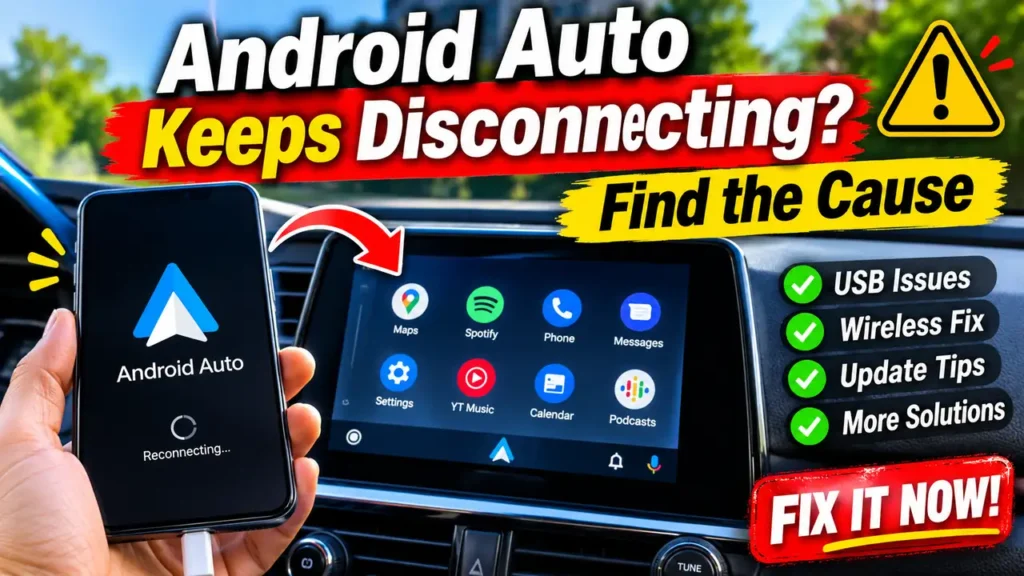

Android Auto Keeps Disconnecting? Find the Cause
You’re following Google Maps or listening to music when Android Auto suddenly disconnects. The car screen returns to its home page, then the connection comes back a few seconds later. If Android Auto keeps disconnecting while you’re driving, the cause could be a loose USB connection, unstable wireless pairing, an app problem, or your car’s infotainment system.
The tricky part is that these issues can look almost identical. Instead of changing several settings at once, start by checking exactly when the connection drops. That will help you narrow down the cause without unnecessarily resetting your phone.
Start Here: What Happens When Android Auto Disconnects?
Use these symptoms to decide which checks to try first:
| What happens | Where to start |
|---|---|
| Android Auto disconnects and reconnects repeatedly | USB cable or wireless connection |
| Wireless works inconsistently, but USB is stable | Bluetooth and Wi-Fi pairing |
| Maps freezes but music keeps playing | Google Maps or app issue |
| The problem started after an update | Android Auto version and known issues |
| Several phones disconnect in the same car | Vehicle infotainment system |
1. Android Auto Keeps Disconnecting Over USB
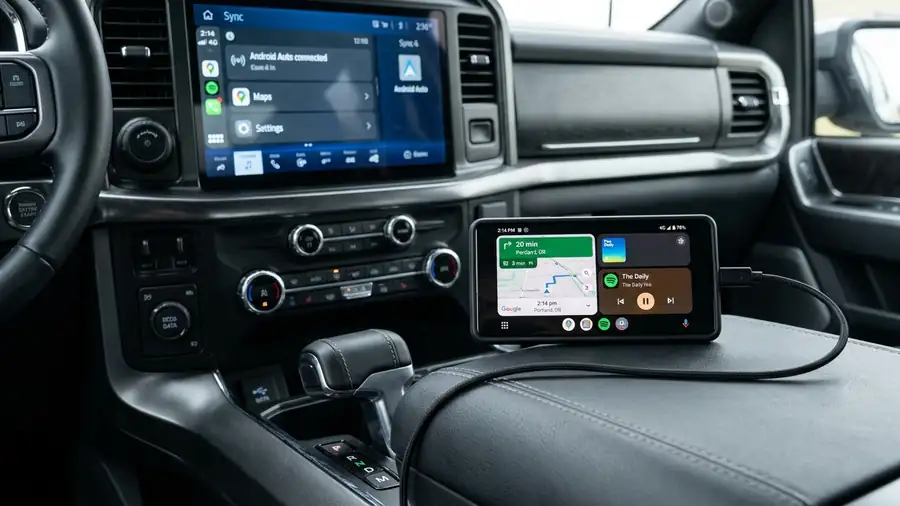
If you use wired Android Auto, check the cable before changing phone settings. A cable may charge your phone normally but still have an unstable data connection.
Try these steps:
- Replace the cable with a short, good-quality USB cable that supports data transfer.
- Connect directly to the car’s USB port instead of using an adapter or extension.
- Check both the phone’s USB port and the car’s port for dust or debris.
- Try another USB port if your vehicle supports Android Auto through more than one port.
- Make sure Android Auto is enabled in your car’s infotainment settings.
Google’s own connection troubleshooting guidance recommends checking the cable and ports, and notes that defective USB cables are a common cause of connection trouble.
If Android Auto still disconnects, test another compatible phone with the same cable and car. This helps determine whether the issue follows your phone or stays with the vehicle.
2. Wireless Android Auto Keeps Disconnecting
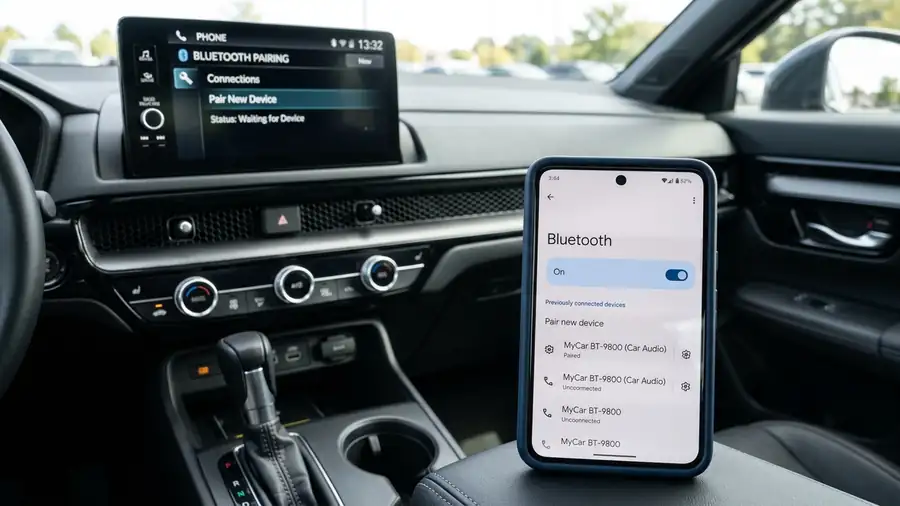
Wireless Android Auto depends on Bluetooth and Wi-Fi. If the connection drops every few minutes, remove the existing pairing and set it up again.
- Open your phone’s Bluetooth settings.
- Remove your car from the saved devices.
- Delete your phone from the car’s paired-device list.
- Restart your phone and the infotainment system.
- Pair the devices again and complete the Android Auto setup.
Keep Bluetooth and Wi-Fi enabled during setup. If possible, test another compatible phone in the same car.
One useful test: If wired Android Auto works reliably but wireless keeps disconnecting, focus on the wireless connection rather than replacing USB cables.
3. Android Auto Started Disconnecting After an Update
If Android Auto worked normally before a recent update, check its version.
In August 2026, Google confirmed that Android Auto 17.4 and newer included a fix for a particular issue causing random disconnections and freezes on some phone and car combinations. This does not mean every connection problem is fixed by that update, but affected users should make sure they’re running a current version.
To check:
- Open the Google Play Store.
- Search for Android Auto.
- Open its app page.
- Install the update if one is available.
You should also check Google’s Android Auto Known Issues page. It lists problems the Android Auto team has addressed and issues still being investigated.
4. Google Maps Freezes but Android Auto Stays Connected
Not every problem on your car screen means Android Auto has disconnected.
For example, if music continues playing and the Android Auto interface remains visible while Google Maps freezes, troubleshoot Maps first:
- Update Google Maps through the Play Store.
- Close and reopen the app.
- Restart your phone.
- Test another navigation app supported by Android Auto.
If only one app freezes, changing the USB cable or deleting Bluetooth pairings may not solve the problem.
5. Android Auto Disconnects Only in One Car
Try your phone in another compatible vehicle, or test another phone in your car.
- Your phone disconnects in multiple vehicles: Check your phone’s software and Android Auto installation.
- Other phones also disconnect in your car: Check the vehicle’s USB port, wireless system, and infotainment software.
Some vehicle-specific problems require an infotainment software update from the manufacturer. Check your owner’s manual or contact the dealership if the issue happens with multiple phones.
When Should You Contact Support?
If Android Auto keeps disconnecting after these checks, collect the following information before reporting the problem:
- Phone model and Android version
- Android Auto app version
- Car make, model, and year
- Whether you use USB or wireless
- Whether the problem started after an update
You can visit the Android Auto Help Community or contact your vehicle manufacturer if the problem appears limited to the car’s infotainment system.
Frequently Asked Questions
Why does Android Auto keep disconnecting while driving?
Possible causes include an unstable USB data connection, wireless pairing problems, outdated software, or a vehicle infotainment issue. Comparing wired and wireless connections is a useful first test.
Why does wireless Android Auto disconnect but USB works?
This suggests the problem may be related to the wireless setup, Bluetooth, Wi-Fi, or the car’s wireless system. Re-pair both devices and test another compatible phone if possible.
Does Android Auto 17.4 fix random disconnections?
Google confirmed that version 17.4 and newer addressed a specific wave of random disconnections and freezes reported in 2026. Other connection problems may have different causes.
More Android Troubleshooting Guides
Final Thoughts
When Android Auto keeps disconnecting, don’t start by resetting your phone. Check whether the problem happens over USB or wireless, then test another phone or vehicle if possible. These comparisons can help you identify whether the issue is with the cable, wireless pairing, phone software, or car system.