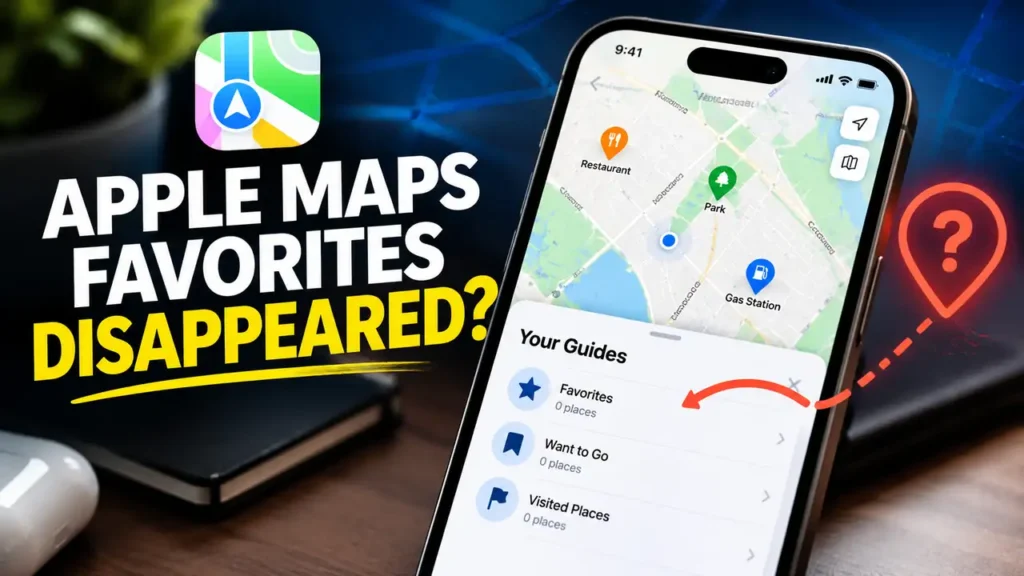

Apple Maps Favorites Disappeared on iPhone? How to Find Them
If your Apple Maps favorites disappeared on your iPhone, your saved locations may not be permanently lost. They might still be available in your Guides, or the problem could involve syncing between your Apple devices.
If your Apple Maps favorites are missing after an iOS update, check the following steps before resetting your iPhone or changing important settings.
1. Check Your Guides and Favorites
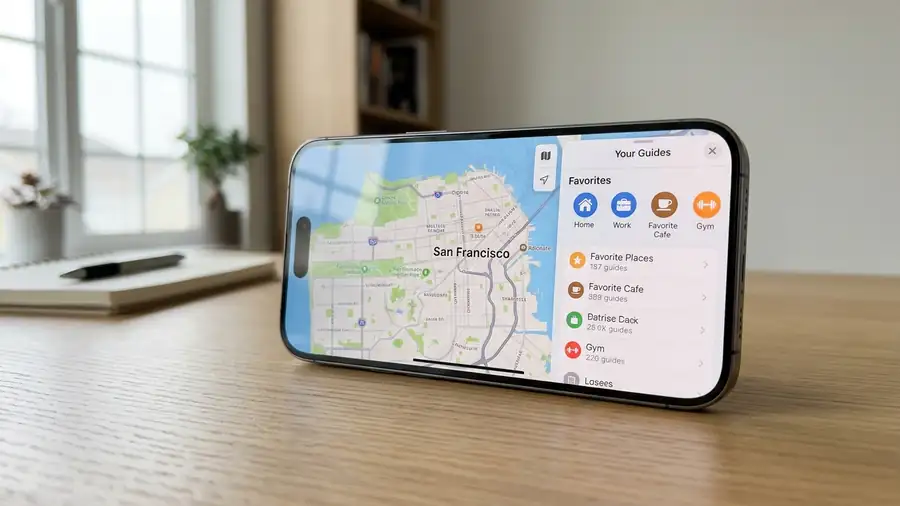
Start by checking the correct section in Apple Maps.
- Open the Maps app on your iPhone.
- Tap Your Guides.
- Tap Favorites.
- Check whether your saved locations appear.
Apple confirms that a guide called Favorites is available in Maps. If you don’t see your locations, check your other saved places and guides.
For detailed instructions, see Apple’s guide to organizing places with custom guides in Maps.
You can also check Apple’s guide to adding places and notes in Maps to understand how saved locations are organized.
2. Check Maps on Another Apple Device
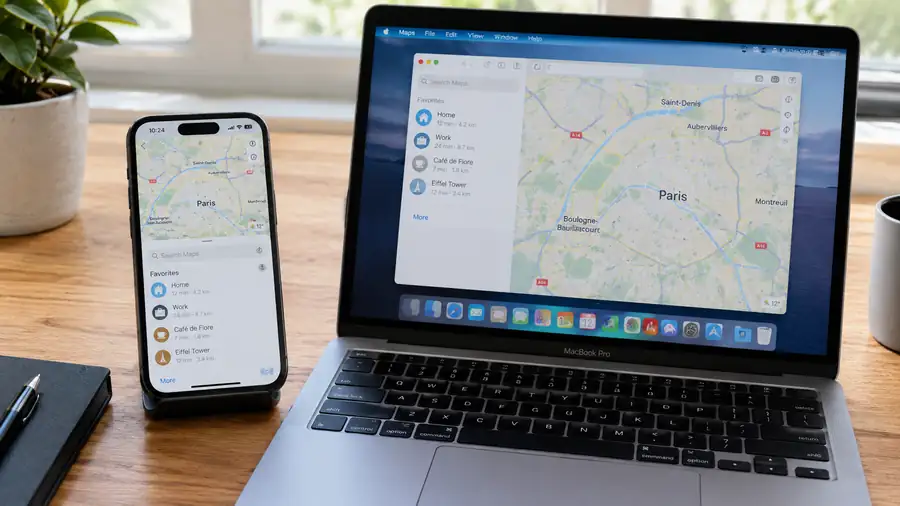
If you use the same Apple Account on a Mac or iPad, open Maps on that device and look for your missing favorites.
- Favorites appear on another device: Your saved locations may still exist, and the problem could be limited to your iPhone.
- Favorites are missing everywhere: Check your account and syncing settings before trying more drastic fixes.
If the problem started after an iOS update, our guide to iOS 27 problems and what to check after an update may also help you troubleshoot other update-related issues.
Don’t delete a guide or remove saved places from a device where they are still available.
3. Check Your iCloud Settings
If Apple Maps favorites disappeared suddenly, check whether Maps syncing is available and enabled in your iCloud settings.
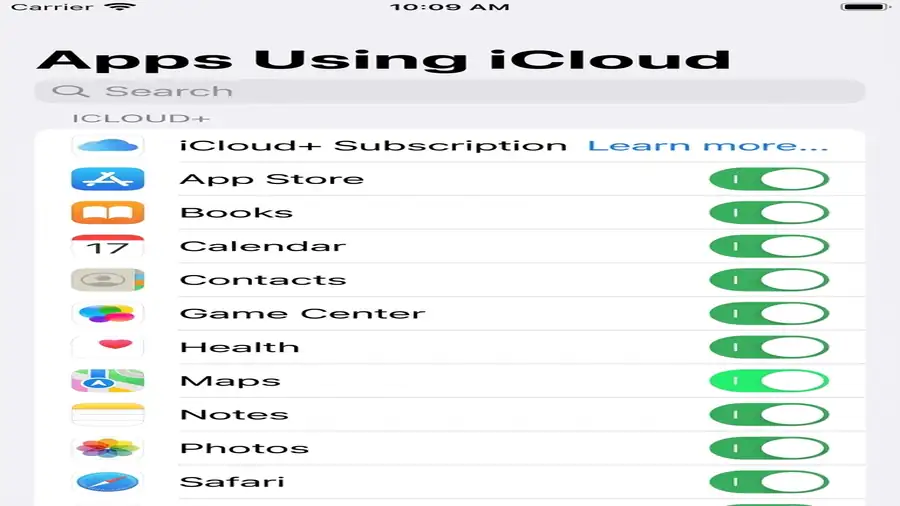
- Open Settings.
- Tap your name.
- Open iCloud.
- Look through the apps and features listed there.
- If Maps appears, check its syncing setting.
The available options can vary by iOS version. If Maps is already enabled, leave it enabled and continue with the next step.
If you enable a previously disabled setting, connect your iPhone to Wi-Fi and give it time to sync. Then reopen Maps and check Favorites again.
This step may help if syncing is involved, but it isn’t a guaranteed way to restore missing locations.
If you’re also having trouble with other iCloud content, read our guide to iCloud Photos not syncing. It explains how to investigate syncing issues without immediately resetting your device.
4. Restart Your iPhone and Check for Updates
A temporary software issue may prevent Maps from displaying saved information correctly.
Restart your iPhone, open Maps again, and check Your Guides → Favorites.
Next, go to:
Settings → General → Software Update
If an update is available, review it and install it when you’re ready. This is particularly worth checking if the issue began after an iOS update, although installing an update isn’t guaranteed to restore missing favorites.
If other apps are also malfunctioning, our guide to FaceTime not working on iPhone covers additional troubleshooting checks for iPhone software and apps.
5. Give Your iPhone Time to Sync
If your favorites appear on another device but not on your iPhone, connect your phone to reliable Wi-Fi and allow some time for syncing.
Make sure both devices use the same Apple Account. Then reopen Maps and check your Favorites again.
Avoid repeatedly switching iCloud settings off and on. If the locations remain missing, continue investigating before attempting a reset.
6. Avoid Resetting Your iPhone Too Soon
Before erasing your iPhone or restoring a backup, confirm whether your saved locations are available on another device.
If you can still see your favorites elsewhere, preserve that copy while troubleshooting. If your locations are missing across all your devices and the steps above haven’t helped, contact Apple Support for guidance specific to your account and device.
Frequently Asked Questions
Why did my Apple Maps favorites disappear?
Possible explanations include a display issue, a syncing problem, or a software issue. Check Your Guides, Favorites, your Apple Account, and your other devices before assuming the locations are permanently lost.
How do I find missing Apple Maps favorites after an iOS update?
Open Maps, tap Your Guides, and select Favorites. Then check Maps on another device, review your iCloud settings, and restart your iPhone.
Can I recover deleted Apple Maps favorites?
Recovery depends on whether your saved locations are still available on another device or through synced data. Check those sources before resetting your phone. If your locations are missing everywhere, Apple Support can advise you on available options.
Why are my Apple Maps favorites missing on my iPhone but showing on my Mac?
Your saved locations may still exist, while your iPhone isn’t displaying or syncing them correctly. Check that both devices use the same Apple Account and allow time for syncing.
More Guides
Still having trouble with your iPhone or iCloud? Check these related troubleshooting guides:
- iOS 27 Problems? What to Check After the Update
- iCloud Photos Not Syncing? Here’s Why and How to Fix It
- FaceTime Not Working on iPhone? 8 Things to Check
Final Thoughts
If your Apple Maps favorites disappeared on your iPhone, start by checking Your Guides → Favorites. Then compare Maps on another device, review your iCloud settings, and restart your iPhone if needed.
Avoid resetting your phone before confirming whether the saved locations still exist elsewhere. These checks can help you investigate the issue without risking data you may still be able to access.