
Your Microphone Works in Windows 11, but Apps Can’t Hear You
Your microphone passes the Windows sound test, but Discord, Zoom, or Chrome still can’t hear you. That’s confusing because the device appears to work normally everywhere else.
If your Windows 11 microphone is not working in apps, the microphone itself may be fine. The problem could be Windows privacy settings, an app using the wrong input device, or a browser permission that was blocked earlier.
Before reinstalling drivers or replacing your headset, find out where the audio stops.
First, Find Out Which Apps Are Affected
The pattern can tell you where to look:
| What happens? | Check first |
|---|---|
| Microphone fails in every app | Windows permissions and input settings |
| Works in Zoom but not Discord | Discord input device and voice settings |
| Works in desktop apps but not Google Meet | Chrome site permissions |
| Windows test also detects no sound | Connection, mute switch, or driver |
If only one application has the problem, start with that app rather than changing Windows audio drivers.
1. Check Windows Microphone Access
Windows has separate microphone permissions. Enabling access for the device doesn’t automatically mean every application can use it.
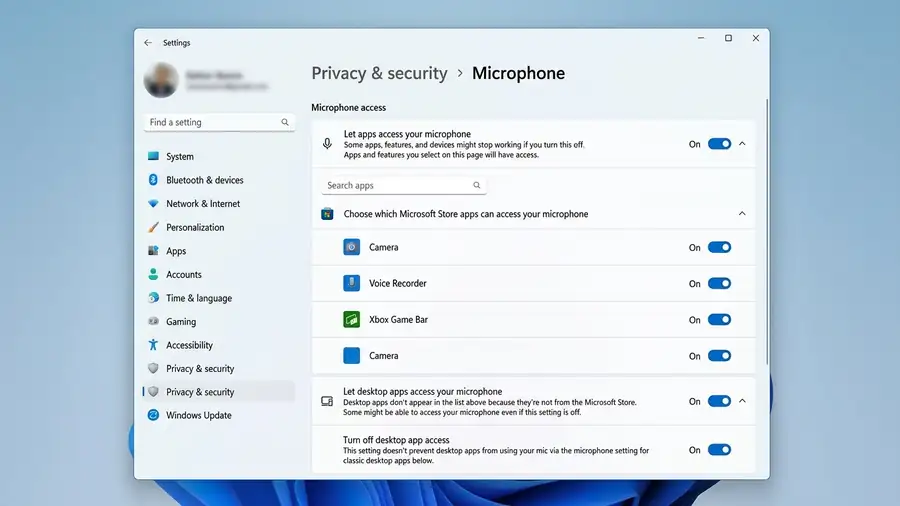
- Press Windows + I.
- Select Privacy & security.
- Open Microphone.
- Turn on Microphone access.
- Enable Let apps access your microphone.
- Also enable Let desktop apps access your microphone.
The last option matters for traditional desktop programs such as Discord and Zoom.
One important detail: desktop apps may not appear individually in the Microsoft Store app permission list. Windows provides a separate setting for desktop app access.
See Microsoft’s guide: Turn on app permissions for your microphone.
2. Make Sure the App Is Using the Right Microphone
Windows might be testing your laptop microphone while Discord or Zoom is listening to a disconnected headset.
Open the affected application’s audio settings and check its input device:
- Discord: User Settings → Voice & Video → Input Device.
- Zoom: Settings → Audio → Microphone.
- Microsoft Teams: Settings → Devices → Microphone.
Select the microphone you actually use. If the app offers a microphone test, run it before starting another call.
In Discord, check whether you accidentally selected Push to Talk instead of Voice Activity. If you use Push to Talk, the microphone won’t transmit until you press the assigned key.
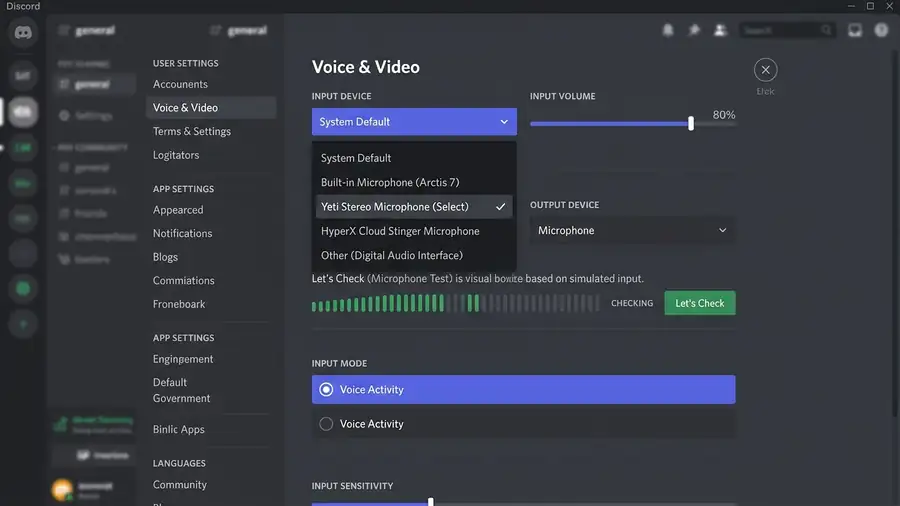
If Discord still can’t hear you, try these additional checks:
- Select Let’s Check to test your microphone.
- Confirm that the correct input device is selected.
- Open Voice & Video settings and use Reset Voice and Video Settings if the problem continues.
Discord provides more troubleshooting steps in its official Voice and Video guide.
3. If Chrome Can’t Hear You, Check Site Permissions
If your microphone works in desktop apps but fails in Google Meet or another website, Chrome may be blocking access.
- Open Chrome.
- Select the three-dot menu.
- Go to Settings → Privacy and security → Site settings.
- Select Microphone.
- Check whether the website appears under blocked sites.
- Change its permission to Allow if necessary.
Also check the selected default microphone on the same settings page.
There are two separate permissions to consider: Windows must allow Chrome to access the microphone, and Chrome must allow the individual website to use it.
A website can have permission but still receive audio from the wrong input device.
See Google’s official Chrome microphone guide.
4. Check the Microphone’s Input Level in Windows
If the app detects your microphone but nobody can hear you, check whether Windows is receiving a usable signal.
- Open Settings → System → Sound.
- Scroll to Input.
- Select your microphone.
- Check the input volume.
- Run the microphone test and speak normally.
Make sure the headset’s physical mute switch is off, too. Some USB and Bluetooth headsets have their own mute controls that Windows cannot override.
If the input level stays at zero, test another port or microphone if possible.
5. Close Other Recording Apps Temporarily
Close other meeting, recording, and voice-chat applications, then reopen the one you’re troubleshooting.
If the microphone starts working, reopen those programs one at a time. This can help identify whether a particular audio utility or application is interfering.
Don’t assume another app is automatically blocking the microphone; use this as a test to narrow down the cause.
6. When Should You Check the Microphone Driver?
Move to driver troubleshooting if the microphone also fails in the Windows sound test or doesn’t appear under Input.
Open Device Manager and check these sections:
- Audio inputs and outputs
- Sound, video and game controllers
Look for your microphone or audio device and check whether it has a warning symbol.
If the device is missing or showing an error, check for a driver update from your computer or microphone manufacturer’s official support website.
Microsoft’s microphone troubleshooting guide explains additional device and driver checks.
Frequently Asked Questions
Why does my microphone work in Windows but not Discord?
Discord may be using a different input device, or its voice settings may be incorrect. Check Voice & Video, select the correct microphone, and run the microphone test.
Why does Chrome say my microphone is blocked?
The website may have been denied microphone permission. Open Chrome’s Site settings and allow microphone access for that website. Also check Windows microphone access.
Why does my microphone work in Zoom but not other apps?
Zoom may have the correct input selected while another application is using a different microphone. Check the input settings separately in each app.
Do I need to reinstall my microphone driver?
Not necessarily. If the Windows microphone test works, investigate app permissions and input-device selection first.
More Windows Guides
Final Thoughts
When your Windows 11 microphone works in Settings but not in apps, don’t assume the device is broken.
Start with Windows microphone access, check the input selected inside the affected application, and review browser permissions if the problem happens online.
The most useful clue is whether the microphone fails everywhere or only in one app. Once you know that, you can focus on the right setting instead of changing things that already work.