
Windows 11 Audio Not Working? Here’s What to Do
If your Windows 11 audio is not working, the cause is often simple: Windows is using the wrong output device, an app is muted, audio enhancements are interfering, or the audio driver isn’t working correctly.
If you see “No audio output device is installed,” the problem is more likely related to device detection or the driver.
And if your sound stopped after a recent Windows update, especially with a USB audio device, the update may be relevant.
The fastest way to fix the problem is to first find out whether Windows sees your audio device and whether the problem affects every app or just one.
First: What Exactly Is Wrong?
| What you’re seeing | Check this first |
|---|---|
| No sound anywhere | Output device and volume |
| Only one app has no sound | Volume Mixer |
| “No audio output device is installed” | Device Manager |
| Bluetooth headphones connected but silent | Output selection |
| Sound stopped after an update | Windows Update and driver |
| USB headset stopped working | USB device and driver |
This helps you avoid changing drivers when the real problem is simply the wrong output device.
1. Check the Selected Audio Output
Windows 11 may have several audio devices available:
- Laptop speakers
- Monitor or HDMI audio
- Bluetooth headphones
- USB headset
- External speakers
Go to:
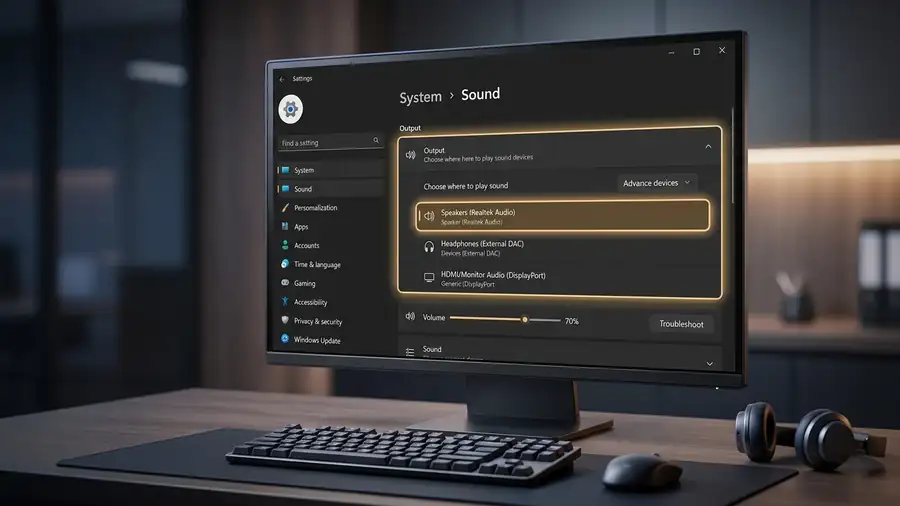
Settings → System → Sound
Under Output, select the device you actually want to use.
Then play a YouTube video or another audio file.
If sound comes back, Windows was simply sending audio to another device. Microsoft recommends checking the selected output first when multiple audio devices are available.
2. Check Volume Mixer If Only One App Has No Sound
If Windows sounds work but Chrome, Spotify, Discord, or another app is silent, don’t reinstall your audio driver yet.
Go to:
Settings → System → Sound → Volume mixer
Find the affected app and check:
- It isn’t muted
- Its volume isn’t set to zero
- The correct output device is selected
Windows can send one app to a different output device from the system default, making the problem look worse than it actually is.
3. Run the Windows Audio Troubleshooter
Windows 11 includes an automated audio troubleshooter through the Get Help app.
Open Get Help from the Start menu and search for the audio troubleshooter.
Let Windows run its diagnostics and apply any recommended fixes.
If it doesn’t solve the problem, continue with the manual checks below.
Microsoft currently recommends starting with its Windows audio troubleshooting guide for Windows 11 audio problems.
4. Turn Off Audio Enhancements
If Windows detects your speakers or headphones but there is still no sound, try disabling audio enhancements.
Go to:
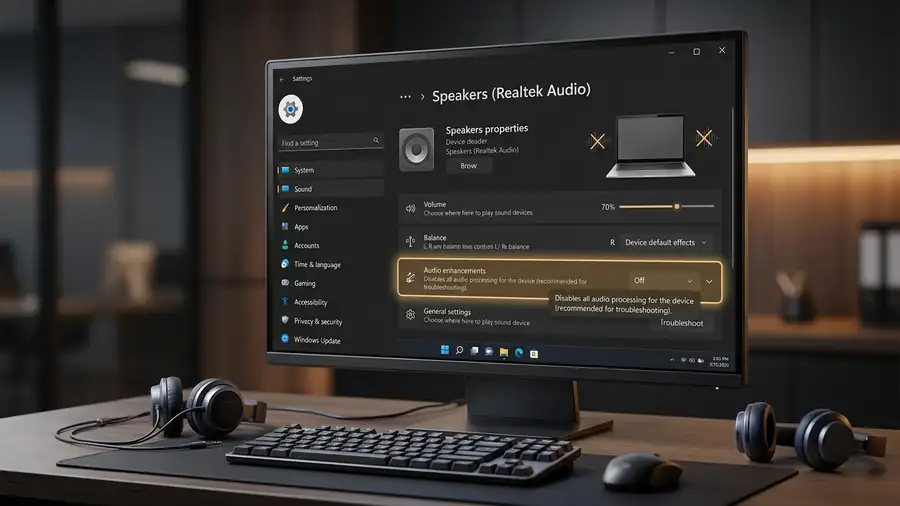
Settings → System → Sound → select your audio device
Find Audio enhancements and set it to Off.
Then test the sound again.
Microsoft notes that audio enhancements can sometimes interfere with audio playback.
5. Check If Windows Detects Your Audio Device
Go to:
Settings → System → Sound
Look under Output.
If your speakers or headphones appear, select them and test again.
If they don’t appear, or Windows says:
“No audio output device is installed”
the problem is probably not a simple volume setting.
Possible causes include:
- Missing or disabled driver
- Corrupted driver
- Windows update
- Hardware detection problem
- USB connection issue
Microsoft explains that this message can occur when the required audio driver is missing, outdated, disabled, or not loading correctly. You can also check Microsoft’s guide for missing audio output devices for additional troubleshooting steps.
6. Check Device Manager
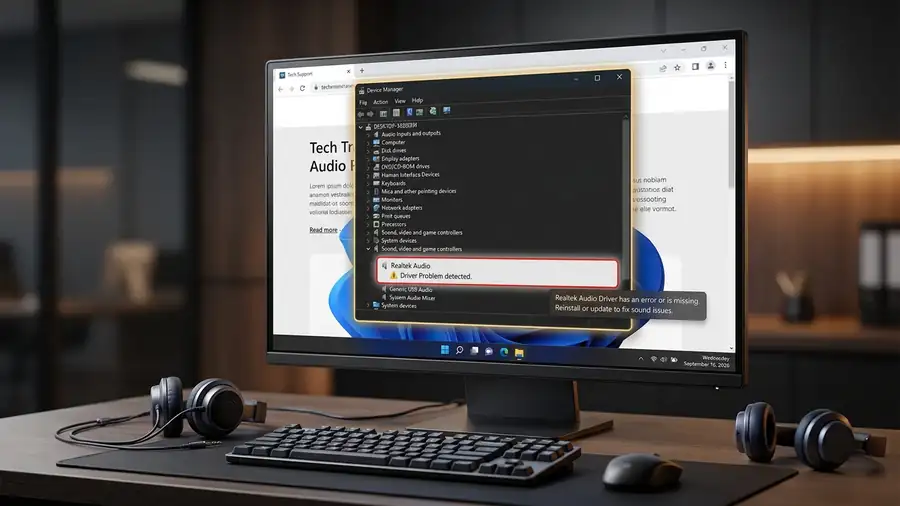
Right-click Start and open Device Manager.
Expand:
Sound, video and game controllers
Look for your audio device, such as Realtek Audio or another manufacturer driver.
If you see a warning icon, right-click the device and try:
Update driver
If the device is disabled, select Enable device.
You can also choose:
View → Show hidden devices
and then:
Action → Scan for hardware changes
If Windows still cannot find the device, download the correct audio driver from your computer manufacturer’s official support page rather than a random driver website.
7. Did the Sound Stop After a Windows Update?
If audio worked before a recent update, check Windows Update before making major changes.
Go to:
Settings → Windows Update → Check for updates
Install available updates and restart your PC.
If the problem started after an update, Microsoft also provides a guide for audio problems after a Windows update
There is also a current September 2026 issue involving some USB Audio Class 1.0 devices. Microsoft documented symptoms including Code 10, no audio output, and volume controls remaining at zero after the September 8 security update. Microsoft is continuing to investigate some of these cases.
So if your USB headset, DAC, or another USB audio device suddenly stopped working after the update, don’t assume the hardware has failed.
8. Test Another Audio Device
This is one of the quickest ways to identify where the problem is.
For example:
Headphones work but speakers don’t:
The problem may be the speakers, their driver, or the selected output.
Speakers work but USB headphones don’t:
Focus on the USB device, USB port, driver, or recent update.
Nothing produces sound:
The problem is more likely related to Windows settings, drivers, or audio services.
Try another USB port or another pair of headphones if possible.
9. Update, Reinstall, or Roll Back the Driver
If the device appears in Device Manager but still doesn’t work, the driver may be outdated or corrupted.
First try:
Device Manager → Sound, video and game controllers → right-click your audio device → Update driver
If that doesn’t help, install the latest driver from your PC manufacturer’s official website.
If the problem started immediately after a driver update, open:
Properties → Driver → Roll Back Driver
if that option is available.
Microsoft also recommends reinstalling the manufacturer’s audio driver when updating doesn’t resolve the problem.
10. Restart Windows Audio Services
If Windows detects your device but there is still no sound, restart the audio services.
Press:
Windows + R
Type:
services.msc
Press Enter.
Find:
Windows Audio
Right-click → Restart
Then do the same for:
Windows Audio Endpoint Builder
Test the sound again. Microsoft includes restarting these services among its Windows audio troubleshooting steps.
Quick Diagnosis
| Problem | What to try first |
|---|---|
| No sound from anything | Check Output and restart |
| Only one app has no sound | Volume Mixer |
| Audio device appears but is silent | Turn off Audio enhancements |
| “No audio output device” | Device Manager |
| Sound stopped after update | Windows Update |
| USB headset stopped working | Another USB port + update |
| Bluetooth headphones are silent | Select them under Output |
| Driver update caused the problem | Roll Back Driver |
Frequently Asked Questions
Why is my Windows 11 audio not working?
Common causes include the wrong output device, muted apps, audio enhancements, disabled or missing drivers, Windows audio services, or a recent Windows update.
How do I fix “No audio output device is installed”?
Open Device Manager and check whether your audio device is disabled, hidden, or showing a driver error. Update or reinstall the correct driver if necessary.
Why are my headphones connected but there is no sound?
Windows may still be using your speakers, monitor, or another output. Go to Settings → System → Sound and select your headphones under Output.
Why does only one app have no sound?
Check Settings → System → Sound → Volume mixer. The app may be muted or assigned to a different output device.
More Windows Troubleshooting Guides
- How to Fix Bluetooth Not Working on Windows 11
- Windows 11 WiFi Keeps Disconnecting
- How to Fix Windows 11 File Explorer Not Responding
- How to Fix Windows 11 Black Screen
Final Thoughts
When Windows 11 audio is not working, don’t start by reinstalling Windows or changing several drivers at once.
First check the Output device and Volume Mixer. Then determine whether Windows can detect your speakers or headphones. If the device is missing, move to Device Manager and the driver.
If the problem started after a recent update, check Windows Update—especially if you’re using a USB audio device.
The goal is simple: find where the sound stops, then fix that part instead of changing everything at once.