


iPhone Messages App Keeps Freezing? Try These Fixes
You open a conversation in Messages, try to type a reply, and suddenly the screen stops responding. Sometimes the app freezes while loading photos or gets stuck when you try to return to your conversations.
If your iPhone Messages app keeps freezing, the cause could be a temporary iOS glitch, a problem with one conversation, limited device storage, or an issue loading iCloud messages.
The important thing is to identify where the freeze happens before trying more drastic fixes. Here’s how to troubleshoot it without immediately deleting your messages or resetting your iPhone.
Why Does the iPhone Messages App Keep Freezing?
Messages can freeze for different reasons, depending on what happens when you use it.
| What happens | Possible cause |
|---|---|
| Messages freezes when opening | Temporary app or iOS glitch |
| Only one conversation freezes | Problem loading that conversation |
| Photos and videos keep loading | Attachment or network issue |
| Messages freezes across multiple chats | Broader iOS or performance issue |
| Messages won’t sync with your Mac | Messages in iCloud sync problem |
These are troubleshooting clues, not guaranteed diagnoses. Start with the simplest fixes below.
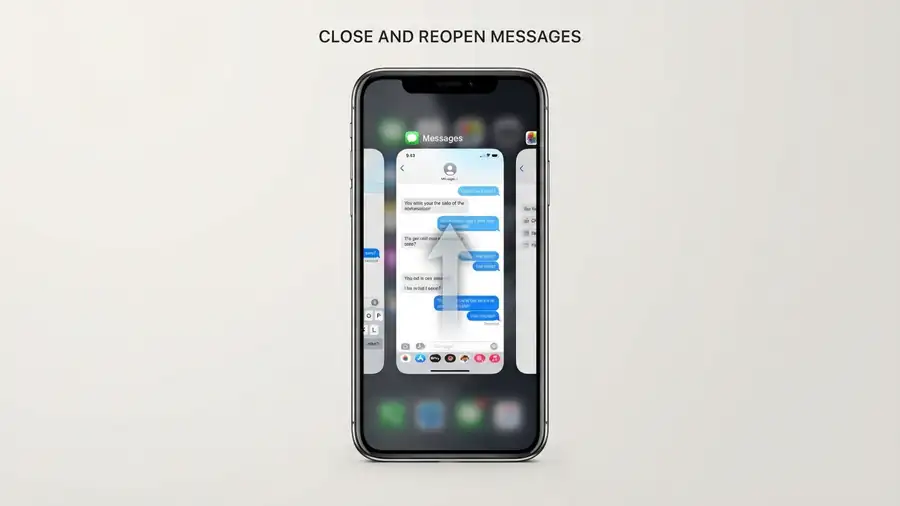
1. Force Close Messages and Reopen It
If Messages becomes unresponsive but the rest of your iPhone still works, close the app and launch it again.
- Swipe up from the bottom of the screen and pause in the middle.
- Find the Messages app preview.
- Swipe it up to close the app.
- Return to your Home Screen and open Messages again.
On an iPhone with a Home button, double-click the Home button to find the app preview.
This can clear a temporary app freeze without affecting your conversations.
2. Force Restart Your iPhone
If reopening Messages doesn’t help, restart your iPhone. A force restart can resolve temporary system problems that affect more than one app.
For iPhone 8 and later:
- Quickly press and release Volume Up.
- Quickly press and release Volume Down.
- Press and hold the Side button.
- Release it when the Apple logo appears.
Wait for your iPhone to restart, then open Messages and test it again.
A force restart does not erase your messages, photos, or apps.
3. Check Whether Only One Conversation Freezes
Does Messages work normally until you open a particular chat?
Open a different conversation and try typing a message. If the other chats work, the problem may be related to the conversation that keeps freezing.
Pay attention to chats with large photo, video, or file attachments. Try opening the conversation when connected to a stable Wi-Fi network.
Don’t delete the entire conversation as a first step. If it contains important messages, keep it until you’ve identified the problem.

4. Check Your iPhone Storage
Low available storage can affect overall iPhone performance, especially when the device is already struggling with other tasks.
To check your storage:
- Open Settings.
- Tap General.
- Select iPhone Storage.
- Wait for the storage details to appear.
- Check how much space is available.
If storage is nearly full, remove unnecessary downloads or apps you no longer use.
You can also review large attachments in Messages, but don’t delete important photos or conversations just to test the app.
If you use Messages in iCloud, deleting a message or attachment can remove it from your other synced Apple devices too.
5. Update iOS to the Latest Available Version
If Messages started freezing after an iOS update, check whether Apple has released a newer version with bug fixes.
Go to:
Settings → General → Software Update
If an update is available, review it and install it when you’re ready. Connect to Wi-Fi and power before updating.
Some users have reported intermittent Messages freezes on iOS 27.2, including conversations that stop responding and attachments that fail to load. These are individual reports, not confirmation that the update causes the problem for all iPhones.
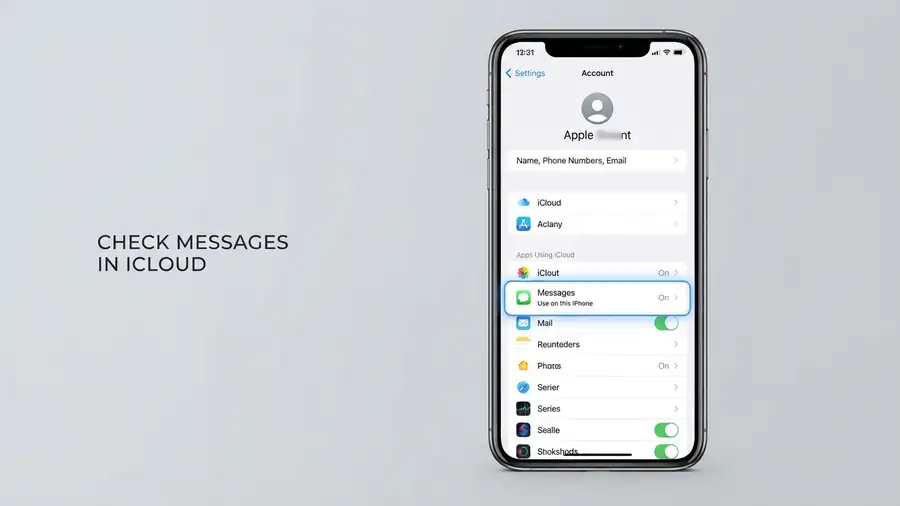
6. Check Messages in iCloud
This step is useful if the app freezes while loading older conversations, attachments remain stuck, or messages don’t appear consistently across your Apple devices.
To check the sync setting:
- Open Settings.
- Tap your name.
- Select iCloud.
- Tap Messages. If you don’t see it, select See All under the iCloud apps section.
- Check whether Use on this iPhone is enabled.
Make sure your iPhone has a reliable internet connection and that you’re signed in to the same Apple Account on your other devices.
Don’t repeatedly turn Messages in iCloud off and on. Changing this setting is not a guaranteed fix for an app that freezes.
When Should You Contact Apple Support?
If Messages continues freezing after these steps, or your entire iPhone becomes unresponsive, contact Apple Support.
Avoid erasing your iPhone or performing a factory reset as your first troubleshooting step. If a major reset becomes necessary, make sure your important data is backed up first.
Frequently Asked Questions
Why does Messages freeze when I open a conversation?
A specific conversation may contain attachments or data that the app is struggling to load. Test another chat to see whether the problem affects just one conversation or all of them.
How do I fix a frozen Messages app without losing texts?
Force close Messages, restart your iPhone, check available storage, and install any available iOS update. These steps don’t require deleting your conversations.
Why does my iPhone Messages app freeze when loading photos?
The problem may involve an attachment, an internet connection, or Messages in iCloud syncing. Test the conversation on a reliable network and check whether other chats load normally.
Can an iOS update cause the Messages app to freeze?
An iOS software issue can affect app performance, and some users have reported Messages freezes after recent updates. However, not every freeze is update-related, and Apple has not confirmed a widespread Messages freezing bug.
Should I delete my Messages conversations to fix freezing?
No. Deleting conversations is not a recommended first fix. Start with restarting the app, checking storage, and identifying whether one particular chat causes the problem.
More iPhone Troubleshooting Guides
Final Thoughts
When your iPhone Messages app keeps freezing, the best solution depends on where the problem occurs.
If every conversation freezes, start with restarting your iPhone and checking for an iOS update. If only one chat gets stuck, investigate that conversation before deleting anything. And if messages or attachments fail to sync across devices, check your iCloud settings.
Work through these steps one at a time. You may be able to get Messages working again without losing your conversations or resetting your iPhone.