

iPhone Camera Photos Not Uploading to Apps? What to Check
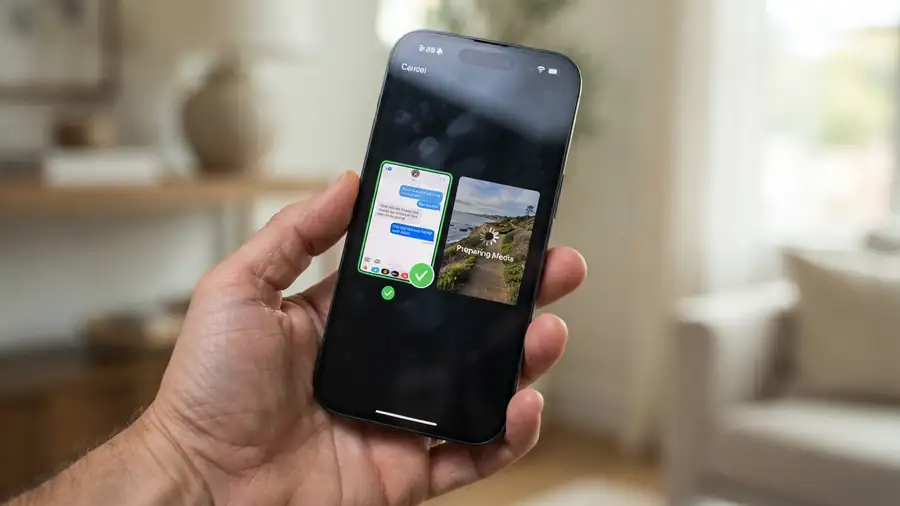
You take a photo with your iPhone camera, open WhatsApp or Instagram, and try to share it. But the image stays stuck on Preparing Media, refuses to load, or never finishes uploading.
The strange part? Screenshots and photos saved from other sources may upload normally.
If your iPhone camera photos won’t upload to apps, the problem could involve photo access, iCloud downloads, image compatibility, or a temporary iOS issue. Here are the checks that can help you identify what’s going wrong.
1. Restart Your iPhone
Start with a force restart, especially if camera photos suddenly stopped uploading across several apps.
- iPhone 8 or later: Press and quickly release Volume Up, then Volume Down. Hold the Side button until the Apple logo appears.
- iPhone 7: Hold Volume Down and the Side button together until the Apple logo appears.
- iPhone 6s or earlier: Hold the Home and Side or Top buttons together until the Apple logo appears.
This won’t delete your photos or messages. After restarting, try sharing one new camera photo.
2. Check Photo Access for WhatsApp or Instagram
An app may not have access to every photo in your library.
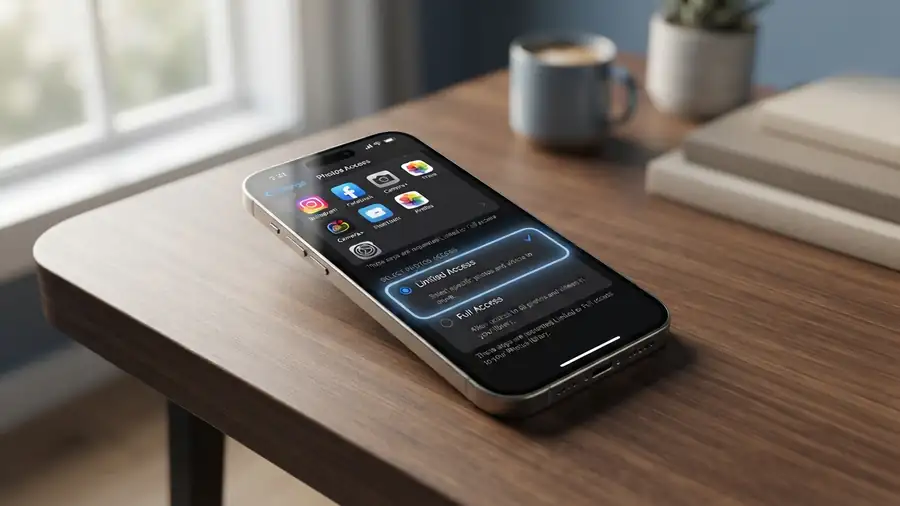
On recent iOS versions:
- Open Settings.
- Go to Privacy & Security.
- Tap Photos.
- Select WhatsApp, Instagram, or the affected app.
- Review its photo access permission.
If the app has Limited Access, check whether the photo you’re trying to share is included. You can allow access to additional photos or choose Full Access if you are comfortable with that.
For more details, see Apple’s guide to controlling app access to your photos and other information.
Close and reopen the app, then test the upload again.
3. Test a Screenshot Instead of a Camera Photo
This simple test can help narrow down the cause.
Take a screenshot and try uploading it to the same app. Then test a photo taken with your iPhone camera.
- Screenshot uploads, camera photo doesn’t: The issue may be related to the original camera image, its format, or how the photo is stored.
- Neither uploads: The app, its permissions, or your connection may be involved.
- Only one conversation or app has the problem: Test another conversation or a different app.
This distinction is useful when WhatsApp says Preparing Media but other images work normally.

4. Edit the Photo and Save a Copy
Some iPhone users have reported that making a small edit allows a camera photo to upload.
Open the affected image in Photos, tap Edit, make a minor adjustment, and save it as a copy if that option is available. Then try sharing the edited version.
This is a workaround, not a guaranteed solution. Keep the original photo until you confirm that the new copy works.
5. Check Your iPhone Camera Format
Some apps may have trouble processing certain image formats.
To check your camera settings:
- Open Settings.
- Tap Camera.
- Select Formats.
- If available, choose Most Compatible.
This setting makes new photos use JPEG rather than HEIF. It may improve compatibility with some apps, but it won’t repair every upload problem. It also doesn’t automatically convert photos you’ve already taken.
Apple explains the differences in its guide to HEIF and HEVC media formats.
6. Make Sure the Original Photo Is Downloaded
If you use iCloud Photos with Optimize iPhone Storage, some full-resolution originals may be stored in iCloud rather than kept locally on your device.
Open the Photos app, select the affected image, and give it time to download. Use a stable Wi-Fi connection and try sharing it again.
Also check Settings > General > iPhone Storage. Very low available storage can interfere with downloads and app activity.
If your photo library itself isn’t syncing properly, see our guide: iCloud Photos Not Syncing.
If your photos aren’t downloading or syncing correctly, follow Apple’s iCloud Photos troubleshooting steps.
7. Find Out Whether the Problem Is App-Specific
Try sharing the same image through another method, such as AirDrop or the Files app.
If it works elsewhere but fails in Instagram or WhatsApp, the issue may be limited to that app. Update it through the App Store, close it completely, and open it again.
If camera photos fail across multiple apps, check for an available iOS update under Settings > General > Software Update.
Frequently Asked Questions
Why does WhatsApp stay on Preparing Media?
WhatsApp may be struggling to access, download, or process the original image. Test a screenshot and check whether the original camera photo is available on your iPhone.
Why can I upload screenshots but not camera photos?
Screenshots and camera photos may be stored or processed differently. Check the original photo’s availability, format, and app permissions.
Will changing HEIC to JPEG fix the problem?
It may help with compatibility, but it isn’t a guaranteed fix. Changing Camera Formats affects new photos, not existing images.
More iPhone Guides from Neceb
- iCloud Photos Not Syncing
- iPhone Storage Full but You Have Space
- iPhone Photos Not in Recently Deleted
Final Thoughts
When iPhone camera photos won’t upload, don’t immediately delete the app or reset your phone. First, compare a camera photo with a screenshot, review photo permissions, and check whether the original image has downloaded from iCloud.
These tests can help you identify whether the problem is with the photo itself, iOS, or the app you’re using.