
iCloud Photos Not Syncing? Here’s Why and What to Do
Your iPhone takes new photos, but they don’t appear on your iPad, Mac, another iPhone, or iCloud.com. Maybe Photos says “Syncing with iCloud Paused,” the upload seems stuck, or only some recent photos are missing.
If you’re dealing with iCloud Photos not syncing, the problem isn’t necessarily iCloud itself. Syncing can pause because of your battery, Wi-Fi connection, iCloud storage, Apple Account, or a specific photo or video that failed to upload.
The best approach is to check the sync status first, then fix the specific reason shown on your iPhone.
First, Check the iCloud Photos Sync Status
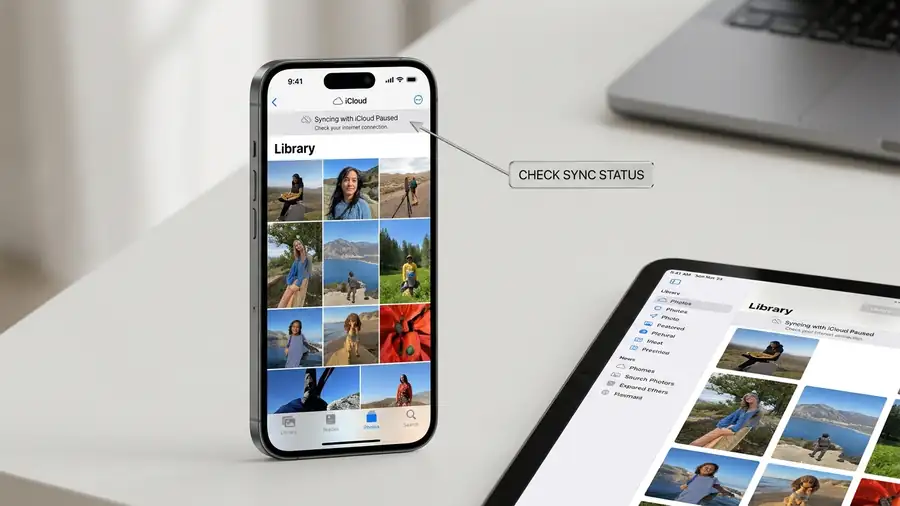
Open Photos → Collections, then tap your profile button in the top-right corner. Check the library status shown below your name and photo count.
You may see messages related to:
- Syncing with iCloud Paused
- Low Power Mode
- Low Data Mode
- Low Battery
- Poor Network Connection
- iCloud Storage is Full
Don’t ignore this message. It can tell you exactly why syncing has stopped.
Tip: Follow the instruction shown by Photos before trying more advanced fixes. Apple specifically recommends not turning off iCloud Photos when syncing is paused.
For Apple’s full troubleshooting steps, see Apple’s guide to fixing iCloud Photos sync issues.
1. Connect Your iPhone to Wi-Fi and Power
If you have a large photo or video library, syncing may simply need more time.
Connect your iPhone to a reliable Wi-Fi network, plug it into power, and leave it alone for several hours.
Apple recommends letting the device sync uninterrupted, potentially overnight. Larger libraries and large video files can take longer depending on your Wi-Fi speed.
If your photos appear later, there may not have been a real problem—the upload simply wasn’t finished.
2. Make Sure iCloud Photos Is Turned On
Go to:
Settings → [your name] → iCloud → Photos
Make sure Sync this iPhone is enabled.
Also check that you’re using the same Apple Account on the other devices where you expect to see the same photos. If iCloud Photos is disabled or a different account is being used, the libraries won’t match.
This is especially important after setting up a new iPhone or changing Apple Accounts.
You can also check Apple’s official guide for setting up iCloud Photos if you’re not sure whether the feature is configured correctly.
3. Check Your iCloud Storage
Go to:
Settings → [your name] → iCloud
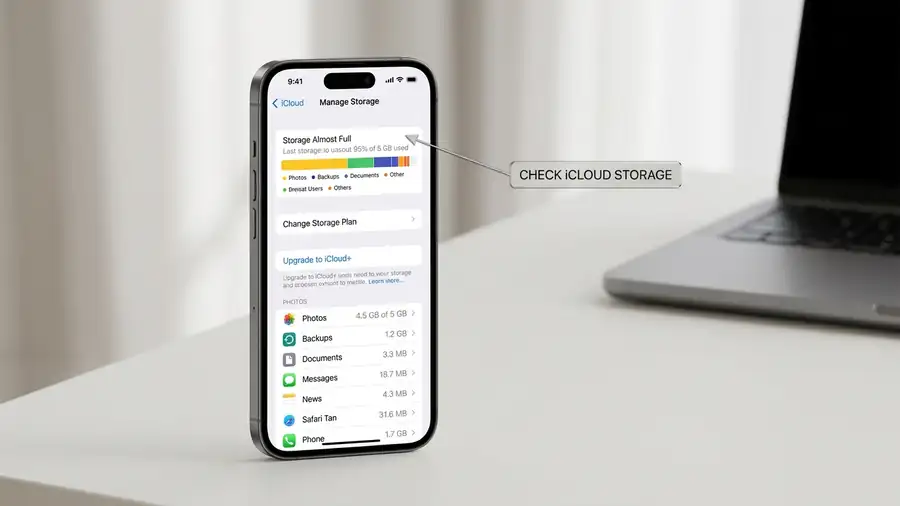
Check how much storage is available.
If your iCloud storage is full, new photos and videos can’t continue uploading normally. Photos may show a storage warning when this happens.
If storage is full, free up space or upgrade your iCloud+ plan.
Be careful when deleting photos to create space: with iCloud Photos enabled, deleting a photo from one device also deletes it from your other devices using the same library.
4. Check Low Power Mode and Low Data Mode
iCloud Photos can pause syncing to save battery or reduce data usage.
If Photos says syncing is paused because of Low Power Mode or Low Data Mode, address that setting and check the library status again.
A Poor Network Connection message can also explain why syncing has stopped. In that case, try a more reliable Wi-Fi connection.
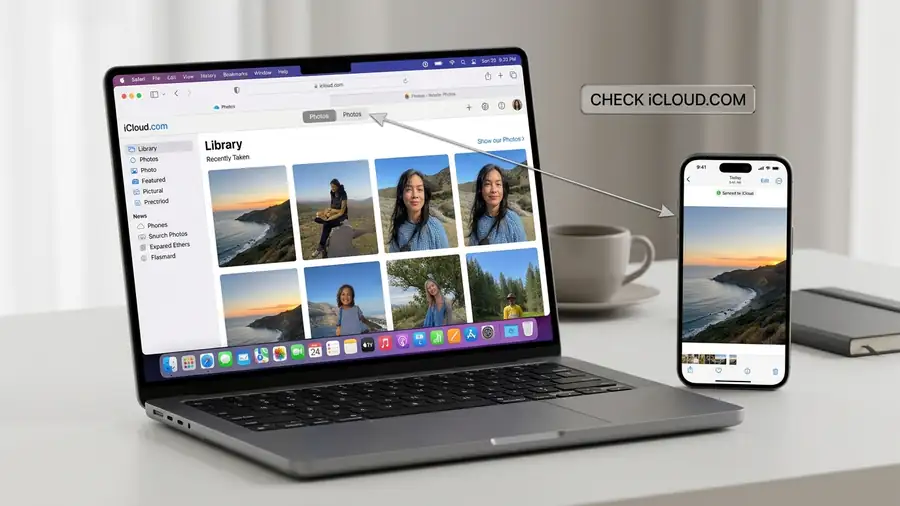
5. Check iCloud.com
This is one of the most useful tests because it tells you whether the photo has actually reached iCloud.
Open iCloud.com and sign in with the same Apple Account used on your iPhone. Then open Photos.
If the missing photo is already there, the upload succeeded. The problem is more likely with the other device where the photo isn’t appearing.
If the photo isn’t on iCloud.com either, the iPhone probably hasn’t finished uploading it.
Apple confirms that iCloud Photos can be viewed directly through a web browser on iCloud.com. You can also check Apple’s official guide to viewing your iCloud Photos on iCloud.com.
Quick test: Take one new photo and check iCloud.com after some time. If the new photo appears, iCloud Photos is syncing and the issue may be limited to older or specific files.
6. Check Your Library View
If a photo seems to have disappeared, make sure you’re looking at the correct library.
If you use iCloud Shared Photo Library, photos moved to the Shared Library no longer appear in your Personal Library.
So before assuming the photo failed to sync, check whether you’re viewing your Personal Library or Shared Library.
7. Check for “Unable to Upload”
If most photos are syncing but only a few aren’t, look for an Unable to Upload album.
Apple recommends checking this album when individual photos or videos fail to sync. You can edit an affected item and check whether it uploads afterward, or follow Apple’s instructions to re-import the files.
This distinction matters: if only a few files are affected, your entire iCloud Photos library may be working normally.
Try “Sync Immediately” If It Appears
On current iOS versions, Photos may offer Sync Immediately when syncing is paused.
Go to:
Photos → Collections → profile button → Sync Immediately → For Today
This prioritizes recently added items. Apple notes that it can increase battery and cellular data usage and won’t work while Low Power Mode or Low Data Mode is active.
Don’t Turn Off iCloud Photos Yet
Turning iCloud Photos off and back on might seem like a quick reset, but it’s not the first thing you should do.
Apple specifically recommends not turning off iCloud Photos when syncing is paused because this restarts the syncing process. Check the status message, Wi-Fi, power, storage, account, and affected files first.
If the problem continues, update your iPhone to the latest available iOS version. If other iCloud services are also failing, the problem may be broader than Photos.
Quick Diagnosis
| What you see | What to check |
|---|---|
| Syncing with iCloud Paused | Check the Photos status message |
| Low Battery | Connect the iPhone to power |
| Low Power/Data Mode | Check the relevant mode |
| iCloud Storage Full | Free up iCloud storage |
| Photo appears on iCloud.com | Check the other device |
| Photo isn’t on iCloud.com | Upload may not be finished |
| Only a few photos are missing | Check Unable to Upload |
| Photo seems to have disappeared | Check Personal vs Shared Library |
FAQ
Why are my iCloud Photos not syncing?
Common causes include paused syncing, poor Wi-Fi, low battery, Low Power Mode, Low Data Mode, full iCloud storage, an account mismatch, or individual files that failed to upload.
How long does iCloud Photos take to sync?
There isn’t a fixed time. Large libraries and large videos can take much longer. Apple recommends connecting your device to power and Wi-Fi and allowing it to sync uninterrupted, potentially overnight.
Why aren’t my new iPhone photos showing on iCloud.com?
Check the sync status in Photos first. If the photo hasn’t finished uploading, it won’t appear on iCloud.com yet. Also make sure you’re using the same Apple Account.
Should I turn iCloud Photos off and back on?
Not as your first fix. Check the reason syncing is paused first and follow the status message shown in Photos.
More iPhone & iCloud Guides
- iPhone Storage Full When You Have Space? Here’s Why
- iPhone Personal Hotspot Not Showing Up? Here’s Why
- iPhone Won’t Turn On? Here’s What to Check
- iPhone Spotlight Search Not Working? Here’s What to Check
Final Thoughts
When iCloud Photos isn’t syncing, don’t immediately reset your iPhone or turn iCloud Photos off.
Start with the Photos sync status, then check Wi-Fi, power, iCloud storage, your Apple Account, and the specific photos that are missing.
The iCloud.com test is especially useful: if the photo is already there, the upload worked and you should focus on the device where it isn’t appearing. If it isn’t there, the iPhone likely hasn’t finished uploading it.
In many cases, your photos aren’t lost. The sync process has simply paused for a specific reason.