
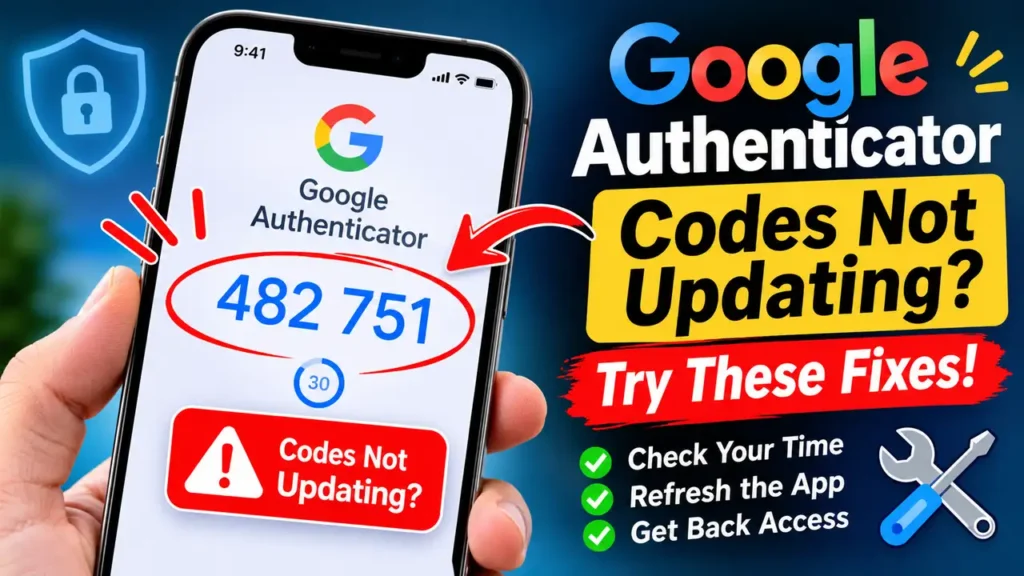

Google Authenticator Codes Not Updating? Here’s How to Fix It
You open Google Authenticator, but your six-digit codes stay frozen instead of changing. Sometimes closing and reopening the app makes them refresh, but the problem comes back later.
If Google Authenticator codes are not updating, the issue may involve the app’s display, your phone’s time settings, or an outdated app version. Here’s how to troubleshoot it without risking access to your accounts.
1. Check Whether the Codes Are Actually Frozen
Google Authenticator generates temporary verification codes that normally change every 30 seconds.
Open the app and watch one code for a full cycle. If the number stays unchanged after the countdown should finish, the app may not be refreshing correctly.
If the code changes normally but a website rejects it, skip to Step 4. That’s a different problem.
2. Force Close Google Authenticator and Reopen It
If the codes appear stuck, first try restarting the app.
On Android:
- Open Settings.
- Tap Apps, then Google Authenticator.
- Select Force stop.
- Reopen Google Authenticator.
On iPhone:
- Open the App Switcher.
- Find Google Authenticator.
- Swipe the app away to close it.
- Open it again.
Check whether the codes start changing normally.
This is a troubleshooting step, not a guaranteed permanent fix. If the problem returns, continue below.
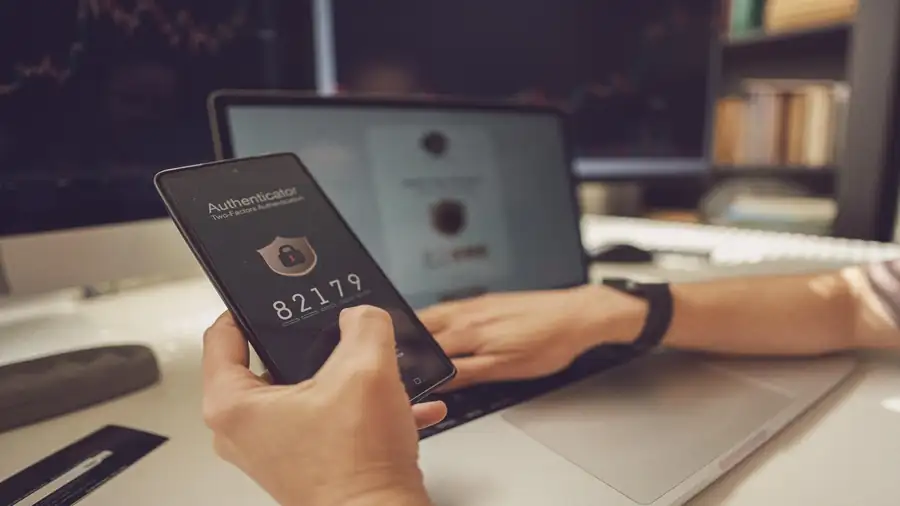
3. Turn On Automatic Date and Time
Authenticator codes depend on accurate device time. If your phone’s clock is incorrect, generated codes may not match what the website expects.
On Android:
- Open Settings.
- Go to System or General Management.
- Select Date and time.
- Enable Automatic date and time.
- Enable Automatic time zone if available.
On iPhone:
- Open Settings.
- Select General.
- Tap Date & Time.
- Enable Set Automatically.
Reopen Authenticator and test a fresh code.
Important: Google removed the old “Time correction for codes” setting in version 7.0. Current versions use your operating system’s time settings instead.
4. Check Why Websites Reject Your Codes
If your codes change normally but login attempts still fail, check these details:
- Select the code for the exact website you’re accessing.
- Make sure you’re using the correct account or username.
- Enter the code before it expires.
- Wait for a fresh code if the current one is about to change.
Google recommends checking the code’s expiration, account entry, and device time when a verification code doesn’t work.
Read Google’s official Google Authenticator troubleshooting guide for additional checks.
You can also review Google’s 2-Step Verification troubleshooting guide if you’re unable to complete sign-in.
5. Update the App and Restart Your Phone
An available app update may contain bug fixes or compatibility improvements.
Open Google Play Store or the Apple App Store, search for Google Authenticator, and install any available update.
Then restart your phone and test the app again.
Avoid uninstalling Authenticator or clearing its app data as an early troubleshooting step. If your codes aren’t synchronized or backed up, you could lose access to important accounts.
6. Does Google Authenticator Need Internet to Refresh Codes?
No. Google Authenticator can generate verification codes without Wi-Fi, mobile data, or an internet connection.
That means turning your internet connection off and on is unlikely to fix a frozen code. Focus first on restarting the app and checking your phone’s date and time.
What If Your Authenticator Codes Disappeared?
If the codes are missing rather than frozen, check the Google Account connected to Authenticator.
Tap your profile picture and make sure you’re signed in to the correct account. If you previously used Authenticator without an account, your codes may only be stored on that device.
Don’t uninstall the app until you’ve confirmed that your codes are synchronized or safely transferred.
If you cannot access your account, Google’s backup codes guide explains how to use backup codes as another sign-in method.
If you still can’t sign in, follow Google’s official account recovery process.
Frequently Asked Questions
Why does Google Authenticator keep showing the same code?
The app may not be refreshing its display correctly. Force close it, reopen it, and check your phone’s automatic time settings.
Why does Google Authenticator say invalid code?
You may be entering an expired code, selecting the wrong account entry, or using a phone with incorrect time settings.
Can Google Authenticator work without Wi-Fi?
Yes. It generates time-based codes locally, so an internet connection isn’t required to create them.
More Guides from Neceb
Having trouble with apps or your phone? Check these troubleshooting guides: