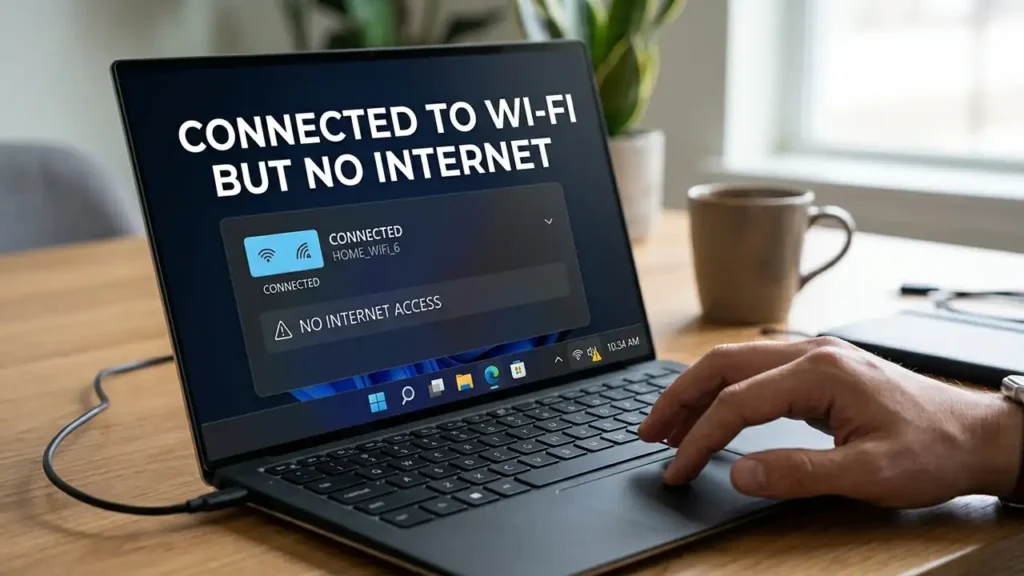

Windows 11 Connected to WiFi but No Internet: 10 Fixes
Your Windows 11 PC says “Connected” to Wi-Fi, but nothing online works? Websites may refuse to load, apps may stay offline, and Windows can show a perfectly normal Wi-Fi connection even when you have no internet access.
The confusing part is that Wi-Fi and internet access aren’t the same thing. Your PC can communicate with your router while the router, DNS, IP configuration, or Windows network settings are preventing internet access.
Before changing anything, there’s one quick test that can save you a lot of time: check whether your phone or another device works on the same Wi-Fi. If other devices work, the problem is probably on your Windows 11 PC.
In this guide, you’ll start with the quickest fixes and then move to IP, DNS, proxy, adapter, driver, and network-reset solutions if needed.
First: Find Out Where the Problem Is
Before changing anything, connect your phone or another computer to the same Wi-Fi network.
If every device has no internet
The problem is probably with your router, modem, or internet provider.
Restart your router and modem and check whether your ISP is experiencing an outage.
If other devices work normally
If your phone can browse the internet while your Windows 11 PC cannot, the problem is more likely related to:
- Windows network settings
- DNS
- IP configuration
- Wi-Fi adapter
- VPN or proxy
- Network driver
This distinction is important because it tells you where to concentrate your troubleshooting.
1. Turn Wi-Fi Off and Back On
Start with the simplest solution.
Sometimes Windows remains connected to the Wi-Fi network but the connection itself becomes stuck.
Try this:
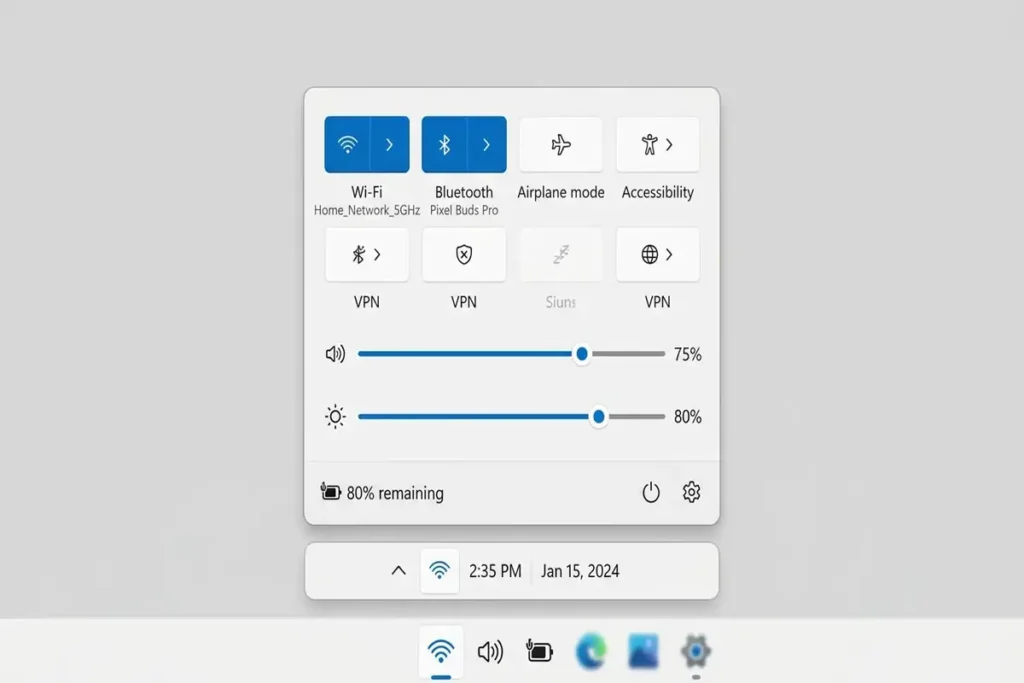
- Click the Network, Sound, or Battery area on the Windows taskbar.
- Turn Wi-Fi off.
- Wait about 10 seconds.
- Turn Wi-Fi back on.
- Connect to your network again.
- Open a website and test the connection.
If the internet starts working again, you probably had a temporary connection problem.
Microsoft includes turning Wi-Fi off and back on as one of the troubleshooting steps for a connected-but-no-internet situation.
2. Restart Your Router and Windows 11 PC
If Wi-Fi is connected but there is still no internet, restart both sides of the connection.
Restart your PC
Select:
Start → Power → Restart
Restart your router
- Turn off the router.
- Unplug it from power.
- Wait around 30 seconds.
- Plug it back in.
- Wait until the connection lights return to normal.
- Connect your Windows 11 PC again.
Then test a few different websites.
Why this helps
Your PC may have an old network session while the router may have temporarily lost its internet connection.
Restarting both devices gives the connection a clean start.
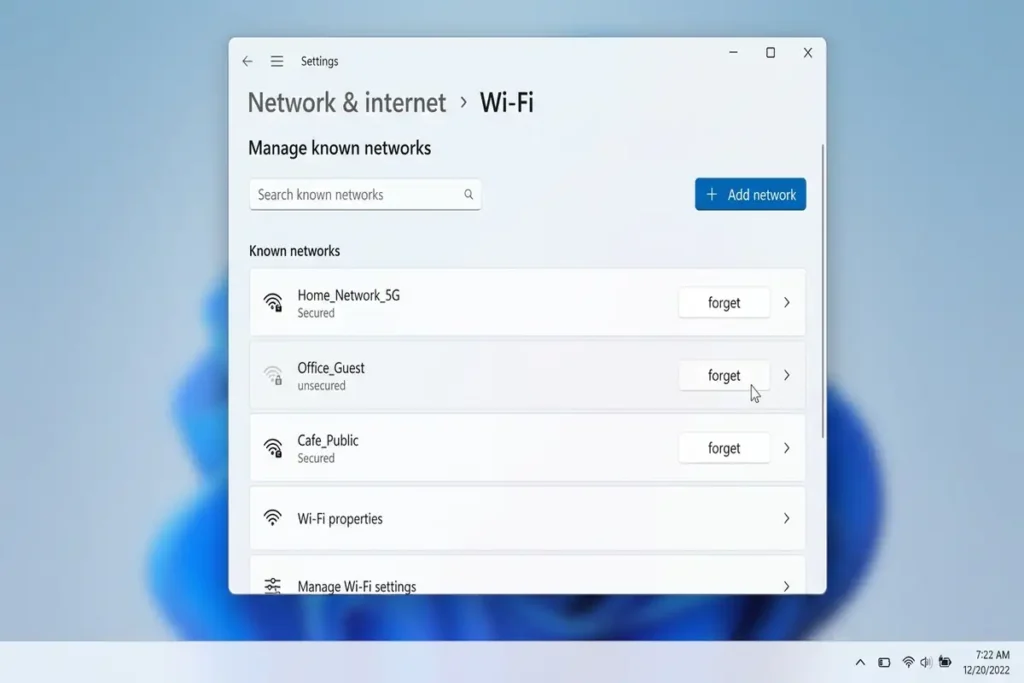
3. Forget the Wi-Fi Network and Connect Again
If Windows keeps showing Connected but websites don’t load, remove the saved Wi-Fi network and create a fresh connection.
On Windows 11:
- Open Settings.
- Select Network & internet.
- Select Wi-Fi.
- Open Manage known networks.
- Find your Wi-Fi network.
- Select Forget.
- Go back to the Wi-Fi list.
- Select your network.
- Enter the password again.
After reconnecting, test the internet.
This is particularly useful if the saved wireless profile has become corrupted or contains outdated connection information.
4. Run the Windows 11 Network Troubleshooter
Windows 11 includes network diagnostics through the Get Help app.
Microsoft currently recommends using the Network and Internet troubleshooter when you’re having difficulty connecting to the internet or another network.
How to run it
- Open the Get Help app.
- Search for:
connect to network and internet - Select Run network diagnostics.
- Follow the instructions.
- Apply any recommended fixes.
- Test your connection again.
This is a good early step because it can identify common configuration problems without requiring you to manually change advanced settings.
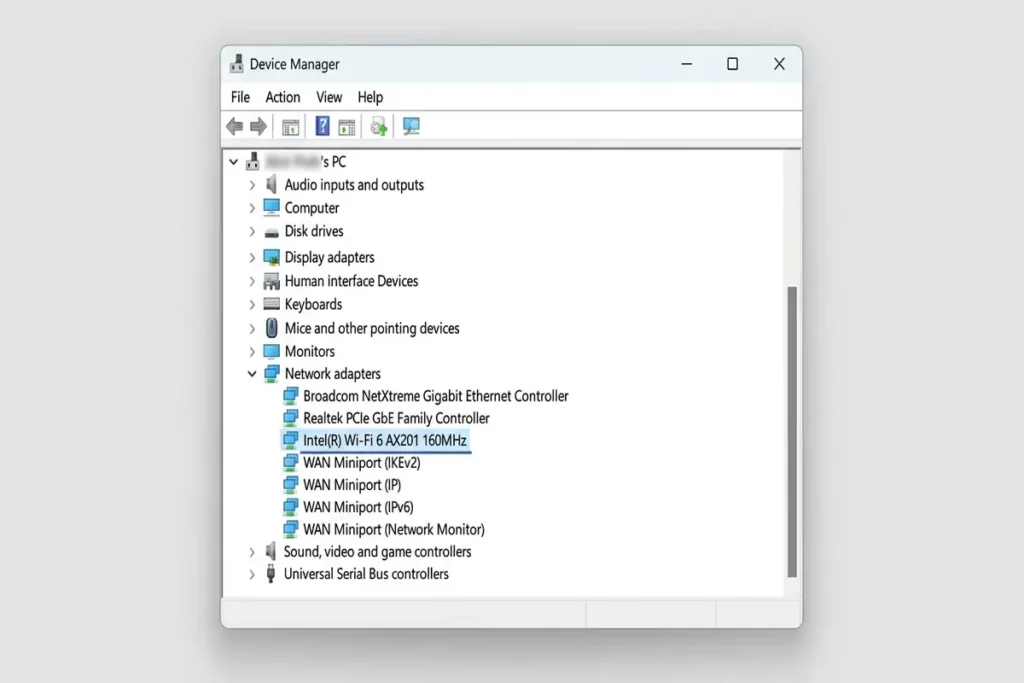
5. Disable and Re-enable the Wi-Fi Adapter
If Windows recognizes your Wi-Fi network but internet access isn’t working, restarting the Wi-Fi adapter can help.
Follow these steps:
- Right-click Start.
- Select Device Manager.
- Expand Network adapters.
- Find your wireless adapter.
- Right-click it.
- Select Disable device.
- Wait about 10 seconds.
- Right-click the adapter again.
- Select Enable device.
Reconnect to Wi-Fi and test your internet connection.
If the problem disappears after this step, the adapter may simply have been stuck.
6. Renew Your IP Address
A Windows PC normally receives its local IP address from the router.
If the IP configuration becomes invalid, you can be connected to Wi-Fi without being able to reach the internet.
Microsoft specifically recommends renewing the IP configuration for connected-but-no-internet problems.
Open Command Prompt as administrator
Search Windows for:
Command Prompt
Right-click it and choose:
Run as administrator
Run these commands one at a time:
Then:
Wait for each command to finish.
Then try opening a website again.
7. Flush the DNS Cache
DNS translates website names such as google.com into IP addresses.
If the local DNS cache contains outdated or problematic information, some websites may fail to load.
Microsoft recommends flushing the DNS cache as part of troubleshooting connected-but-no-internet problems.
Open Command Prompt as administrator and run:
You should receive a message indicating that the DNS Resolver Cache was successfully flushed.
Close Command Prompt and test your browser.
When this fix is especially useful
If:
- Wi-Fi says connected
- Some websites won’t load
- DNS-related errors appear
- Other network functions behave strangely
then flushing DNS is worth trying.
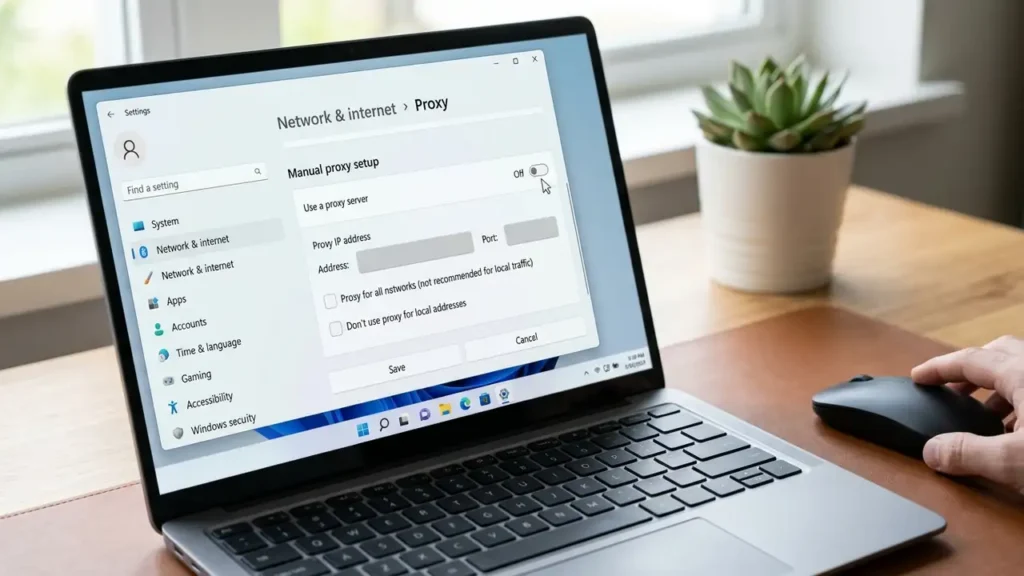
8. Check Proxy Settings
A manually configured proxy can interfere with normal internet access.
This is especially worth checking if:
- Wi-Fi works on your phone
- Windows says connected
- browsers can’t access websites
- the problem appeared after installing software or changing network settings
Check Windows proxy settings
Go to:
Settings → Network & internet → Proxy
Review the proxy configuration.
If you don’t intentionally use a proxy, make sure a manually configured proxy isn’t redirecting your traffic.
9. Update the Wi-Fi Driver
If the previous solutions haven’t helped, the Wi-Fi driver may need attention.
This becomes particularly important if:
- Wi-Fi disappeared after a Windows update
- the connection keeps failing
- the problem affects only this PC
- the adapter appears with a warning icon in Device Manager
Check for an update
- Right-click Start.
- Open Device Manager.
- Expand Network adapters.
- Right-click your Wi-Fi adapter.
- Select Update driver.
- Choose the available automatic search option.
If Windows doesn’t find a suitable driver, check the official support website for your laptop or motherboard manufacturer.
Avoid downloading drivers from random websites.
Try This First
If your phone works normally on the same Wi-Fi network, don’t reset your router immediately. Start with the Windows 11 PC. Forget the Wi-Fi network, reconnect, and run the built-in network troubleshooter. If other devices also have no internet, focus on the router or ISP instead.
10. Use Network Reset as a Last Resort
If everything else has failed, Windows 11 includes a Network reset option.
This should be one of your final steps because it removes and reinstalls network adapters and returns network settings to their defaults.
Find Network Reset
Go to:
Settings → Network & internet → Advanced network settings → Network reset
Select:
Reset now
Windows will restart your PC.
Important
Before using Network Reset, make sure you know your Wi-Fi password and understand that VPN software and other network-related settings may need to be configured again.
Don’t use Network Reset as your first fix. Try the simpler solutions above first.
What If Only Some Websites Work?
If Google works but another website doesn’t, your Wi-Fi connection may actually be fine.
The issue could involve:
- DNS
- The specific website
- Browser cache
- VPN
- Proxy
- Firewall
- The website’s own servers
Try another browser first.
You can also temporarily disconnect from a VPN or check your proxy settings.
Frequently Asked Questions
Why does Windows 11 say connected to Wi-Fi but no internet?
It usually means your PC successfully connected to the local Wi-Fi network but cannot reach the internet. The cause can be the router, IP configuration, DNS, proxy, VPN, adapter, or driver.
Why does Wi-Fi work on my phone but not my Windows 11 PC?
If other devices work on the same Wi-Fi, the problem is more likely specific to your Windows PC. Check the Wi-Fi adapter, IP configuration, DNS, proxy, VPN, and driver.
How do I fix connected but no internet on Windows 11?
Start by reconnecting to Wi-Fi and restarting the router and PC. Then run Windows network diagnostics. If necessary, renew your IP address, flush DNS, check proxy/VPN settings, update the Wi-Fi driver, and use Network Reset as a final option.
What does 169.254 mean on Windows 11?
A 169.254.x.x address can indicate that Windows couldn’t obtain an IP address from your router through DHCP. Restarting the router and renewing the IP configuration are reasonable first steps.
Should I change my DNS server?
Not immediately. First determine whether DNS is actually causing the problem. Flush the DNS cache and test the connection before making additional DNS changes.
Will Network Reset delete my files?
Network Reset is designed to reset network components and settings, not your personal files. However, network adapters and related settings are reconfigured, so you may need to reconnect to Wi-Fi and reconfigure VPN or other network software afterward.
More Troubleshooting Guides
Still having problems with your devices or internet connection? Check out these related troubleshooting guides for more step-by-step solutions:
- How to Fix Windows 11 WiFi Keeps Disconnecting
- How to Fix Chrome Not Responding on Windows 11
- How to Fix Windows 11 Black Screen: 10 Solutions
- Android Connected to WiFi but No Internet: 10 Fixes
Final Thoughts
If Windows 11 says Connected but no internet, first check whether other devices can access the internet on the same Wi-Fi.
If they can, focus on your PC and work through the fixes one at a time, starting with reconnecting to Wi-Fi and checking Windows network settings.
Save Network Reset for last. In most cases, identifying whether the problem is your PC or the network makes the rest of the troubleshooting much easier.