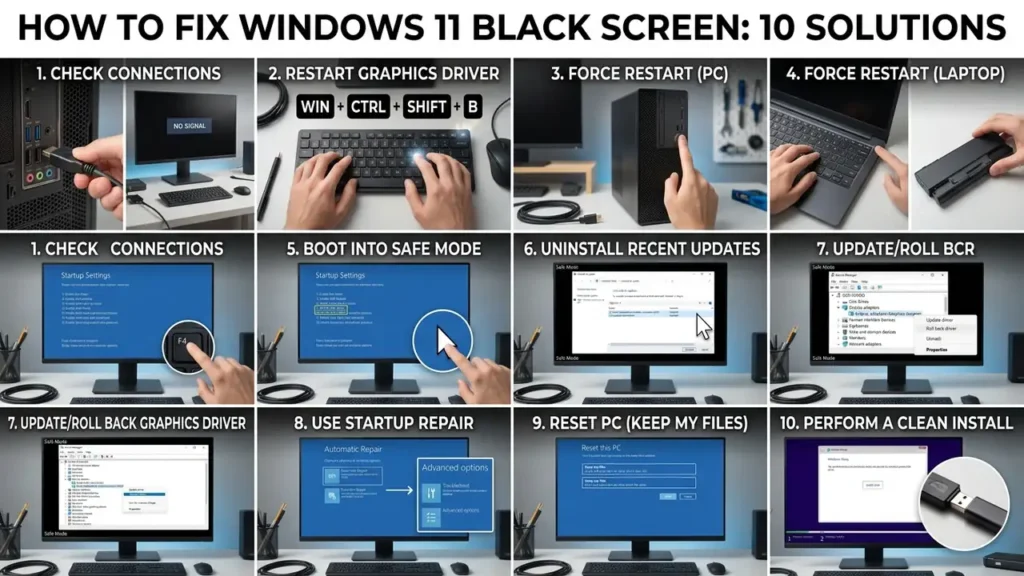

How to Fix Windows 11 Black Screen: 10 Solutions
A Windows 11 black screen can be confusing, especially when your computer appears to be running but the display stays completely black.
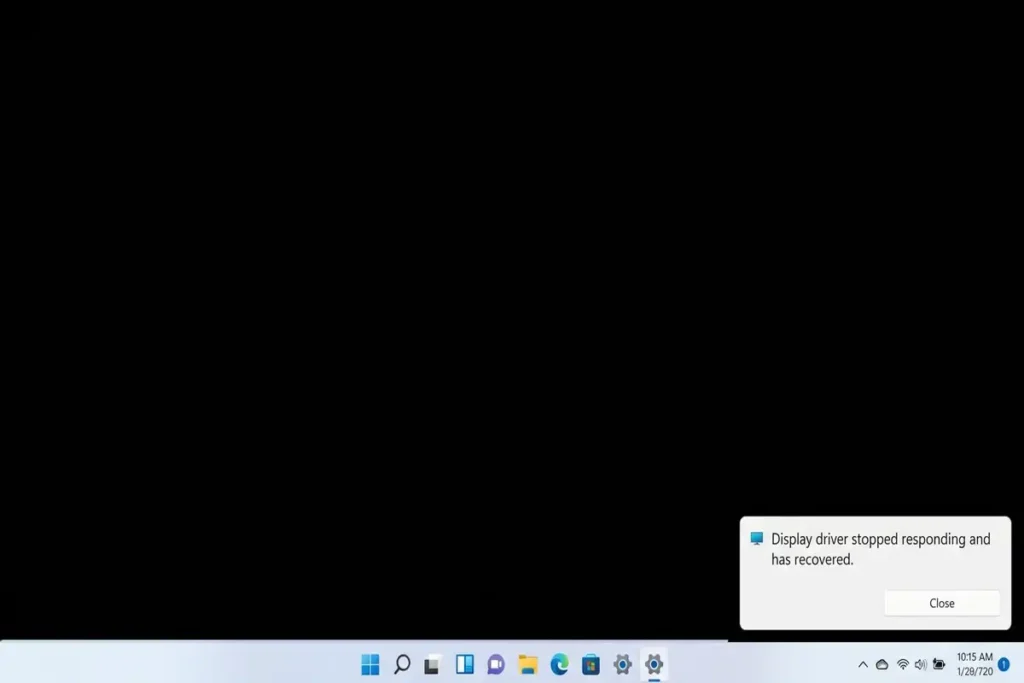
Sometimes the problem is surprisingly simple, such as the wrong display output or a temporary graphics driver problem. In other cases, a black screen can appear after a Windows update, after signing in, or when a graphics driver fails.
The good news is that you don’t need to jump straight to reinstalling Windows.
The first thing to determine is when the screen becomes black. That clue can tell you which solution is worth trying first.
Which Windows 11 Black Screen Problem Do You Have?
Before changing anything, identify what you see:
| What happens | Start with |
|---|---|
| PC is running but screen suddenly goes black | Reset the graphics driver |
| Black screen with a mouse cursor | Restart Windows Explorer |
| Black screen after signing in | Check startup/display settings |
| Black screen after a Windows update | Check the graphics driver/update |
| External monitor is black | Check cables and display mode |
| Screen is black before Windows loads | Check hardware/display connections |
| Screen flickers before going black | Check graphics driver |
| Laptop screen is black but external monitor works | Check display settings/driver |
This is important because a black screen isn’t always caused by the same problem.
1. Reset the Graphics Driver First
If Windows is running but the screen suddenly turns black, try resetting the graphics driver before doing anything more complicated.
Press:
Windows + Ctrl + Shift + B
Your screen may briefly flicker, and you may hear a short beep.
Microsoft specifically recommends this keyboard shortcut for resetting the graphics driver when troubleshooting blank screens.
Did it work?
If the display comes back immediately, the problem was likely related to the graphics/display system rather than your monitor being completely disconnected.
This is one of the safest things to try because it doesn’t reinstall anything or change your personal files.
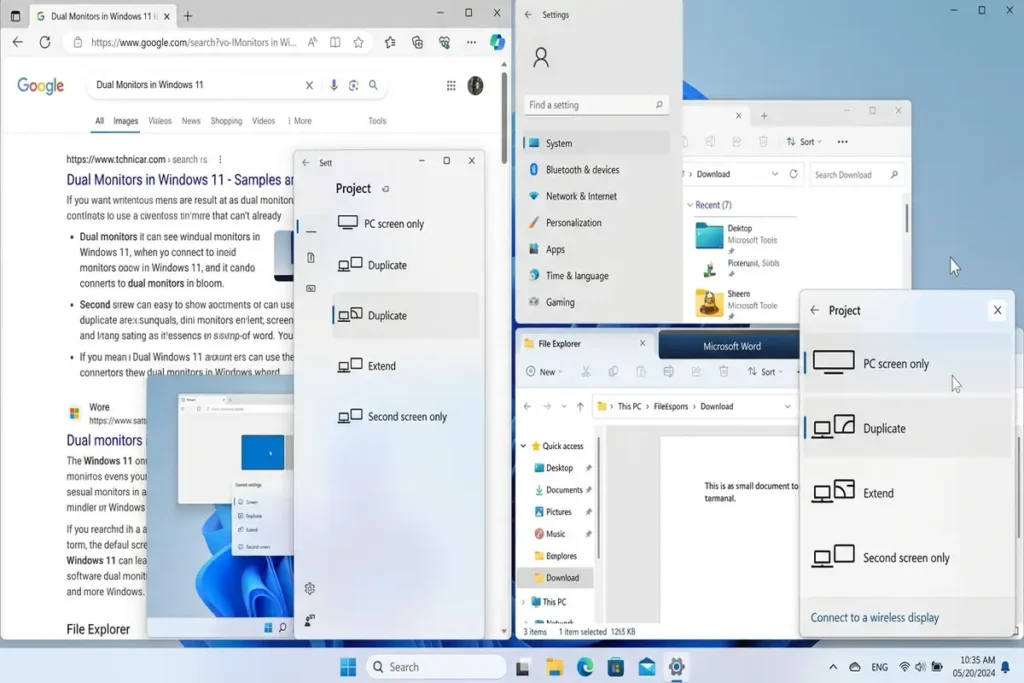
2. Check Whether Windows Is Using the Wrong Display
If you’re using a laptop with an external monitor, TV, dock, or projector, Windows may be sending the picture to the wrong display.
Press:
Windows + P
A display menu should appear.
Use the arrow keys to select an appropriate option, such as:
- PC screen only
- Duplicate
- Extend
- Second screen only
Press Enter after selecting one.
Microsoft recommends using Windows + P to cycle through display modes when troubleshooting a blank screen.
Why this matters
You may think Windows has crashed when the computer is actually displaying the desktop on another monitor.
3. Check Your Monitor, Cable, and Power
If you’re using a desktop PC or external monitor, don’t overlook the physical connection.
If the monitor shows “No Signal,” focus on the cable, input source, or graphics output before changing Windows settings.
Check:
- Monitor power cable
- HDMI cable
- DisplayPort cable
- USB-C connection
- Monitor input/source
- Laptop docking station
- Power adapter
Make sure the monitor is powered on and set to the correct input.
For example, if your PC is connected through DisplayPort but the monitor is currently set to HDMI, the screen may remain black even though Windows is working normally.
Microsoft’s blank-screen troubleshooting guidance also starts with checking that the device and external display are properly powered and connected.
Quick test
If possible:
- Disconnect the external monitor.
- Restart the PC.
- Test the laptop’s built-in display.
Or, on a desktop, try another known-good cable or monitor.
4. Check Whether the Computer Is Actually Running
A black screen doesn’t always mean Windows has completely stopped.
Try these simple checks.
Look for signs of activity
- Is the keyboard responding?
- Does the Caps Lock indicator change?
- Can you hear Windows notification sounds?
- Are fans running?
- Does the PC respond when you press Ctrl + Alt + Delete?
If Windows responds to keyboard shortcuts while the screen remains black, the problem is more likely related to the display, graphics driver, or Windows interface.
If the computer doesn’t respond at all, the problem may be deeper than a simple display issue.
5. If You See a Cursor, Restart Windows Explorer
A black screen with a visible mouse pointer is different from a completely blank display.
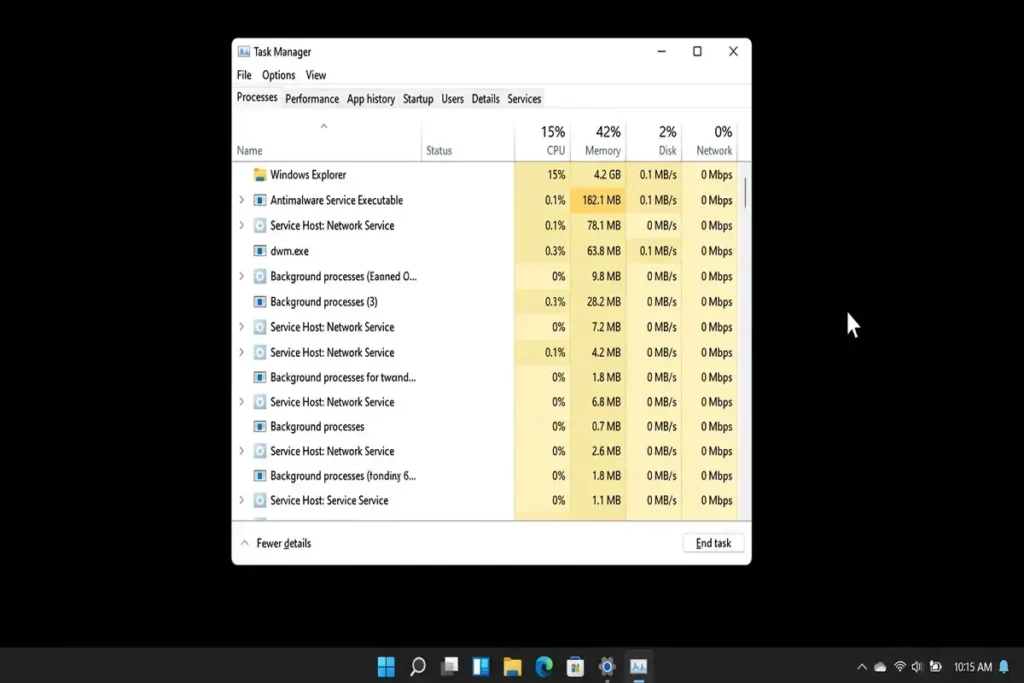
If you can move the cursor, try opening Task Manager.
Press:
Ctrl + Shift + Esc
If Task Manager opens:
- Select Run new task.
- Type:
- Press Enter.
If Windows Explorer had failed to start correctly, your desktop and taskbar may return.
If the desktop comes back, wait a few seconds and check whether the taskbar and Start menu are responding normally.
Why this solution is different
Windows Explorer controls important parts of the Windows desktop interface.
So if you have:
Black screen + working mouse cursor
rather than:
Completely dead display
Explorer is worth checking before moving on to more advanced troubleshooting.
6. Disconnect Unnecessary External Devices
A USB device, docking station, external monitor, or other peripheral can sometimes complicate startup and display troubleshooting.
For testing, disconnect unnecessary devices such as:
- USB hubs
- External storage
- Printers
- Game controllers
- Docking stations
- External monitors
- USB adapters
Then restart the computer with only the essential keyboard, mouse, and display connected.
This is especially useful if the black screen started immediately after connecting new hardware.
7. Update or Roll Back the Graphics Driver
If the black screen started after a Windows update, graphics driver update, or new display hardware, investigate the graphics driver.
Open:
Device Manager → Display adapters
Expand Display adapters.
You should see your graphics hardware.
Right-click the adapter and select:
Properties
Check whether Windows reports an error.
You can also try:
Update driver
and follow Windows’ instructions.
If the problem started after an update
A driver rollback may be available:
Device Manager → Display adapters → Properties → Driver → Roll Back Driver
The rollback option won’t necessarily be available on every PC.
Don’t install graphics drivers from random driver-download websites. If Windows can’t find a suitable driver, use the official support page for your PC or graphics hardware manufacturer.
8. Start Windows in Safe Mode
If the normal Windows desktop remains inaccessible, Safe Mode can help determine whether a driver or startup program is causing the problem.
Safe Mode starts Windows with a limited set of drivers and services.
If Windows won’t start normally, you can access Safe Mode through the Windows Recovery Environment.
If Windows fails to start normally several times, it can enter the recovery environment automatically. Microsoft also documents recovery and startup troubleshooting for cases where Windows cannot boot normally.
From the recovery environment, you can access:
Troubleshoot → Advanced options → Startup Settings → Restart
Then choose the appropriate Safe Mode option.
What are you looking for?
If the display works normally in Safe Mode but goes black during a normal startup, a third-party driver, startup application, or graphics configuration becomes more suspicious.
9. Check Windows Updates
If the black screen appeared after a Windows update, don’t assume that the update is permanently damaging your system.
First check whether another update is available.
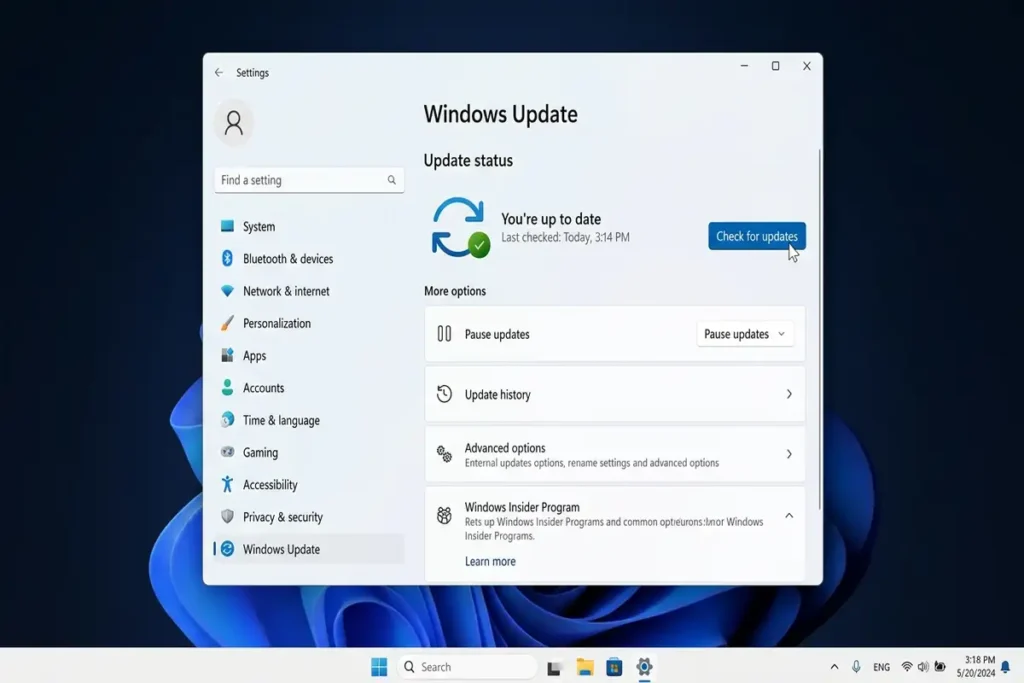
Go to:
Settings → Windows Update
Then select:
Check for updates
Microsoft’s current Windows 11 documentation includes fixes for black-screen issues in certain update scenarios. For example, a January 2026 Windows 11 preview update documented fixes for black-screen problems in specific environments after an upgrade.
That doesn’t mean every black screen is caused by Windows Update, but it is an important clue when the timing matches.
10. Use Windows Recovery Options if Nothing Else Works
If none of the previous solutions works and Windows still cannot display correctly, move to recovery options.
Depending on what caused the problem, you may have options such as:
- System Restore
- Startup Repair
- Uninstall recent updates
- Safe Mode
- Windows Recovery Environment
Important
Don’t immediately choose Reset this PC.
Before using a major recovery option, determine whether a less destructive option can solve the problem.
If you can access your files, back up important data first.
Windows 11 Black Screen: What Should You Try First?
Here’s the quickest decision path:
🖥️ Screen suddenly went black while Windows was running?
Try:
Windows + Ctrl + Shift + B
🖱️ Black screen but mouse cursor is visible?
Try:
Ctrl + Shift + Esc → Run new task → explorer.exe
🖥️ You’re using multiple displays?
Try:
Windows + P
Then select the correct display mode.
🔌 External monitor is completely black?
Check:
Power → Input source → HDMI/DisplayPort/USB-C cable → monitor
🔄 Problem started after an update?
Check:
Windows Update → Display driver → Rollback if available
🛠️ Windows won’t start normally?
Use:
Windows Recovery Environment → Safe Mode / Startup Repair
Frequently Asked Questions
How do I fix a black screen on Windows 11?
Start by pressing Windows + Ctrl + Shift + B to reset the graphics driver. If that doesn’t help, check your display mode with Windows + P, inspect external connections, and then investigate the graphics driver and Windows recovery options.
Why is my Windows 11 screen black but the computer is still running?
The graphics driver, display output, external monitor, Windows Explorer, or another display-related component may be responsible. If the keyboard still responds, start with the graphics-driver reset.
What does Windows + Ctrl + Shift + B do?
It resets the graphics driver. Microsoft recommends this shortcut as one of the first things to try when troubleshooting a blank screen.
Why is my screen black after logging into Windows 11?
If you can see the mouse cursor, Windows Explorer or a startup application may be involved. Try opening Task Manager with Ctrl + Shift + Esc and launching explorer.exe.
Why did my screen go black after a Windows update?
A display driver or a specific Windows update can sometimes be involved. Check Windows Update for newer fixes and investigate the display driver if the timing matches the update.
Can a black screen damage my files?
A black screen itself doesn’t automatically mean your files are damaged. However, if Windows isn’t shutting down normally, avoid repeatedly forcing power-offs unless necessary. If you can access recovery tools, consider backing up important files before performing major recovery operations.
More Troubleshooting Guides
Still having problems with your Windows 11 PC? Check out these related guides for more step-by-step solutions:
- How to Fix Bluetooth Not Working on Windows 11
- How to Fix Chrome Not Responding on Windows 11
- How to Fix Windows 11 File Explorer Not Responding
Final Thoughts
A Windows 11 black screen can look like a serious failure, but the cause isn’t always complicated.
Start by identifying when the screen goes black and whether Windows is still responding.
If the computer appears to be running, try the graphics-driver reset first. If you’re using multiple displays, check the display mode. If you see a cursor, investigate Windows Explorer. If the problem started after an update, check the graphics driver and Windows Update.
Only move to Safe Mode and recovery options after the simpler checks fail.
The goal isn’t to try every fix on the internet. It’s to identify which type of black-screen problem you’re actually experiencing and use the smallest intervention that can solve it.