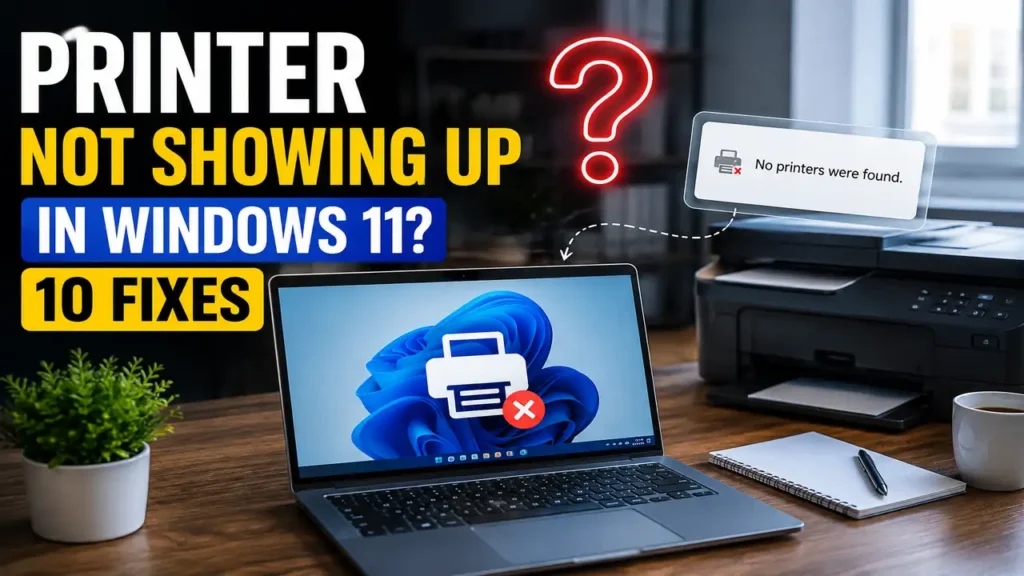

Printer Not Showing Up in Windows 11? 10 Fixes
If your printer is not showing up in Windows 11, don’t assume that the printer itself is broken.
Windows may fail to detect a printer because of a USB connection, Wi-Fi network, outdated driver, Print Spooler issue, or an old printer installation.
The fastest way to fix the problem is to identify how your printer is connected before changing Windows settings.
This guide covers the most common situations, including USB printers, wireless printers, and printers that suddenly disappear from Windows 11.
First: How Is Your Printer Connected?
Before trying the fixes below, identify your setup.
| Your printer | Check first |
|---|---|
| USB printer | Cable and USB port |
| Wi-Fi printer | Same Wi-Fi network |
| Bluetooth printer | Bluetooth connection |
| Printer disappeared after an update | Driver |
| Printer appears but won’t print | Print Spooler |
| Shared printer | Network discovery and sharing |
| Printer was previously installed | Remove and reinstall |
This small check can save you from changing settings that aren’t related to the actual problem.
1. Make Sure the Printer Is Turned On
It sounds obvious, but start here.
Check that:
- The printer is powered on.
- There are no error messages on its display.
- Paper isn’t completely empty.
- The printer isn’t showing a paper jam.
- The printer cover is closed.
- The printer has enough ink or toner.
If the printer has been sitting unused for a while, turn it off, unplug it for about 30 seconds, reconnect it, and turn it back on.
Microsoft recommends power-cycling the printer as one of the initial troubleshooting steps.
2. Check the Connection: USB or Wi-Fi?
The next step depends on how you’re connecting the printer.
If you’re using USB
Check that the USB cable is securely connected to both:
- The printer
- The Windows 11 PC
Then try another USB port.
If possible, avoid using a USB hub during troubleshooting and connect the printer directly to the computer.
Microsoft also recommends trying another USB port when Windows doesn’t recognize a USB printer.
If you’re using Wi-Fi
Make sure your computer and printer are connected to the same Wi-Fi network.
For more help, see Microsoft’s printer installation instructions.
This is particularly important if you have:
- Wi-Fi extenders
- Multiple routers
- Guest Wi-Fi
- Separate wireless networks
Microsoft notes that a wireless printer may not be found when the PC and printer are connected to different networks or SSIDs.
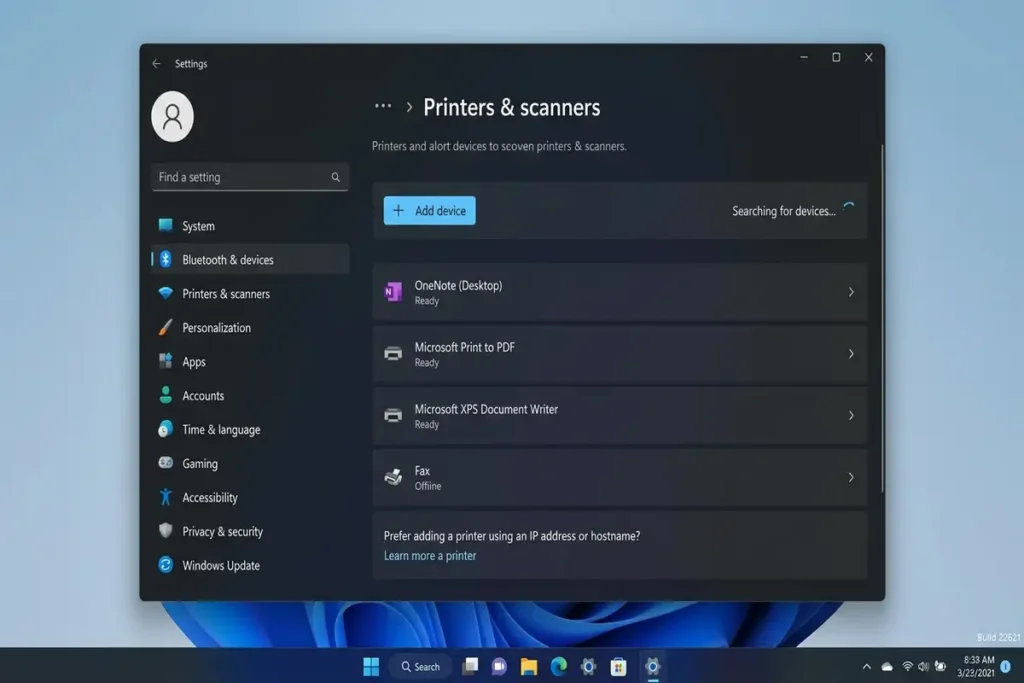
3. Check Printers & Scanners in Windows 11
Windows may already recognize your printer even if it isn’t appearing where you expect.
Open:
Settings → Bluetooth & devices → Printers & scanners
Wait a few seconds and look through the installed printers.
If you see your printer, select it and check its status.
If you don’t see it, select:
Add device
Windows will search for available printers.
Microsoft’s current Windows 11 instructions use Settings → Bluetooth & devices → Printers & scanners → Add device to add printers.
4. Let Windows Search for the Printer Again
If your printer doesn’t appear automatically, give Windows another opportunity to find it.
Go to:
Settings → Bluetooth & devices → Printers & scanners
Then select:
Add device
Wait while Windows searches.
If the printer still doesn’t appear, look for an option similar to:
Add manually
Microsoft provides a manual installation route when Windows cannot automatically find the printer.
Why this matters
A printer can be connected and working correctly but still fail automatic discovery.
In that case, manually adding it may solve the problem without changing other Windows network settings.
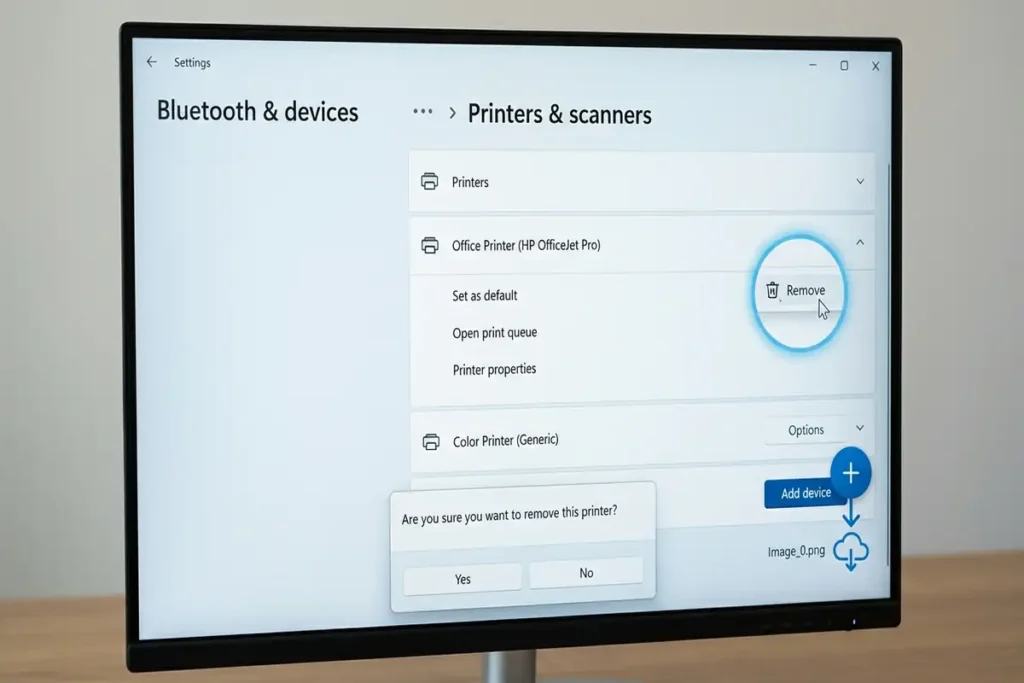
5. Remove the Old Printer and Add It Again
If Windows previously recognized your printer but it suddenly disappeared, the saved printer installation may be the problem.
Try removing it and adding it again.
Remove the printer
Go to:
Settings → Bluetooth & devices → Printers & scanners
Select the printer and choose:
Remove
Then restart your computer.
After restarting:
- Turn the printer on.
- Make sure it’s connected to USB or Wi-Fi.
- Open Printers & scanners.
- Select Add device.
- Wait for Windows to detect it.
- Add the printer.
Microsoft recommends removing and reinstalling the printer when normal troubleshooting doesn’t resolve the issue.
6. Run the Windows 11 Printer Troubleshooter
Windows 11 includes automated troubleshooting through the Get Help app.
Microsoft currently recommends starting with the automated printer troubleshooter for Windows 11 printer problems.
Try it this way:
- Open Get Help.
- Search for printer problems.
- Start the printer troubleshooting process.
- Follow the instructions.
- Allow Windows to apply recommended fixes.
- Test the printer again.
This is worth trying before manually changing advanced settings.
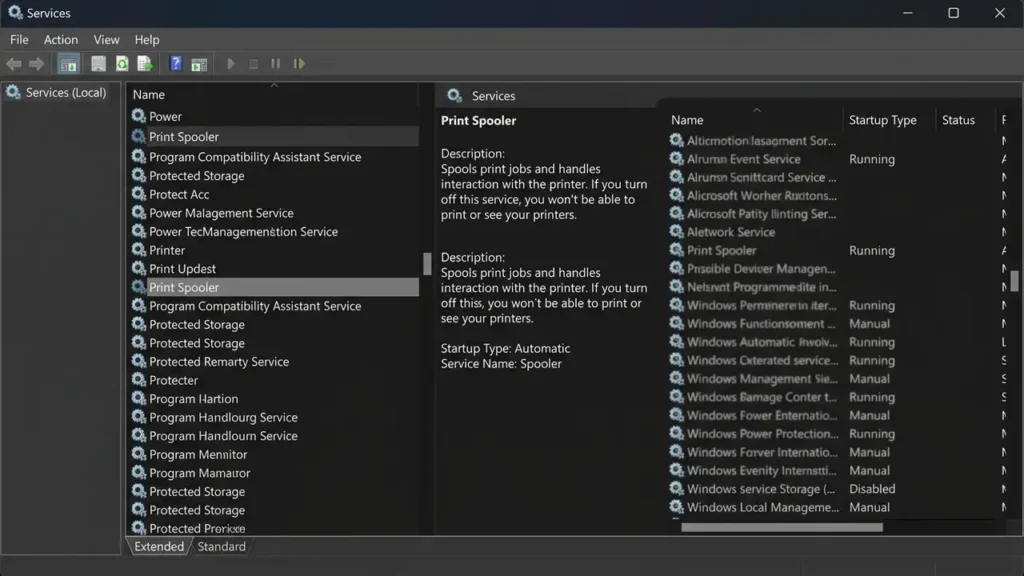
7. Restart the Print Spooler Service
If Windows recognizes the printer but printing doesn’t work, or print jobs remain stuck, the Print Spooler may be involved.
The Print Spooler manages print jobs in Windows.
Restart it
Press:
Windows + R
Type:
Press Enter.
Find:
Print Spooler
Right-click it and select:
Restart
Then try printing again.
If restarting Print Spooler doesn’t help and print jobs remain stuck, you may need to clear the print queue and reset the Print Spooler service.For more detailed troubleshooting, see Microsoft’s printer connection and printing problems guide.
Microsoft specifically recommends restarting the Print Spooler when printing stops, jobs freeze, or the printer becomes unresponsive.
8. Update the Printer Driver
An outdated or incompatible printer driver can prevent Windows 11 from properly recognizing the printer.
Start by checking Device Manager.
- Right-click Start.
- Select Device Manager.
- Look for your printer under the relevant printer/device section.
- Right-click the device.
- Select Update driver.
- Follow the instructions.
If Windows doesn’t find an appropriate driver, go to the official website of your printer manufacturer and search for your exact printer model.
Avoid downloading drivers from random driver websites.
Microsoft recommends installing the latest printer driver when printer problems continue.
9. Reinstall the Printer Driver
If updating the driver doesn’t help, the existing driver may be damaged or incompatible.
You can remove the printer/device and reinstall it.
A good sequence is:
Remove printer → Restart Windows → Install the latest official driver → Add printer again
For some printers, the manufacturer’s installation software may provide additional configuration options.
However, Microsoft currently notes that some ARM-based Windows 11 PCs can have problems with printer manufacturer installers and recommends using Windows’ built-in printer installation process when applicable.
If you’re using a Copilot+ PC or another ARM-based Windows computer, check your system type before assuming the manufacturer’s installer is the best route.
10. Check Network Discovery for a Shared Printer
This step only applies if the printer is shared from another Windows PC on your network.
If the printer isn’t directly connected to your PC and is instead shared from another computer, the troubleshooting process is different.
Both computers need to communicate over the same network.
Microsoft’s shared-printer guidance recommends checking network connectivity, printer sharing, Network Discovery, and File and Printer Sharing when a shared printer cannot be reached.
Check the setup
On the computer sharing the printer:
Settings → Bluetooth & devices → Printers & scanners
Open the printer’s properties and check the sharing configuration.
Also make sure both computers are connected to the appropriate local network.
If Windows still can’t find the shared printer, you may need to add it manually using its shared printer name.
What If the Printer Appears but Says “Offline”?
That’s a different problem from printer not showing up.
If Windows sees the printer but shows it as offline, check:
- Printer power.
- Wi-Fi or USB connection.
- Same network for PC and wireless printer.
- Print queue.
- Print Spooler.
- Printer driver.
Don’t remove the printer immediately if Windows already detects it. First determine why its status is offline.
Frequently Asked Questions
Why is my printer not showing up in Windows 11?
Common causes include connection problems, different Wi-Fi networks, outdated drivers, printer installation problems, and Print Spooler issues. Start by checking the physical or wireless connection and then open Printers & scanners in Windows 11.
How do I get Windows 11 to recognize my printer?
Open Settings → Bluetooth & devices → Printers & scanners → Add device. Make sure the printer is turned on and connected. If Windows cannot find it automatically, try the manual installation option.
Why is my wireless printer not showing up?
Make sure your printer and Windows 11 PC are connected to the same Wi-Fi network. This is especially important if your home network has extenders, multiple routers, or separate SSIDs.
How do I restart Print Spooler in Windows 11?
Press Windows + R, enter services.msc, find Print Spooler, right-click it, and select Restart.
Should I reinstall my printer driver?
If Windows doesn’t recognize the printer after checking the connection and reinstalling the printer itself, updating or reinstalling the correct driver can help. Use the manufacturer’s official support page whenever possible.
More Troubleshooting Guides
Still having problems with your Windows 11 PC? Check out these related guides for more step-by-step solutions:
- How to Fix Chrome Not Responding on Windows 11
- Windows 11 Connected to WiFi but No Internet: 12 Fixes
- How to Fix Windows 11 File Explorer Not Responding
Final Thoughts
When a printer is not showing up in Windows 11, the best solution depends on how the printer is connected.
For a USB printer, start with the cable and USB port.
For a wireless printer, confirm that the PC and printer are on the same network.
If Windows used to recognize the printer, removing and adding it again can be a better first step than immediately changing drivers.
And if the printer appears in Windows but refuses to print, investigate the Print Spooler and print queue.
The important thing is to identify the type of problem first. Once you know whether Windows can’t detect, connect to, or print through the printer, the troubleshooting process becomes much easier