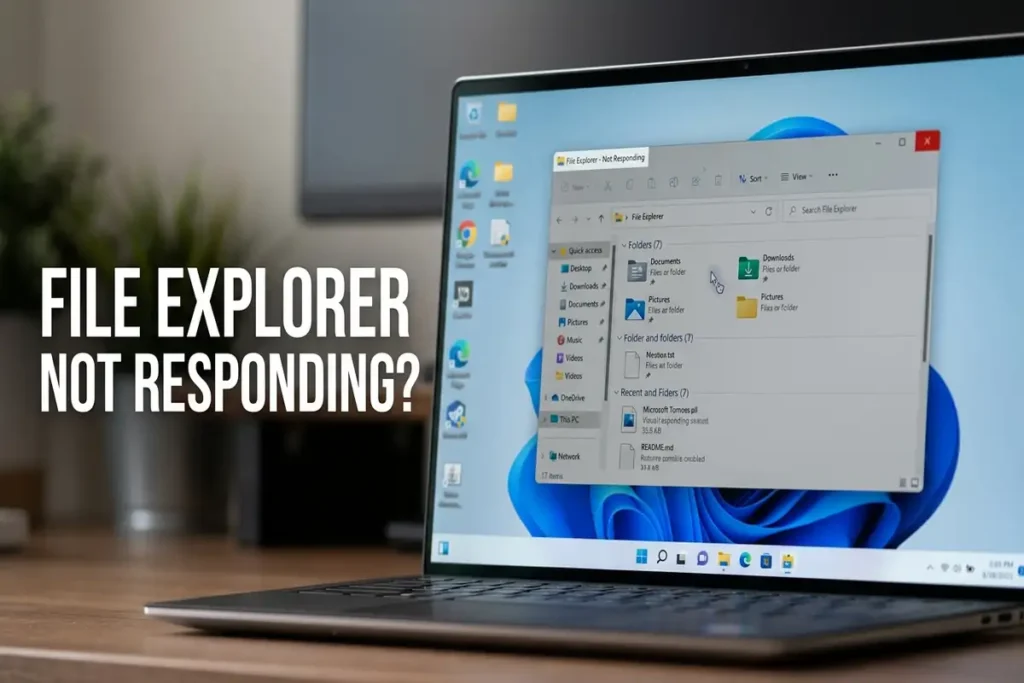

How to Fix Windows 11 File Explorer Not Responding
If File Explorer is not responding in Windows 11, folders may stop opening, the taskbar can become unresponsive, or Explorer may freeze when you try to browse your files.
The problem can happen for different reasons. A temporary Explorer process failure, Windows updates, corrupted system files, OneDrive synchronization, or a problematic extension can all lead to similar symptoms.
Before trying advanced repairs, identify what File Explorer is actually doing. The right fix depends on whether it is frozen, crashing, refusing to open, or simply running very slowly.
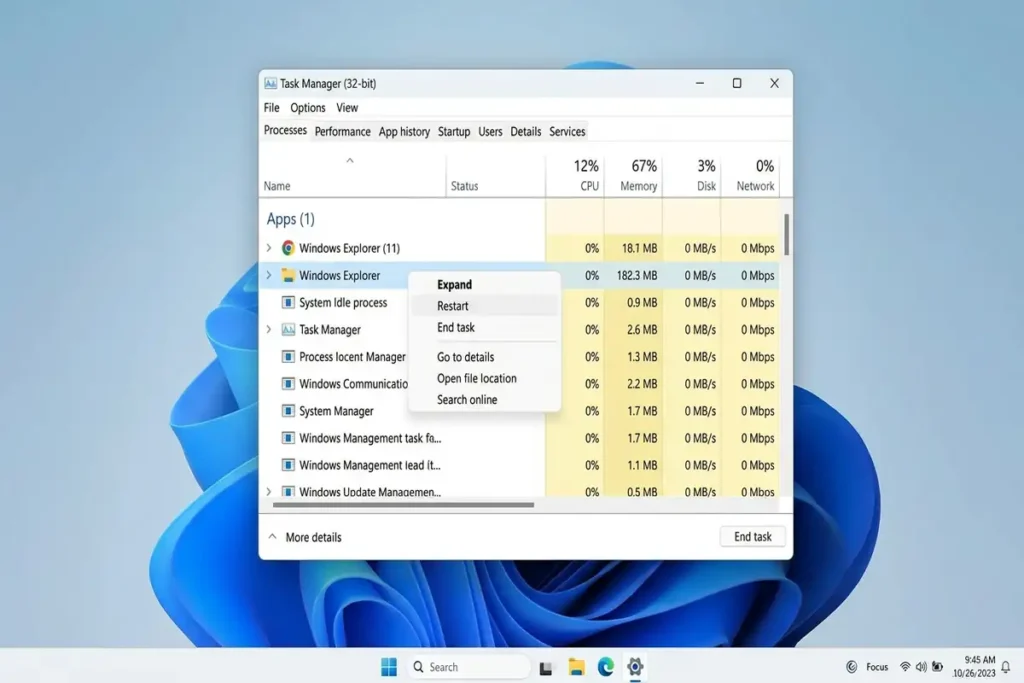
1. Restart Windows Explorer
If File Explorer suddenly freezes, restarting the Explorer process is one of the quickest things to try.
Press:
Ctrl + Shift + Esc
This opens Task Manager.
Find:
Windows Explorer
Right-click it and select:
Restart
Your taskbar and desktop may disappear briefly before returning.
This doesn’t restart your entire computer. It simply restarts the Windows Explorer process responsible for the desktop shell and File Explorer.
If Windows Explorer isn’t listed
In Task Manager:
- Select Run new task.
- Type:
- Press Enter.
Restarting Windows Explorer can quickly restore the taskbar and desktop when the Explorer process becomes unresponsive.
Task Manager → Windows Explorer → Restart
2. Restart Your PC
It sounds simple, but don’t skip it.
If Explorer became stuck after installing an update, opening a large folder, connecting an external drive, or running another application, a normal restart can clear the temporary problem.
Select:
Start → Power → Restart
Microsoft specifically recommends restarting the device as an early troubleshooting step for File Explorer problems.
Why restart instead of shutting down?
A restart gives Windows an opportunity to reload system components and complete pending update operations.
If Explorer works normally after restarting but becomes unresponsive again later, continue with the steps below rather than repeatedly restarting.
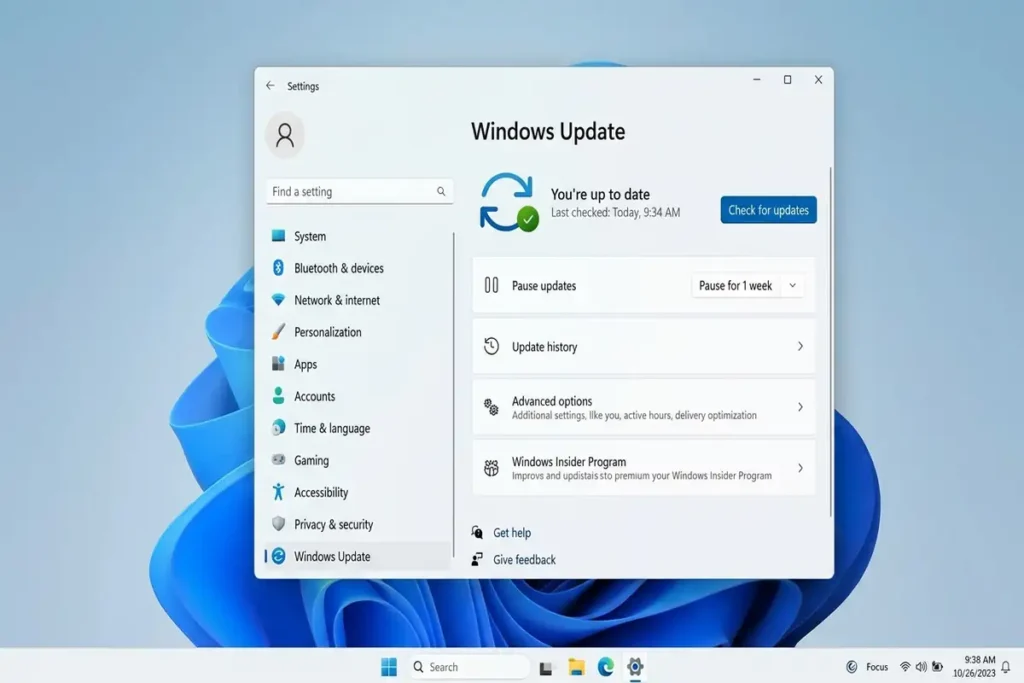
3. Check Windows Update
An outdated Windows build can sometimes contain bugs affecting system components such as File Explorer.
Open:
Settings → Windows Update
Then select:
Check for updates
Install available updates and restart your PC if Windows asks you to.
This is particularly relevant for File Explorer because Microsoft has continued making Explorer performance and reliability improvements throughout 2026.
For example, Microsoft’s July 28, 2026 preview update included improvements to File Explorer launch speed and responsiveness, as well as several explorer.exe reliability fixes.
That doesn’t mean every File Explorer problem is caused by Windows Update, but installing the latest available updates is a reasonable first step when Explorer becomes slow, freezes, or stops responding
Settings → Windows Update
4. Check If OneDrive Is Causing the Freeze
If File Explorer becomes slow or unresponsive specifically when opening folders containing cloud files, OneDrive is worth checking.
Pay attention to whether the problem happens when:
- Opening OneDrive folders
- Moving files into OneDrive
- Syncing a large number of files
- Opening File Explorer Home
- Waiting for cloud files to load
Microsoft has released several 2026 fixes involving File Explorer and OneDrive, including improvements to navigation during OneDrive synchronization and fixes for OneDrive shortcuts in certain Explorer scenarios.
A useful test
If Explorer freezes during OneDrive synchronization, wait for the sync to finish and test again.
If the problem consistently happens around the same OneDrive folder, you’ve found an important clue.
Don’t immediately delete your OneDrive files or disable synchronization permanently.
5. Check Available Storage
A Windows PC that’s running extremely low on storage can experience performance problems.
Open:
Settings → System → Storage
Look at the available space on your system drive.
If your drive is nearly full, remove unnecessary temporary files and other files you no longer need.
You can also use Windows’ built-in Disk Cleanup utility.
Microsoft’s File Explorer troubleshooting documentation includes Disk Cleanup as one of the steps to try when Explorer continues having problems.
Don’t delete files manually from system folders
Avoid randomly deleting files from:
- Windows
- Program Files
- System32
- AppData
unless you know exactly what you’re removing.
6. Repair Corrupted Windows System Files
If File Explorer keeps freezing or crashing even after restarting Windows, corrupted system files may be involved.
Windows includes built-in tools called:
- DISM
- System File Checker (SFC)
Microsoft recommends these tools for repairing missing or corrupted Windows system files.
Run System File Checker
Search Windows for:
Command Prompt
Right-click it and select:
Run as administrator
Then run:
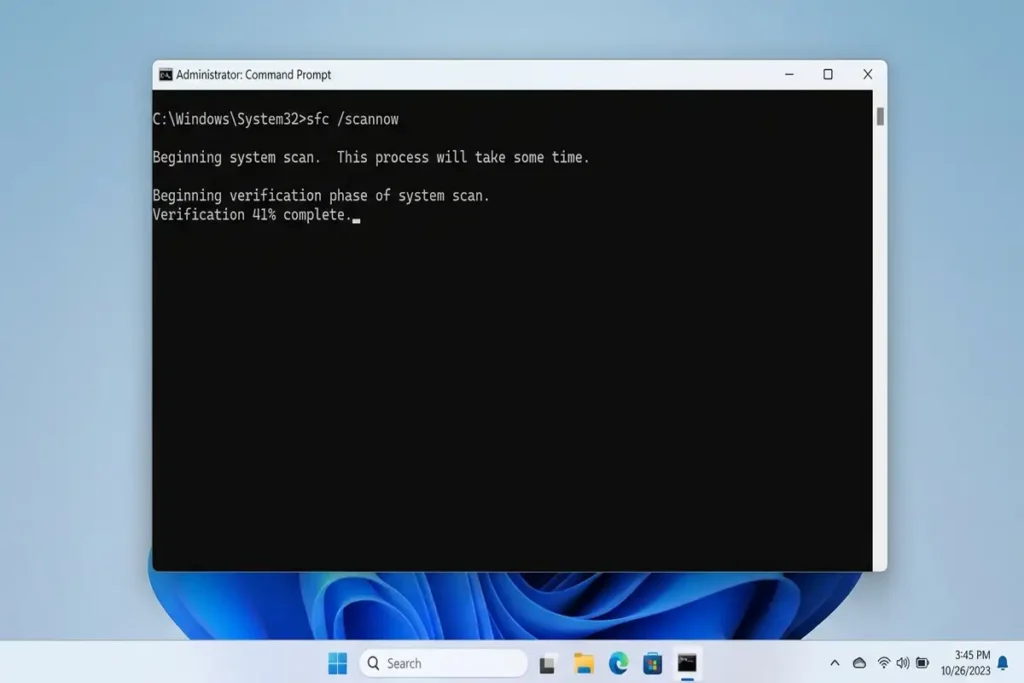
Wait until the scan finishes.
Don’t close the Command Prompt window while the scan is running.
If SFC reports problems
Microsoft’s repair guidance also uses DISM to repair the Windows component store before running SFC when necessary.
Run:
When it finishes, restart Windows and test File Explorer again.
7. Check for Third-Party Apps Causing Explorer Problems
If File Explorer works normally immediately after starting Windows but becomes unstable later, a third-party application could be interfering with Explorer.
Think about applications you installed or updated shortly before the problem appeared.
Examples include:
- File management utilities
- Cloud storage applications
- Archive tools
- Context-menu extensions
- Antivirus utilities
- Custom Windows interface tools
You don’t need to uninstall everything at once.
Instead, identify what changed shortly before the problem started and test those applications individually.
A useful clue
If Explorer is stable after a clean startup but becomes unstable during normal Windows use, a background application becomes more suspicious.
This gives you a direction instead of randomly changing Windows settings.
8. If Explorer Freezes When Opening a Specific Folder
This situation is different.
Suppose File Explorer works normally until you open:
Downloads
or:
Pictures
or a specific folder containing hundreds of files.
The folder itself may contain something causing Explorer to struggle.
Possible clues include:
- Very large numbers of files
- Network locations
- Cloud files
- Damaged media files
- Large thumbnails
- External drives
- Network shares
Try another folder
Open a simple folder such as:
Documents
If Documents works normally but one specific folder causes Explorer to freeze, the problem may be related to that folder or its contents rather than Windows Explorer as a whole.
That’s an important diagnostic difference.
9. Check Network and External Drives
File Explorer doesn’t only display files stored on your PC.
It can also access:
- USB drives
- External hard drives
- Network folders
- NAS devices
- Shared folders
- Cloud storage
If Explorer freezes while trying to open a network location or external drive, disconnect the device temporarily and test again.
Example
If:
This PC → Documents
works normally but:
This PC → Network Drive
causes Explorer to stop responding, focus your troubleshooting on the network connection or that drive rather than immediately repairing Windows.
This simple test can save you a lot of time.
10. Use Windows Recovery Options as a Last Resort
If File Explorer still won’t open or repeatedly crashes after the previous steps, you may need Windows recovery tools.
Microsoft’s File Explorer troubleshooting documentation includes more advanced options such as Automatic Repair, system recovery, and eventually resetting Windows when simpler troubleshooting doesn’t work.
Don’t jump straight to:
Reset this PC
if you haven’t tried the less destructive options.
Before performing a major recovery operation:
- Back up important files.
- Check whether Windows can still access your documents.
- Make sure you understand which recovery option you’re selecting.
- Keep your Microsoft account credentials available if needed.
A reset should be treated as a last resort, not the first solution.
Frequently Asked Questions
Why is File Explorer not responding in Windows 11?
File Explorer can stop responding because of a temporary Explorer process problem, Windows issues, corrupted system files, cloud synchronization, storage problems, or third-party software. Start by restarting Windows Explorer and checking Windows Update.
How do I restart File Explorer in Windows 11?
Open Task Manager with Ctrl + Shift + Esc, find Windows Explorer, right-click it, and select Restart. If it isn’t listed, use Run new task and enter explorer.exe.
Why does File Explorer freeze when I open a folder?
A specific folder can trigger problems because of its contents, network location, cloud synchronization, external storage, or the amount/type of files inside it. Try opening another folder to determine whether the issue is system-wide.
Can Windows Update fix File Explorer problems?
It can. Microsoft has released Windows 11 updates containing File Explorer performance and explorer.exe reliability improvements during 2026.
Should I reset Windows if File Explorer doesn’t work?
No—not immediately. Try restarting Explorer, restarting Windows, installing available updates, checking system files, and investigating external/cloud storage first. Windows recovery or reset should generally come later.
More Troubleshooting Guides
Still having problems with your Windows 11 PC? Check out these related guides for more step-by-step solutions:
- How to Fix Windows 11 WiFi Keeps Disconnecting
- How to Fix Bluetooth Not Working on Windows 11
- How to Fix Windows 11 Black Screen: 10 Solutions
Final Thoughts
If Windows 11 File Explorer is not responding, start by restarting Windows Explorer and checking for updates. If the problem continues, look for patterns involving OneDrive, specific folders, external drives, or third-party apps.
For persistent crashes, run SFC and DISM. Use Windows recovery options only if the simpler fixes don’t work.
The key is to identify what triggers the problem instead of repeatedly restarting your PC.