
Discord Not Opening? 10 Fixes That Actually Work
If Discord is not opening on your Windows PC, you’re not alone. The app may do nothing when you click it, appear briefly in Task Manager and disappear, get stuck on the loading screen, or open to a blank or black window.
The important thing is that “Discord won’t open” doesn’t always have the same cause. A stuck Discord process, corrupted local files, an outdated client, Windows compatibility issues, or an installation problem can all produce similar symptoms.
Discord’s current troubleshooting guidance recommends checking the app and OS versions, fully quitting Discord, clearing its local data when necessary, and reinstalling the client for persistent installation problems. Discord currently supports Windows 10 and later, so Windows 11 is within its supported desktop range.
Before you reinstall Discord, start with the quick checks below.
Quick Diagnosis: What Happens When You Open Discord?
| What you’re seeing | Start with |
|---|---|
| Nothing happens | End Discord processes |
| Discord appears, then closes | Clear local Discord data |
| Discord is stuck on loading | Fully quit and relaunch |
| Black or blank screen | Restart Discord and check updates |
| Discord works in browser but not the app | Repair the desktop installation |
| Problem started after an update | Update/reinstall Discord |
| Discord won’t install | Remove old Discord files |
| Discord appears in Task Manager only | End all Discord processes |
| Discord keeps failing after reinstall | Check Windows and app compatibility |
| Nothing fixes it | Clean reinstall or contact Discord Support |
Don’t jump straight to reinstalling. One of the quickest fixes is often simply removing a Discord process that is still running in the background.
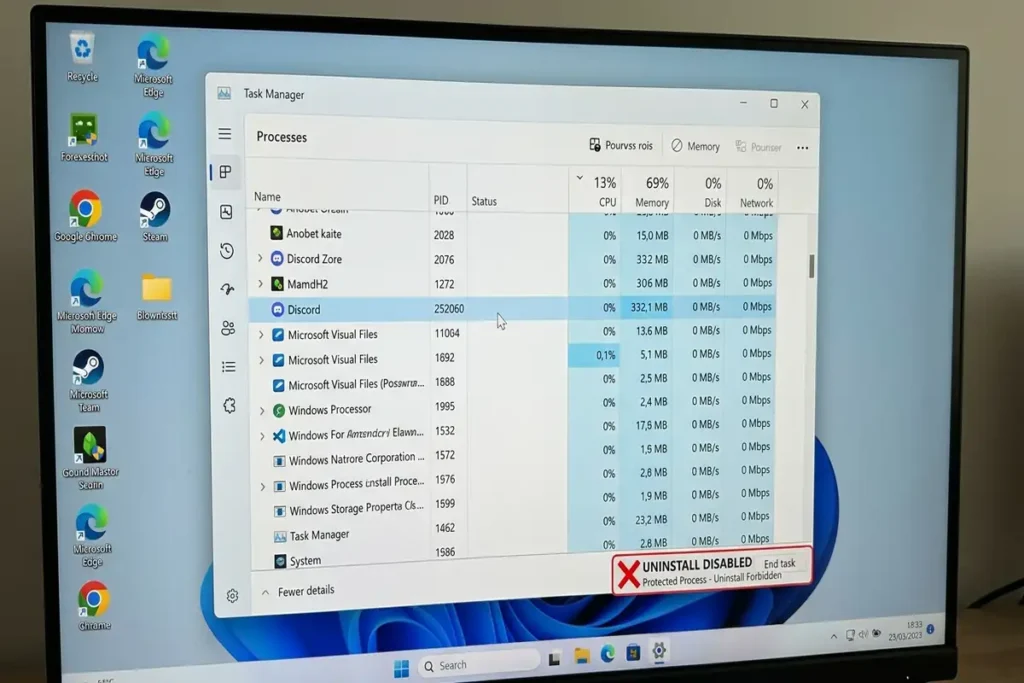
1. Completely Close Discord From Task Manager
Sometimes Discord looks closed even though one or more Discord processes are still running.
Press:
Ctrl + Shift + Esc
to open Task Manager.
Look for processes containing:
Discord
Select them and choose:
End task
Then try opening Discord again.
Discord uses a multi-process architecture, so seeing several Discord processes in Task Manager can be normal.
Why this can fix the problem
If Discord crashed while starting, a background process may remain active and interfere with the next launch.
Instead of repeatedly clicking the Discord icon, completely terminate the existing processes first.
2. Restart Windows
If Discord still won’t open after ending its processes, restart Windows.
Go to:
Start → Power → Restart
Then wait for Windows to load completely before launching Discord.
This is particularly useful if another application, Windows component, or background process interfered with Discord.
Try Discord before opening other apps
After restarting, don’t immediately launch your browser, games, launchers, and dozens of background applications.
Open Discord first.
If it works immediately after a clean Windows restart, but stops working later, that gives you an important clue that another background process may be involved.
3. Check Whether Discord Is Actually Running
Click Discord once.
Then immediately open:
Task Manager → Processes
Watch what happens.
Scenario A: Discord appears and stays there
Discord may be starting but failing to display its window.
Scenario B: Discord appears for a few seconds and disappears
This suggests a startup or application problem.
Scenario C: Multiple Discord processes remain but no window appears
End all Discord processes and try again.
Scenario D: Nothing appears at all
The shortcut, installation, or Windows environment may be involved.
This simple observation helps you choose the next fix instead of trying everything randomly.
This tells you whether Discord is failing to launch at all or starting in the background without displaying its window.
4. Clear Discord’s Local Data
If Discord starts but gets stuck, crashes, or refuses to open after an update, corrupted local files can be worth checking.
First, make sure Discord is completely closed.
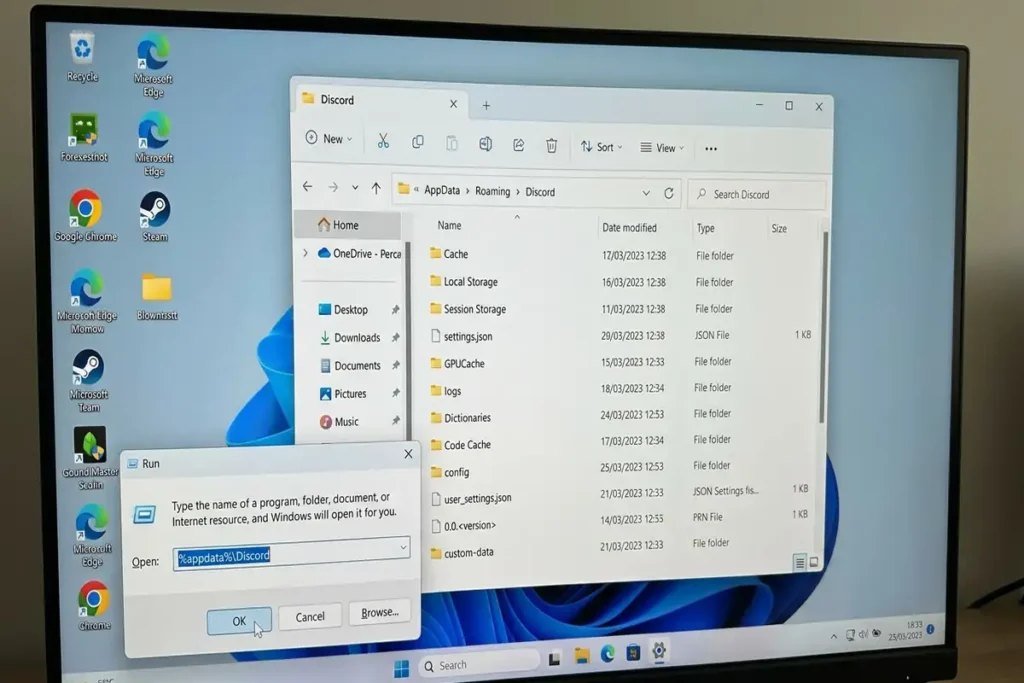
Press:
Windows + R
Type:
%appdata%Press Enter.
Find the:
Discord
folder.
If Discord’s local files are corrupted, clearing the relevant Discord folders can give the desktop app a clean start. Discord’s own Windows installation guidance recommends removing its local Discord folders after making sure all Discord processes have been terminated.
You can also open:
%localappdata%and look for the Discord folder there.
Important
Don’t delete random folders from AppData.
Only work with the Discord folders relevant to the troubleshooting step.
If you’re unsure, stop before deleting anything.
5. Check for a Discord Update
Discord recommends keeping the desktop application updated, and its current system requirements page also recommends using the latest app and OS versions for the best experience.
If Discord opens in the browser but the desktop app doesn’t, you can use the browser version temporarily while troubleshooting the desktop client.
You can also download a fresh version of Discord from its official website if the existing installation appears damaged.
Why this matters in 2026
Discord’s minimum client requirements have also changed for some features. For example, Discord says that voice conversations require supported client versions for its end-to-end encryption requirements introduced in March 2026.
So keeping an old Discord installation indefinitely isn’t a good troubleshooting strategy.
6. Try Discord in Your Browser
This is one of the most useful diagnostic tests in the whole guide.
Open Discord in a supported desktop browser.
If:
Discord works normally in the browser
but:
Discord won’t open as a Windows application
then your Discord account and basic service access are less suspicious than the desktop installation itself.
That doesn’t prove the installation is corrupted, but it gives you a much clearer direction.
Discord currently supports desktop browsers including current versions of Chrome, Firefox, Edge and Opera, subject to its listed minimum versions.
This test can save you time
Don’t spend an hour changing Windows settings if Discord works perfectly in your browser.
Focus on repairing the desktop application instead.
7. Check Windows Updates
Make sure Windows 11 itself is up to date.
Go to:
Settings → Windows Update → Check for updates
Install available updates and restart the computer if required.
Discord’s troubleshooting guidance recommends keeping the operating system updated alongside the Discord application.
If Discord stopped working after a Windows update
Don’t immediately assume the update is the cause.
First check:
- Whether Discord has an available update
- Whether Windows has another pending update
- Whether Discord works in the browser
- Whether the app works after a clean restart
This gives you more useful information than simply rolling back Windows.
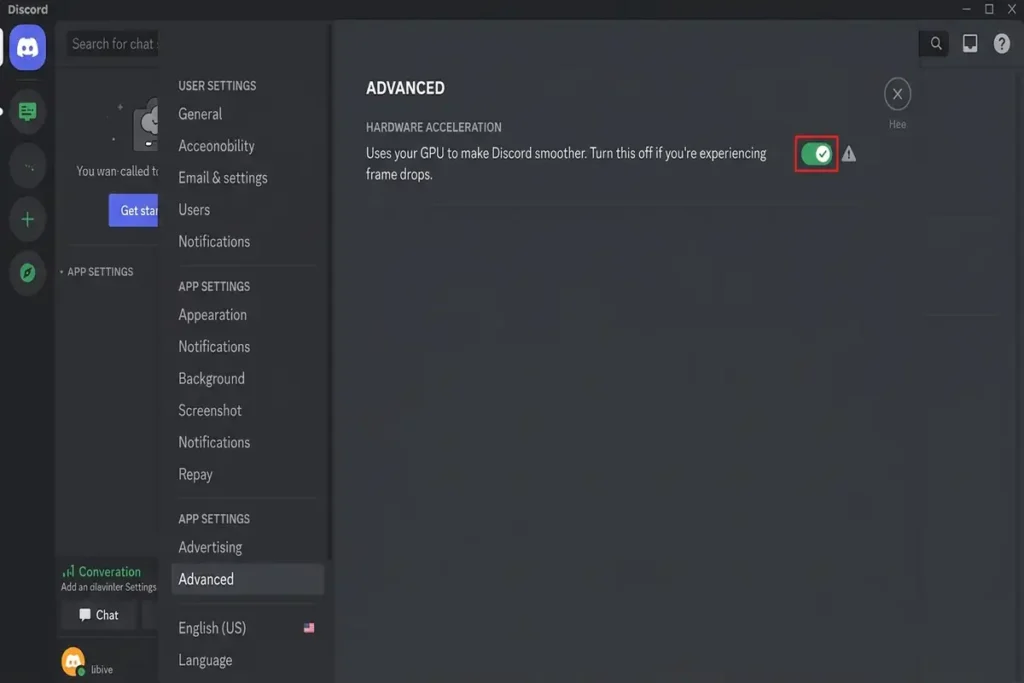
8. Disable Hardware Acceleration — If Discord Opens but Freezes
If Discord does open, but becomes frozen, shows a black or blank window, or becomes unstable after launching, try disabling Hardware Acceleration.
Open:
Discord → User Settings → Advanced
Then find:
Hardware Acceleration
Turn it off and restart Discord.
Why This Fix Only Applies If Discord Opens
Hardware Acceleration is worth testing when Discord opens but becomes frozen, unstable, or shows a black or blank window. However, if Discord does not open at all, you cannot access this setting from inside the app.
In that situation, skip this step and continue with the process, local-data, browser, or clean-reinstall troubleshooting steps instead.
This is why it’s important to identify what happens when you launch Discord before trying every fix in the guide.
9. Perform a Clean Reinstall of Discord
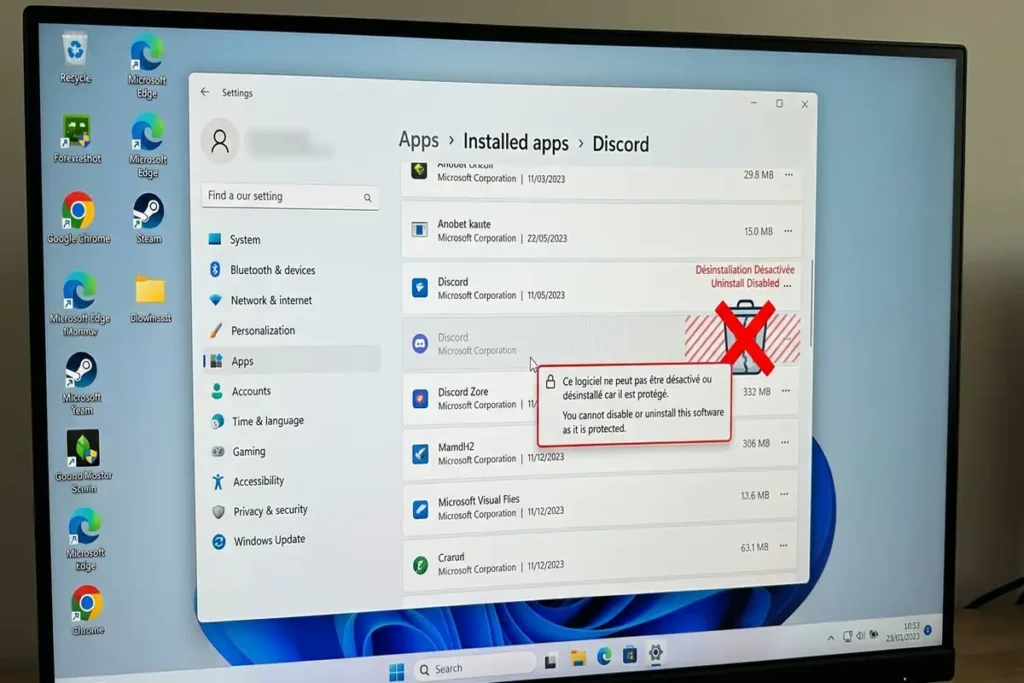
If the previous fixes haven’t worked, a clean reinstall is the next serious step.
Simply uninstalling Discord and immediately reinstalling it may not always be enough if damaged local files remain.
Discord’s Windows installation troubleshooting guide recommends:
- Fully quit Discord.
- End all Discord processes.
- Remove the relevant Discord folders from
%AppData%and%LocalAppData%. - Restart Windows.
- Download a fresh Discord installer.
- Install Discord again.
Why do the folders matter?
A reinstall replaces the application, but troubleshooting a corrupted installation may also require removing leftover local data.
10. If Discord Still Won’t Open, Check Windows Compatibility
At this point, look beyond Discord itself.
Discord’s current desktop system requirements list Windows 10 and later as supported, which includes Windows 11.
Check:
Settings → System → About
Look at:
- Windows edition
- Windows version
- System type
Discord no longer supports 32-bit Windows desktop operating systems, so the system architecture can also matter on older PCs.
If your Windows installation is supported and fully updated but Discord still won’t launch after a clean reinstall, you’ve narrowed the problem considerably.
What If Discord Opens and Immediately Closes?
This is one of the most common variations of the problem.
Try this order:
1. End every Discord process
↓
2. Restart Windows
↓
3. Clear Discord local data
↓
4. Check for Discord updates
↓
5. Test Discord in your browser
↓
6. Perform a clean reinstall
Don’t repeatedly click Discord while a broken process is still running in the background.
Quick Diagnostic Test Before Reinstalling Discord
Before reinstalling Discord, answer these five questions:
1. Does Discord appear in Task Manager?
Yes: End all Discord processes and try again.
No: Move to the next test.
2. Does Discord work in your browser?
Yes: Focus on the desktop app.
No: Check Discord’s service status and your connection.
3. Did the problem start after an update?
Yes: Check for updates to both Discord and Windows.
4. Does Discord open but freeze?
Yes: Try disabling Hardware Acceleration and clearing local data.
5. Does a clean reinstall fix the problem?
Yes: The previous installation or local files were likely involved.
No: Investigate Windows compatibility or a deeper system issue.
This quick test helps you find the likely cause before deleting and reinstalling anything.
When Should You Contact Discord Support?
If Discord still won’t open after you’ve:
- Ended all Discord processes
- Restarted Windows
- Checked Discord and Windows updates
- Cleared Discord’s local data
- Tested Discord in your browser
- Performed a clean reinstall
it’s time to consider contacting Discord Support.
Before contacting support, have these details ready:
- Windows version
- Discord version
- What happens when you launch Discord
- When the problem started
- Whether Discord works in your browser
- What fixes you’ve already tried
This gives support a much clearer picture of the problem and can save you from repeating the same troubleshooting steps.
Frequently Asked Questions
Why is Discord not opening on Windows?
A stuck Discord process, corrupted local files, outdated software, or a damaged installation can prevent Discord from launching.
Why does Discord open and then close?
End all Discord processes in Task Manager, restart Windows, and try launching Discord again. If it keeps closing, clear its local data.
Can I use Discord if the desktop app won’t open?
Yes. Try Discord in your browser. If the web version works, focus on troubleshooting the Windows desktop app.
Why is Discord showing a black screen?
If Discord opens but shows a black or blank window, try disabling Hardware Acceleration in User Settings → Advanced.
Should I reinstall Discord if it won’t open?
Only after trying the basic fixes first. If ending processes, restarting Windows, checking updates, and clearing local data don’t help, a clean reinstall is the next logical step.
More Troubleshooting Guides
Still having problems with your apps or devices? Check out these related troubleshooting guides:
- Android Phone Keeps Restarting? 10 Fixes to Try Before a Reset
- Android Connected to WiFi but No Internet
- Chrome Not Responding on Windows 11
Final Thoughts
When Discord won’t open, don’t rush to reinstall it.
First identify what happens when you launch the app. End stuck Discord processes, check for updates, test the browser version, and clear local data before moving to a clean reinstall.
If Discord still won’t open after these steps, the problem may be related to the Windows installation or a deeper system issue.
Find the cause first. Reinstall only when you need to.