
Gmail Notifications Not Working? Emails Still Arriving?
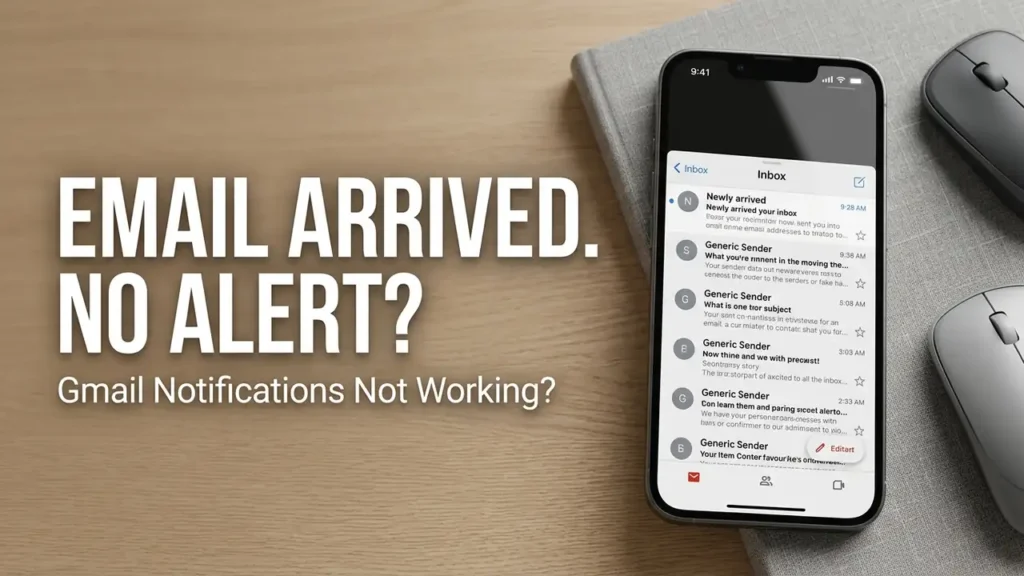
Your Gmail messages are arriving normally, but your iPhone stays silent. No banner, no sound, and sometimes no badge—even though you can open Gmail and see the new email waiting in your inbox.
So why are Gmail notifications not working if the emails themselves are arriving?
That detail is actually useful. If the message reaches your inbox, Gmail is receiving it. The problem is more likely somewhere between Gmail’s notification settings, iPhone permissions, Focus, or background activity.
Before deleting the Gmail app, let’s find out which part is actually failing.
First: Are the Emails Arriving?
Don’t start changing settings yet.
Send yourself a test email from another account, then leave Gmail closed for a few minutes.
If the email appears in Gmail but no notification appears, you’re dealing with a notification problem.
If the email doesn’t arrive at all, this is different. You may be dealing with syncing, connectivity, filters, or an account issue.
This one-minute test saves you from fixing the wrong problem.
1. Check Gmail’s Own Notification Setting
Gmail has notification controls inside the app, and they can be different for each Google account.
Open Gmail and go to:
Gmail → Menu → Settings → Select your account → Notifications
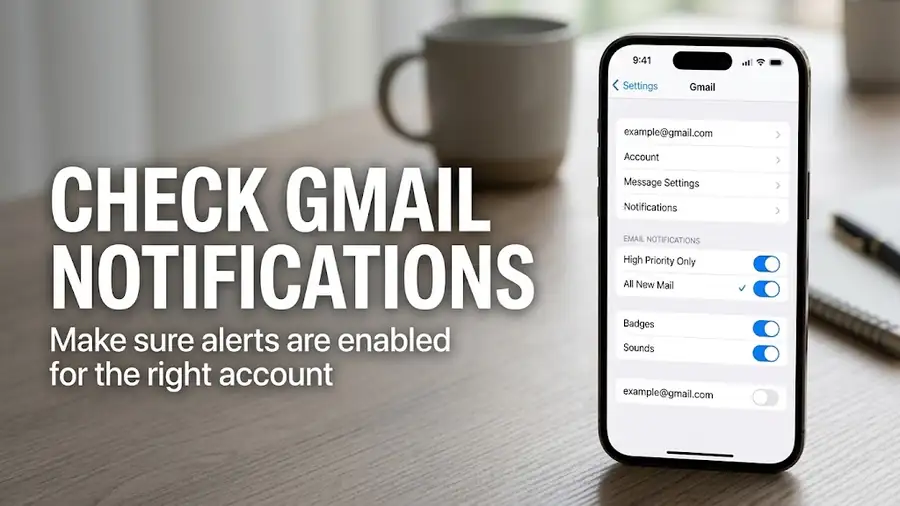
Make sure email notifications are enabled.
If you have more than one Gmail account, check the affected account specifically. Google confirms that notification settings need to be changed separately for each account in the Gmail iOS app.
For testing, choose notifications for all new emails rather than a more restrictive option.
Then send yourself another test message.
Google’s official Gmail notification guide for iPhone
2. Check iPhone Notification Permissions
Even if Gmail itself is configured correctly, iOS can prevent the app from displaying alerts.
Go to:
Settings → Notifications → Gmail
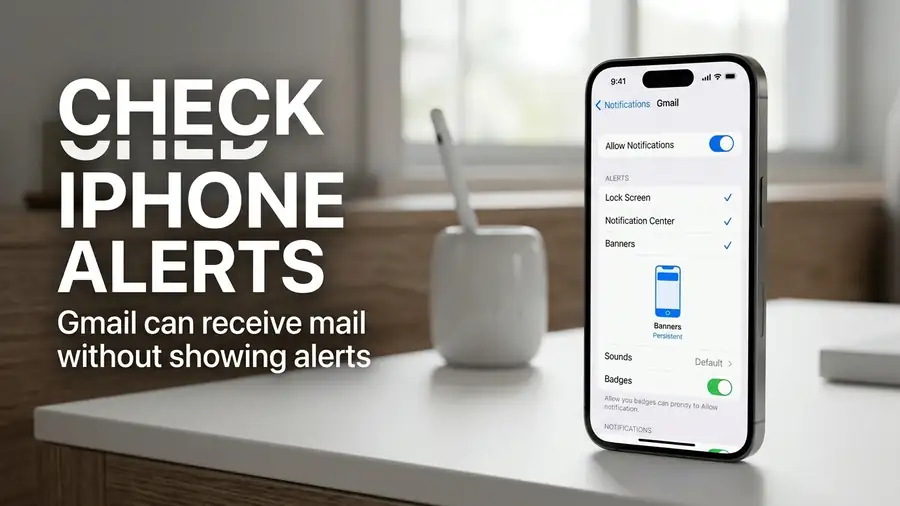
Check that:
- Allow Notifications is enabled
- Lock Screen is enabled
- Notification Center is enabled
- Banners are enabled
- Sounds are enabled if you want an audible alert
Don’t skip this step just because Gmail’s own notification setting is already turned on. There are effectively two places controlling whether you see the alert: Gmail’s settings and iOS notification permissions.
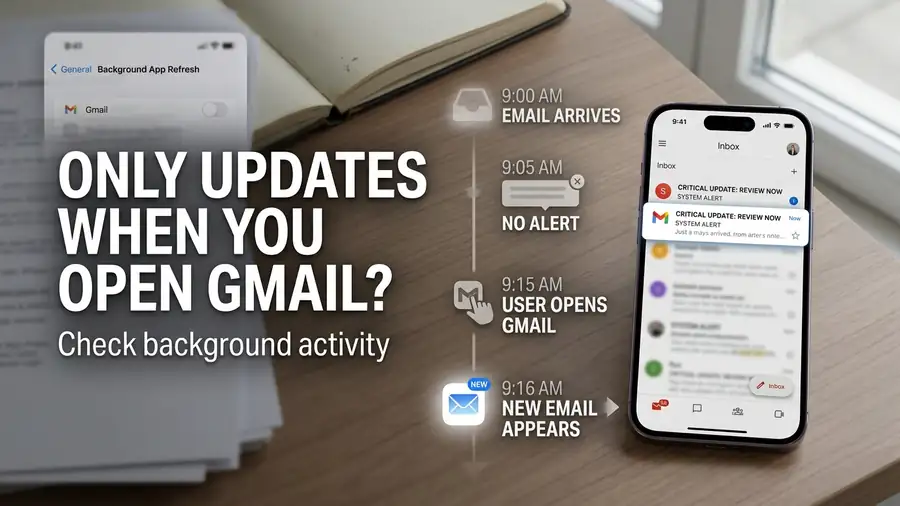
3. If Gmail Only Shows New Mail After You Open It
This is the most useful symptom to watch for.
Suppose you receive an email at 10:00 AM, but nothing happens. Then at 10:30 AM you open Gmail—and suddenly the new message appears.
That points your attention toward background activity or synchronization, rather than simple notification permissions.
Go to:
Settings → General → Background App Refresh
Make sure Background App Refresh is enabled and Gmail is allowed to use it.
Google specifically lists Background App Refresh as a step when troubleshooting Gmail sync problems on iPhone and iPad.
Google’s official Gmail sync troubleshooting guide
4. Check Focus Before Reinstalling Gmail
If notifications disappear at certain times of the day—or only when your iPhone is locked—check Focus.
Go to:
Settings → Focus
Temporarily turn off any active Focus mode and send yourself another test email.
This is worth checking because Gmail may be receiving the message normally while iOS is simply deciding not to show the alert.
Also check whether you have a Focus schedule that turns on automatically.
5. Test Another Gmail Account on the Same iPhone
Here’s a test that’s more useful than repeatedly reinstalling Gmail.
If you have another Gmail account, add it to the same Gmail app and send a test email to both accounts.
If the second account gets notifications
Your iPhone’s notification system is probably working.
The problem may be specific to the original account or its Gmail notification configuration.
If neither account gets notifications
Now focus on the iPhone itself: notification permissions, Focus, Background App Refresh, or the Gmail app.
This account-to-account comparison is especially useful because users have reported cases where one Gmail account stopped receiving push notifications while another account on the same iPhone continued working. Those reports are user experiences, not proof of a specific Google-side cause.
6. Check Whether Only Certain Emails Are Affected
What if Gmail notifies you sometimes, but not for every message?
Then don’t assume push notifications are completely broken.
Check whether the affected conversation has been muted, or whether those messages are being handled differently by Gmail filters or inbox categories.
For example, if emails from one sender never produce an alert but messages from other senders do, the problem is probably more specific than a phone-wide notification failure.
7. Update Gmail and Restart the iPhone
Only after the checks above, do the simple maintenance steps:
- Update Gmail from the App Store.
- Check for an available iOS update.
- Restart the iPhone.
- Send another test email.
Google includes updating Gmail and restarting the device among its troubleshooting steps for Gmail sync problems on iPhone and iPad.
If the problem started immediately after an app or iOS update, make a note of that timing. It can be a useful clue if the issue continues.
Apple’s official iPhone support page
Should You Reinstall Gmail?
Not yet.
Reinstalling the app is reasonable if Gmail itself is behaving strangely, but it shouldn’t be your first move when emails are already arriving.
You’ve learned much more by answering these questions first:
- Does the email arrive?
- Does Gmail show it only after you open the app?
- Does another Gmail account notify normally?
- Does turning off Focus change anything?
- Are Gmail and iPhone notifications both enabled?
Those answers tell you where to look, instead of simply resetting everything and hoping it works.
Quick Diagnosis
| What happens | Most useful thing to check |
|---|---|
| Emails arrive, but no alerts at all | Gmail + iPhone notification settings |
| New emails appear only after opening Gmail | Background App Refresh / sync |
| Notifications stop during certain periods | Focus settings |
| One Gmail account works, another doesn’t | Account-specific settings |
| Only certain messages lack alerts | Muted conversations / filters |
| Nothing works for any account | iPhone or Gmail app settings |
FAQ
Why are Gmail notifications not working but emails are still arriving?
If emails arrive normally but your iPhone doesn’t alert you, check Gmail’s notification settings, iOS notification permissions, Focus, and Background App Refresh before assuming Gmail is broken.
Why does Gmail only show new emails when I open the app?
That symptom points more toward background synchronization than simple notification permissions. Check Background App Refresh first. Google specifically recommends checking it when troubleshooting Gmail sync issues on iPhone.
Why does another Gmail account get notifications on the same iPhone?
That comparison suggests the iPhone’s notification system isn’t necessarily the problem. The affected account may have different Gmail notification settings or account-specific behavior. User reports have documented this pattern, but they don’t establish a confirmed Google-side cause.
Should I reinstall Gmail if notifications don’t work?
Try the notification, Focus, Background App Refresh, account, and update checks first. Reinstalling Gmail is better treated as a later troubleshooting step.
More Gmail & App Troubleshooting Guides
- Gmail “Account Already Exists” but Not Showing?
- Google AI Mode Send Button Missing?
- Chrome Not Responding on Windows 11
Final Thoughts
When Gmail notifications are not working but emails are still arriving, the fastest approach isn’t to reinstall everything.
First confirm that the email actually arrives. Then compare Gmail’s notification settings, iPhone permissions, Focus, and background activity.
And if another Gmail account works normally on the same iPhone, pay attention to that clue. It can tell you that the phone itself isn’t the whole story.
Once you know whether the failure is with delivery, synchronization, or the notification layer, the right fix becomes much easier to find.