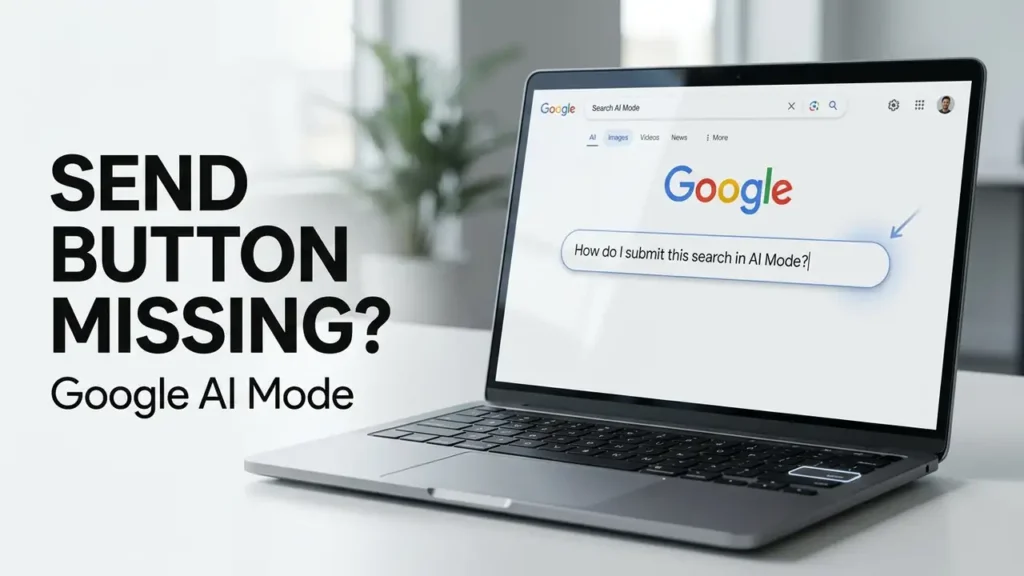

Google AI Mode Send Button Missing? Here’s Why
You open Google AI Mode, type your question, and then notice something strange: the Send button is missing.
Pressing Enter may only create a new line instead of sending your question. You may also notice that other AI Mode controls, such as the + button or settings, are not responding.
So why is the Google AI Mode Send button missing?
Recent Google Search Community reports describe this exact problem. In some cases, AI Mode works with another Google account on the same computer, while the affected account has no Send button. Other users reported that Incognito mode worked normally.
Before resetting Chrome or reinstalling anything, use the tests below to find out where the problem is.
First, Check the Exact Symptom
Open Google AI Mode and type a short question.
Look for these signs:
- The Send button or arrow is missing
- Pressing Enter creates a new line
- Other AI Mode buttons don’t respond
- AI Mode works differently with another account
- The problem disappears in Incognito
If several of these happen together, you’re likely dealing with an AI Mode interface, browser-profile, session, or account-specific problem rather than a normal Google Search issue.
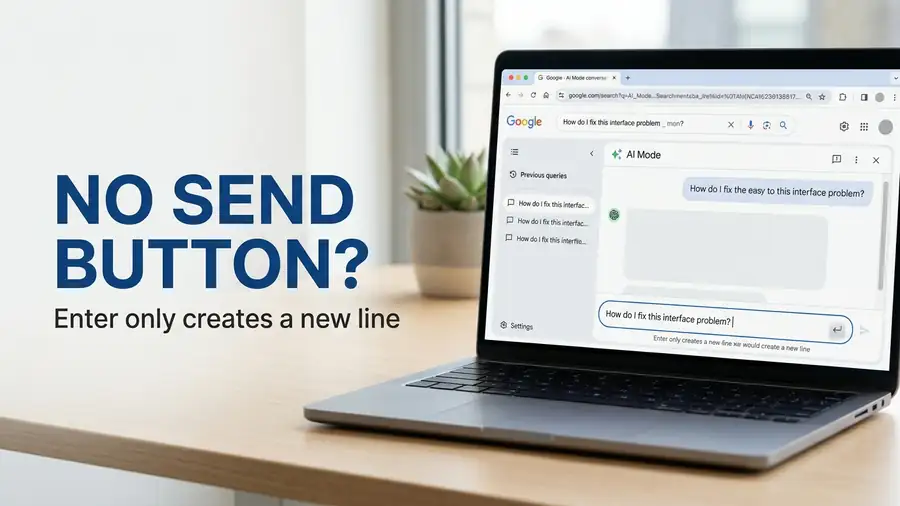
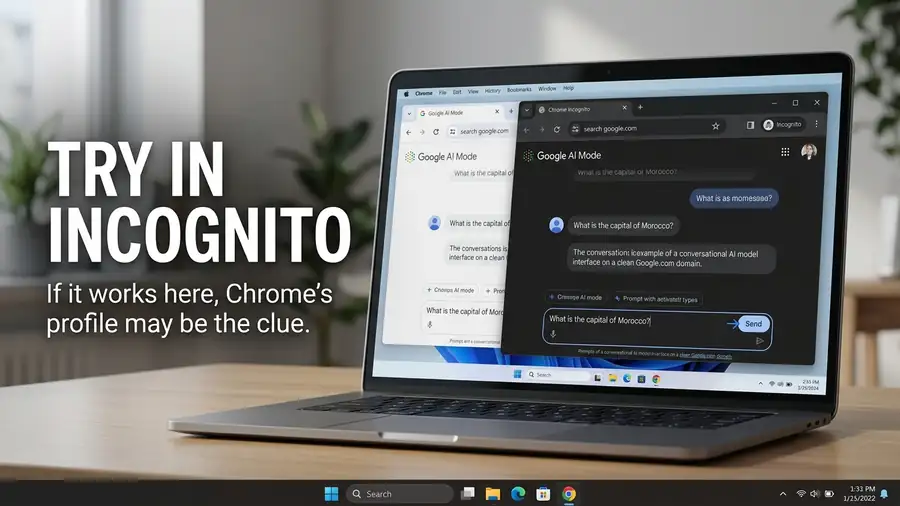
1. Try AI Mode in Incognito
Open Chrome and press:
Ctrl + Shift + N
Then open Google AI Mode and enter the same question.
If the Send button appears
That’s an important clue.
Your regular Chrome profile may be interfering with AI Mode through an extension, stored site data, or another profile-specific issue.
Return to your normal Chrome window and continue with the next checks.
If the button is still missing
Try another Google account.
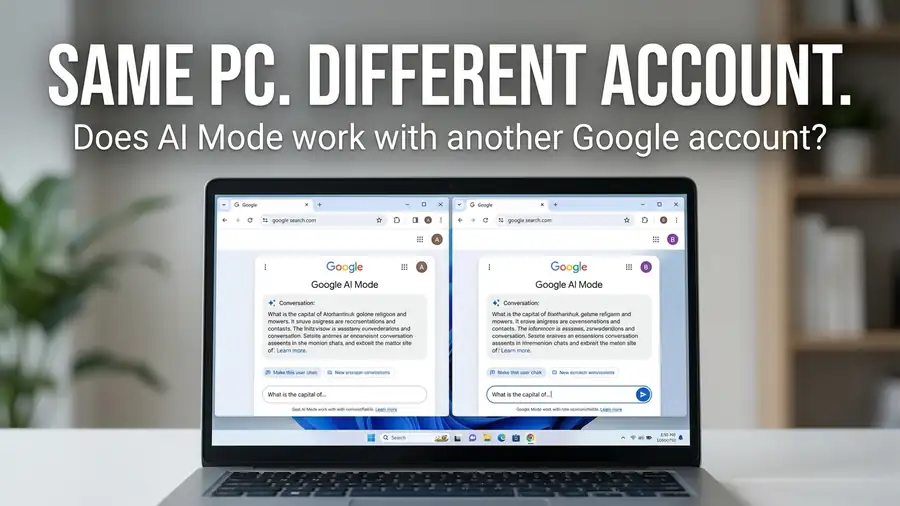
2. Try Another Google Account
This is one of the most useful tests for this particular problem.
On the same computer and same Chrome browser, switch to another Google account and open AI Mode.
If the Send button works with the other account
Your Chrome installation is less likely to be the main problem.
A September 2026 Google community report described the same pattern: AI Mode worked on the same Windows PC and Chrome browser with a different Google account, while the affected account was missing the Send button.
That doesn’t prove that Google has identified a specific account bug. It does show that repeatedly reinstalling Chrome may not address the underlying problem.
3. Check AI Mode Availability
Google says AI Mode in Chrome isn’t available to everyone or every device at the same time. The feature is being rolled out gradually, including to users outside the US and to additional languages. Google also recommends turning on Web & App Activity for the best AI Mode experience.
If AI Mode behaves differently between two Google accounts, check whether both accounts have the same access to the feature.
You can also check Google’s official guide:
4. Disable Chrome Extensions
If AI Mode works in Incognito but not in your normal Chrome window, extensions are worth checking.
Go to:
Chrome → ⋮ → Extensions → Manage Extensions
Temporarily disable extensions that:
- Block ads or scripts
- Modify webpages
- Add privacy protections
- Change search pages
Reload AI Mode after disabling them.
If the Send button returns, enable your extensions one at a time to identify whether one of them is interfering with the page.
5. Clear Google’s Site Data
If Incognito works but your normal profile doesn’t, stored Google site data may be contributing to the problem.
Instead of deleting your entire browsing history, clear Google’s stored site data and sign in again.
Then test AI Mode.
If the problem continues only with one Google account, the account comparison is more useful than repeatedly clearing Chrome data.
6. Test Another Browser
Try the same Google account in Microsoft Edge.
This gives you another useful comparison:
| Test | What it suggests |
|---|---|
| Works in Incognito only | Chrome profile, extension, or stored data |
| Works with another Google account | Account-specific behavior is possible |
| Works in Edge but not Chrome | Chrome/profile issue is more likely |
| Fails in Chrome and Edge | Less likely to be Chrome-only |
| Fails on multiple devices | Account or Google-side issue becomes more plausible |
These tests don’t prove the exact cause, but they help you avoid changing settings blindly.
7. Update Chrome
Make sure Chrome is current:
Chrome → ⋮ → Help → About Google Chrome
Install any available update and restart Chrome.
An outdated browser isn’t necessarily responsible for the missing button, but updating Chrome removes one easy variable from the diagnosis.
8. If the Problem Started Suddenly, Don’t Reinstall Everything
This matters especially if AI Mode was working normally and suddenly lost the Send button.
Recent September 2026 community reports show users experiencing missing Send buttons and other AI Mode controls across different browsers and devices. Some users also reported that the issue later returned to normal. These are community reports, not an official Google confirmation of one underlying bug.
If the same account fails across browsers or devices while another account works normally, the problem may not be something you can fix locally.
In that situation, use Google’s feedback option to report the issue rather than repeatedly resetting Chrome.
Quick Diagnosis
Send button missing only in normal Chrome:
Check extensions and stored site data.
Works in Incognito:
Investigate your Chrome profile.
Works with another Google account:
Account-specific behavior becomes more likely.
Works in another browser:
Focus on Chrome or its profile.
Fails across multiple browsers and devices:
A broader account or Google-side issue becomes more plausible.
FAQ
Why is the Send button missing in Google AI Mode?
Recent users have reported cases where the Send button disappears and Enter creates a new line instead of sending the prompt. The cause can vary, so testing Incognito, another account, and another browser can help narrow it down.
Why does Enter create a new line instead of sending my question?
If the Send button is also missing, the AI Mode input may not be functioning correctly. Compare normal Chrome with Incognito and then test another Google account.
Why does AI Mode work with another Google account?
If the same computer and browser work with another account, that’s a useful clue that the problem isn’t simply your Chrome installation. Google also notes that AI Mode availability can vary by account and device.
Should I reinstall Chrome?
Not as your first step. Test Incognito, another Google account, extensions, site data, and another browser first.
More Google & Browser Troubleshooting Guides
- Chrome Not Responding on Windows 11 — https://neceb.com/chrome-not-responding-windows-11/
- Windows 11 Search Bar Not Working — https://neceb.com/windows-11-search-bar-not-working/
- Google Maps Not Updating Location — https://neceb.com/google-maps-not-updating-location/
Final Thoughts
When the Google AI Mode Send button is missing, don’t immediately assume that Chrome is broken.
First compare normal Chrome vs. Incognito, then your Google account vs. another account, and finally Chrome vs. another browser.
These simple comparisons can help you determine whether you’re dealing with a browser-profile problem, an extension, account-specific behavior, or an issue that may be happening on Google’s side.
If the problem follows the same Google account across browsers and devices, there may be little to fix locally. Reporting the issue to Google and waiting for the feature to recover can make more sense than repeatedly resetting your browser.