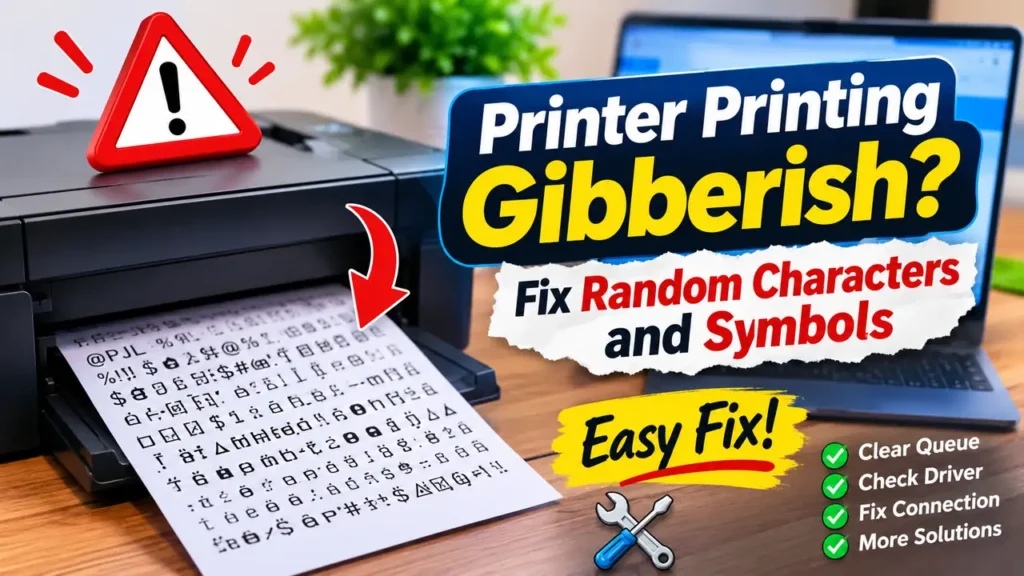

Printer Printing Gibberish? Fix Random Characters and Symbols
Is your printer printing gibberish instead of your document? You may see random symbols, strange letters, lines of code, or several pages of unreadable text.
This usually happens when the printer receives data it cannot interpret correctly. A wrong printer driver, corrupted print job, connection problem, or incompatible printing language can cause it.
Instead of reinstalling everything, use these checks to identify why your printer is printing random characters.
1. Stop the Random Printing and Clear the Queue
If your printer keeps printing pages of symbols, stop it first to avoid wasting paper and ink or toner.
- Turn off the printer.
- On Windows 11, go to Settings > Bluetooth & devices > Printers & scanners.
- Select your printer and click Open print queue.
- Cancel all pending print jobs.
- Wait a few seconds, then turn the printer back on.
If the same pages start printing again, the computer may still be sending a stuck print job. Make sure the queue is empty before testing again.
For additional help, follow HP’s guide to unexpected text printing.
2. Check Whether It Happens With Every Document
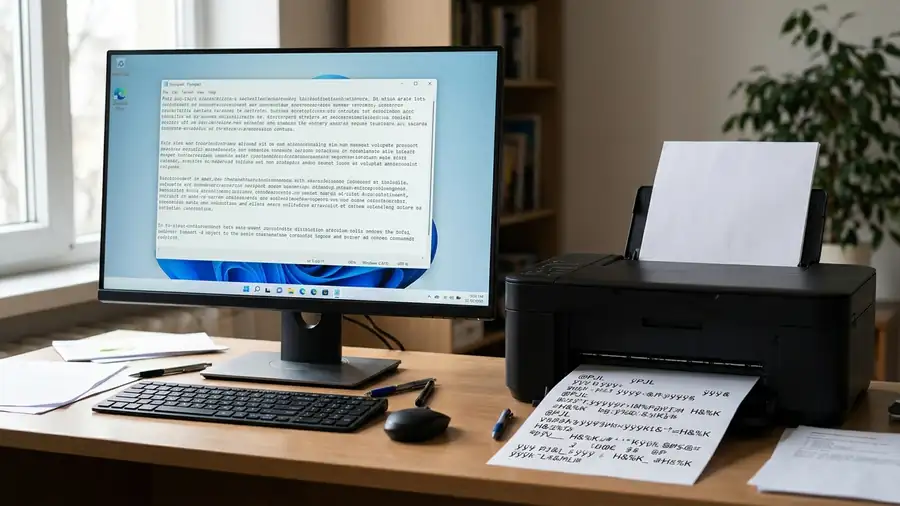
Print a simple text file from Notepad, then try a PDF or document from another application.
- Notepad prints correctly: The original document or application may be causing the problem.
- PDFs print gibberish, but other documents work: Check the PDF reader and document.
- Every application prints random symbols: The printer driver, connection, or Windows printing system may be responsible.
You can also print a Windows test page from your printer’s properties. If the test page prints correctly but your document contains random characters, the problem may be related to the application, file, or driver used to print that document.
This test helps you avoid changing printer settings when the actual problem is a single file.
3. Check the Printer Driver
An incorrect or incompatible driver can send instructions the printer doesn’t understand.
Open Settings > Bluetooth & devices > Printers & scanners, select your printer, and check its driver information or printer properties.
Make sure the driver matches your exact printer model. If the problem started after a Windows update or driver change, check for a compatible driver from your printer manufacturer’s official website.
Avoid downloading drivers from unfamiliar third-party websites.
4. Look for Printer Language Errors
Sometimes the characters on the page reveal the cause.
If your printer prints lines containing @PJL, %!PS, or other printer commands, it may be receiving data in an unsupported printing language.
Some printers support PCL, PostScript, or other formats, while others support only specific languages.
Check the printer model and make sure the installed driver matches its supported printing language. Don’t switch between PCL and PostScript randomly, because the wrong driver can make the problem worse.
You don’t need to change these settings unless your printer or driver documentation specifically recommends it.
If you use an Epson printer, check its official guide to printing incorrect characters for model-specific troubleshooting.
5. Check the USB or Wi-Fi Connection
A communication problem can interrupt a print job or send incorrect data.
If you’re using USB:
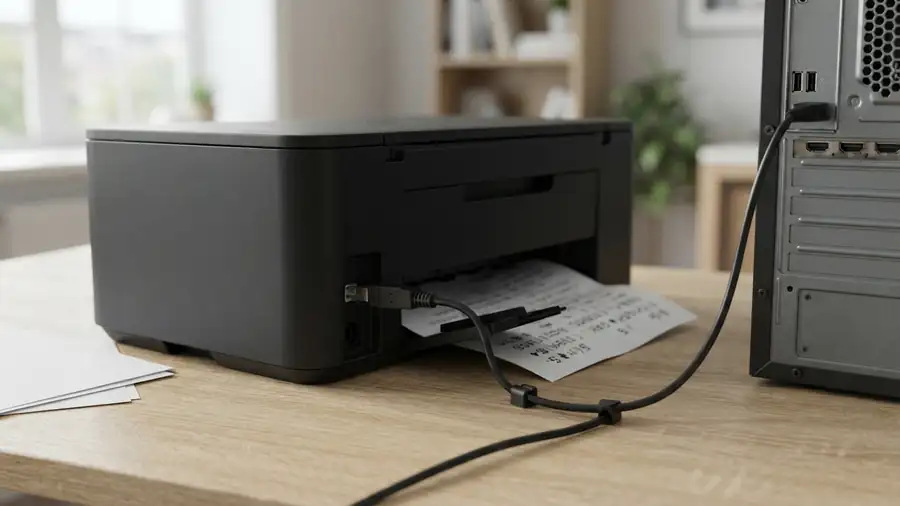
- Disconnect and reconnect the cable.
- Try another USB port.
- Avoid USB hubs while testing.
- Try another compatible cable if available.
If you’re printing over Wi-Fi, make sure the computer and printer are connected to the correct network.
You can also restart both devices and try printing a small test document.
6. Restart the Windows Print Spooler
If the printer keeps printing random characters after you clear the queue, restart the Print Spooler.
- Press Windows + R.
- Type
services.mscand press Enter. - Find Print Spooler.
- Right-click it and select Restart.
- Try printing again.
The Print Spooler manages print jobs in Windows. Restarting it can help when a corrupted or stuck job keeps causing problems.
If printing problems continue, use Microsoft’s official printer troubleshooting guide to check for additional connection and driver issues.
7. Remove and Reinstall the Printer Only If Necessary
If none of the previous checks solve the problem, remove the printer from Windows and add it again.
Go to:
Settings > Bluetooth & devices > Printers & scanners
Select your printer, click Remove, restart your computer, and add the printer again.
If Windows installs the wrong driver, download the correct software from your printer manufacturer’s official support page.
Quick Diagnosis
| What you see | Possible cause |
|---|---|
| Random symbols from every application | Driver or communication problem |
| Gibberish from one PDF | PDF or application issue |
| Pages containing printer commands | Incompatible print language or driver |
| Printing starts after canceling a job | Stuck queue or Spooler |
| Problem started after a driver update | Driver compatibility |
| Random characters over USB | Cable, port, or communication issue |
Frequently Asked Questions
Why is my printer printing random characters instead of text?
The printer may be receiving corrupted data or instructions in a printing language it doesn’t support. An incorrect driver, stuck print job, or connection issue can cause this.
Why does my printer print pages of code?
The computer may be sending PCL, PostScript, or other printer commands that the device cannot interpret correctly. Check the printer’s supported language and driver.
Why does my printer print gibberish from PDFs only?
The problem may be related to the PDF file, its fonts, or the application sending the print job. Try another PDF reader or print the same document from another application.
Can a Windows update cause a printer to print gibberish?
A driver or printing compatibility issue can occur after a Windows update. Check Windows Update and your printer manufacturer’s support page for compatible drivers or known issues.
More Guides
- Printer Connected but Not Printing?
- Printer Offline in Windows 11?
- Printer Not Showing Up in Windows 11?
If your printer is printing gibberish, start by clearing the queue and testing another application. Those two checks can often tell you whether the problem is the document or the printer connection, helping you avoid unnecessary driver changes.