
Windows 11 Search Bar Not Working? Here’s What to Check
If your Windows 11 Search Bar is not working, don’t start changing system settings just yet.
There are a few different problems that can look like the same thing. Search might not open at all, the panel might appear completely blank, or you may be able to open it but can’t type anything.
Sometimes Search works normally but doesn’t find the files or apps you’re looking for.
The quickest way to fix it is to first figure out which version of the problem you’re actually having.
What Happens When You Open Search?
Try clicking the Search icon on the taskbar, then press Windows + S.
Now check what happens.
- Nothing opens: Windows Search or the Windows shell may be stuck.
- A blank Search panel appears: The Search interface may not be loading correctly.
- Search opens but you can’t type: The Search/input component may be the problem.
- Search works but can’t find files: Check Windows indexing and search locations.
That small distinction can save you from trying fixes that don’t apply to your PC.
1. Restart Windows Explorer
If Search suddenly stopped working, start here.
Press:
Ctrl + Shift + Esc
to open Task Manager.
Find Windows Explorer, right-click it, and select:
Restart
Your taskbar may disappear for a few seconds. That’s normal.
When it comes back, press Windows + S and try Search again.
This is a good first step because it refreshes the Windows interface without changing your files or personal settings.
If Search is still not responding, continue below.
2. Restart Windows Search
If restarting Explorer didn’t help, restart the Search process itself.
Open Task Manager with:
Ctrl + Shift + Esc
Go to the Details tab and look for:
SearchHost.exe
Right-click it and select:
End task
Don’t worry if the process disappears. Windows can start it again when Search is used.
Now press Windows + S and test it.
Microsoft’s own Windows Search troubleshooting guidance includes restarting Windows Search among the recommended repair steps.
Microsoft: Fix problems in Windows Search
3. Can’t Type in Windows Search?
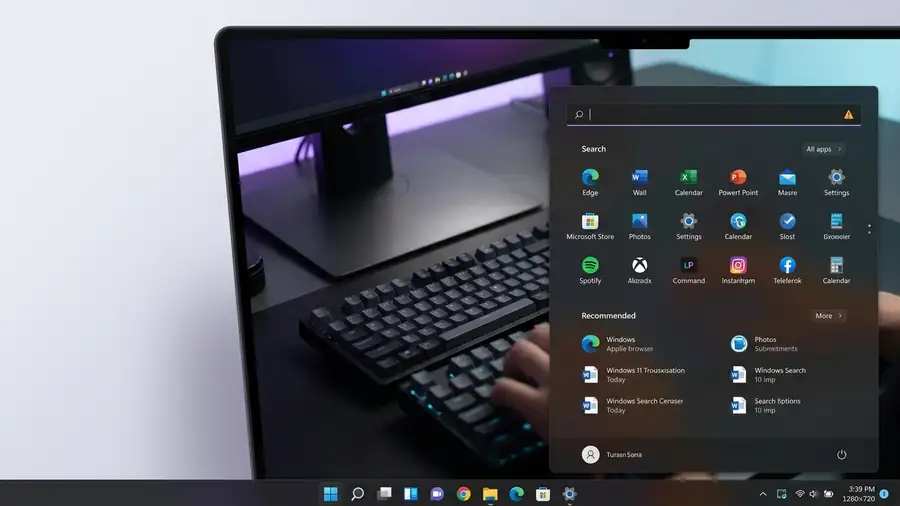
Here’s an easy test that can tell you a lot.
Open Notepad and type a sentence.
If the keyboard works normally in Notepad, Chrome, Word, or another app, but nothing appears when you type in Windows Search, don’t start looking for a new keyboard.
The problem is more likely connected to the Windows Search or Start/Search input components.
Microsoft Q&A has a 2026 report describing this exact behavior: Search opened normally, but keyboard input was ignored while typing worked elsewhere.
First try restarting Windows.
If the problem keeps coming back, also try restarting Windows Search using the SearchHost.exe step above.
4. Check the Windows Search Service
You can also check whether the Windows Search service is running.
Press:
Windows + R
Type:
services.msc
and press Enter.
Find:
Windows Search
If it is stopped, right-click it and choose Start.
If it is already running, choose Restart.
Then try Search again.
This is especially worth checking when Search works sometimes but stops responding after the PC has been running for a while.
5. Is Windows Search Completely Blank?
A blank Search panel deserves a slightly different approach.
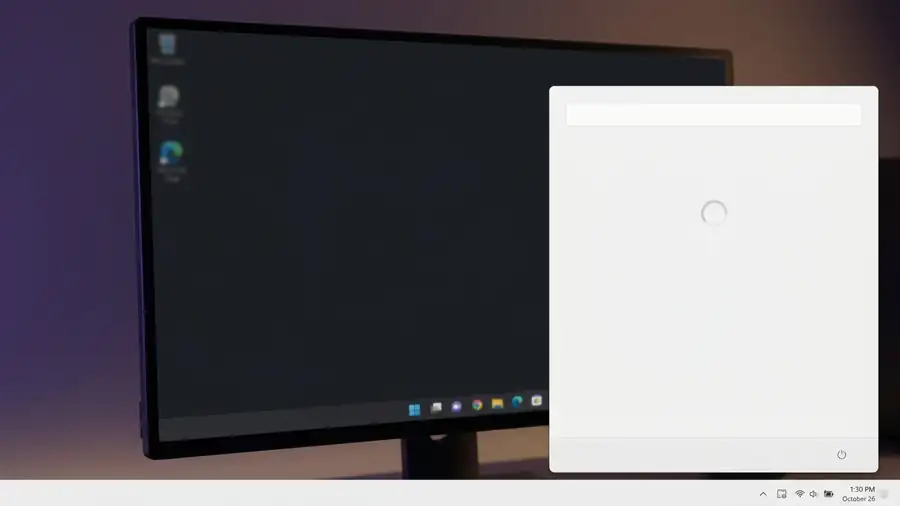
If you click Search and get an empty or blank panel, first:
- Restart Windows.
- Check Settings → Windows Update.
- Install available updates.
- Test Search again.
If the problem remains, try another Windows user account if one is available.
Why Test Another Account?
This can tell you whether the problem is system-wide or connected to your current Windows profile.
For example, a September 2026 Microsoft Q&A report describes a Windows 11 laptop where Search and Start search were blank in the original account but worked normally after creating a new user account.
That doesn’t prove every blank Search problem is caused by a user profile. But if Search works in another account, it gives you a useful clue before you start making deeper system changes.
6. Check Windows Update
Go to:
Settings → Windows Update
and select:
Check for updates
Install anything available and restart the PC if Windows asks you to.
This is particularly useful when Search stopped working shortly after another Windows change.
If you’re still having problems, Microsoft also provides a dedicated Windows Search troubleshooting guide with steps for updating Windows, restarting Search, running the Search and Indexing troubleshooter, and other repair options.
7. Search Works but Doesn’t Find Your Files
This is where you should stop treating the problem as a broken Search Bar.
If you can open Search, type normally, and get results, but a file you know exists doesn’t appear, check indexing.
Go to:
Settings → Privacy & security → Searching Windows
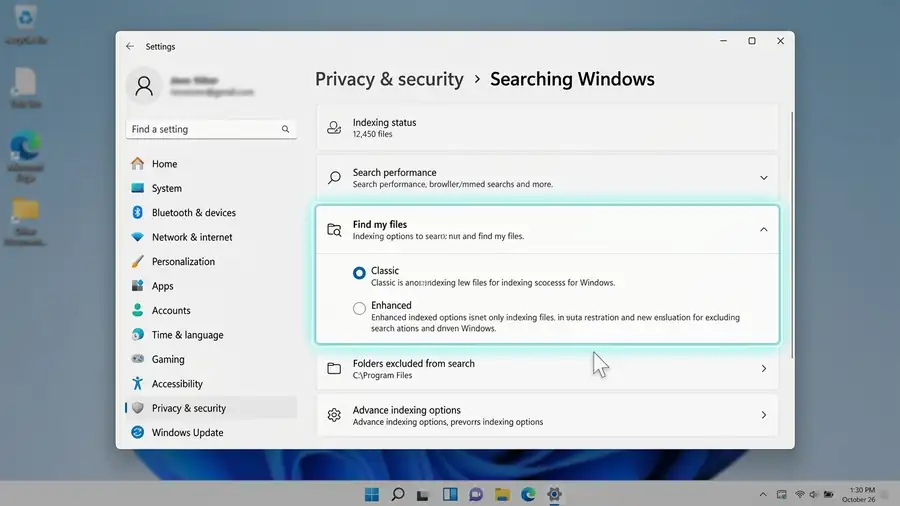
Under Find my files, Windows provides Classic and Enhanced indexing.
Classic searches common folders such as Documents, Pictures, Music, and the desktop. Enhanced can index more locations across the PC.
If the folder containing your missing files isn’t included in the indexed locations, Search may not return those files.
Also give indexing time to finish if you have recently changed the locations being searched. Microsoft’s Search indexing guide explains how Windows indexing works and how to manage the locations included in Search.
8. Run the Search Troubleshooter
If Search is still broken, use Windows’ troubleshooting options instead of immediately editing the Registry.
Microsoft’s current Windows Search guidance includes the Search and Indexing troubleshooter as one of the repair steps.
Depending on your Windows version and settings, you may find the troubleshooting option through Windows Settings or Get Help.
Let Windows check the problem and follow any recommended repair.
9. Don’t Start With Registry Hacks
You may see tutorials telling you to:
- edit the Windows Registry
- delete system folders
- re-register Windows packages
- run long PowerShell commands
Those methods can have their place in advanced troubleshooting, but they’re not where I’d start if Search simply stopped working today.
Try the straightforward checks first:
Restart Explorer → Restart SearchHost.exe → Check Windows Search → Update Windows → Test another account → Check indexing
If none of those helps, then it’s time to look at deeper Windows repair options.
Quick Diagnosis
| What you’re seeing | What to try first |
|---|---|
| Search doesn’t open | Restart Windows Explorer |
| Search opens but is blank | Restart SearchHost.exe and check Windows Update |
| Search opens but you can’t type | Test typing elsewhere, then restart SearchHost.exe |
| Search works but can’t find files | Check Windows Search indexing |
| Search works in another account | The problem may be limited to your Windows profile |
| Basic fixes don’t help | Run Windows Search troubleshooting |
FAQ
Why is my Windows 11 Search Bar not working?
It depends on what happens when you open it. Search may fail to open, appear blank, stop accepting keyboard input, or work normally while failing to find certain files.
Why can’t I type in Windows 11 Search?
If your keyboard works normally in other applications but not in Search, the issue may be related to Windows Search or its input components rather than the keyboard itself. Restarting the Search process is one of the troubleshooting steps worth trying.
Why is Windows Search showing a blank screen?
A blank Search panel can happen when the Search interface isn’t loading correctly. Restart Windows, restart the Search process, install available updates, and test another Windows account if possible.
Why is Windows Search not finding my files?
If Search opens and accepts typing but doesn’t find files, check Settings → Privacy & security → Searching Windows and review the locations being indexed. Windows uses indexing to make local file searches faster.
Should I reset Windows because Search isn’t working?
Not as a first step. Restart Explorer, restart Search, check Windows Update, test another account, and review indexing first. More advanced Windows repair should come later if those steps don’t solve the problem.
More Windows Troubleshooting Guides
Having another Windows 11 problem? Check these related troubleshooting guides:
- How to Fix Windows 11 WiFi Keeps Disconnecting — Find out why your Wi-Fi keeps dropping and what to check first.
- How to Fix Chrome Not Responding on Windows 11 — Try these steps when Chrome freezes, stops responding, or won’t open properly.
- How to Fix Windows 11 Black Screen: 10 Solutions — Check what to do when Windows starts but your screen stays black.
- How to Fix Windows 11 File Explorer Not Responding — Learn what to check when File Explorer freezes or won’t open folders.
Final Thoughts
A Windows 11 Search Bar that isn’t working doesn’t always need a complicated fix.
If Search won’t open, start with Explorer. If the panel is blank, restart the Search process and check for Windows updates. If you can’t type, test the keyboard somewhere else before changing keyboard settings. And if Search works but can’t find your files, check indexing.
The useful part is knowing which problem you’re actually dealing with.
Once you identify the symptom, you can focus on the fix that matches it instead of trying ten unrelated solutions.