
iPhone Personal Hotspot Not Showing Up? Here’s Why
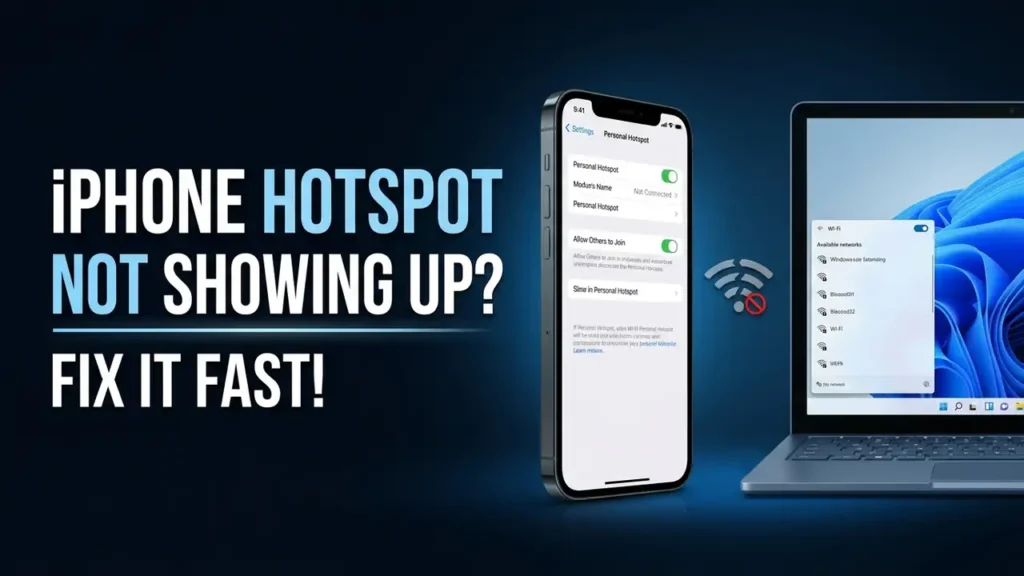
You turn on Personal Hotspot on your iPhone, open Wi-Fi on your laptop, and… your iPhone simply isn’t there.
If your iPhone Personal Hotspot is not showing up, don’t reset your iPhone just yet. The important question is where the hotspot disappears.
If Personal Hotspot is missing from your iPhone’s Settings, the cause can be different from a hotspot that is enabled but invisible to your laptop. And if your Windows 11 PC can see the hotspot but won’t connect, that’s another problem again.
The good news: you can usually identify the cause in a few minutes.
First, Find Out Which Hotspot Problem You Have
Before changing any settings, check which situation matches yours:
- Personal Hotspot is missing from iPhone Settings
- Personal Hotspot is visible on the iPhone, but your laptop can’t find it
- Your Windows 11 PC sees the hotspot, but won’t connect
- The hotspot connects, but there is no internet
This distinction matters because each situation points to a different solution.
Try This First
If Personal Hotspot is visible on your iPhone, do this before anything more complicated:
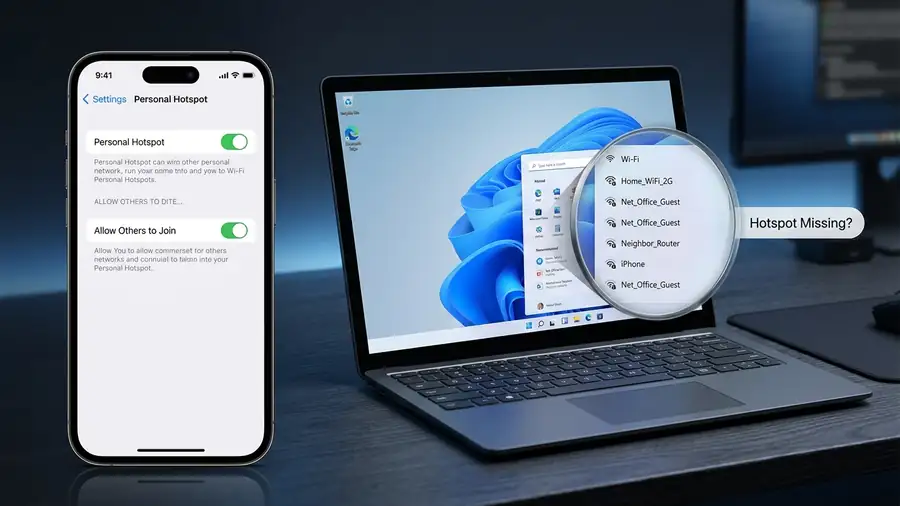
Settings → Personal Hotspot → Allow Others to Join
Turn it on and leave the Personal Hotspot screen open.
Then open Wi-Fi on your laptop and scan for available networks again.
If the iPhone hotspot appears, you don’t need to reset network settings or change anything else.
If Personal Hotspot Is Missing From Your iPhone
If you can’t find Personal Hotspot anywhere in Settings, start with cellular service rather than Wi-Fi.
Go to:
Settings → Cellular
Make sure Cellular Data is turned on.
Then check:
Settings → Personal Hotspot
Depending on your iPhone and iOS configuration, Personal Hotspot may also appear under Cellular settings.
If Cellular Data is working but the Personal Hotspot option is completely unavailable, your carrier or mobile plan may be the reason.
Personal Hotspot depends on carrier support. In that situation, changing Wi-Fi settings on your iPhone won’t solve the problem.
Contact your carrier and ask whether Personal Hotspot/tethering is enabled on your plan.
If Your iPhone Hotspot Is On but Your Laptop Can’t See It
This is probably the situation most people mean when they say their iPhone hotspot is “not showing up.”
First, open:
Settings → Personal Hotspot
Make sure:
Allow Others to Join → On
For Apple’s official connection steps, see Apple’s guide to connecting to Personal Hotspot.
Then keep this screen open while your laptop searches for the hotspot.
On your laptop, turn Wi-Fi off, wait a few seconds, and turn it back on.
Now check the Wi-Fi list again.
Why Keep the Hotspot Screen Open?
It’s an easy step to overlook, but Apple recommends keeping the Personal Hotspot screen open while another device is trying to connect.
If the hotspot appears after doing this, there’s no reason to start changing advanced network settings.
iPhone Hotspot Not Showing on Windows 11?
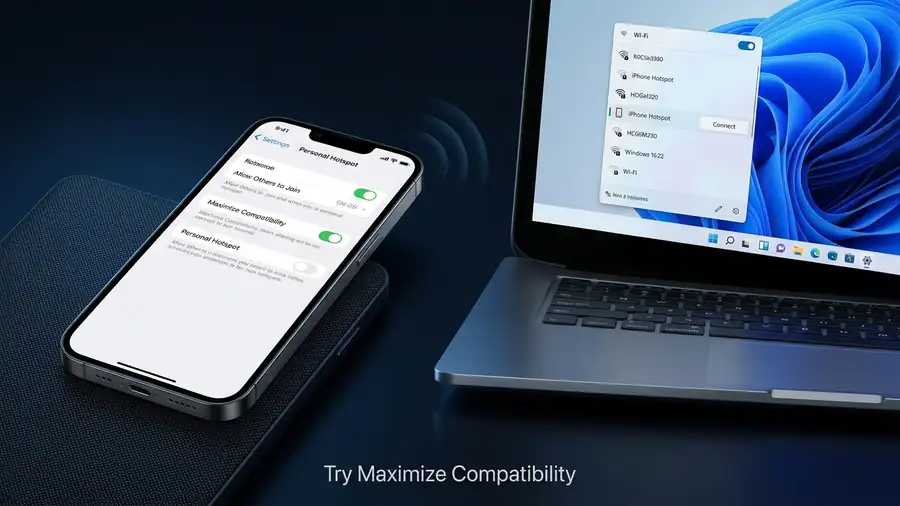
If your specific problem is iPhone hotspot not showing on Windows 11, try the compatibility setting next.
On your iPhone, open:
Settings → Personal Hotspot → Maximize Compatibility
Turn Maximize Compatibility on.
Then refresh the Wi-Fi list on Windows 11 and look for your iPhone again.
This can help when a Windows computer has trouble detecting the iPhone hotspot over Wi-Fi.
Apple notes that Maximize Compatibility can reduce Wi-Fi performance and security for connected devices. So use it as a troubleshooting step rather than assuming it needs to stay enabled permanently.
If the hotspot still doesn’t appear, continue with the checks below.
Check Wi-Fi and Bluetooth
Make sure the wireless connections needed for the connection are enabled.
On your iPhone:
Wi-Fi → On
Bluetooth → On
On your laptop:
Wi-Fi → On
Then place the iPhone close to the computer and scan for available networks again.
If you’re connecting Apple devices using Instant Hotspot, Wi-Fi and Bluetooth should be enabled on both devices.
A Quick Test That Can Save You Time
Here’s one of the easiest ways to figure out where the problem is:
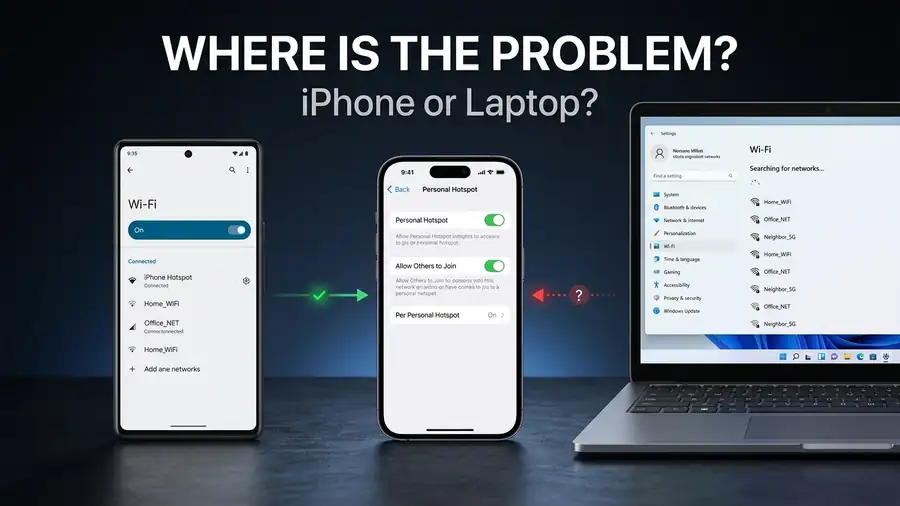
Try connecting another device to your iPhone hotspot.
For example, if your Windows laptop can’t see the hotspot, check whether another phone or tablet can.
If Another Device Sees the Hotspot
Your iPhone’s hotspot is probably working, so focus on the laptop.
Check its Wi-Fi connection, restart it, and install any available Windows updates.
If No Device Can See the Hotspot
Now focus on the iPhone itself.
Check Allow Others to Join, try Maximize Compatibility, restart the iPhone, and test again.
This simple test can prevent you from changing settings on the wrong device.
Restart Both Devices
If the hotspot worked normally before but suddenly disappeared, restart both sides of the connection.
Restart:
- Your iPhone
- Your Windows PC, Mac, or other device
After restarting, open:
Settings → Personal Hotspot
Turn on Allow Others to Join, keep the screen open, and search for the hotspot again.
A restart can clear a temporary wireless or networking problem without removing your saved settings.
Check for Software Updates
If the problem keeps coming back, make sure both devices are updated.
On iPhone:
Settings → General → Software Update
On Windows 11:
Settings → Windows Update
This is particularly worth checking if the hotspot stopped appearing after a recent software change.
If your iPhone hotspot works with other devices but not with one specific Windows laptop, the laptop becomes the more likely place to troubleshoot.
What If the Hotspot Appears but Won’t Connect?
If you can see your iPhone in the Wi-Fi list but Windows refuses to connect, you’re dealing with a different problem.
Start by checking the hotspot password:
Settings → Personal Hotspot → Wi-Fi Password
Enter the current password carefully.
If you’ve previously connected this laptop to the iPhone, forget the saved Wi-Fi network on Windows and search for the hotspot again.
Then try connecting with the current password.
If Windows Wi-Fi itself is acting strangely, turn Wi-Fi off and back on before trying again.
Need Internet Right Now? Try USB
If Wi-Fi hotspot discovery still isn’t working and you need internet on your computer immediately, try connecting the iPhone with a USB cable.
Unlock the iPhone and connect it to the computer.
If the iPhone asks whether you trust the computer, select Trust.
On Windows, Apple says the appropriate Apple software may be required for USB Personal Hotspot connections.
This also gives you a useful diagnosis.
If USB tethering works but the Wi-Fi hotspot doesn’t appear, your iPhone’s cellular connection is working and the problem is more likely related to Wi-Fi hotspot discovery or compatibility.
Reset Network Settings Only If Nothing Else Works
Still can’t get the hotspot to appear?
You can consider resetting the iPhone’s network settings:
Settings → General → Transfer or Reset iPhone → Reset → Reset Network Settings
Don’t start here.
This reset affects more than Personal Hotspot. It removes saved Wi-Fi networks and passwords and resets certain cellular, VPN, and APN settings.
You’ll have to reconnect to Wi-Fi networks afterward.
Use this as a last resort, especially if the hotspot worked previously and the problem only affects one computer.
Apple also recommends several troubleshooting steps before resetting network settings. See Apple’s official Personal Hotspot troubleshooting guide
Quick Diagnosis
| What you’re seeing | What to check first |
|---|---|
| Personal Hotspot is missing from Settings | Cellular Data + carrier support |
| Hotspot is on but laptop can’t see it | Allow Others to Join + keep Hotspot screen open |
| iPhone hotspot isn’t showing on Windows 11 | Maximize Compatibility |
| Hotspot appears but won’t connect | Wi-Fi password + forget and reconnect |
| Another device can see the hotspot | Troubleshoot the laptop |
| No device can see the hotspot | Troubleshoot the iPhone |
| Wi-Fi fails but USB works | Wi-Fi compatibility/discovery |
| Nothing works after all checks | Consider Network Settings reset |
FAQ
Why is my iPhone Personal Hotspot not showing up?
First check whether Personal Hotspot is missing from the iPhone itself or simply isn’t visible on another device. If it is available on the iPhone, turn on Allow Others to Join, keep the Personal Hotspot screen open, and refresh Wi-Fi on the connecting device.
Why is my iPhone hotspot not showing on my laptop?
Make sure Allow Others to Join is enabled and leave the Personal Hotspot screen open while your laptop searches for Wi-Fi networks. If the laptop still can’t find it, restart both devices and try Maximize Compatibility.
Why is my iPhone hotspot not showing on Windows 11?
Try Settings → Personal Hotspot → Maximize Compatibility, then turn Wi-Fi off and back on in Windows 11. If another device can see the hotspot, focus your troubleshooting on the Windows laptop.
Why did my iPhone hotspot suddenly disappear?
A temporary network problem, software change, carrier configuration, or device-specific Wi-Fi issue can cause the hotspot to disappear. Start with the simple checks before resetting network settings.
More iPhone & Device Troubleshooting Guides
Still having problems with your iPhone? Check out our other troubleshooting guides for more practical solutions:
- iPhone Storage Full When You Have Space
- iPhone Won’t Turn On? 9 Fixes to Try Before Repair
- iOS 27 Problems? What to Check After the Update
Final Thoughts
When iPhone Personal Hotspot is not showing up, the first thing to determine is where the problem actually is.
If Personal Hotspot is missing from the iPhone, check Cellular Data and your carrier plan. If the hotspot is available but your laptop can’t see it, start with Allow Others to Join, keep the Hotspot screen open, and try Maximize Compatibility on Windows 11.
And if another device can connect to the hotspot, don’t keep changing settings on your iPhone. Troubleshoot the device that can’t see it instead.
That simple diagnosis can save you from unnecessary resets and get your connection working much faster.