
Chrome Crashes When Printing? 7 Fixes to Try
Chrome works normally until you click Print—then the print preview freezes, Chrome stops responding, or the browser suddenly closes.
If Chrome crashes when printing while Word, Adobe Acrobat, or another app can still print normally, your printer may not be the real problem. The issue could be related to Chrome’s print preview, an extension, hardware acceleration, Windows, or the printer driver.
Before reinstalling Chrome or your printer, start with one simple test: try Save as PDF. The result can quickly tell you whether the problem is on the Chrome side or the physical printer side.
1. Test “Save as PDF” First
This is the most useful test because it separates Chrome’s printing process from your physical printer.
Open the page you want to print and press:
Ctrl + P
Instead of selecting your physical printer, choose Save to PDF or Microsoft Print to PDF, then try saving the file.
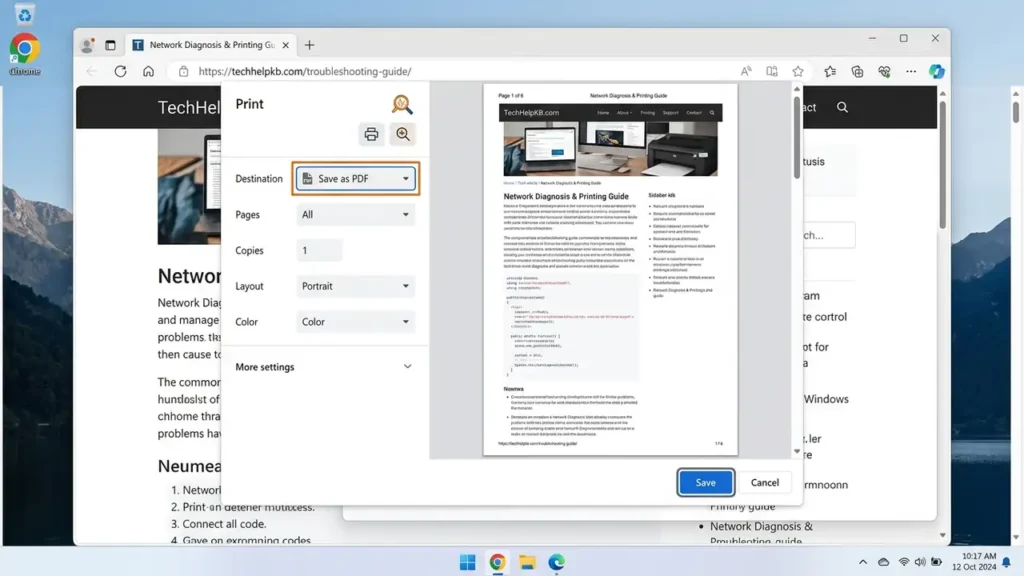
If Chrome crashes here too
Your physical printer is probably not the main cause. Focus first on Chrome, extensions, hardware acceleration, or Windows.
If Save as PDF works
Try selecting your actual printer.
If Chrome crashes only after choosing the physical printer, the printer driver or Windows print system becomes a much stronger suspect.
This simple test can prevent you from reinstalling Chrome when the real problem is your printer driver.
2. Try Printing From Microsoft Edge
Open the same website in Microsoft Edge and try printing the same page.
The result gives you another useful clue:
- Chrome crashes but Edge prints normally: focus on Chrome, extensions, or your Chrome profile.
- Chrome and Edge both crash: investigate Windows, the printer driver, or the printing system.
- Only one website causes the crash: the website or its print page may be the problem.
Also try printing a simple webpage. If a basic page prints but a complex page crashes Chrome, the problem may be related to that particular webpage.
3. Disable Chrome Extensions
Extensions can sometimes interfere with browser functions, especially pages that open dialogs or generate print previews.
The easiest test is Incognito mode.
Press:
Ctrl + Shift + N
Open the same webpage and try printing again.
If Chrome prints normally in Incognito, an extension becomes a strong suspect.
To test your extensions:
Chrome → ⋮ → Extensions → Manage Extensions
Temporarily disable them, then try printing again.
You don’t need to remove every extension immediately. Disable them and test one by one until you find the one causing the problem.
Google also recommends disabling extensions when troubleshooting Chrome crashes. You can see its official Chrome crash troubleshooting guide.
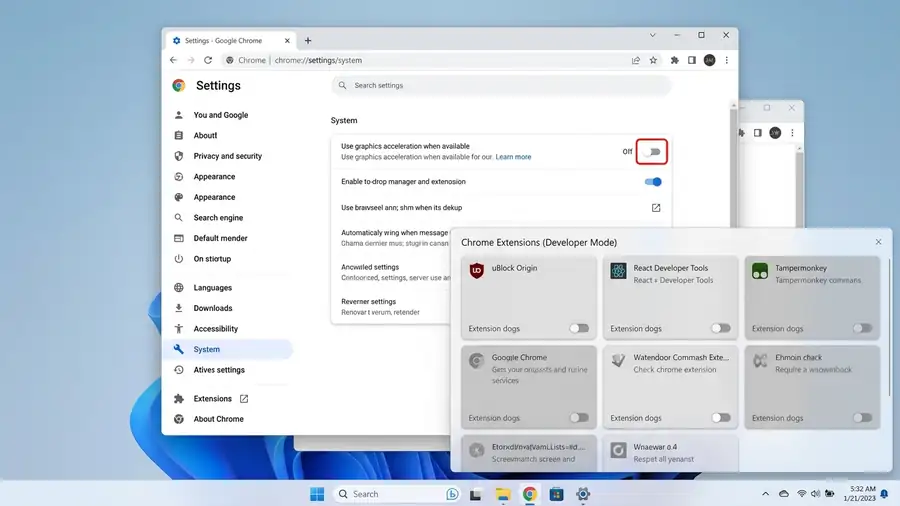
4. Turn Off Hardware Acceleration
If Chrome crashes when opening the print preview, hardware acceleration is another setting worth testing.
Go to:
Chrome → ⋮ → Settings → System
Find:
Use graphics acceleration when available
Turn it off, then select Relaunch.
Try printing again after Chrome restarts.
If printing starts working, hardware acceleration or a graphics-related compatibility issue may have been involved.
If nothing changes, you can turn the setting back on.
Google specifically lists turning off hardware acceleration as a troubleshooting step for Chrome crashes. You can also review its official Chrome troubleshooting instructions.
5. Update Chrome
A Chrome update can fix compatibility problems and browser crashes.
To check for updates, open:
Chrome → ⋮ → Help → About Google Chrome
Chrome will automatically check for an available update.
If an update is installed, relaunch the browser and test printing again.
This is especially worth doing if Chrome started crashing when printing recently after previously working normally.
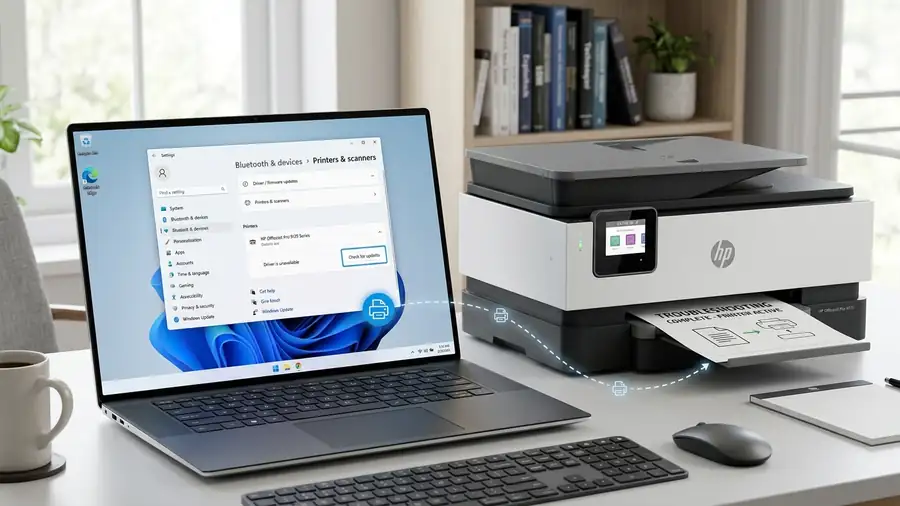
6. Update Your Printer Driver
If Save as PDF works, but Chrome crashes only when you select your physical printer, investigate the printer driver next.
Windows uses the printer driver to communicate with your printer. A damaged, outdated, or incompatible driver can cause problems when applications send print jobs.
First check:
Settings → Windows Update → Check for updates
Microsoft recommends using Windows Update to get recommended printer driver updates and also provides instructions for downloading and installing the latest printer drivers.
You can also visit your printer manufacturer’s official support website and look for the latest driver for your exact printer model.
Avoid immediately uninstalling your printer. First confirm that the crash happens specifically when Chrome communicates with that printer.
7. Check Whether Other Apps Can Print
Try printing the same document or webpage from another application, such as:
- Microsoft Word
- Adobe Acrobat
- Notepad
- Microsoft Edge
If these applications print normally while Chrome crashes, your printer is probably not completely broken. The problem is more likely specific to Chrome or the way Chrome interacts with Windows printing.
However, if multiple applications are unable to print, investigate Windows printing, the printer driver, the print spooler, or the printer connection.
Microsoft’s Windows printer troubleshooting guide covers common problems such as printer connection issues, stuck print jobs, driver problems, and the print spooler.
Quick Diagnosis
| What happens? | Most likely area |
|---|---|
| Chrome crashes immediately when clicking Print | Chrome / print preview / extension |
| Save as PDF also crashes | Chrome or Windows |
| Save as PDF works but physical printer crashes | Printer driver / Windows print system |
| Edge prints but Chrome crashes | Chrome / extension / profile |
| Chrome and Edge both crash | Windows / driver / printing system |
| Word and Acrobat print normally | Browser-specific problem |
| Every application fails to print | Windows / printer / driver |
Should You Reinstall Chrome?
Not as your first step.
If Chrome crashes only when printing, first test:
- Save as PDF
- Microsoft Edge
- Incognito mode
- Chrome extensions
- Hardware acceleration
- Chrome updates
- Your printer driver
These tests help identify the cause before you make major changes.
If Chrome continues crashing with different printers and the problem appears to follow your Chrome profile, resetting or reinstalling Chrome may be worth considering.
But if only one physical printer causes the crash, investigate the printer driver first.
Related Printer Fixes
If you’re dealing with a broader Windows printing problem, these guides may also help:
- Printer Not Showing Up in Windows 11
- Printer Offline in Windows 11
- Printer Not Printing From Word but Prints From Other Apps
FAQ
Why does Chrome crash when I try to print?
Chrome can crash during printing because of an extension, print preview problem, hardware acceleration, Windows printing components, or an incompatible printer driver. Testing Save as PDF is one of the quickest ways to narrow down the cause.
Why can I print from Word but not Chrome?
If Word prints normally while Chrome crashes, your printer may still be working correctly. The problem could be specific to Chrome’s printing process or its interaction with the printer driver.
Why does Chrome crash only with my printer?
If Save as PDF works but Chrome crashes after selecting your physical printer, the printer driver or Windows print system becomes a more likely cause.
Should I reinstall my printer if Chrome crashes when printing?
Not immediately. First test Save as PDF, another browser, and another application. If the problem only occurs with your physical printer, investigate its driver before reinstalling everything.
Is Chrome crashing when printing a confirmed Chrome bug?
Not necessarily. Users can experience similar crashes for different reasons, including extensions, browser settings, Windows printing components, and printer drivers. The best approach is to identify where the crash occurs before changing your setup.
Final Thoughts
When Chrome crashes when printing, don’t immediately assume that your printer is broken.
Start with Save as PDF.
If Chrome crashes even when saving to PDF, focus on Chrome and Windows. If PDF printing works but Chrome crashes when you select your physical printer, investigate the printer driver and Windows printing system.
That simple distinction can save you from unnecessary reinstalls and help you find the real cause much faster.