
Windows 11 Laptop Battery Draining While Shut Down? Here’s Why
You shut down your laptop at 80%, leave it in your bag overnight, and come back to find the battery at 55%. If your Windows 11 laptop battery is draining while shut down, the first question is whether Windows actually powered off or entered a low-power state.
These situations need different solutions. Before changing advanced settings or replacing the battery, run a quick test to narrow down the cause.
Confirm That Your Laptop Is Fully Shut Down
Start with a simple comparison.
- Save your work and select Start → Power → Shut down.
- Wait until the screen and power indicators turn off.
- Disconnect USB hubs, external drives, and other accessories.
- Note the battery percentage and leave the laptop unused for several hours.
- Check the battery level again.
Repeat the test under similar conditions if the result seems unusual. A small percentage change alone does not prove a fault, but a large, repeatable drop deserves investigation.
If the battery drains mainly when you close the lid, focus on Sleep settings first.
Check Whether Your Laptop Uses Modern Standby
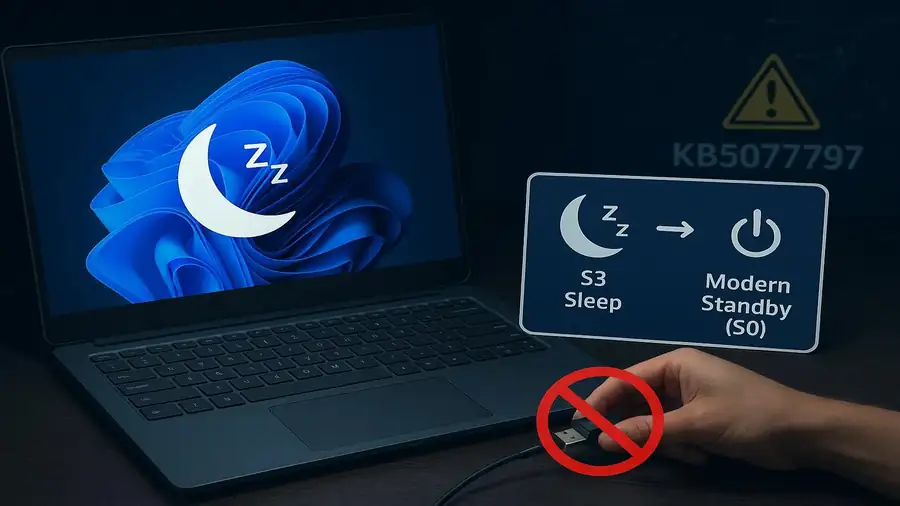
Some Windows 11 laptops use Modern Standby, a low-power state that can allow certain system activities to continue while the screen is off. It is not the same as a full shutdown.
To check your laptop’s supported power states:
- Right-click Start and open Terminal.
- Enter this command:
powercfg /a
- Press Enter and review the available sleep states.
If you see Standby (S0 Low Power Idle), your device supports Modern Standby. This does not prove that Modern Standby is causing battery drain, but it helps explain why closing the lid may behave differently from shutting down.
Microsoft explains the differences in its Modern Standby documentation.
Use Hibernate When You Leave the Laptop Unused
Closing the lid often puts a laptop to sleep rather than shutting it down. Sleep allows faster resume but can consume more power than Hibernate.
If you leave your laptop unused overnight or carry it in a bag for hours, Hibernate can be a useful alternative.
To check whether it’s available:
- Open Control Panel → Hardware and Sound → Power Options.
- Select Choose what closing the lid does.
- If necessary, select Change settings that are currently unavailable.
- Under shutdown settings, enable Hibernate if the option appears.
- Save your changes and choose Hibernate when leaving the laptop unused for longer periods.
You can also change the lid-closing action to Hibernate if that suits your routine.
Follow Microsoft’s guide to shutting down, sleeping, and hibernating a PC for the supported options.
Test a Full Shutdown Before Changing Fast Startup
Fast Startup can affect how Windows starts after shutdown, but it should not automatically be blamed for every battery-drain problem.
To compare behavior, save your work, open the Start menu, select Power, hold Shift, and click Shut down. Leave the laptop off for a similar period and compare the battery level.
If the loss improves consistently, investigate the laptop’s shutdown configuration and manufacturer guidance. One test is not enough to prove Fast Startup is responsible, so avoid changing several settings at once.
Check Battery Health With a Windows Report
An aging battery may hold less charge than it did when new. To check its reported capacity:
- Right-click Start and open Terminal.
- Run:
powercfg /batteryreport
- Press Enter and open the report from the file path shown.
- Compare Design Capacity with Full Charge Capacity.
A much lower Full Charge Capacity indicates reduced battery capacity. However, the report does not identify the exact reason for charge loss while the laptop is off.
Check for Firmware or Hardware Problems
If the laptop still loses substantial charge after a confirmed shutdown, disconnect peripherals and check for updates from the manufacturer’s official support website.
Install only BIOS, firmware, or driver updates intended for your exact model, and follow the manufacturer’s instructions. Avoid unofficial BIOS downloads.
Pay attention if the laptop feels unusually warm while supposedly off. If the battery swells, becomes excessively hot, or produces an unusual chemical smell, stop using and charging the device and seek professional service.
Frequently Asked Questions
How much battery drain is normal when a laptop is shut down?
A fully shut-down laptop should generally use very little power, but exact behavior varies by hardware and battery condition. Repeat the test under similar conditions before deciding something is wrong.
Does disabling Fast Startup fix Windows 11 battery drain?
Not always. A full-shutdown comparison can help investigate the problem, but firmware, hardware, or battery issues may also be responsible.
Is Hibernate better than Sleep overnight?
Hibernate generally uses less power than Sleep and is a practical option when you won’t use the laptop for several hours. Availability depends on the device.
More Guides from Neceb
- Windows 11 Wi-Fi Keeps Disconnecting? — Troubleshoot recurring Wi-Fi connection problems on Windows 11.
- Windows 11 Black Screen? — Learn what to check when your Windows screen goes black.
- File Explorer Not Responding in Windows 11 — Troubleshoot an unresponsive File Explorer.