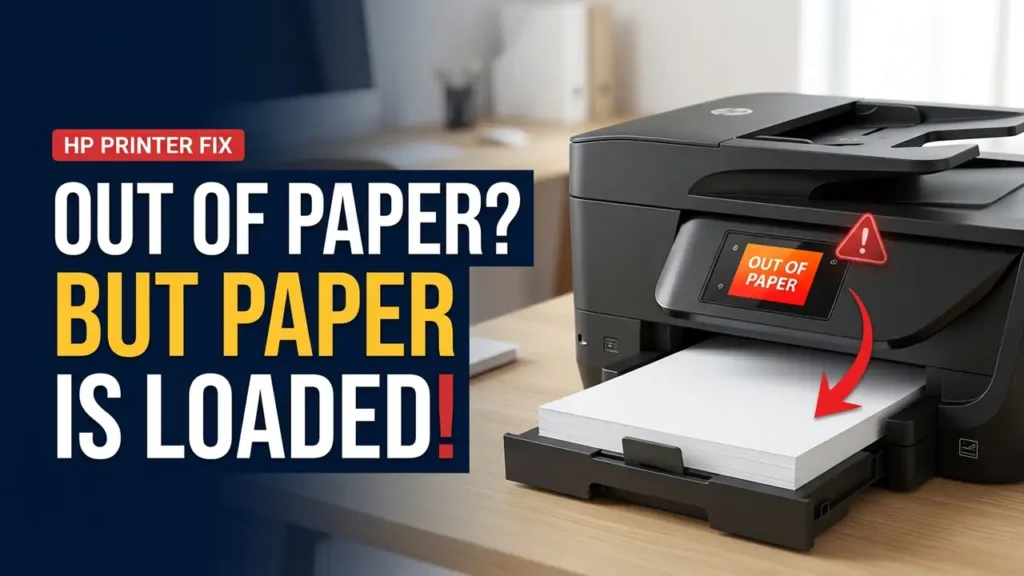

HP Printer Says Out of Paper but Has Paper? How to Fix It
Is your HP printer saying out of paper but has paper in the tray? You reload the sheets, try printing again, and the same warning returns. Sometimes, the printer makes a feeding noise but never pulls in a sheet.
The cause isn’t always a faulty printer. Incorrectly loaded paper, worn pickup rollers, or a paper-size mismatch can prevent printing. The quickest way to find the problem is to check what happens when the printer tries to feed a sheet.
First, Check What Happens When You Print
Send a one-page print job and watch the printer.
- No paper moves: Check how the paper is loaded and whether the pickup rollers can grip it.
- Paper starts moving but stops: Look for an obstruction or a feed problem.
- Paper feeds, but the warning remains: Check the paper size and tray settings.
This simple check helps you focus on the likely cause instead of changing random settings.
1. Reload the Paper Correctly
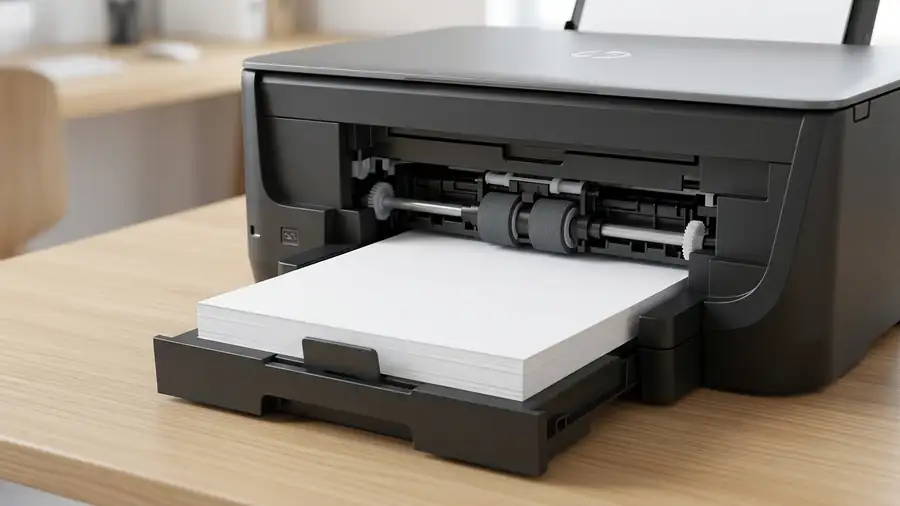
Even a full tray can cause feeding problems if the paper stack is uneven, curled, or packed too tightly.
Remove the paper and check for bent corners, damp sheets, or pages sticking together. Tap the stack on a flat surface to align the edges, then reload a smaller stack of clean, dry paper.
Adjust the guides until they touch the paper without squeezing it. Keep the stack below the tray’s maximum fill line and make sure the tray is fully inserted.
Try printing one page. If it works, incorrect loading may have caused the warning.
2. Match the Paper Size to Your Print Settings
A mismatch between the paper in the tray and the selected document size can prevent a print job from starting.
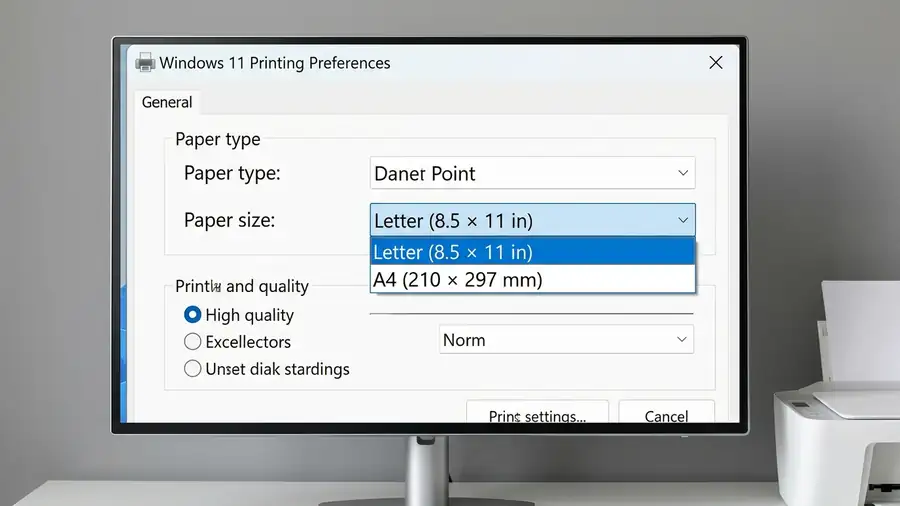
For example, your tray may contain Letter paper while the document is set to A4.
On Windows 11:
- Open Settings → Bluetooth & devices → Printers & scanners.
- Select your HP printer.
- Open Printing preferences, if available.
- Find the paper size setting and select the size matching the loaded paper.
- Check the paper size in the application you’re printing from, too.
If your printer has a display, check for a paper-size prompt or tray setting. Menu names vary by model.
Print another page after correcting the settings.
3. Check the Paper Pickup Rollers
If the printer makes noise but cannot pull paper from the tray, the pickup rollers may be dirty, worn, or unable to grip the sheets.
Turn off the printer and disconnect its power cable before inspecting accessible components. Follow HP’s cleaning instructions for your exact model. Where the manufacturer permits cleaning, use the recommended method and allow the rollers to dry completely before printing.
Avoid harsh chemicals, forcing the rollers, or dismantling the printer to reach internal parts. If the rollers are damaged or the printer still cannot pick up paper, the feed mechanism may need repair.
For model-specific instructions, visit HP Support.
4. Check for Paper Left Behind After a Jam
A small piece of torn paper can remain in the paper path even after a visible jam has been cleared.
With the printer turned off, inspect the input tray, output area, and accessible paper path according to your model’s instructions. Remove only loose paper you can reach safely.
Check that the tray is properly seated and that nothing is blocking the feed path. Never pull forcefully on stuck paper or reach into areas that aren’t intended for user access.
5. Reset the Printer
If the paper is loaded correctly and you can’t find an obstruction, try a basic power reset.
- Turn off the printer.
- Unplug the power cable from the printer and the wall outlet.
- Wait 60 seconds.
- Reconnect the cable and turn the printer on.
- Wait for startup to finish, then print one page.
This may clear a temporary error state, but it won’t repair worn rollers or a mechanical fault.
6. Check Whether the Problem Comes From Windows
If your HP printer supports a built-in test page or report, print it directly from the printer’s control panel.
If the test page prints successfully but documents from your computer do not, check the application’s print settings and Windows configuration before replacing printer parts.
For further help, see Microsoft’s guide to fixing printer connection and printing problems.
You can also read Neceb’s guides to Printer Offline in Windows 11 and Printer Not Showing Up in Windows 11.
When Should You Contact HP?
If the warning continues after these checks, note your printer’s exact model and the message on its display. Persistent feed errors, damaged rollers, or a tray that won’t sit correctly may require professional repair.
You can also consult HP’s paper-feed troubleshooting guide for model-specific steps.
Frequently Asked Questions
Why does my HP printer say out of paper when the tray is full?
The paper may be loaded incorrectly, the pickup rollers may not grip it, or the selected paper size may not match the sheets in the tray. Start by checking whether the printer actually picks up a sheet.
Why does my HP printer keep trying to feed paper?
The printer may be struggling to grip the paper or may have an obstruction in the feed path. Reload the paper and inspect accessible components using your model’s instructions.
Should I reinstall my HP printer driver?
Not as the first step if the printer itself cannot pick up paper. If a built-in test page works but print jobs from your computer fail, then investigate Windows settings and drivers.
More Printer Troubleshooting Guides
- Printer Connected but Not Printing?
- Printer Offline in Windows 11
- Mac Can’t Find Printer? How to Fix It
The bottom line: When an HP printer says out of paper but has paper, start with paper loading, then check the size settings and pickup rollers. Identifying where the feeding process fails is more useful than trying random fixes.