
Netflix Stuck on Loading Screen? Fix It on Your TV
You open Netflix on your smart TV, expecting to watch a show, but the screen keeps loading. The red Netflix logo may stay there indefinitely, or the app may open without letting you reach your profile or play anything.
If Netflix is stuck on the loading screen, don’t reset your TV or reinstall the app just yet. The cause could be temporary app data, a connection problem, or a TV that hasn’t fully restarted.
The quickest way to narrow it down is to check whether other apps work, restart the device properly, and then troubleshoot Netflix itself.
1. Check Whether the Problem Is Netflix or Your TV
Before changing any settings, open YouTube or another streaming app on the same TV.
- Other apps work normally: The problem may be specific to Netflix.
- Other apps also fail to load: Check your TV’s internet connection.
- The entire TV stops responding: Troubleshoot the TV itself, not just Netflix.
- Netflix opens but videos keep buffering: Focus on connection stability rather than the loading screen alone.
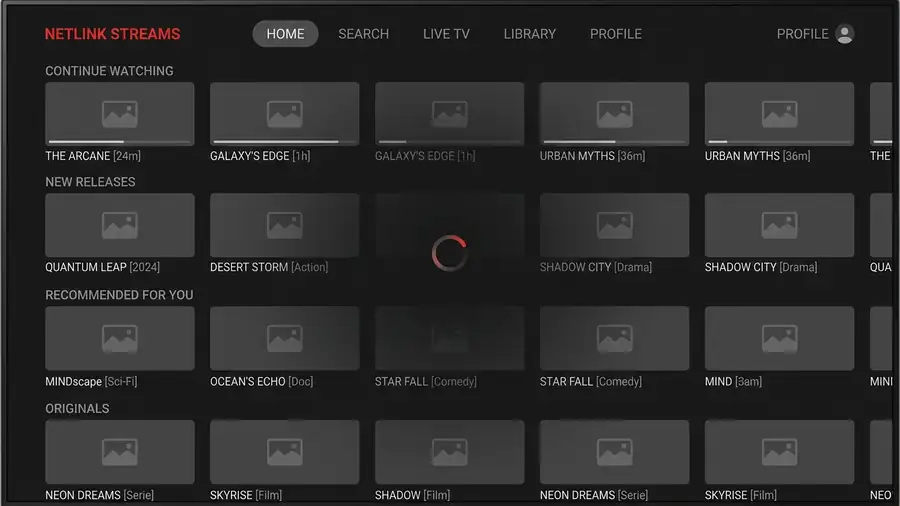
This distinction matters because an app that freezes while the rest of the TV works requires different troubleshooting from a TV that has stopped responding completely.
2. Fully Restart Your Smart TV
Turning off a TV with its remote doesn’t always shut it down completely. Some models remain in standby mode, leaving temporary problems unresolved.
Try a full power cycle:
- Turn off the TV.
- Unplug its power cable.
- Wait about one minute.
- Plug the TV back in and turn it on.
- Open Netflix and check whether the loading screen disappears.
If your TV has a physical power button, follow the manufacturer’s instructions for using it during a restart.
For a Roku, Fire TV Stick, Apple TV, or another streaming device connected to your TV, restart that device too. Unplugging the television alone may not restart the device running Netflix.
3. Test the Internet Connection on the Same TV
Your phone may connect to Wi-Fi perfectly while your television struggles to reach Netflix. That’s why testing another device isn’t enough.
Open another internet-connected app on your TV. If available, use the TV’s built-in network test. You can also look for Get Help or Check Your Network in Netflix’s settings menu.
If the connection appears unreliable:
- Turn off the TV or streaming device.
- Unplug your modem and router.
- Wait 30 seconds.
- Reconnect the modem and wait for it to reconnect.
- Reconnect the router if it’s a separate device.
- Turn your TV back on and try Netflix again.
If other apps work but Netflix doesn’t, restarting the router may not be necessary. Move to the next step instead.
For another connection check, visit Fast.com, which tests your connection to Netflix’s servers.
4. Sign Out of Netflix and Sign Back In
If you can reach the Netflix menu, refreshing your sign-in session may help.
On many smart TVs:
- Open Netflix.
- Use your remote to open the sidebar or profile menu.
- Select Get Help, if available.
- Choose Sign out and confirm.
- Sign back in and test playback.
The exact menu location varies by TV and app version. If the app never opens far enough to display a menu, skip this step.
Keep your Netflix login details handy before signing out. This step refreshes your session; it doesn’t cancel your subscription.
5. Check for TV Software or Netflix App Updates
An outdated TV operating system can sometimes contribute to app problems.
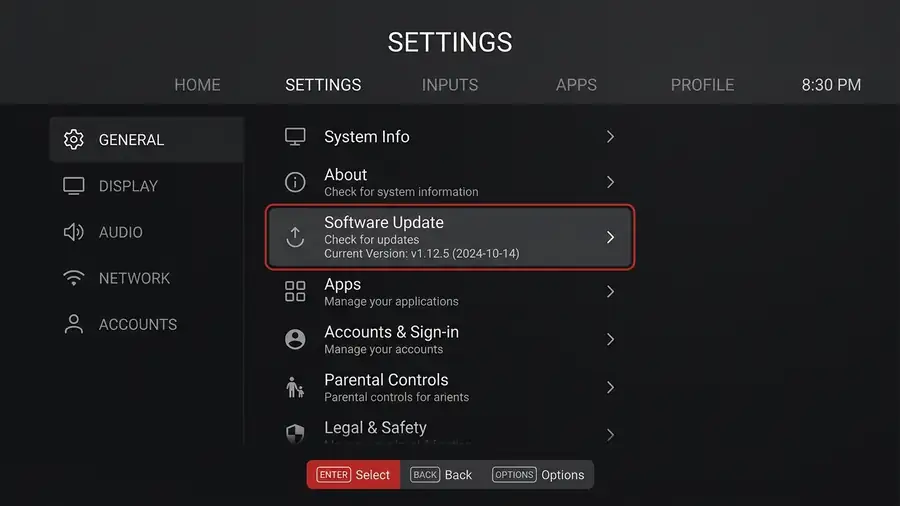
Open your TV’s settings and look for Software Update, System Update, or Firmware Update. Install an available update according to the manufacturer’s instructions.
For Android TV or Google TV, you can also open the Google Play Store, search for Netflix, and check whether an update is available.
On other smart TVs, app updates may be handled automatically or through the manufacturer’s app store. If you can’t find an update option, check the support instructions for your exact TV model.
Restart the device after updating, then test Netflix again.
6. Restore Default Network Settings if You Changed Them
Did you recently change your DNS settings, configure a VPN or proxy, or modify your router’s connection settings?
Those changes can interfere with an app’s ability to connect to its service.
If the problem started after a network change, restore the previous settings or return the affected connection settings to their defaults. Record any custom settings before changing them, and use your device manufacturer’s instructions if you’re unsure what to modify.
Don’t change DNS settings randomly. If you never changed your network configuration, this step probably isn’t necessary.
When Should You Reinstall Netflix or Reset Your TV?
Reinstalling Netflix is worth considering only if your device supports it and the earlier checks haven’t helped. Some TVs have Netflix built in and don’t allow you to remove it.
Before reinstalling, make sure you have your sign-in details. Removing an app may erase local data and sign you out.
A factory reset should be your last resort because it can erase saved settings and require you to configure your TV again. If Netflix still won’t load after a full restart, a network check, and a software update, consult the manufacturer’s support team or the Netflix Help Center.
Frequently Asked Questions
Why is Netflix stuck on the red logo on my TV?
Netflix may be unable to refresh its stored data or connect properly to its service. Start with a full device restart, then test other apps on the same TV.
Why does Netflix work on my phone but not my smart TV?
The TV may have an app-specific problem or a connection issue that doesn’t affect your phone. Test the TV’s own network connection and restart the device running Netflix.
Will unplugging my TV delete my Netflix account?
No. Unplugging your TV for a restart doesn’t delete your Netflix account or cancel your subscription. You may need to sign in again after certain troubleshooting steps, such as reinstalling the app.
What if Netflix is stuck loading on every device?
Check whether other websites and streaming services work. If Netflix fails across multiple devices while your internet otherwise works, visit the Netflix Help Center to investigate a possible service or account-related issue.
More Troubleshooting Guides
Having trouble with another app or your internet connection? These guides can help:
- Android Connected to Wi-Fi but No Internet? — Troubleshoot connection problems that prevent apps and websites from loading.
- Chrome Not Responding on Windows 11? — Find out why pages freeze or stop loading in Chrome.
- Discord Not Opening? — Troubleshoot an app that refuses to launch or gets stuck opening.