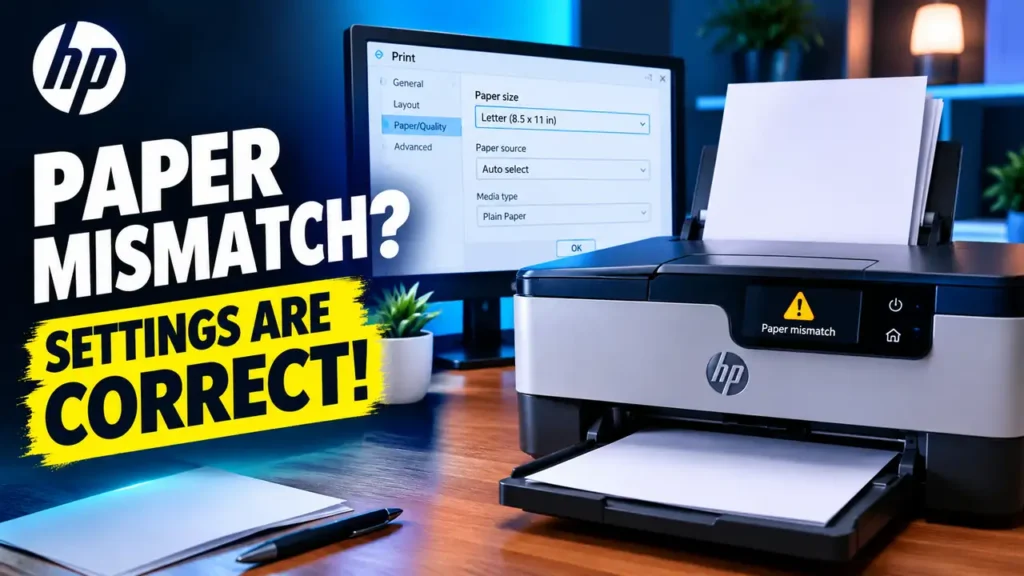

HP Printer Says Paper Mismatch but Settings Are Correct? 7 Fixes
Your HP printer says paper mismatch but settings are correct, and the print job will not continue. You have loaded the right paper, checked Letter or A4 in Windows, and still see the warning.
The catch is that a print job can have separate settings for paper size, paper type, and tray selection. If one of them conflicts with the paper loaded, the printer may stop even when the main size setting looks right.
Try these seven fixes in order. Menu names vary by HP model, so use the closest matching options available on your printer.
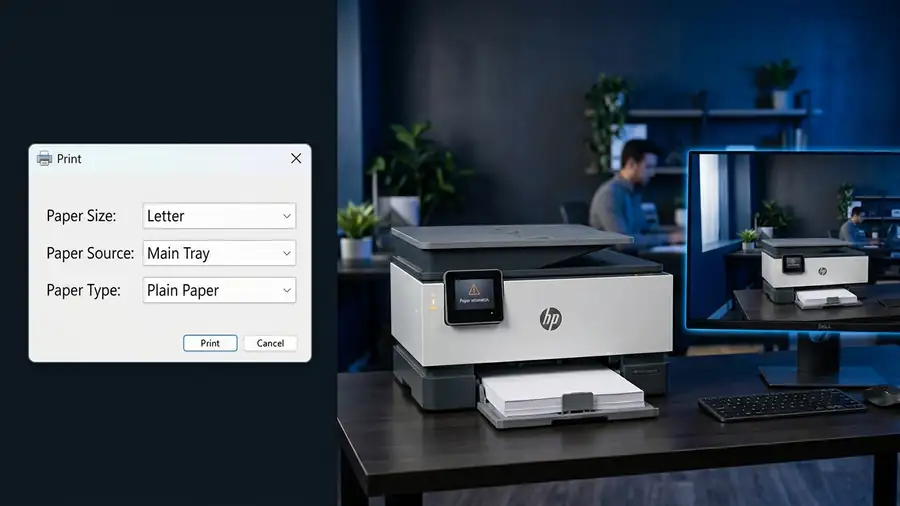
1. Check Paper Size in the Print Dialog
Start with the application that produces the error. Its print settings can differ from Windows’ default printer preferences.
In Microsoft Word or another desktop application:
- Open the document and select File → Print.
- Select your HP printer.
- Open Printer Properties, Preferences, or Printer Setup.
- Find Paper Size and choose the size that matches the paper in the tray.
For many HP inkjet printers, this setting appears under Paper/Quality. On supported HP LaserJet models, open the Paper tab and check Original Size and Output Size. Set Output Size to Same as Original Size when appropriate.
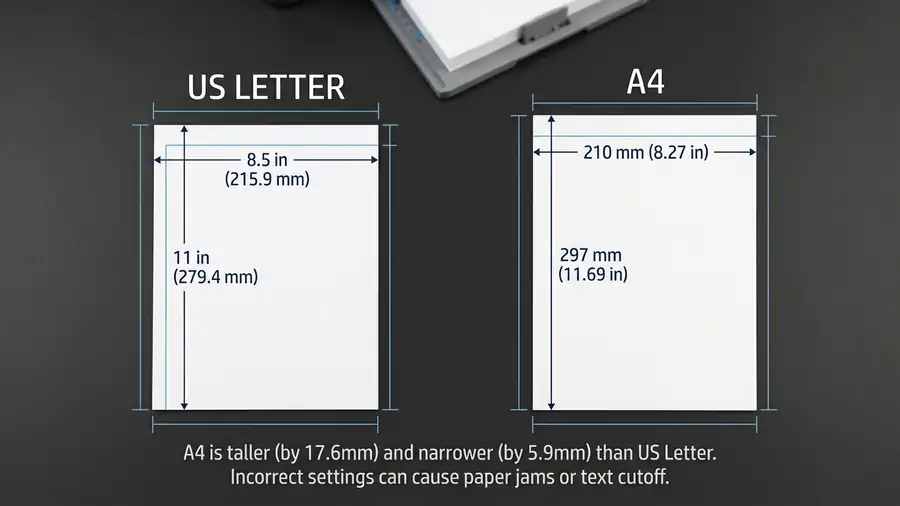
US Letter is 8.5 × 11 inches; A4 is 210 × 297 mm. They are similar, but the printer can treat them as different sizes.
2. Check the Actual Tray and Paper Source
A correct paper size will not help if the job is directed to a tray configured for different paper.
In the same print preferences window, look for Paper Source, Source, or Tray Selection.
- If your printer has one tray, select that tray or the appropriate default option.
- If it has multiple trays, select the one containing your paper.
- If the automatic tray option keeps producing the error, test the specific tray instead.
Next, check the printer’s control panel, if available. Open the paper or tray settings and make sure the size assigned to that tray matches the paper physically loaded.
HP’s official Paper Mismatch guide explains where to check these settings on supported Windows and Mac configurations.
3. Match the Paper Type to the Paper You Loaded
Paper size is only part of the job setup. The selected media type can also conflict with the paper in the tray.
Open the print preferences and find Paper Type, Media Type, or Media & Quality.
If you are using ordinary office paper, choose Plain Paper unless your printer’s instructions specify otherwise. If you are printing on photo paper, envelopes, or labels, select the matching type and make sure your printer supports it in the chosen tray.
After changing the setting, print one test page. Do not change several unrelated options at once; testing one adjustment makes it easier to identify the cause.
4. Reload the Paper and Check the Tray Guides
Sometimes the settings are correct, but the printer has not detected the loaded paper as expected.
- Remove the paper from the affected tray.
- Check that the sheets are flat and not curled or damaged.
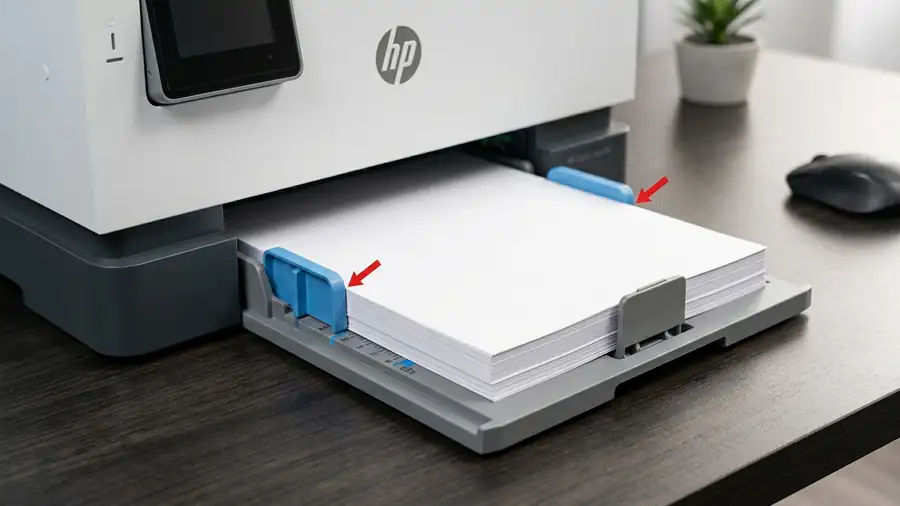
- Reload a neat stack without exceeding the tray’s fill mark.
- Adjust the width and length guides so they touch the edges without bending the paper.
- If the printer asks you to confirm the paper size, select the size actually loaded.
If the error started immediately after changing paper, this step is especially worth trying. Follow your model’s instructions if the tray has special loading requirements.
5. Check Whether the Problem Is Limited to One App
Try printing a simple one-page document from another application.
If the new document prints successfully, the printer may be fine and the original application or file may be requesting different settings.
For a PDF, inspect the page dimensions and the print options, such as Actual Size or Fit. For Word, check Layout → Size and compare it with the selected printer paper size.
If every application produces the same warning, focus on the printer’s tray configuration and driver instead.
6. Clear the Print Queue and Restart the Printer
A previous job may still be waiting with different paper requirements.
On Windows 11:
- Open Settings → Bluetooth & devices → Printers & scanners.
- Select your HP printer and open the print queue.
- Cancel the affected job and wait for it to disappear.
- Turn off the printer and unplug it from the power outlet.
- Wait 60 seconds, reconnect it, and turn it back on.
Send a fresh one-page test job after the printer finishes starting up.
If the queue will not clear, follow Microsoft’s printer troubleshooting guide.
7. Update the HP Software if the Error Persists
If the mismatch appears across multiple applications even after the paper and tray settings match, check the software.
Visit HP Software and Driver Downloads, enter your exact printer model, and check for the recommended driver or software for your operating system.
Install only software intended for your model. Do not remove the existing driver unless you have identified the correct replacement.
If the printer still reports the error, consult HP Support with the model number and the exact message displayed. Some models have specific instructions that do not apply to other HP printers.
Frequently Asked Questions
Why does my HP printer say paper mismatch when I use Letter paper?
The print job may request A4, a different paper type, or a specific tray. Check the settings in the application, printer preferences, and printer control panel.
Should I change Letter to A4 to fix the error?
Only if A4 is the paper you actually loaded and the document is intended for that size. Choosing the wrong size can cause another mismatch or cut off part of the page.
Why does the error happen only with PDFs?
The PDF reader may use its own page-size or scaling settings. Check the document’s page dimensions and compare them with the paper size selected in the print dialog.
More Printer Troubleshooting Guides
- HP Printer Says Out of Paper but Has Paper
- Printer Connected but Not Printing on Windows 11
- Printer Offline in Windows 11
Final Thoughts
When an HP printer reports a paper mismatch despite apparently correct settings, check the complete print job—not just the paper size shown in Windows. The document, media type, selected tray, and printer configuration must agree.
Start with the print dialog and tray settings, then test another application. If the warning persists everywhere, move on to the printer reset and model-specific software. This approach helps narrow down the cause without changing settings unnecessarily.