

Mac Sees iPhone but AirDrop Stays on Waiting? Try This
Your Mac detects your iPhone in AirDrop, but when you send a photo or file, the transfer stays on “Waiting…” and never finishes. Even more frustrating, AirDrop may work perfectly in the opposite direction.
If your Mac sees your iPhone but AirDrop won’t start the transfer, the problem may be related to the iPhone’s receiving settings, contact recognition, or a connection issue between the devices.
Before resetting network settings or changing your Apple Account, try these checks in order.
1. Test AirDrop in Both Directions First
Start by sending a small photo from your Mac to your iPhone. Then try sending another file from your iPhone to your Mac.
Pay attention to what happens:
Mac to iPhone fails, but iPhone to Mac works: Check the iPhone’s AirDrop receiving settings first.
Both directions fail: Check Wi-Fi, Bluetooth, and VPN settings on both devices.
The iPhone doesn’t appear at all: Check AirDrop discovery settings rather than the transfer itself.
This simple test helps identify which device needs attention instead of changing settings on both.
2. Set iPhone AirDrop to Everyone for 10 Minutes
This is one of the first things worth testing when your Mac appears on the iPhone’s AirDrop screen but the transfer stays on Waiting.
On your iPhone:
Open Control Center.
Touch and hold the connectivity controls in the top-left corner.
Tap AirDrop.
Select Everyone for 10 Minutes.
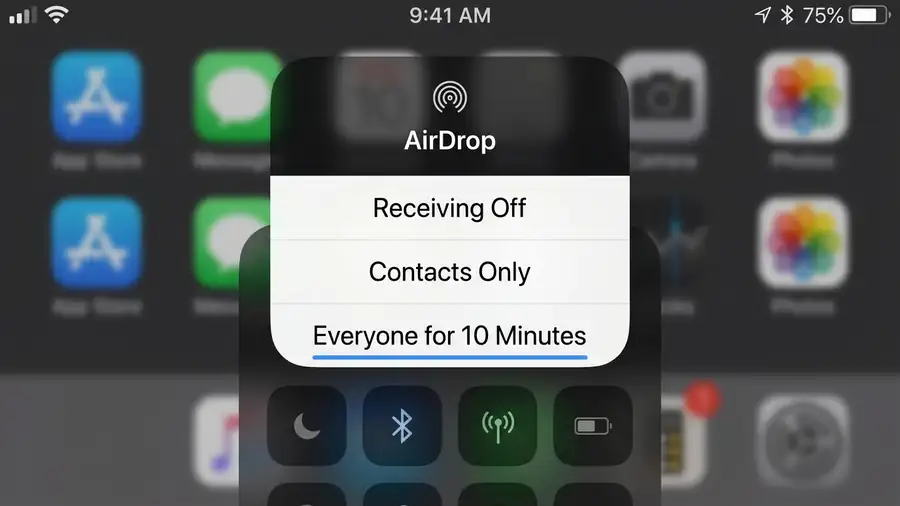
Try sending the file again from your Mac.
If the transfer works now, the issue may involve Contacts Only recognition. Check that the contact information saved on both devices matches the Apple Account details being used.
You can switch back to Contacts Only after testing. Everyone for 10 Minutes is temporary.
3. Check the AirDrop Receiving Setting on Your Mac
Your Mac also needs to allow incoming AirDrop requests.
Open Finder.
Click AirDrop in the sidebar.
Find the discovery setting at the bottom.
Set Allow me to be discovered by to Everyone temporarily.
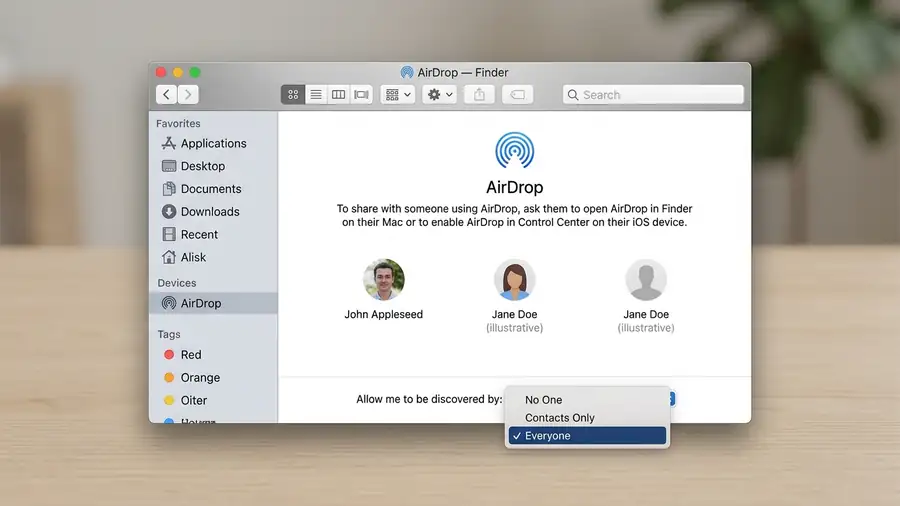
Now retry the transfer from your Mac to your iPhone.
If you’re sending between devices signed in to the same Apple Account, AirDrop normally accepts and saves the transfer automatically.
4. Check for an AirDrop Code Request
If you’re using iOS 26.2, macOS 26.2, or later, AirDrop may require a code when someone outside your contacts sends you a file.
If your iPhone displays an AirDrop code request:
Tap Get AirDrop Code on the receiving device.
Share the displayed code with the sender.
Enter the code on the sending device.
Complete this step before assuming AirDrop is frozen. Apple introduced this additional verification for sharing with people who aren’t in your contacts.
5. Turn Off Personal Hotspot and Check Your VPN
Apple recommends disconnecting Personal Hotspot when troubleshooting AirDrop.
On your iPhone, open Settings → Personal Hotspot and temporarily turn off Allow Others to Join.
Also check whether a VPN is enabled on either device. Some VPN configurations block local network communication and can interfere with Apple Continuity features.
Temporarily disconnect the VPN and test AirDrop again. If that fixes the issue, check the VPN app for a local network access setting instead of uninstalling it.
6. Restart Both Devices and Try Again
If AirDrop still stays on Waiting:
Restart your iPhone and Mac.
Make sure Wi-Fi and Bluetooth are enabled on both.
Keep the devices within 30 feet (10 meters).
Open Finder → AirDrop on your Mac.
Test with one small photo or document.
If the problem started after a software update, check for available updates under Settings → General → Software Update on iPhone and System Settings → General → Software Update on Mac.
Avoid resetting all network settings unless you’ve exhausted the simpler checks.
Quick Diagnosis
| What happens | What to check |
|---|---|
| Mac sees iPhone but stays on Waiting | iPhone AirDrop receiving setting |
| Everyone works, Contacts Only doesn’t | Contact recognition and Apple Account details |
| AirDrop requests a code | Complete the code verification |
| Both transfer directions fail | Wi-Fi, Bluetooth, VPN, and restart |
| AirDrop works after disabling VPN | VPN local network permissions |
Frequently Asked Questions
Why does my Mac find my iPhone but AirDrop stays on Waiting?
Your devices may discover each other without completing the transfer. Start by checking the iPhone’s receiving setting and temporarily selecting Everyone for 10 Minutes.
Why does AirDrop work from iPhone to Mac but not the other way around?
The problem may be specific to the iPhone’s receiving settings. Check Contacts Only, AirDrop code requests, and whether the iPhone is ready to accept the file.
Do both devices need to use the same Wi-Fi network?
No. Apple requires Wi-Fi and Bluetooth to be turned on, but the devices don’t necessarily need to join the same Wi-Fi network.
More Apple Troubleshooting Guides
Final Thoughts
When your Mac sees your iPhone but AirDrop stays on Waiting, don’t start by resetting everything. Test both transfer directions, change the iPhone’s receiving setting, and check whether a code request or VPN is blocking the process.
The direction that fails is often the most useful clue to finding the actual problem.