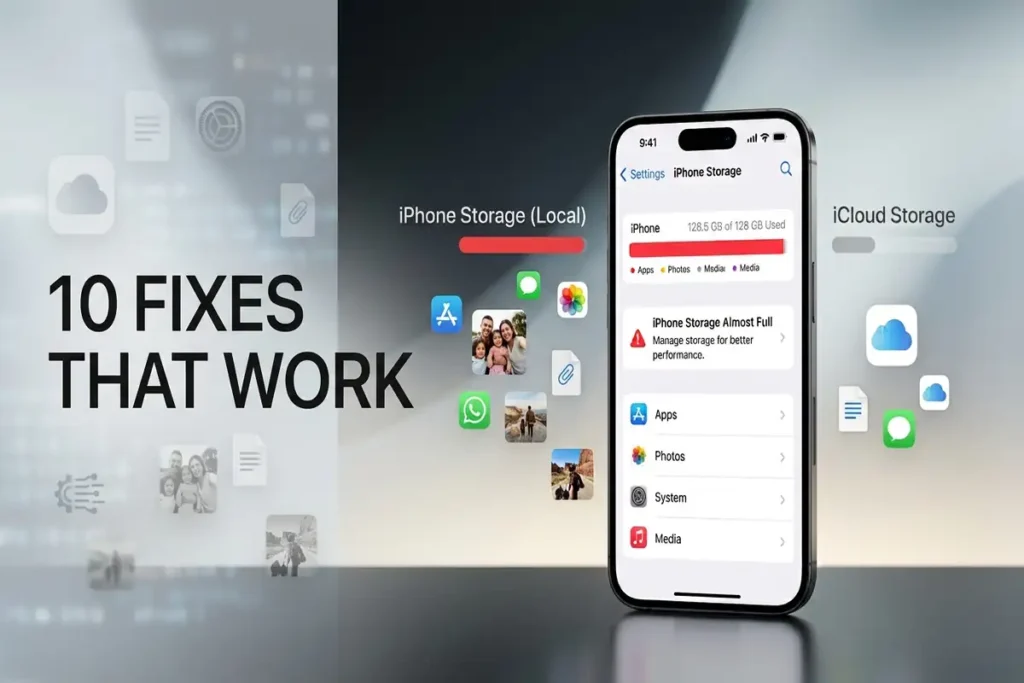

iPhone Storage Full but You Have Space? 10 Fixes That Work
Is your iPhone saying “Storage Almost Full” even though you can see available space in your settings? This can happen when iOS storage hasn’t updated correctly, temporary data is taking up space, recently deleted files are still stored, or you’re confusing iPhone storage with iCloud storage.
The good news is that you usually don’t need to delete everything from your iPhone.
In this guide, we’ll show you how to find what’s actually using your storage and walk through practical fixes, starting with the safest and easiest ones.
First: Check Your Actual iPhone Storage
Before you delete anything, find out what’s actually taking up the space.
Go to:
Settings → General → iPhone Storage
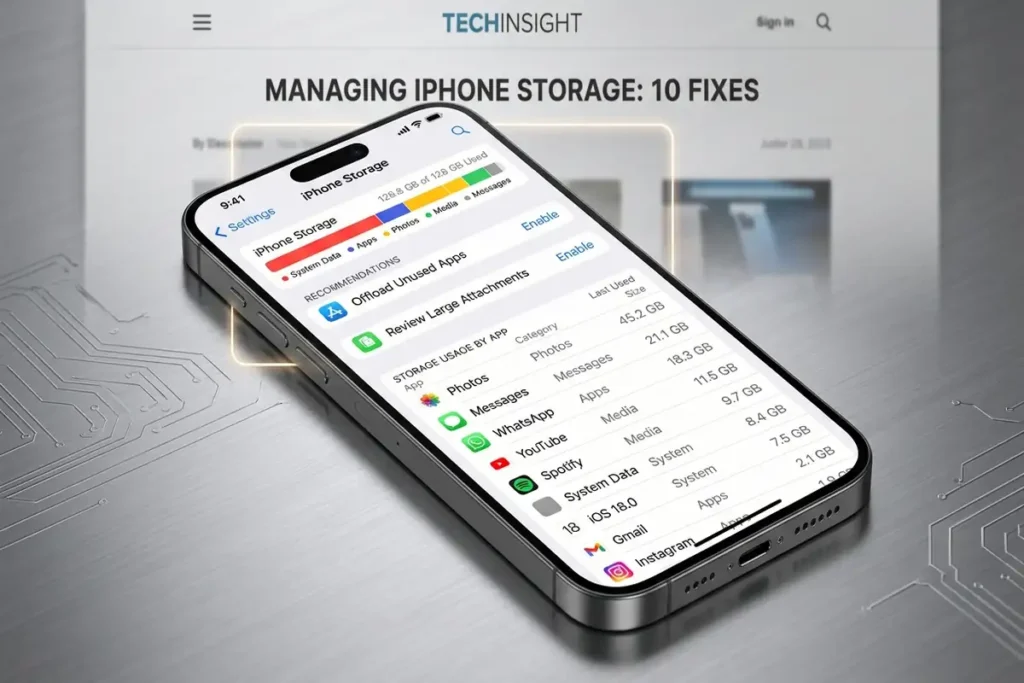
You’ll see your available space along with a breakdown of what’s using it—apps, photos, messages, and system data.
Why this matters
Don’t guess. The storage breakdown is your first clue.
If Photos is taking up 80 GB, you have a very different problem than if System Data suddenly becomes huge.
Find the culprit first. Then choose the fix.
iPhone Storage vs. iCloud Storage: Don’t Mix Them Up
Before trying any fix, make sure you’re checking the right type of storage.
iPhone storage is the physical space available on your device, such as 64 GB, 128 GB, 256 GB, 512 GB, or 1 TB.
iCloud storage is cloud storage linked to your Apple Account. Having plenty of iCloud space does not increase the physical storage available on your iPhone.
For example:
iPhone: Almost full
iCloud: Plenty of space
These are two separate things.
If your iPhone says storage is full, check:
Settings → General → iPhone Storage
That’s the number that matters when you’re trying to free up space on the device.
Fix 1: Restart Your iPhone
If the storage warning appeared suddenly or the numbers don’t seem to make sense, restart your iPhone.
A restart can clear temporary processes and give iOS an opportunity to recalculate certain storage information.
After restarting:
- Open Settings.
- Go to General.
- Tap iPhone Storage.
- Wait for the storage information to load.
- Check whether the available space has changed.
Don’t expect a restart to magically create tens of gigabytes of free space.
The goal is to determine whether the storage display or a temporary system process was involved.
Fix 2: Empty Recently Deleted Photos
If you’ve recently deleted a large number of photos or videos, check the Recently Deleted album.
Open the Photos app and go to Recently Deleted.
Deleted photos and videos may remain there before being permanently removed.
If you no longer need them, you can permanently delete them from Recently Deleted to free up storage.
Be Careful
Once you permanently delete photos from Recently Deleted, you may not be able to recover them.
Make sure you don’t need the photos or videos before removing them permanently.
Fix 3: Check System Data
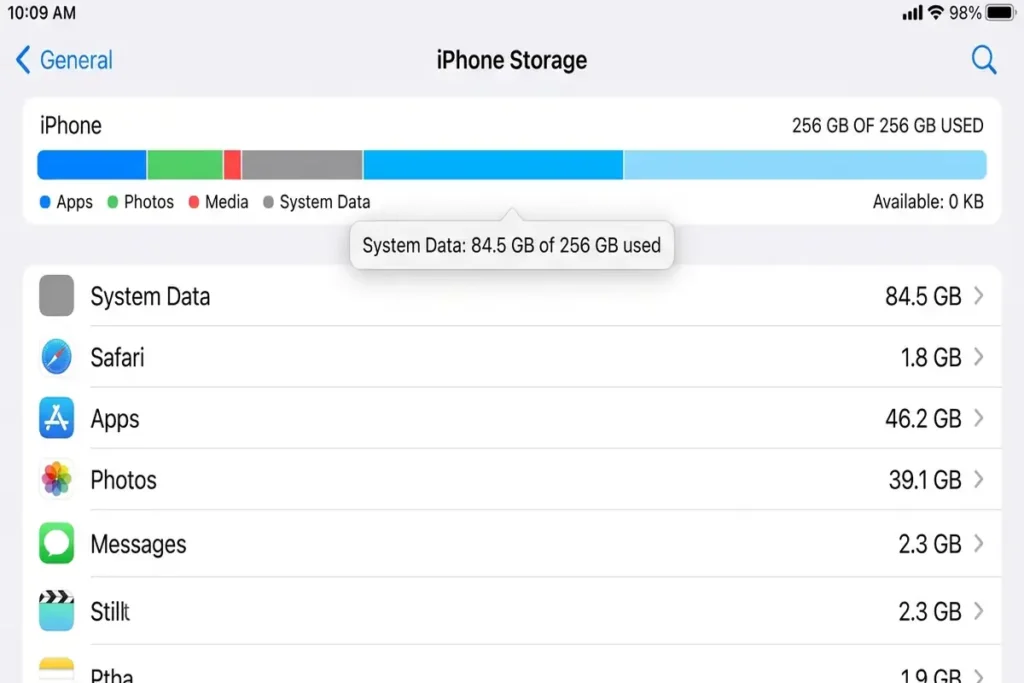
If System Data is using more space than expected, check it before deleting anything else.
Go to:
Settings → General → iPhone Storage
Then check the storage categories.
System Data can include various system-related files and temporary data used by iOS.
Its size can change depending on what your iPhone is doing.
What if System Data is very large?
Don’t try to manually delete random system files.
iOS manages these files automatically, and there isn’t a normal button that lets you safely delete everything inside System Data.
Instead, try the following:
- Restart your iPhone.
- Install available iOS updates.
- Remove unnecessary downloads.
- Delete large attachments.
- Check storage again after some time.
If System Data remains unusually large and your iPhone is behaving abnormally, continue with the other troubleshooting steps before considering more advanced recovery options.
Fix 4: Delete Large Messages Attachments
Messages can quietly consume a lot of storage.
Photos, videos, GIFs, documents, and other attachments sent through Messages can remain on your iPhone.
Go to:
Settings → General → iPhone Storage
Then look for Messages.
Depending on your iOS version, you may see recommendations or categories for large attachments.
Review them carefully and remove files you no longer need.
Don’t delete conversations blindly
If an important conversation contains photos, documents, or other information you want to keep, save those files before deleting them.
Fix 5: Offload Unused Apps
If apps are taking up a large amount of storage, you don’t necessarily need to delete all of them.
iPhone has an Offload App option.
Go to Settings → General → iPhone Storage, then tap an app to see how much space it uses and choose Offload App if available.
Offloading an app removes the app itself while keeping its documents and data so you can reinstall it later.
Apple explains how Offload App works and when you should use it.
This can be useful when:
- You rarely use an app.
- The app is large.
- You want to free space temporarily.
- You don’t want to lose the app’s stored data.
Offload vs. Delete
Offload App: Removes the app but keeps its documents and data.
Delete App: Removes the app and its associated data.
Choose the option that matches what you actually want to keep.
Fix 6: Remove Downloaded Files
Downloaded files can take up much more space than you realize.
Check the Files app for large downloads and files stored locally on your iPhone.
Also check apps that allow offline downloads, such as:
- Netflix
- Spotify
- YouTube
- Podcasts
- Other streaming apps
If you’ve downloaded movies, music, podcasts, or large documents for offline use, removing those downloads can quickly free up space.
What about iCloud Drive files?
If a file is stored in iCloud Drive but downloaded to your iPhone, you may be able to use Remove Download.
This removes the local copy from the iPhone while keeping the file in iCloud.
That’s different from deleting the file completely.
Fix 7: Optimize iPhone Storage for Photos
Photos and videos are often among the biggest storage users on an iPhone.
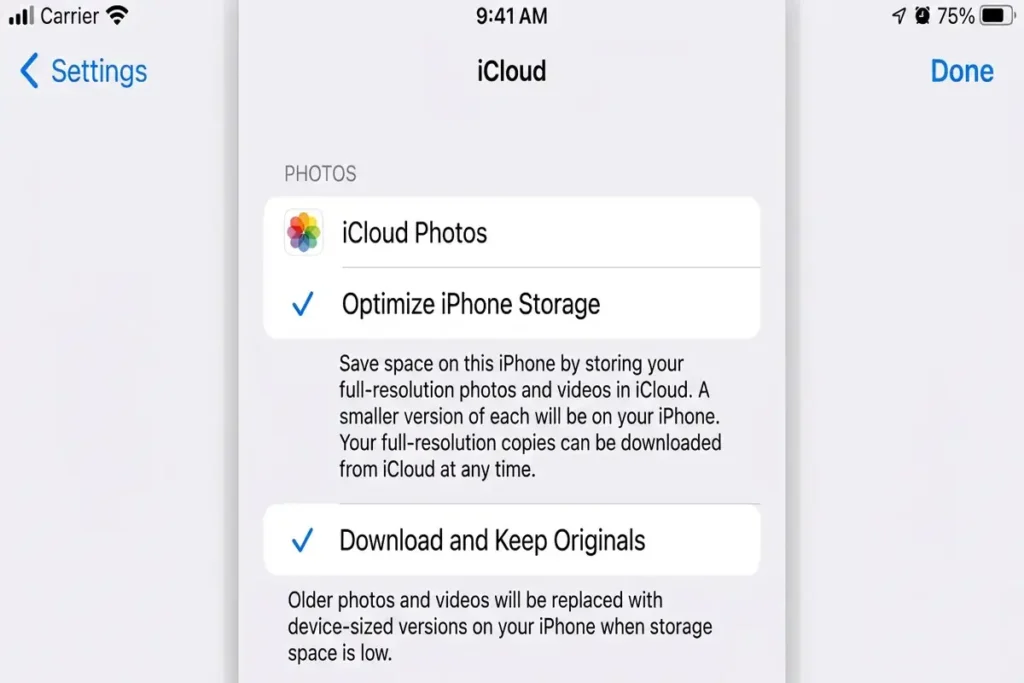
If you use iCloud Photos, you can enable:
Optimize iPhone Storage
Go to:
Settings → [Your Name] → iCloud → Photos
Then select:
With this option enabled, full-resolution originals can remain stored in iCloud while your iPhone keeps smaller versions when necessary.
This can significantly reduce the amount of physical storage used by photos.
Important
This option depends on having enough iCloud storage for your photo library.
It also doesn’t mean your photos are magically removed from your account.
Your original photos remain available through iCloud when properly synchronized.
Fix 8: Check Your Largest Apps
Return to:
Settings → General → iPhone Storage
Look at the apps near the top of the list.
You may find that one or two apps are using much more space than expected.
Tap an app to see its storage information.
Pay attention to apps that:
- Store lots of videos.
- Cache large amounts of data.
- Download content for offline use.
- Have accumulated documents and data.
- You rarely use anymore.
If an app is taking up an unreasonable amount of space, check whether the app itself provides a way to clear downloads or cached content.
For some apps, deleting and reinstalling them can reduce locally stored data, but make sure your important data is synced or backed up first.
Fix 9: Update iOS
If your iPhone storage display appears incorrect or the problem started after a software issue, check for an available iOS update.
Go to:
Settings → General → Software Update
If an update is available, install it when you’re ready.
Keeping iOS updated can provide bug fixes, security improvements, and changes to system behavior.
What if there isn’t enough storage to install the update?
If your iPhone doesn’t have enough free space, first remove unnecessary downloads, large videos, unused apps, and other files you no longer need.
Don’t delete important personal files just to create a small amount of temporary space without checking what is consuming the storage first.
Fix 10: If Your Storage Number Still Looks Wrong
If you’ve tried the previous steps and your iPhone still says storage is full even though the numbers don’t appear to match, look for a specific pattern.
Case 1: Storage changes after restarting
This suggests temporary system data or a storage calculation issue may have been involved.
Case 2: System Data is extremely large
Continue checking updates, downloads, and temporary content.
If the problem persists and the phone is also behaving abnormally, consider contacting Apple Support.
Case 3: Storage fills up again immediately
Look for an app or service that is continuously creating or downloading data.
Check the largest storage categories again after a few hours.
Case 4: You can’t install an iOS update
Free up some space by removing unnecessary downloads, large media files, or unused apps.
Case 5: You still can’t explain where the storage is going
Back up your important information before attempting any major recovery step.
A factory reset should not be your first troubleshooting method.
Quick Checklist
If your iPhone says storage is full but you think you have space, follow these steps in order:
- Check Settings → General → iPhone Storage.
- Confirm you’re looking at iPhone storage, not iCloud storage.
- Restart your iPhone.
- Check Recently Deleted.
- Check System Data.
- Review Messages attachments.
- Remove unnecessary downloads.
- Offload unused apps.
- Check large apps.
- Enable Optimize iPhone Storage if you use iCloud Photos.
- Check for an iOS update.
- Contact Apple Support if the storage remains abnormal.
Frequently Asked Questions
Why is my iPhone storage full when I have plenty of iCloud storage?
iPhone storage and iCloud storage are separate. Free iCloud space does not increase the physical storage available on your iPhone.
Why is System Data taking so much storage?
System Data includes temporary and system-related files, so its size can change over time. Restart your iPhone and check the storage breakdown again.
Does deleting photos immediately free up storage?
Not always. Check Recently Deleted and permanently remove photos you no longer need.
How can I free up iPhone storage without deleting photos?
Remove unnecessary downloads, offload unused apps, delete large Messages attachments, and consider Optimize iPhone Storage if you use iCloud Photos.
Why is my iPhone storage not updating?
Give iOS some time to recalculate the storage after deleting files. A restart can also help refresh the storage information.
More Troubleshooting Guides
Still having problems with your devices? Check out these related guides for more step-by-step solutions:
- iPhone Won’t Turn On? 9 Fixes to Try Before Repair
- How to Fix Chrome Not Responding on Windows 11
- Android Connected to WiFi but No Internet
Final Thoughts
If your iPhone says storage is full when you still seem to have space, don’t panic—and don’t start deleting important files blindly.
Check Settings → General → iPhone Storage first. Once you know what is actually using the space, you can choose the right fix instead of guessing.
In most cases, the solution is as simple as clearing unnecessary downloads, removing large attachments, offloading unused apps, or optimizing your photo storage.
Find what’s taking the space first. Then fix the problem—not your memories.