
iPhone Won’t Turn On? 8 Things to Try Before Repair
If your iPhone won’t turn on, you may see nothing but a black screen, an Apple logo that never disappears, or a low-battery icon that seems stuck.
Before assuming the battery or screen is dead, there are several things you can check yourself.
A frozen iPhone, completely drained battery, charging problem, software issue, or damaged charging port can all produce similar symptoms. The right fix depends on what your iPhone is actually doing.
In this guide, we’ll start with the safest checks and move toward more advanced solutions only when necessary. You won’t need to erase your iPhone unless you reach the recovery stage where restoring the device becomes necessary.
Important: If your iPhone is unusually hot, swollen, physically damaged, or has been exposed to significant liquid, don’t keep forcing it to charge. Hardware damage may require professional service.
Quick Diagnosis: What Is Your iPhone Doing?
Before trying all nine fixes, look at the symptom that matches your situation.
| What you’re seeing | Start here |
|---|---|
| Completely black screen | Charge + force restart |
| Battery icon appears | Check charger, cable and port |
| Apple logo stays on screen | Force restart, then recovery options |
| iPhone vibrates but screen stays black | Check whether the phone is actually running |
| iPhone won’t charge or turn on | Test charger, cable and outlet |
| Problem started after an iOS update | Force restart, then recovery mode if necessary |
| iPhone was recently dropped | Check for hardware damage |
| iPhone got wet | Stop charging and assess damage |
| Nothing works | Apple service may be necessary |
This diagnosis-first approach matters because a black screen doesn’t automatically mean your iPhone needs a new battery or screen.
1. Check Your Charger and Charge Your iPhone
If your iPhone suddenly won’t turn on, start with the simplest possibility: the battery may be completely drained.
Connect your iPhone to a reliable charger and leave it connected.
Apple recommends checking the cable, adapter, power source, and charging port before trying the force restart.
Try these checks:
- Plug the charger directly into a wall outlet.
- Make sure the cable is firmly connected.
- Try another power outlet.
- If possible, test another known-good charging cable.
- Check the cable for visible damage.
- Look at the charging port for debris.
If your iPhone still won’t turn on, leave it charging for one hour before trying the force restart again.
If the battery was completely empty, the screen may remain black for a while before showing a charging indicator.
Don’t immediately assume the battery is dead
A bad cable, damaged adapter, dirty charging port or faulty outlet can create exactly the same symptom.
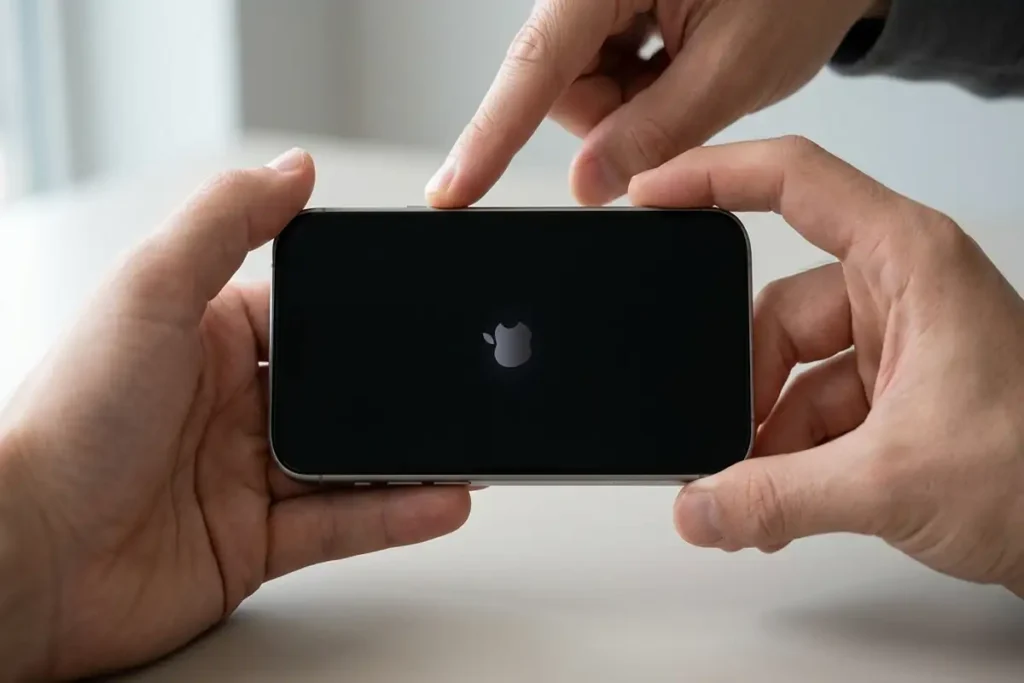
2. Force Restart Your iPhone
If the iPhone has enough power but the screen remains black, a force restart is one of the most important things to try.
The button combination depends on your iPhone model. Apple provides the official force restart steps for each iPhone model
iPhone 8 or later, including Face ID models
- Press and quickly release Volume Up.
- Press and quickly release Volume Down.
- Press and hold the Side button.
- Keep holding until the Apple logo appears.
The Apple logo can take more than 10 seconds to appear, so don’t release the side button too quickly.
iPhone 7 or iPhone 7 Plus
Press and hold:
Side button + Volume Down
Keep holding until the Apple logo appears.
iPhone 6s or earlier
Press and hold:
Home button + Side button or Top button
Continue until the Apple logo appears.
3. Try a Different Cable, Charger and Outlet
If your iPhone shows absolutely no response when connected to power, don’t assume the phone itself is broken.
Test the charging setup.
Try:
- A different USB cable
- A different power adapter
- Another wall outlet
- Another known-good charging cable
- A computer USB port as an additional test
Apple specifically recommends checking the cable and USB adapter for damage and trying another outlet when an iPhone won’t charge.
What you’re trying to determine
You want to answer one simple question:
Is the iPhone failing, or is the charging setup failing?
If the phone starts charging with another cable, you’ve already found the likely cause.
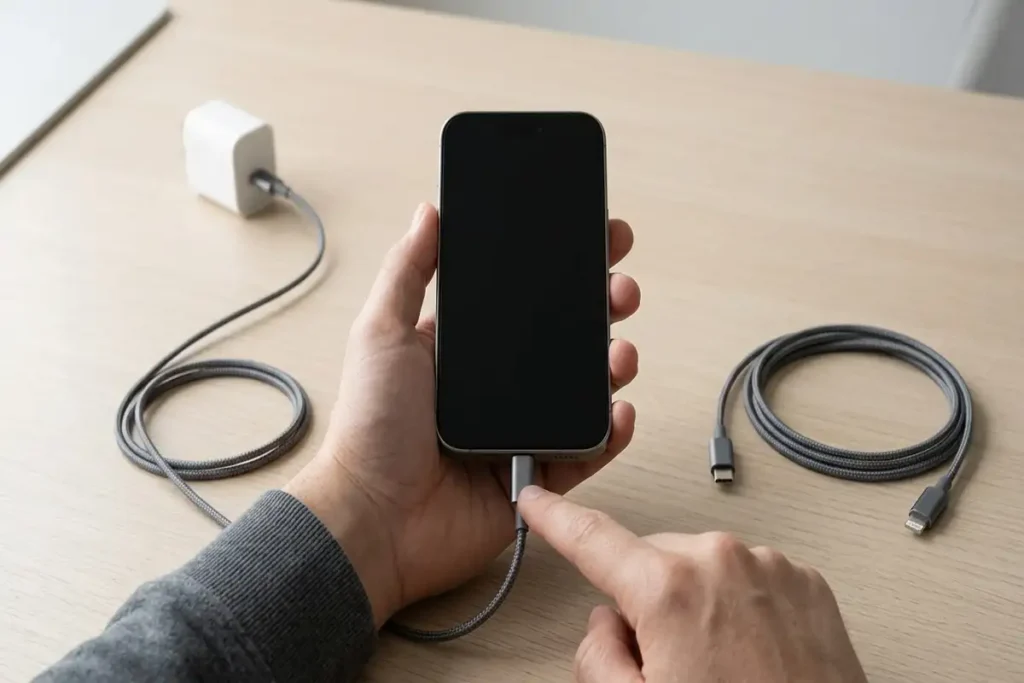
4. Check the Charging Port for Debris
A charging cable needs to make proper contact inside the port.
Pocket lint and other debris can sometimes interfere with charging.
Look inside the charging port under good lighting.
If you see debris, be careful.
Don’t force sharp objects into the port.
If you see debris in the charging port, follow Apple’s recommended cleaning guidance rather than inserting sharp objects into the port.
After checking the port, reconnect the cable and allow the iPhone to charge again.
Apple’s current charging guidance specifically includes checking the charging port for debris when an iPhone won’t charge.
5. Check If Your iPhone Is Actually Running
Sometimes an iPhone may appear completely dead even though the device is still powered on.
Before moving to recovery mode or assuming the battery has failed, check for signs that the iPhone is still running.
Look for:
- The iPhone rings when someone calls it.
- You feel a vibration when you press a button or connect a charger.
- You hear notification sounds.
- The iPhone is recognized when connected to a computer.
- Siri or another connected device responds to the iPhone.
What does this tell you?
If the iPhone responds to calls, sounds, vibrations, or a computer connection while the screen remains black, the problem may be related to the display rather than the battery or power system.
Try the force restart from Step 2.
If the iPhone continues to respond but the screen stays completely black, avoid repeatedly restoring the device. A software restore may not fix a physically damaged display.
This quick test can help you determine whether the iPhone is actually powered off or simply not displaying anything.
6. iPhone Stuck on the Apple Logo?
A different situation occurs when the Apple logo appears but the iPhone never finishes starting.
This can happen after:
- An iOS update
- A restart
- A software problem
- A failed startup
- Other system issues
Start by performing the force restart described earlier.
If the iPhone continues to stay on the Apple logo for several minutes without progressing, recovery mode may become necessary.
Don’t jump directly to Restore
If you reach recovery mode, pay attention to the options presented by your computer.
Apple distinguishes between updating and restoring the device.
A Restore reinstalls iOS and erases the data currently on the iPhone.
So if an update option is available and appropriate, understand the difference before selecting Restore.
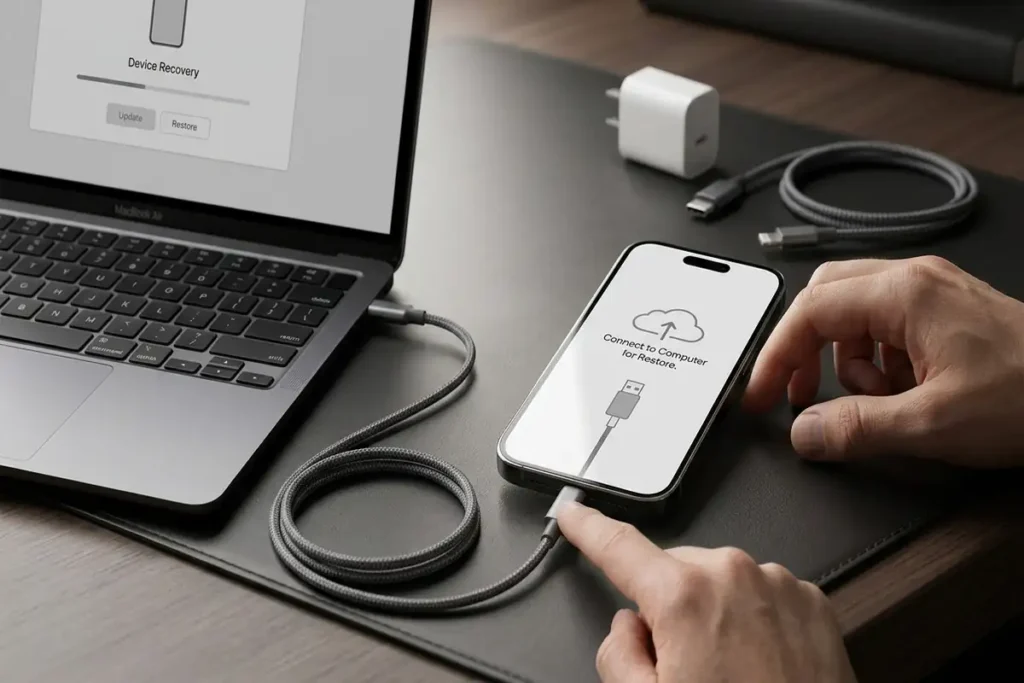
7. Use Recovery Mode If the iPhone Still Won’t Start
Recovery mode is more advanced and should come after the basic charging and restart steps.
You’ll need a Mac or Windows PC and a suitable cable.
On a Windows PC, Apple currently uses the Apple Devices app for managing and restoring iPhones.
Recovery mode can be useful when:
- The Apple logo stays on screen
- The iPhone isn’t starting normally
- The computer doesn’t recognize the device normally
- You see the Connect to Computer screen
- A previous update failed
Apple’s recovery mode instructions explain when you can use recovery mode to update or restore an iPhone that won’t start normally.
⚠️ Be careful with Restore
Restoring the iPhone erases the data on the device.
Don’t choose Restore casually if you haven’t considered whether your important data is backed up.
8. Check for Physical Damage
Think about what happened immediately before the problem started.
Did you:
- Drop the iPhone?
- Get it wet?
- Use a damaged cable?
- Leave it somewhere extremely hot?
- Notice the screen separating from the frame?
- Notice unusual battery swelling?
If the phone has obvious physical damage, repeated force restarts and charging attempts may not solve the underlying problem.
Check the buttons and case
Remove the iPhone case temporarily and make sure the Side, Volume, and Home buttons can move normally.
A tight case or a stuck or damaged button can interfere with normal startup or force-restart attempts.
Especially important: heat or swelling
If the iPhone is unusually hot or the battery appears swollen, stop using it and don’t continue charging it.
That’s no longer a normal software troubleshooting situation.
You should seek professional service.
When Should You Stop Troubleshooting?
Some situations shouldn’t be treated like ordinary software problems.
Consider professional service if:
- The iPhone still won’t turn on after charging and a force restart.
- The device suffered a serious drop.
- The screen is physically damaged.
- The device is swollen.
- The iPhone becomes unusually hot.
- Buttons are physically stuck or damaged.
- Recovery mode doesn’t work.
- The computer cannot communicate with the iPhone.
- The device repeatedly fails during startup.
Apple’s current guidance says that if the iPhone still won’t turn on after the recommended charging and restart steps, it may need service.
Frequently Asked Questions
Why won’t my iPhone turn on even though it has battery?
A frozen system, charging problem, damaged cable, charging-port issue, or hardware problem can prevent an iPhone from starting normally. Try charging it first, then perform the correct force restart for your model.
How do I force restart an iPhone with a black screen?
For iPhone 8 and later, quickly press Volume Up, quickly press Volume Down, then press and hold the Side button until the Apple logo appears. Older iPhone models use different button combinations.
How long should I charge an iPhone that won’t turn on?
If the iPhone shows no response, leave it connected to a reliable charger for about one hour, then try the force restart again. Also test another cable, adapter, or power outlet if possible.
What if my iPhone is stuck on the Apple logo?
Try a force restart first. If the Apple logo remains on the screen and the iPhone doesn’t finish starting, you may need to use recovery mode. Be careful with the Restore option because restoring an iPhone can erase its data.
Should I replace the battery if my iPhone won’t turn on?
Not necessarily. Check the charger, cable, outlet, charging port, and force restart first. If the iPhone remains completely unresponsive or has physical damage, professional diagnosis is a better next step than replacing the battery based only on the symptom.
More Troubleshooting Guides
Still having problems with your devices? Check out these related troubleshooting guides for more step-by-step solutions:
- iPhone Storage Full When You Have Space
- Chrome Not Responding on Windows 11
- Android Connected to WiFi but No Internet
Final Thoughts
When your iPhone won’t turn on, the black screen can make the problem look much worse than it actually is.
Start with the basics: check the charging setup, give the battery enough time to charge, and perform the correct force restart for your iPhone model.
If the Apple logo appears but the phone won’t finish starting, move toward recovery options rather than repeatedly pressing the power button.
And if the phone has physical damage, becomes unusually hot, or remains completely unresponsive after the basic steps, that’s the point where professional service makes more sense.
The important thing is to diagnose the symptom before assuming the iPhone needs a repair.