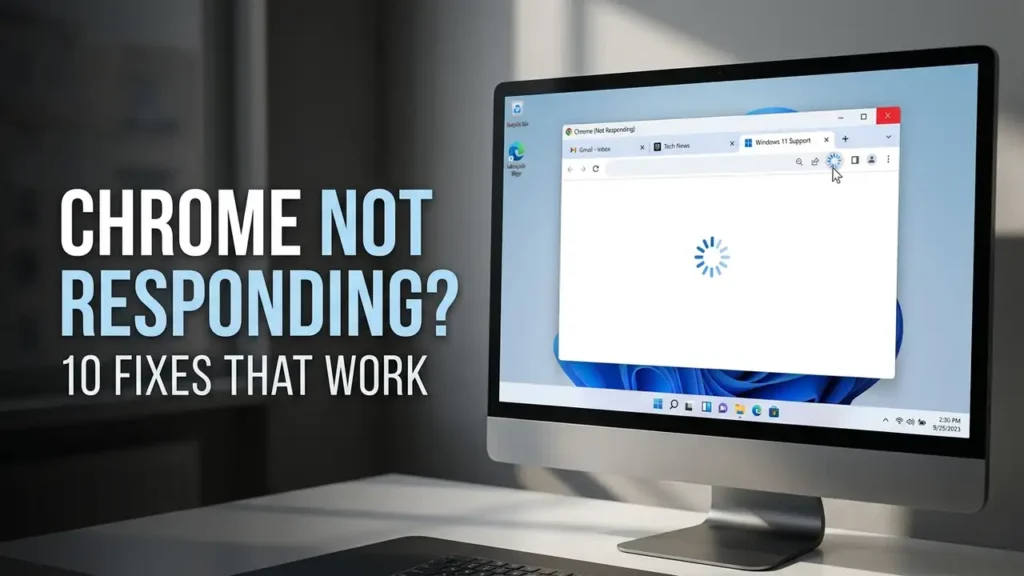

Chrome Not Responding on Windows 11? 10 Fixes That Work
If Chrome is not responding on Windows 11, tabs may freeze, pages may stop loading, the browser may become extremely slow, or Chrome may suddenly close without warning.
The cause isn’t always the same. Chrome can become unresponsive because of high memory usage, a problematic extension, hardware acceleration, outdated software, a damaged Chrome profile, security software, or a problem with the website or network.
The fastest way to fix it is to identify what is actually freezing first instead of immediately reinstalling Chrome.
In this guide, we’ll start with a few quick tests that can help identify the cause before moving to more advanced fixes. This approach can save time and help you avoid changing settings that aren’t related to the problem.
Quick Diagnosis: What Is Chrome Doing?
Before trying the fixes below, identify your situation.
| What you’re seeing | Start here |
|---|---|
| The entire Chrome window is frozen | End Chrome from Task Manager |
| Only one tab is frozen | Reload or close that tab |
| Chrome becomes slow with many tabs | Check memory usage |
| Chrome works in Incognito | Check extensions |
| Chrome freezes on graphics-heavy pages | Test hardware acceleration |
| Chrome crashes repeatedly | Update Chrome and Windows |
| Chrome won’t open at all | End background Chrome processes |
| “Aw, Snap!” appears | Check memory, extensions and page loading |
| Problem started after an update | Check Chrome and Windows updates |
| Nothing fixes it | Reset Chrome or reinstall as a last resort |
Google’s current troubleshooting guidance recommends starting with tabs, extensions, memory, restarting Chrome and restarting the computer before moving to more advanced solutions.
1. Close Chrome Completely and Reopen It
If Chrome is temporarily frozen, start with the simplest solution.
Try closing Chrome normally.
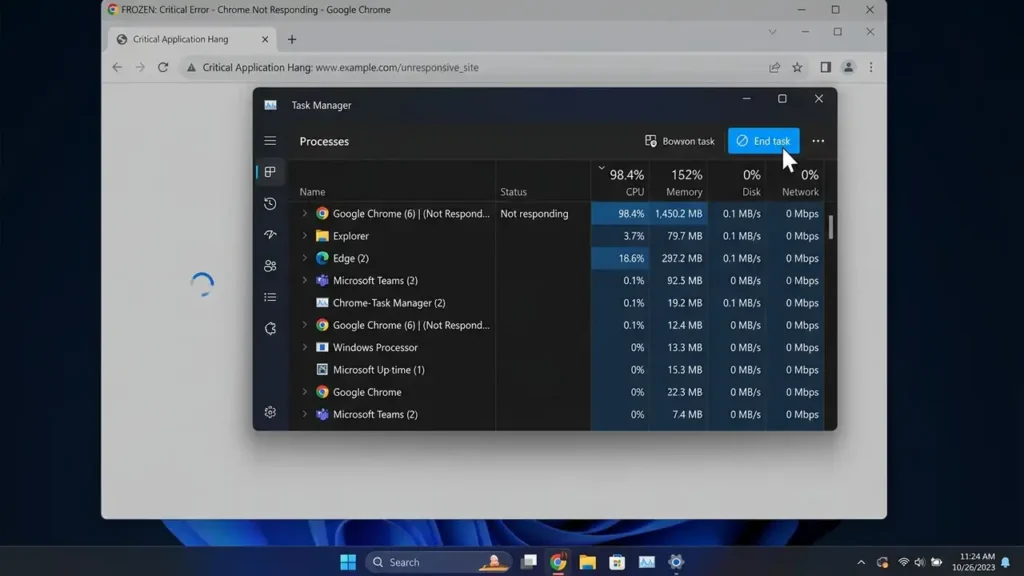
If the browser won’t respond, press:
Ctrl + Shift + Esc
This opens Task Manager.
Find:
Google Chrome
or:
chrome.exe
Select it and click:
End task
Then open Chrome again and test the browser.
Why this can work
Chrome uses multiple processes for tabs, extensions and browser components.
Sometimes one of these processes becomes stuck while the main browser window remains open.
Ending Chrome completely gives those processes a clean start.
2. Restart Your Windows 11 PC
If Chrome keeps freezing after you reopen it, restart Windows.
Go to:
Start → Power → Restart
Then open Chrome again and test the same websites.
This is more useful than repeatedly closing and reopening Chrome because another Windows process, background application, or temporary system problem could be interfering with the browser.
Google also recommends restarting the computer when Chrome crashes, freezes, or won’t load pages correctly.
A useful test
After restarting:
- Open Chrome.
- Don’t immediately open all your previous tabs.
- Open one normal website.
- Test Chrome for a minute.
- Then gradually open your usual tabs.
If Chrome works normally with a small number of tabs but becomes unresponsive as you open more, memory usage becomes a stronger suspect.
3. Check Chrome’s Memory Usage
One of the most common reasons Chrome becomes slow or unresponsive is insufficient available memory.
This becomes more noticeable when you have:
- Many tabs open
- Video streaming tabs
- Web applications
- Large web pages
- Multiple extensions
- Other Windows programs running at the same time
Google recommends closing unnecessary tabs, applications and extensions when Chrome is experiencing crashes or loading problems related to memory.
Check Windows memory
Press:
Ctrl + Shift + Esc
Open Task Manager.
Look at:
Memory
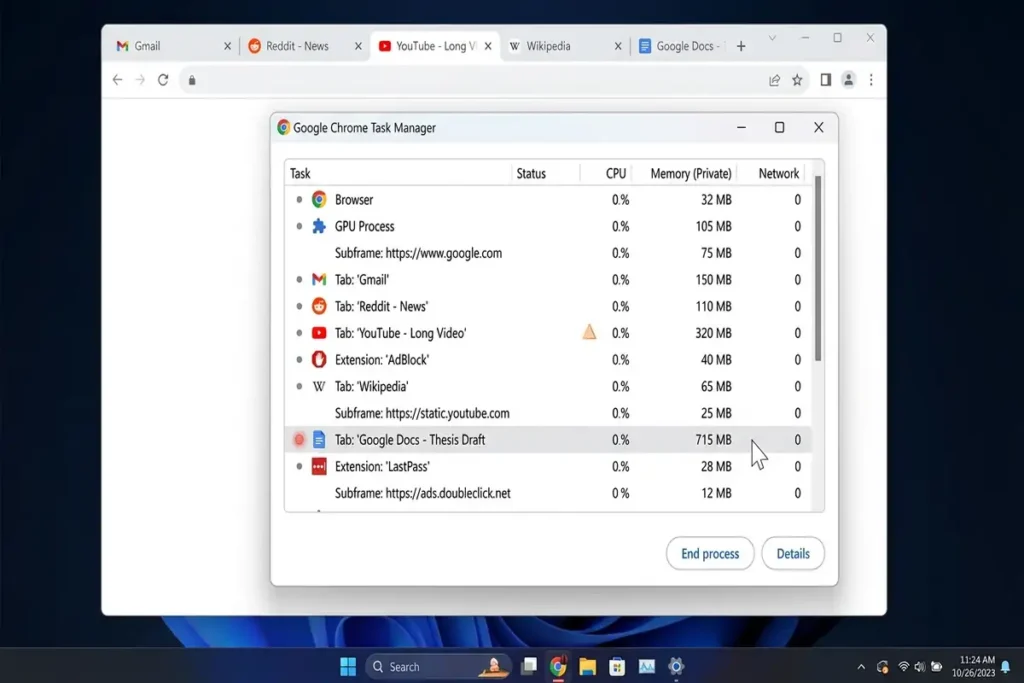
You can also check Chrome’s built-in Task Manager by pressing Shift + Esc. Sort the processes by memory usage to see whether a specific tab or extension is consuming an unusually large amount of memory.
If Windows is already using most of your available RAM, Chrome may struggle when several tabs and extensions are active.
Don’t assume Chrome is always the problem
If your entire computer is using almost all available memory, closing a few Chrome tabs may help temporarily, but the underlying issue could be another application.
That’s why checking Windows Task Manager is useful.
4. Test Chrome in Incognito Mode
This is one of the best diagnostic tests in this guide.
Open an Incognito window with:
Ctrl + Shift + N
Then visit the website that normally causes Chrome to freeze.
If the website works normally in Incognito
A Chrome extension or profile-related setting becomes more suspicious.
If it still freezes
The problem may be related to:
- Chrome itself
- Hardware acceleration
- Windows
- The website
- Your network
- Security software
- Available system resources
This test helps narrow down the problem before you start changing settings.
5. Disable Chrome Extensions
If Chrome works normally in Incognito but freezes during regular browsing, check your extensions.
Open:
Chrome → ⋮ → Extensions → Manage Extensions
Temporarily disable your extensions.
Then restart Chrome and test again.
Don’t disable everything permanently.
Instead, re-enable extensions one at a time.
Why?
Suppose Chrome works perfectly with all extensions disabled.
You enable:
Extension A → Chrome works
Then:
Extension B → Chrome freezes
You’ve found a strong suspect.
Google recommends removing or reinstalling extensions when troubleshooting Chrome crashes and freezes.
6. Turn Off Hardware Acceleration
If Chrome freezes, crashes, or displays problems when playing videos or using graphics-heavy websites, hardware acceleration is worth testing.
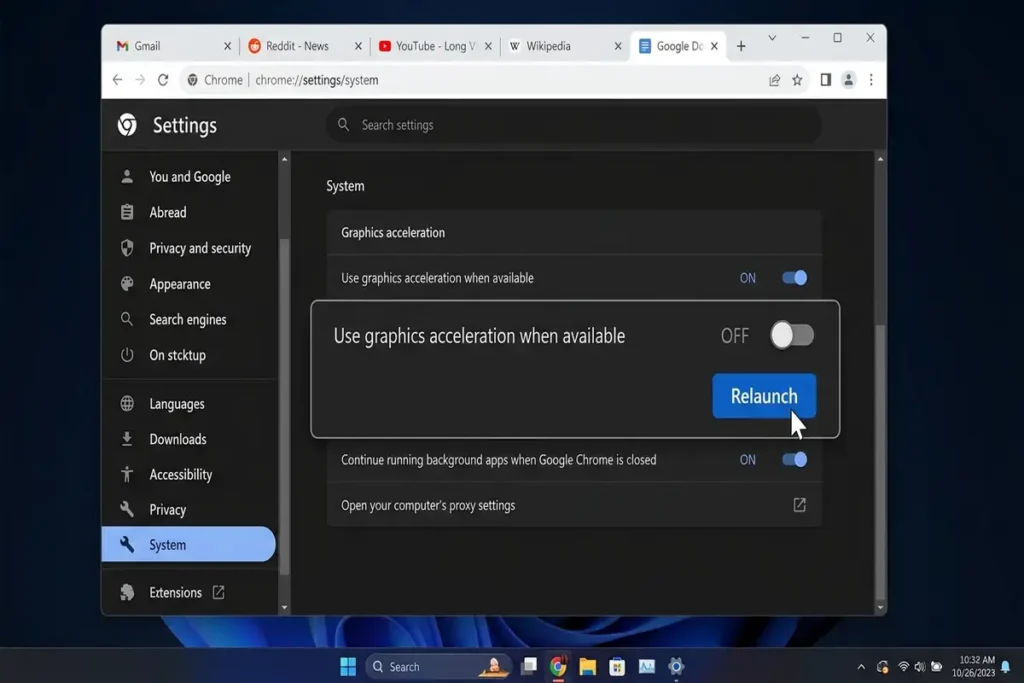
In Chrome, open:
Settings → System
Find:
Use graphics acceleration when available
Turn it off.
Then select:
Relaunch
Chrome will restart.
Why test this?
Hardware acceleration allows Chrome to use your computer’s GPU for certain tasks.
If there is a compatibility problem involving the graphics driver, GPU or browser, disabling hardware acceleration can sometimes help.
Google’s own Chrome troubleshooting guidance specifically recommends turning off hardware acceleration when investigating certain Chrome crash problems.
7. Update Google Chrome
If Chrome is freezing or becoming unresponsive, make sure you’re running the latest version.
Open:
Chrome → ⋮ → Help → About Google Chrome
Chrome will automatically check for an available update.
If an update is available, let Chrome finish installing it and select:
Relaunch
Google regularly releases Chrome updates that include bug fixes, performance improvements, and security fixes. If the problem started after a Chrome update, also check whether another newer Stable release is available before changing advanced settings.
After Chrome restarts, test the same website or task that was causing the browser to freeze.
8. Check Windows 11 for Updates
If Chrome is up to date but continues freezing, check Windows 11.
Go to:
Settings → Windows Update
Then select:
Check for updates
Install available updates and restart Windows if requested.
Why check both?
Chrome and Windows work together through graphics drivers, system components, security software and other Windows services.
If the Chrome problem started shortly after a Windows update, don’t automatically assume Chrome itself is broken.
Look at the timing.
Ask:
Did Chrome start freezing immediately after a Windows update?
If yes, record your Windows version and Chrome version before making major changes.
This information can make further troubleshooting much easier.
9. Reset Chrome Settings
If Chrome still freezes after checking memory, extensions, updates and hardware acceleration, you can reset Chrome settings.
Open:
Chrome → Settings → Reset settings
Then select:
Restore settings to their original defaults
A reset can help when Chrome’s configuration has become problematic.
Google includes resetting Chrome settings among its troubleshooting options for persistent browser problems.
What should you expect?
A Chrome settings reset restores several browser settings to their original defaults.
It can reset things such as:
- Startup pages
- New tab settings
- Search engine settings
- Pinned tabs
- Content settings
- Cookies and site data
- Extensions and themes
Your saved bookmarks and passwords are not deleted by the standard Chrome settings reset.
Don’t use this step just because Chrome is slightly slow.
Try the simpler fixes first.
10. Reinstall Chrome as a Last Resort
If Chrome still won’t work after all the previous steps, reinstalling it can help.
Google recommends uninstalling and reinstalling Chrome when other troubleshooting steps haven’t solved problems such as crashes or Chrome refusing to open.
Before doing this:
Make sure your important data is synced
Check your:
- Bookmarks
- Passwords
- Browsing data
- Extensions
- Chrome profile
If you’re signed into Chrome with syncing enabled, your information may be available through your Google Account after reinstalling and signing back in.
Then uninstall Chrome through Windows:
Settings → Apps → Installed apps → Google Chrome → Uninstall
Afterward, download the latest version from Google’s official Chrome website and install it again.
Don’t start here
Reinstalling Chrome is a last resort.
If a simple extension is causing the problem, reinstalling the entire browser may only temporarily hide the real cause.
Chrome Freezes Only on One Website? Try This
If Chrome works normally everywhere except one website, don’t reset the browser yet.
First, open the same website in Microsoft Edge or another browser.
- It fails there too: the problem may be the website, network, DNS, or server.
- It works normally: Chrome, an extension, or your browser settings become more likely suspects.
This simple test can tell you whether you’re troubleshooting Chrome or the website itself.
What Does “Aw, Snap!” Mean in Chrome?
If Chrome shows “Aw, Snap!”, it means Chrome couldn’t load the page properly.
Possible causes include memory usage, extensions, network problems, cookies, security software, or an issue with the website.
Start with:
- Reload the page.
- Close unnecessary tabs.
- Try Incognito mode.
- Disable extensions.
- Check your internet connection.
- Update Chrome.
An “Aw, Snap!” error doesn’t automatically mean you need to reinstall Chrome.
What If Chrome Won’t Open at All?
If clicking Chrome does nothing, it may already be running in the background.
Press:
Ctrl + Shift + Esc
In Task Manager, find Google Chrome or chrome.exe, select it, and click End task.
Then try opening Chrome again.
If it still won’t start, restart Windows and check for Chrome and Windows updates. You can also temporarily check whether security software is interfering with Chrome.
If nothing works, reinstalling Chrome can be considered as a last resort.
Quick Fix Order
If you want the fastest path, start with the situation that matches your problem:
Chrome is completely frozen
→ Task Manager → End Chrome → Restart
Chrome slows down with many tabs
→ Close tabs → Check Memory
Chrome works in Incognito
→ Disable extensions → Re-enable them one at a time
Chrome freezes on graphics-heavy pages
→ Test hardware acceleration → Update Chrome
Chrome won’t open
→ End Chrome in Task Manager → Restart Windows
Only one website is affected
→ Test the website in another browser
Nothing works
→ Reset Chrome settings → Reinstall Chrome as a last resort
Frequently Asked Questions
Why is Chrome not responding on Windows 11?
Chrome can freeze because of high memory usage, problematic extensions, hardware acceleration, outdated software, security software, or a problem with the website or network.
How do I force close Chrome on Windows 11?
Press Ctrl + Shift + Esc to open Task Manager. Select Google Chrome and click End task.
Can Chrome extensions cause freezing?
Yes. A problematic extension can make Chrome slow, freeze, or crash. Try disabling your extensions and re-enabling them one at a time to find the culprit.
Should I disable hardware acceleration in Chrome?
It’s worth testing if Chrome freezes or crashes during videos, games, or graphics-heavy websites. Go to Settings → System, turn off Use graphics acceleration when available, then relaunch Chrome.
Should I reinstall Chrome if it keeps freezing?
Not immediately. First try restarting Chrome, checking memory, disabling extensions, testing Incognito mode, updating Chrome and Windows, and testing hardware acceleration. Reinstall Chrome only if these steps don’t solve the problem.
More Troubleshooting Guides
Still having problems with Windows, Android, or other everyday technology? Check out these related troubleshooting guides:
- Windows 11 Connected to WiFi but No Internet: 12 Fixes
- How to Fix Windows 11 WiFi Keeps Disconnecting
- Android Connected to WiFi but No Internet? 10 Fixes
Final Thoughts
When Chrome is not responding on Windows 11, don’t rush to reinstall it.
First, identify what’s causing the freeze—memory usage, extensions, hardware acceleration, an update, or a single problematic website. Start with the simplest fix and move to advanced options only when necessary.
A quick diagnosis can save you from changing settings or reinstalling Chrome when you don’t actually need to.