
Android Phone Keeps Restarting? 10 Fixes to Try Before a Reset
If your Android phone keeps restarting, it may reboot randomly while you’re using it, restart when you open a certain app, turn off and back on repeatedly, or get stuck in a restart loop.
The frustrating part is that the same symptom can have very different causes.
A recently installed app, low storage, an Android update, overheating, a problematic accessory, or a hardware issue can all cause unexpected restarts. Google’s current Android troubleshooting guidance recommends checking updates and storage, testing apps, using Safe Mode, and leaving a factory reset until the more basic troubleshooting steps have been exhausted.
Before you reset your phone, find out what kind of restart problem you’re dealing with. That can help you avoid deleting your data unnecessarily.
Quick Diagnosis: Why Is Your Android Phone Restarting?
Start with the symptom that matches what you’re seeing.
| What you’re seeing | Start here |
|---|---|
| Phone restarts randomly once or twice | Check updates and recently installed apps |
| Phone keeps restarting every few minutes | Try Safe Mode |
| Restarting started after installing an app | Remove the suspicious app |
| Phone restarts when charging | Test the charger, cable and accessories |
| Phone gets very hot before restarting | Stop heavy use and check for overheating |
| Storage is almost full | Free up storage |
| Problem started after an Android update | Check for another available update |
| Phone is stuck on the logo | Troubleshoot for a boot loop |
| Restart stops in Safe Mode | A downloaded app is likely involved |
| Phone still restarts after a reset | Hardware may be the problem |
Don’t start with a factory reset. It’s one of the most destructive steps because a factory data reset removes data stored on the device. Google recommends backing up your phone before performing one.
1. Check the Power Button, Case, and Accessories
Before changing Android settings, check the simple physical causes first.
A stuck Power button, tight phone case, or connected accessory can sometimes trigger unexpected restarts.
Try this:
- Remove the phone case.
- Press the Power button several times. Make sure it moves normally and isn’t sticking.
- Disconnect USB accessories, battery packs, controllers, or other connected devices.
- Use the phone for a few minutes without the case or accessories.
If the restarting stops, reconnect your accessories one at a time to find the likely cause.
One More Thing to Check
Some Android phones, especially Samsung Galaxy models, have scheduled or automatic restart settings.
If your phone restarts at roughly the same time each day, check its restart settings before assuming there’s a system problem.
If it still restarts with the case and accessories removed, move on to storage, updates, and apps.
2. Check How Much Storage You Have Left
Low storage is easy to overlook.
Open your phone’s:
Settings → Storage
The exact menu can vary depending on the manufacturer.
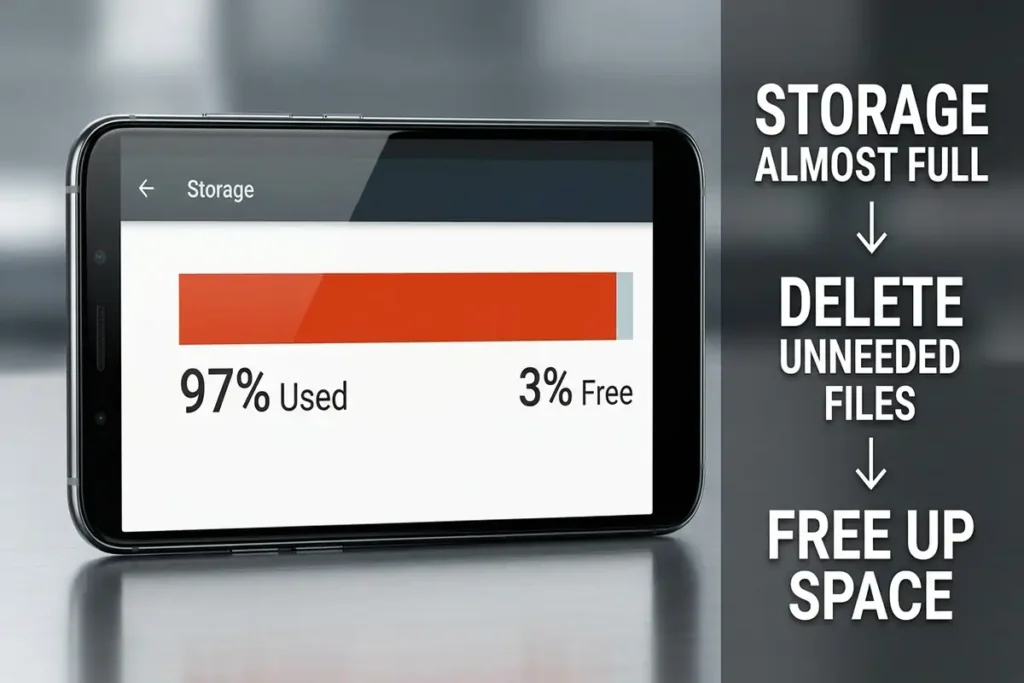
Look at how much free space remains.
Google says an Android phone can start experiencing problems when less than 10% of its storage is available.
If you’re almost out of space
Start by removing things you don’t need:
- Large downloaded videos
- Old screen recordings
- Unused apps
- Duplicate photos
- Offline downloads
- Large files from messaging apps
Don’t delete random Android system files just to create space.
A useful clue
If the phone started restarting after you received a “Storage almost full” warning, deal with storage before trying more advanced repairs.
3. Install Available Android Updates
If your phone keeps restarting, check whether an Android system update is available.
Go to:
Settings → System → Software update
On Samsung and other Android brands, the location can be different.
For example, Samsung may use:
Settings → Software update
Then select:
Download and install
Google recommends checking for Android updates as part of its current troubleshooting process for restarting and crashing devices.
Why this matters
A restart problem can sometimes be related to software.
If the issue appeared after an update, don’t immediately assume the update permanently damaged the phone. First check whether another update is available.
4. Update All Your Apps
Don’t only update Android itself.
A buggy or outdated app can also cause instability.
Open:
Google Play Store → Profile picture → Manage apps & device
Then check:
Updates available
Update the apps that need attention.
Google specifically recommends checking for app updates when troubleshooting an Android device that is restarting or crashing.
Pay special attention to recently updated apps
If your phone started restarting immediately after an app update, remember the app name.
You may have found an important clue.
5. Uninstall Apps You Installed Before the Problem Started
Think back to when the restarting began.
Did you install:
- A new launcher?
- A battery optimizer?
- A cleaner app?
- A third-party antivirus?
- A game?
- A VPN?
- A customization app?
- An app installed outside Google Play?
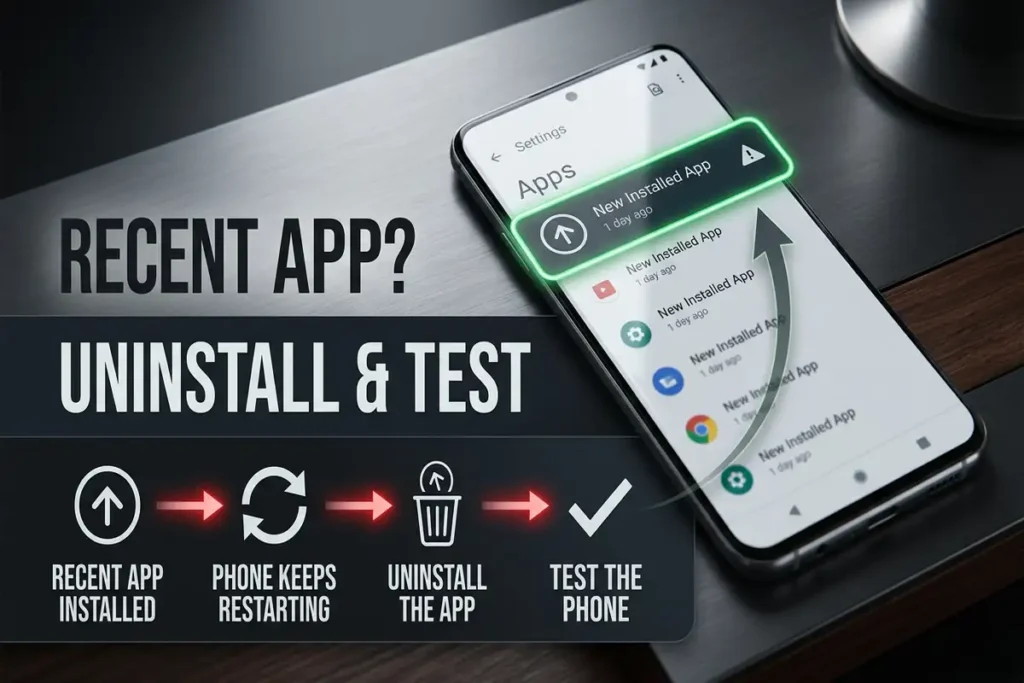
If the problem began shortly after installing something, remove that app and test the phone again.
Google recommends removing recently downloaded apps one at a time, restarting after each removal to identify the app causing the problem.
Don’t uninstall everything
You don’t need to delete 20 apps.
Start with the ones installed or updated immediately before the problem appeared.
That’s much more useful diagnostically.
6. Use Safe Mode to Find the Problem
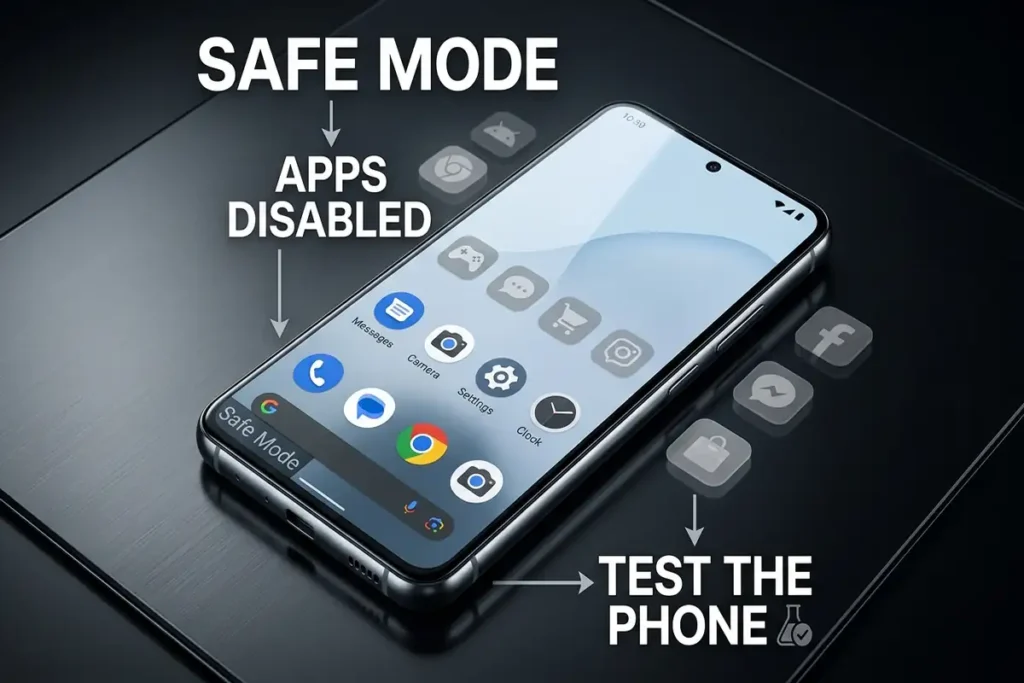
If your Android phone keeps restarting, Safe Mode is one of the best ways to check whether a downloaded app is causing the problem.
Safe Mode temporarily disables downloaded apps while keeping the core Android system running.
Here’s the test:
Enter Safe Mode and use your phone for a few minutes.
- Restarts stop: A downloaded app is likely causing the problem. Restart normally and uninstall recently installed or updated apps one at a time.
- Restarts continue: A third-party app is less likely to be responsible. Check storage, updates, overheating, charging, and possible hardware problems.
Don’t uninstall all your apps at once. Removing suspicious apps one by one makes it easier to identify the culprit.
Safe Mode Varies by Phone
The steps to enter Safe Mode differ between Samsung, Google Pixel, Motorola, Xiaomi, OnePlus, and other Android phones.
If you’re unsure, use the instructions for your specific phone model rather than following a button combination meant for another device.
Safe Mode doesn’t fix the problem by itself—it helps you find out where the problem is coming from.
7. Check Whether Your Phone Is Overheating
Pay attention to when the restart happens.
Does the phone become very hot immediately before it restarts?
For example, it may happen when:
- Playing demanding games
- Recording long videos
- Using GPS for a long time
- Charging while using the phone heavily
- Sitting in direct sunlight
- Running several demanding apps
If the phone becomes unusually hot, stop intensive use and let it cool down.
Don’t ignore excessive heat
If the device is extremely hot, swollen, smells unusual, or appears physically damaged, stop using it and seek professional assistance.
A repeated restart combined with abnormal heat can point beyond a simple app problem.
8. Test the Phone Without the Charger
Here’s a useful diagnostic test if the restarting happens mainly while charging.
Unplug the phone.
Then use it normally for a while.
If the restarting stops when the charger is disconnected, investigate:
- Charging cable
- Power adapter
- Outlet
- Charging port
- Battery condition
- Heat generated during charging
Try a different known-good charger and cable.
Why this test matters
If the phone only restarts while connected to power, that’s a very different clue from a phone that randomly restarts while sitting idle.
Don’t immediately factory-reset a phone that only restarts during charging.
First investigate the charging setup.
9. Clear Up the Problem Before a Factory Reset
If you’ve already tried updates, storage cleanup, Safe Mode and app troubleshooting, take a moment to identify the exact pattern.
Ask:
Does it restart in Safe Mode?
Does it restart without the charger?
Does it restart when a particular app opens?
Does it restart when the phone gets hot?
Did it start after an update?
Did it start after installing an app?
These answers tell you much more than simply knowing that the phone “keeps restarting.”
Why we’re doing this
A factory reset can erase your data, but it won’t magically tell you why the problem happened.
If the cause is a failing battery or another hardware problem, you could reset the phone and still have the same restart loop afterward.
10. Factory Reset Only After You Back Up Your Data
This is the final software step—not the first one.

A factory reset removes the data stored on the phone and uninstalls apps and their associated data. Before proceeding, review Google’s official factory reset guidance and make sure your important data is backed up.
Google explicitly recommends backing up your phone before performing a factory reset.
Before resetting, make sure you have access to important:
- Photos
- Videos
- Contacts
- Messages
- Documents
- Authentication information
- WhatsApp or other app backups
- Google Account credentials
Why this is a last resort
If the problem is caused by an app, Safe Mode may already have identified it.
If the problem is caused by low storage, freeing space may solve it.
If the problem is hardware-related, a factory reset may accomplish nothing.
So don’t erase your phone just because it’s the easiest option to find in Settings.
When Should You Stop Troubleshooting?
You shouldn’t keep experimenting indefinitely.
Consider professional support if:
- The phone keeps restarting in Safe Mode.
- It restarts immediately after a factory reset.
- The device is unusually hot.
- The battery appears swollen.
- The phone was recently dropped.
- The device suffered liquid damage.
- The power button appears damaged or stuck.
- The phone won’t stay on long enough to back up your data.
- The restart loop continues despite software troubleshooting.
If hardware is failing, software fixes won’t repair the physical component.
Frequently Asked Questions
Why does my Android phone keep restarting?
Common causes include problematic apps, low storage, outdated software, overheating, charging issues, or hardware problems.
Can low storage make an Android phone restart?
Yes. Android can experience problems when storage is nearly full. Free up space if you have less than 10% available.
How do I know if an app is causing the restart?
Start your phone in Safe Mode. If the restarting stops, a downloaded app is likely causing the problem.
Should I factory reset an Android phone that keeps restarting?
Not immediately. Try Safe Mode, app troubleshooting, updates, storage cleanup, and charger checks first. Back up your data before a factory reset.
What if my Android phone still restarts after a factory reset?
If restarting continues after a clean factory reset, a hardware problem becomes more likely. Consider contacting the phone manufacturer or a qualified repair service.
More Troubleshooting Guides
Still having problems with your devices? Check out these related guides for more step-by-step solutions:
- Android Connected to WiFi but No Internet
- iPhone Won’t Turn On? 8 Things to Try Before Repair
- Chrome Not Responding on Windows 11
Final Thoughts
When your Android phone keeps restarting, don’t rush into a factory reset.
Start by identifying the pattern: check your apps, storage, updates, charging setup, and overheating. If you’re still unsure, Safe Mode can quickly tell you whether a downloaded app is causing the problem.
If the restarts continue after these steps or even after a factory reset, a hardware issue may be the real cause.
Find the cause first. Reset only when you actually need to.