
Claude Not Uploading Files? 7 Fixes to Try
Is Claude not uploading files when you try to attach a PDF, image, Word document, or spreadsheet? You might see an upload error, a file that stays stuck loading, or an attachment that appears in the chat but never finishes processing.
The cause isn’t always your internet connection. Claude has specific file format and size requirements, and upload failures can also come from browser extensions, account restrictions, or temporary service issues.
Before changing your browser settings or trying the same upload repeatedly, use these seven checks to narrow down the problem.
1. Check Whether Claude Supports Your File Type
Start with the file extension. Claude supports common document formats, including PDF, DOCX, CSV, TXT, HTML, ODT, RTF, EPUB, and JSON. Supported image formats include JPEG, PNG, GIF, and WebP.
XLSX spreadsheets require code execution and file creation to be enabled in your account.
If Claude rejects your file, try exporting it to a supported format. For example, save an incompatible document as PDF or DOCX, then upload the new copy.
You can find the complete list in Anthropic’s official guide: Upload files to Claude.

2. Check Claude’s File Size Limits
Claude has different file limits depending on where you’re uploading.
According to Anthropic’s current documentation:
- Regular chats: Up to 500 MB per file and 20 files per chat.
- Project files: Up to 30 MB per file.
- PDFs: Up to 1,000 pages per file.
A file that works in a regular chat may therefore exceed the limit for a Project.
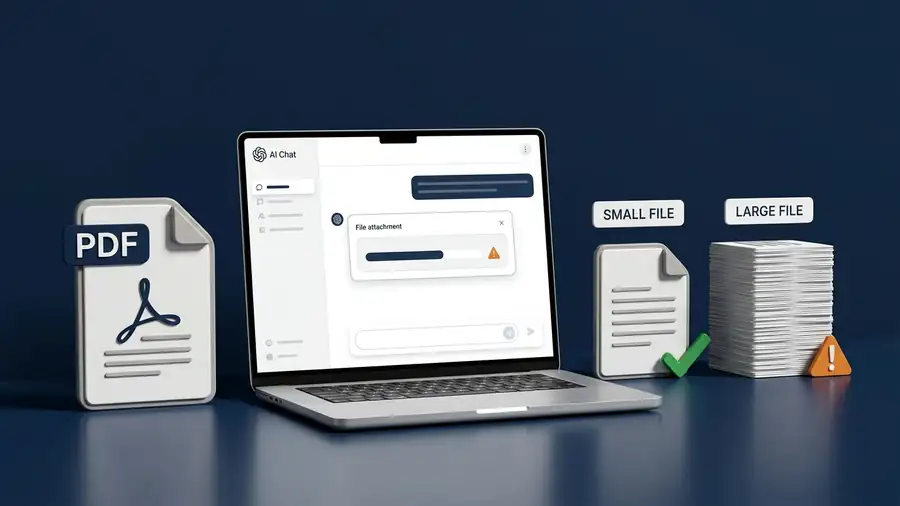
If your upload fails, check both the file size and the upload location. Try a smaller copy or split a large document into sections if you only need Claude to analyze specific pages.
There’s another important detail: Claude can analyze text and visual elements in PDFs of up to 100 pages. For PDFs between 101 and 1,000 pages, it processes text but doesn’t analyze visual elements.
See Anthropic’s file upload guide for the latest requirements.
3. Test With a Different File
If one document keeps failing, don’t assume Claude itself is broken.
Choose a small PDF that opens normally on your computer, upload it to a new chat, and compare the result.
- The test file uploads: The original file may be damaged, too large for that location, or difficult to process.
- Both files fail: The problem may involve your browser, connection, account, or Claude’s service.
- The file uploads but Claude can’t read it: The issue may be related to how the document is processed.
For example, Claude extracts text from non-PDF documents, so images embedded inside Word files may not be interpreted as visual content. If you need Claude to examine a chart or screenshot, try uploading the image separately in a supported format.
4. Check Your Internet Connection
An unstable connection can interrupt an upload, especially when you’re sending a large document or image.
Try these checks:
- Open another website to confirm your internet connection works.
- Switch from Wi-Fi to a mobile hotspot, if available.
- Temporarily disconnect from a VPN if you’re using one and your network permits it.
- Return to Claude and upload a small test file.
If the upload works on another network, your original connection or its restrictions may be responsible.
If your Android phone also has connection problems, our guide to Android Connected to Wi-Fi but No Internet covers additional troubleshooting steps.
5. Try Claude in a Private Browser Window
Browser extensions, blocked scripts, and corrupted site data can interfere with file selection or uploading.
If you’re using Claude on a computer, open a private or incognito window, sign in, and try uploading the same small test file.
If it works, return to your regular browser and test extensions one at a time, particularly ad blockers or tools that filter scripts and network requests. You can also try another up-to-date browser.
If the upload button doesn’t respond at all, this check is especially useful because it helps distinguish a browser-related problem from a file-specific issue.

6. Refresh Claude and Check Its Service Status
Sometimes the problem is temporary and has nothing to do with your device.
Refresh Claude, open a new conversation, and try attaching a small file. If the problem continues, visit the official Claude Status page.
Look for an incident affecting Claude.ai or the relevant service. If Anthropic reports an outage, waiting for the service to recover is usually more useful than repeatedly changing browser settings.
A normal status page doesn’t rule out every account-specific or upload-related problem, but it helps you determine whether a wider service issue has been reported.
7. Try Another Upload Method and Check Your Account
Claude lets you attach files through the plus button, drag and drop supported files into the chat, or copy and paste images from your clipboard.
If selecting a file fails, try another supported method. Also check whether Claude displays a usage-limit message or an error explaining why the upload was rejected.
If the same file fails through every method, note the exact error, file type, approximate size, browser version, and whether other files upload successfully.
If nothing works, contact Anthropic Support with those details. Avoid sharing sensitive documents unless they’re necessary for troubleshooting.
Frequently Asked Questions
Why does Claude say my file is too large?
You may have exceeded the limit for the upload location. Regular chat uploads and Project files have different size limits, so check where you’re adding the file before trying again.
Why won’t Claude upload a PDF?
Possible causes include file size, a damaged document, connection problems, browser interference, or a temporary service issue. Test with a smaller PDF to narrow down the cause.
Why can Claude upload a file but not read it correctly?
Some file formats are processed as text rather than as visual content. If a Word document contains a chart or screenshot, try uploading that image separately.
More AI Troubleshooting Guides
Still having trouble with an AI tool? These related Neceb guides can help you identify other common problems:
- Claude Not Working? What to Check First — Troubleshoot broader Claude errors, login problems, and conversations that stop responding.
- Google Gemini Not Working? Here’s What to Check First — Check connection issues, loading errors, and other Gemini problems.
- ChatGPT Not Loading? How to Tell If It’s Down — Find out whether ChatGPT’s loading problem may be related to your browser or a service outage.
Final Thoughts
When Claude isn’t uploading files, start with the format and size limits, then test another file and connection. Browser extensions and temporary service issues are also worth checking.
The most useful clue is whether every file fails or only one. That simple distinction can help you find the cause without wasting time changing settings that aren’t responsible for the problem.