
Printer Printing Blank Pages? Here’s How to Fix It
Is your printer printing blank pages even though it has ink? The printer feeds the paper normally, sounds like it is printing, and then the page comes out completely white.
A full ink cartridge does not always mean ink is reaching the paper. A clogged printhead, incorrectly installed cartridge, protective tape left on a new cartridge, or a problem with the print job can all cause blank pages.
Before you replace the ink cartridge or start changing printer drivers, there is one quick test that can tell you where the problem actually is: print a test page or nozzle check directly from the printer.
If that page is also blank, focus on the printer itself. If the printer’s own test page looks normal but your documents are blank, the problem is more likely the file, app, print settings, or driver.
First: Print a Test Page
This is the fastest way to narrow down the problem.
Look for an option such as:
Setup → Maintenance → Nozzle Check
or:
Settings → Tools → Print Quality Report / Test Page
The exact name depends on your printer.
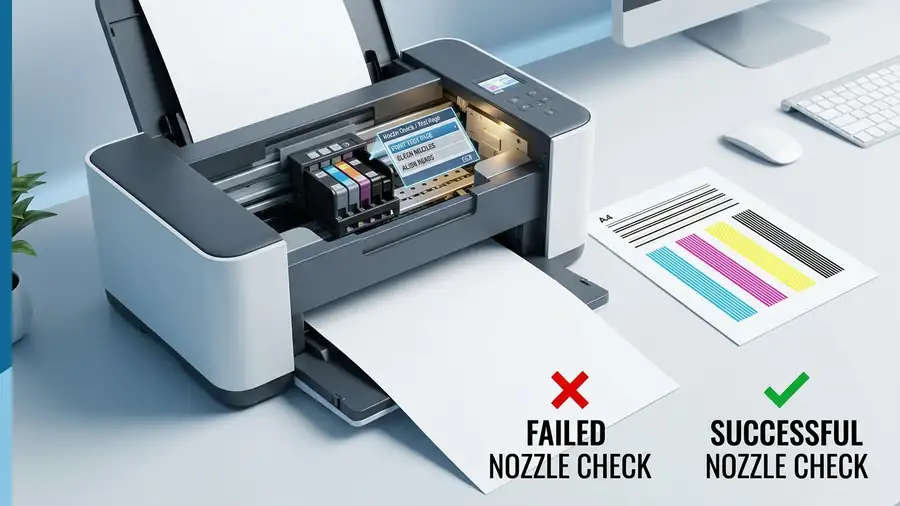
If the test page is blank
Focus on the ink, toner, cartridge, printhead, or printer hardware.
If the test page prints normally
Focus on the document, application, print settings, or driver.
HP, Canon, Epson, and Brother use different menus, but many models provide some type of built-in print or quality test.
For example, HP recommends printing a test page directly from the printer first and using the result to decide whether to troubleshoot the printer or the print settings. HP’s official guide for blank pages
The quick diagnosis
Test page is blank → troubleshoot the printer.
Test page looks normal → troubleshoot the document or computer.
This simple test can save you from replacing cartridges or drivers that are still working.
1. Check the Ink or Toner — Even If It Says Full
Seeing an ink level does not always mean ink is actually reaching the paper.
For an inkjet printer, check whether any cartridge is:
- Empty or very low
- Incorrectly installed
- Not fully clicked into place
- Still covered by protective tape
- Dried out after a long period without printing
If you recently replaced a cartridge and the next pages suddenly became blank, remove it and check the cartridge carefully.
New cartridges can have protective tape or seals that must be removed before printing.
After reinstalling the cartridge, run another test page.
If the test page starts printing normally, you found the problem.
2. If It Has Ink but Prints Blank, Check the Printhead
This is especially important for inkjet printers.
A printer can show plenty of ink while its tiny printhead nozzles are clogged or dried out. This can happen when the printer has not been used for a while.
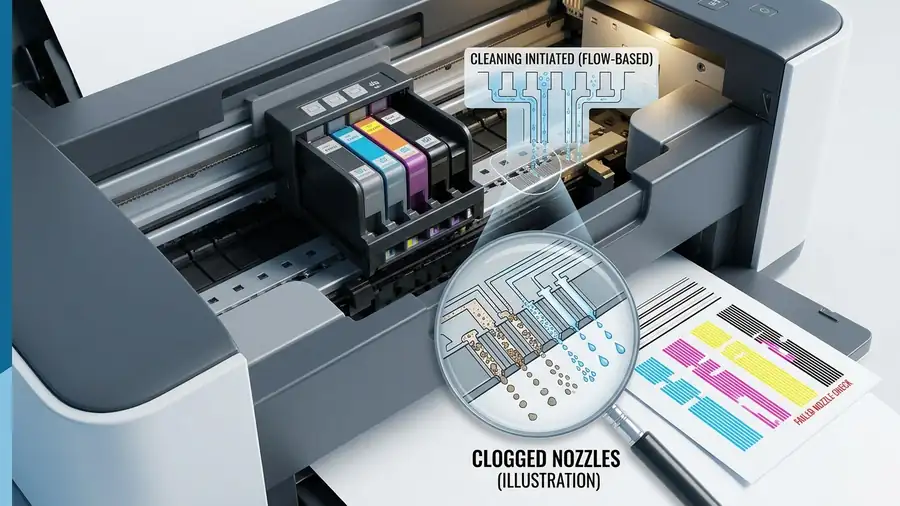
Run the printer’s built-in:
Printhead Cleaning / Head Cleaning
Then print another nozzle check or test page.
Don’t keep running cleaning cycles repeatedly. Cleaning uses ink, so check the result after each cycle. If the nozzle pattern improves, another cleaning cycle may help. If there is no improvement, repeated cleaning may not solve the underlying problem.
What the test tells you
Some colors or lines are missing:
The printhead may be partially clogged.
The entire test page is blank:
Ink may not be reaching the printhead, or there may be a cartridge or printhead problem.
The test page is perfect:
Stop cleaning the printer and move to the computer-side checks below.
3. Did You Just Change the Ink?
If the problem started immediately after replacing a cartridge, don’t assume the new cartridge is defective.
Remove it and check:
- The cartridge is in the correct slot.
- All required protective tape or seals have been removed.
- The cartridge is firmly seated.
- The printer recognizes the cartridge.
- The ink level is not showing an error.
Then run the printer’s test page again.
This is particularly useful when the printer says the cartridge is installed correctly but produces completely blank output.
4. The Printer Test Works — But Your Document Is Blank
Here’s where the diagnosis changes.
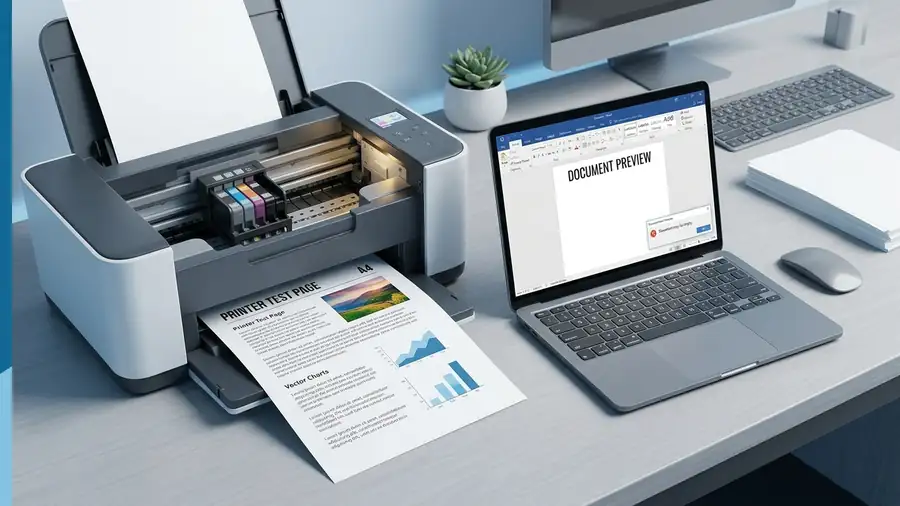
If the printer’s own test page prints correctly but a Word document, PDF, webpage, or image comes out blank, don’t start cleaning the printhead again.
The printer is already proving that it can put ink or toner onto paper.
Instead, try printing:
- A different document
- A simple text file
- A photo or image
- The same document from another application
Also open Print Preview before printing.
Check whether the document actually contains visible content on the page you selected.
What if only an extra page is blank?
If the printer prints your document correctly but adds a completely blank page, check the document before changing printer settings.
A trailing page break, empty paragraph, or document formatting can create an extra blank page.
Print Preview is the quickest way to check whether that blank page is actually part of the document.
5. Check Print Settings
If only certain documents are blank, open:
File → Print → Printer Properties / Preferences
Check:
- Correct printer selected
- Correct paper size
- Correct paper type
- Page range
- Color or grayscale settings
- Print quality
Then try printing a simple one-page document again.
If the simple document works but one particular file remains blank, the printer itself is probably not the main problem.
6. Try Another App
This is another quick way to isolate the cause.
For example, if a PDF prints blank from Adobe Acrobat but a simple image prints normally, the problem may be related to the PDF or the application rather than the printer.
Likewise, if Word documents are blank but photos print correctly, test the same document from another application if possible.
The goal is not to change everything at once. You’re trying to identify whether the blank page follows the printer or follows the file.
7. Check the Printer Driver
If the printer’s test page works but documents from your computer remain blank, the driver becomes more relevant.
First restart the printer and computer.
Then check for a newer driver or printer software package from the manufacturer’s official support website or Microsoft’s printer troubleshooting guide.
If the problem started after a driver or software update, reinstalling the manufacturer’s printer software may also help. Brother, for example, recommends installing the latest printer driver when documents print blank in Windows.
Avoid downloading random printer drivers from third-party websites. Use the support page for your exact printer model.
8. What If You Have a Laser Printer?
Not every blank-page problem is an ink problem.
If you have a laser printer, check the toner cartridge instead.
A blank page can occur when:
- Toner is empty
- A new toner cartridge still has a shipping seal
- The toner cartridge is not installed correctly
- The drum or transfer system has a problem
Inkjet: Think ink, cartridges, and printhead/nozzles.
Laser: Think toner, cartridge, drum, and transfer components.
Laser printers don’t use liquid ink or an inkjet printhead, so don’t waste time running inkjet-style printhead cleaning routines.
Quick Diagnosis
| What happens | What it usually points to |
|---|---|
| Printer test page is blank | Ink, toner, printhead, cartridge, or hardware |
| Test page has missing colors/lines | Clogged or dried inkjet nozzles |
| Test page is perfect but documents are blank | File, app, settings, or driver |
| Blank pages started after new ink | Cartridge installation or protective seal |
| Printer says ink is full but page is blank | Ink may not be reaching the printhead |
| Only one PDF is blank | PDF/app rendering or document issue |
| An extra page is blank | Document formatting or page break |
| Laser printer prints blank | Toner, drum, transfer, or cartridge issue |
Frequently Asked Questions
Why is my printer printing blank pages even though it has ink?
A full ink cartridge does not guarantee that ink is reaching the paper. A clogged printhead, dried ink, incorrectly installed cartridge, protective seal, or another ink-flow problem can produce completely blank pages.
Why does my printer print a test page but not my document?
If the printer’s own test page works, the printer can physically print. The problem is more likely related to the document, application, print settings, or driver.
Should I replace the ink cartridge if the printer is printing blank pages?
Not immediately. First run a test page and check whether the cartridge is properly installed and whether its protective tape has been removed. If the ink level is genuinely low or empty, then replacement may be necessary.
Why is my new ink cartridge printing blank pages?
Check that all required protective tape or seals have been removed and that the cartridge is correctly seated. Then run a nozzle check or test page.
Does this problem happen with HP, Canon, Epson, and Brother printers?
Yes. The exact menus and maintenance options vary by model, but blank-page problems can occur across different printer brands. The same basic diagnostic approach — test page first, then follow the result — can help narrow down the cause.
More Printer Troubleshooting Guides
- Epson Printer Not Printing Black? 6 Fixes to Try First
- Printer Offline in Windows 11? 10 Ways to Fix It
- Printer Not Showing Up in Windows 11? 10 Fixes
Final Thoughts
When a printer feeds paper but produces a completely blank page, don’t start by replacing everything.
Print the printer’s own test page first.
If that page is blank, investigate the cartridge, ink or toner, printhead, and printer hardware. If the test page looks normal, move your attention to the document, application, print settings, and driver.
That one test can turn a frustrating printer problem into a much simpler diagnosis.