
Printer Connected but Not Printing on Windows 11? Here’s What to Check
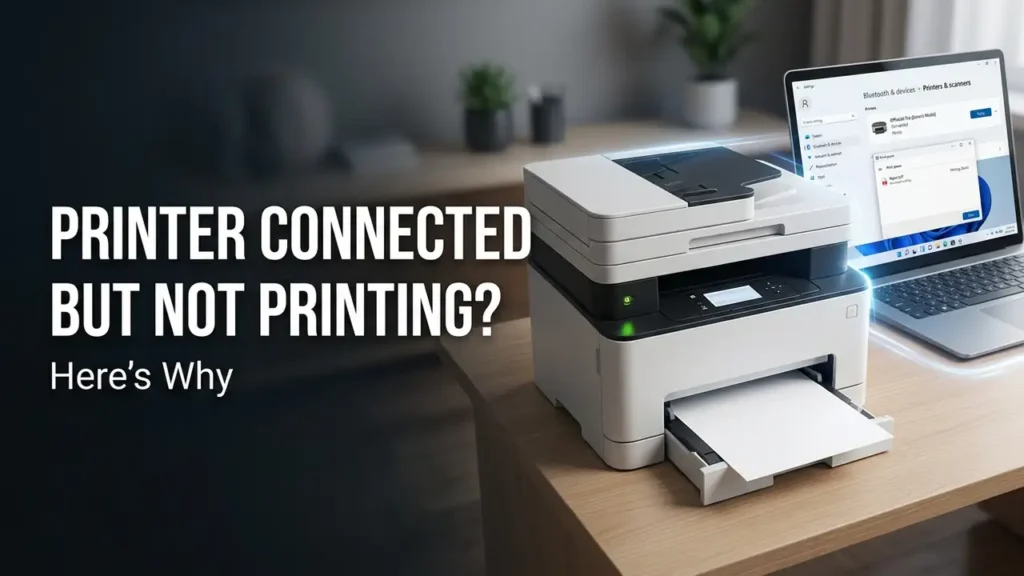
Your printer is connected to your Windows 11 PC, Windows detects it, and it may even show Ready—but nothing comes out when you click Print.
Maybe the document stays in the print queue. Maybe the printer does nothing at all. Or perhaps it prints from one application but not another.
So why is your printer connected but not printing on Windows 11?
The important clue is that Windows can recognize the printer while something else is preventing the print job from reaching it. The cause may be a stuck queue, Print Spooler problem, connection issue, driver, or application setting.
Before removing the printer or reinstalling drivers, use this quick diagnosis.
Start With a Windows Test Page
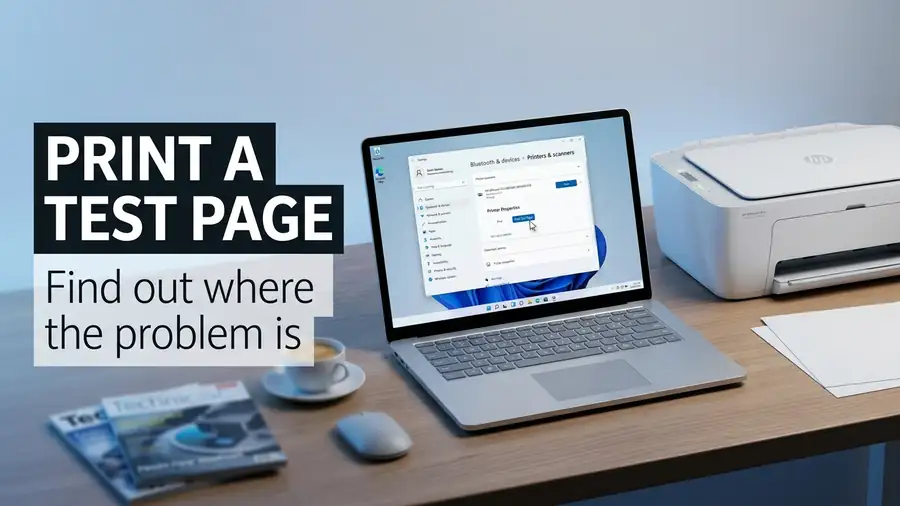
This is the most useful first check.
Go to:
Settings → Bluetooth & devices → Printers & scanners → Your printer → Printer properties → Print Test Page
Microsoft recommends using a test page to determine whether Windows can communicate with the printer.
If the test page prints
Your printer can communicate with Windows.
The problem is more likely related to the specific application, document, or print settings.
Try printing a simple page from Notepad or a PDF viewer.
If the test page does not print
The problem is probably deeper than one document. Continue with the connection, queue, Spooler, and driver checks below.
1. Make Sure the Correct Printer Is Selected
If you have more than one printer installed, Windows may be sending the document to the wrong device.
Go to:
Settings → Bluetooth & devices → Printers & scanners
Select the printer you actually want to use.
Then try printing again.
Also check the printer’s status. If Windows shows Offline, don’t keep sending new print jobs. Follow the offline-printer checks first. Microsoft has separate troubleshooting guidance for printers that appear offline even when powered on.
2. Clear a Stuck Print Queue
A stuck document can block every print job behind it.
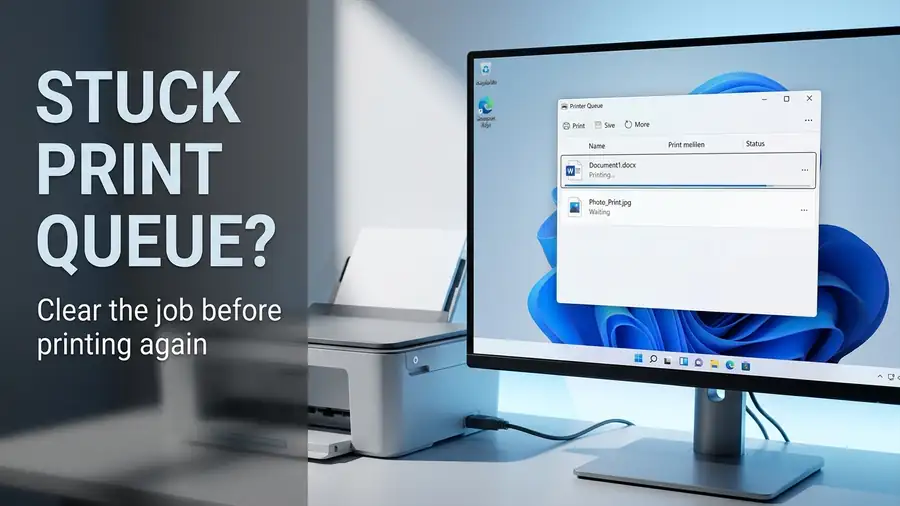
Open:
Settings → Bluetooth & devices → Printers & scanners → Your printer → Open print queue
If you see documents waiting for a long time, cancel them.
Then send a new, small test document.
If the queue refuses to clear or keeps filling up again, the Print Spooler may be the problem.
3. Restart the Print Spooler
The Print Spooler is the Windows service that manages print jobs.
If it gets stuck, your printer can look connected while documents remain in the queue.
Press:
Windows + R
Type:
services.msc
Press Enter.
Find Print Spooler, right-click it, and select Restart.
Now try the test page again.
Microsoft specifically recommends restarting the Print Spooler when print jobs become stuck or printing stops responding.
If restarting it doesn’t help and the queue remains stuck, Microsoft also provides steps to stop the service, clear the spool folder, and start it again.
4. Check the Printer’s Connection
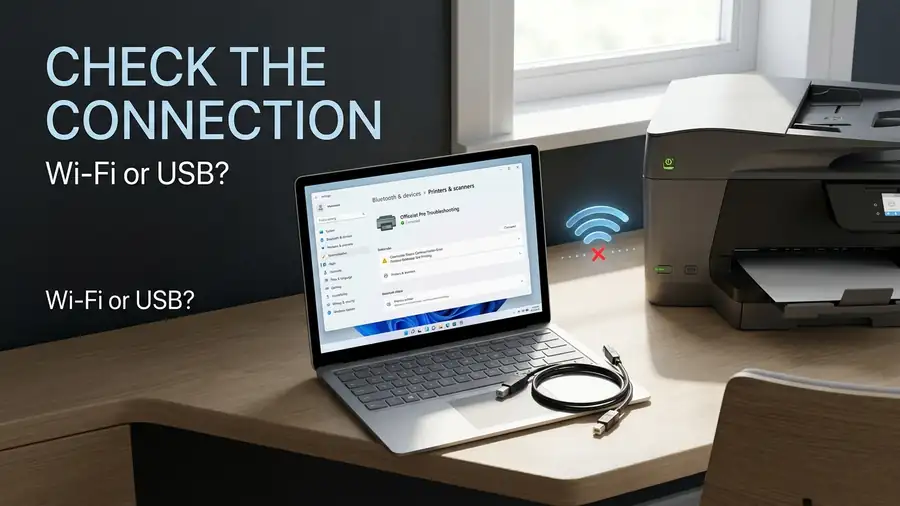
For a Wi-Fi printer
Make sure the printer and Windows 11 PC are connected to the same network.
This matters especially if your home network has multiple Wi-Fi names, extenders, access points, or separate bands.
Restart the printer and wait until it reconnects to Wi-Fi before testing again.
For a USB printer
Disconnect the USB cable and reconnect it.
If possible, try another USB port on the PC.
Microsoft recommends checking both USB connections and wireless network connectivity when diagnosing Windows printer problems.
Official guide: Microsoft — Fix printer connection and printing problems in Windows
5. Check Whether the Printer Is Offline
A printer can be powered on and still appear Offline in Windows.
Open the printer’s queue and check its current status.
If Windows reports that the printer is offline, first check the connection and clear any stuck jobs. Then restart Print Spooler and restart the PC if necessary. Microsoft recommends these steps before removing and reinstalling the printer.
Official guide: Microsoft — Troubleshooting offline printer problems
6. Check the Printer Driver
If your printer suddenly stopped working after a Windows update or configuration change, the driver is worth checking.
Open:
Start → Device Manager → Printers
Right-click your printer and check the available driver options.
If a newer driver is available, use Windows Update or the printer manufacturer’s official support website.
Avoid random third-party driver-download sites.
Microsoft notes that outdated or incompatible printer drivers can cause printer problems in Windows.
7. Does It Print From One App but Not Another?
This is an important clue.
If the printer works from Notepad or a PDF viewer but refuses to print from Word, Chrome, or another application, don’t immediately reinstall the printer.
The problem may be specific to that application.
Check that the correct printer is selected and try printing again.
If you’re having trouble specifically in Word or another Office application, Microsoft recommends testing a Windows printer test page first and then checking the application, Spooler, and driver.
Official guide: Microsoft — Fix printing problems in Word, Excel, or other apps
8. Run Windows 11’s Printer Troubleshooter
Windows 11 includes printer troubleshooting through the Get Help app.
Open Get Help and search for printer problems.
Microsoft says the automated printer troubleshooter can run diagnostics and attempt to resolve common printer issues.
This is worth trying before you remove the printer.
9. Remove and Add the Printer Again
If the printer still won’t print after the checks above, reinstalling it can rebuild the Windows connection.
Go to:
Settings → Bluetooth & devices → Printers & scanners
Select your printer → Remove.
Restart Windows.
Then return to Printers & scanners → Add device and add the printer again.
Microsoft includes removing and reinstalling the printer as a troubleshooting step when other checks don’t solve the problem.
Official guide: Microsoft — Add or install a printer in Windows
Quick Diagnosis
| What happens | What it points to |
|---|---|
| Windows test page prints | App or document problem |
| Test page doesn’t print | Windows, connection, driver, or printer problem |
| Jobs remain in queue | Queue or Print Spooler problem |
| Printer shows Offline | Connection or Windows configuration |
| Only one app cannot print | Application-specific problem |
| Started after an update | Driver or compatibility issue |
FAQ
Why is my printer connected but not printing?
Windows may recognize the printer while a stuck print queue, Print Spooler problem, connection issue, driver, or application setting prevents the document from printing.
Why does Windows say my printer is Ready but it won’t print?
Ready means Windows recognizes the printer, but it doesn’t guarantee that a print job is reaching the device successfully. The queue, Spooler, driver, or connection can still be causing the problem.
Should I reinstall my printer?
Not as the first step. Test the printer, clear the queue, restart Print Spooler, check the connection and driver, and only then consider removing and adding the printer again.
More Printer Troubleshooting Guides
- Printer Not Showing Up in Windows 11
- Printer Offline in Windows 11?
- Printer Not Printing From Word but Prints From Other Apps
Final Thoughts
When your printer is connected but not printing on Windows 11, don’t start by reinstalling everything.
First, print a Windows test page. That tells you whether the problem affects the printer/Windows connection or only the application you’re using.
Then check the print queue, Print Spooler, network or USB connection, offline status, and driver.
If the printer works from one application but not another, focus on the application instead of treating it as a complete printer failure.
That diagnosis-first approach can save you time and help you fix the actual cause instead of trying random fixes.