
Android 17 Touch Screen Not Working? Here’s What to Check
Is your Android 17 touch screen not working after a recent update? Maybe taps aren’t registering, part of the display has stopped responding, or touch works normally until you open a particular app or game.
If this started after Android 17 or Android 17 QPR1, the update may be part of the problem. Recent Pixel reports have included touch-input issues after Android 17 QPR1. However, a screen protector, app, temporary software problem, or physical damage can cause very similar symptoms.
Before you reset your phone or assume the screen is broken, use the checks below to find out what’s actually causing the problem.
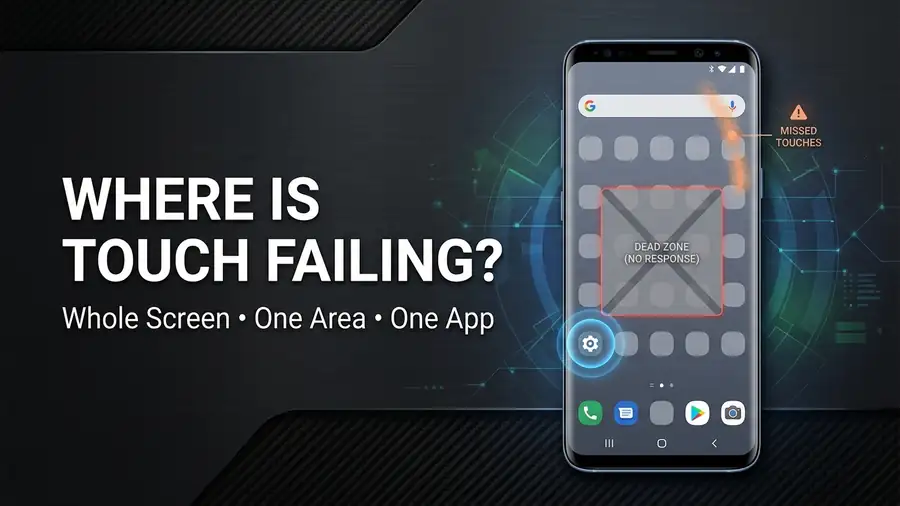
First, Check Where Touch Is Failing
Try these quick tests:
- The entire screen doesn’t respond: restart the phone first.
- One area doesn’t respond: test that same area in different apps.
- Touch works everywhere except one app: the app may be the problem.
- Touch fails only in games: check the game and fullscreen behavior.
- The problem started right after Android 17: check for another system update.
This simple diagnosis can save you from doing unnecessary fixes.
1. Remove the Screen Protector and Case
Start with the easiest possibility.
Remove your case and temporarily remove the screen protector if possible. Then clean the display with a soft, dry cloth and test the touchscreen again.
Google recommends checking for cases, screen protectors, dirt, and anything else that could interfere with touch input. Google’s Android touchscreen troubleshooting guide
If touch works normally after removing the protector, Android 17 probably isn’t the main cause.
2. Restart Your Android Phone
A temporary system process can sometimes make touch input stop responding correctly.
If you can use the screen:
Power button → Restart
If the screen is completely frozen, Google says you can press and hold the Power button for about 30 seconds on many Android devices until the phone restarts. The exact method can vary by manufacturer.
After restarting, test the touchscreen before opening your usual apps.
If it works normally for a while and then fails again, the problem may be software-related.
3. Check for Another Android 17 Update
If your Android 17 touch screen stopped working after an update, check for another system update.
On many phones:
Settings → System → Software update
Pixel users should also check for available Pixel system updates.
This is especially worth doing because Android 17 QPR1 has been associated with reports of several Pixel problems, including touch-input issues. However, those reports don’t mean Android 17 is responsible for every touchscreen problem. Android Authority’s report on Android 17 QPR1 issues
4. Test Whether One Part of the Screen Is Dead
This is one of the most useful checks.
Open a screen where you can drag your finger. Start near the top-left corner and slowly drag toward the bottom-right corner.
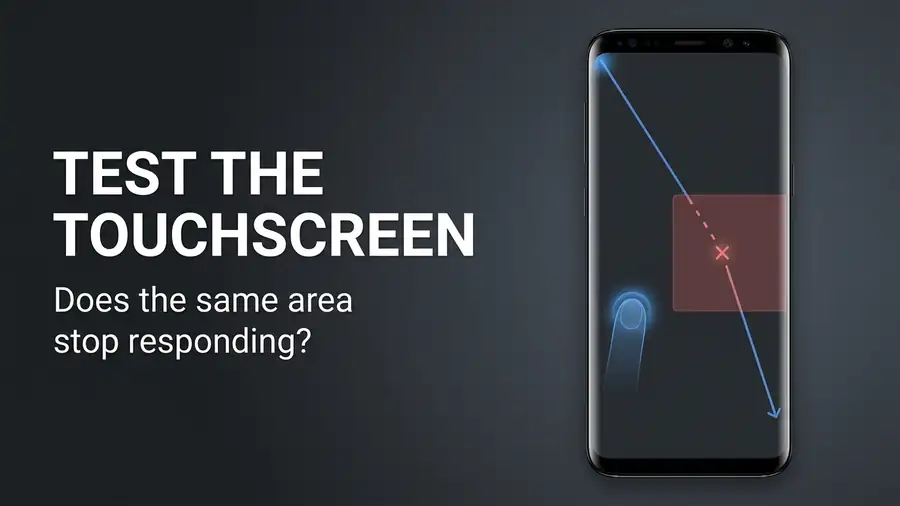
Pay attention to whether your finger stops registering at the same physical location.
If exactly the same area fails repeatedly in different apps, the problem may involve the touchscreen hardware rather than Android 17.
Google recommends testing the screen this way to help identify an unresponsive section.
5. Touch Not Working in Only One App?
If the touchscreen works normally in Settings, Chrome, Messages, and other apps but fails inside one particular app, don’t assume the display is broken.
Try:
- Update the affected app.
- Restart your phone.
- Test another app.
- Check whether the problem disappears outside that app.
If only one application has the problem, the app itself may need an update or troubleshooting.
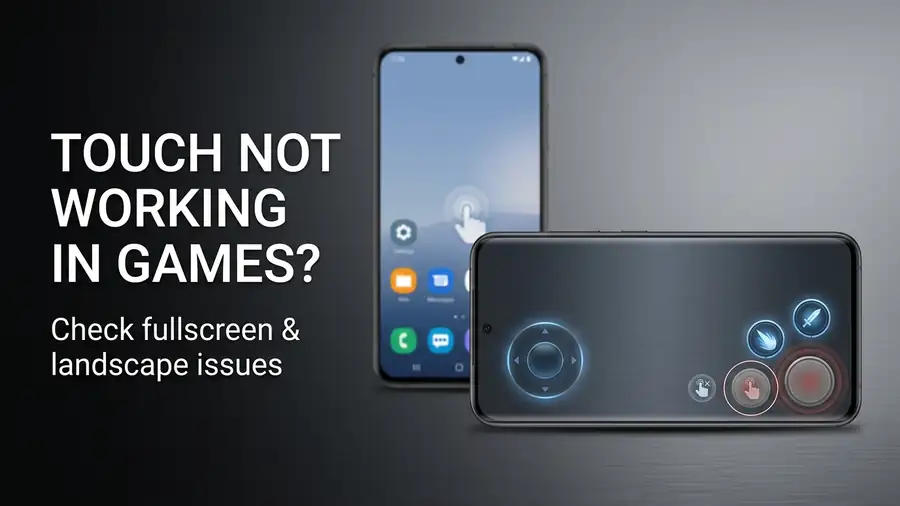
6. Does Touch Stop Working Only in Games?
This deserves a separate check.
If touch works normally throughout Android but stops responding in a fullscreen or landscape game, test another game or app in the same orientation.
Recent Android 17 QPR1 reports have included touch-input problems on Pixel devices, so a software interaction is possible. Android 17 QPR1 issue reports
Before doing anything drastic, update the game and restart your phone.
If the touchscreen works normally everywhere else, the problem may be related to that particular game rather than the display.
7. Try Safe Mode
If the problem appears randomly or started after installing an app, Safe Mode can help identify whether a third-party app is interfering with the phone.
If touch works normally in Safe Mode, recently installed or updated apps become more suspicious.
Remove recent apps one at a time and test the screen again.
Google recommends Safe Mode as part of troubleshooting problems that may be caused by downloaded apps. Android Safe Mode troubleshooting
When Is It Probably a Hardware Problem?
Android 17 isn’t necessarily responsible if:
- the phone was dropped;
- the display is cracked;
- the same physical area fails everywhere;
- the screen has liquid damage;
- touch remains broken in Safe Mode;
- restarting and updating make no difference.
If the same section of the display consistently fails across different apps, contact the phone manufacturer or an authorized repair service.
Quick Diagnosis
| What you’re seeing | Possible cause |
|---|---|
| Entire screen stops responding | Software freeze or hardware issue |
| One area always fails | Possible touchscreen/digitizer problem |
| Only one app has the problem | App-related issue |
| Only games have the problem | Game/fullscreen software issue |
| Started after Android 17 | Possible update-related problem |
| Works in Safe Mode | Possible third-party app |
FAQ
Why is my Android 17 touch screen not working?
The cause could be an Android 17 software problem, screen protector, app, temporary system issue, or hardware damage. Recent Pixel reports have included touch-input problems after Android 17 QPR1.
Why does only part of my touchscreen not work?
If the same physical area fails repeatedly in different apps, the problem may be related to the touchscreen hardware rather than Android 17.
Should I factory reset my phone?
Not as your first step. Try removing the screen protector, restarting the phone, checking for updates, testing the affected area, and using Safe Mode first.
More Android Troubleshooting Guides
- Android 17 QPR1 Apps Keep Crashing
- Android Apps Keep Crashing
- Android Connected to WiFi but No Internet
Final Thoughts
If your Android 17 touch screen is not working, don’t immediately assume that you need a screen replacement.
First find out where the problem occurs. Test the entire display, check whether one app or game is affected, restart the phone, and look for another Android update.
If the same part of the screen remains unresponsive everywhere, however, the problem is more likely to be hardware-related.
The key is to diagnose the touchscreen before making major changes to your phone.