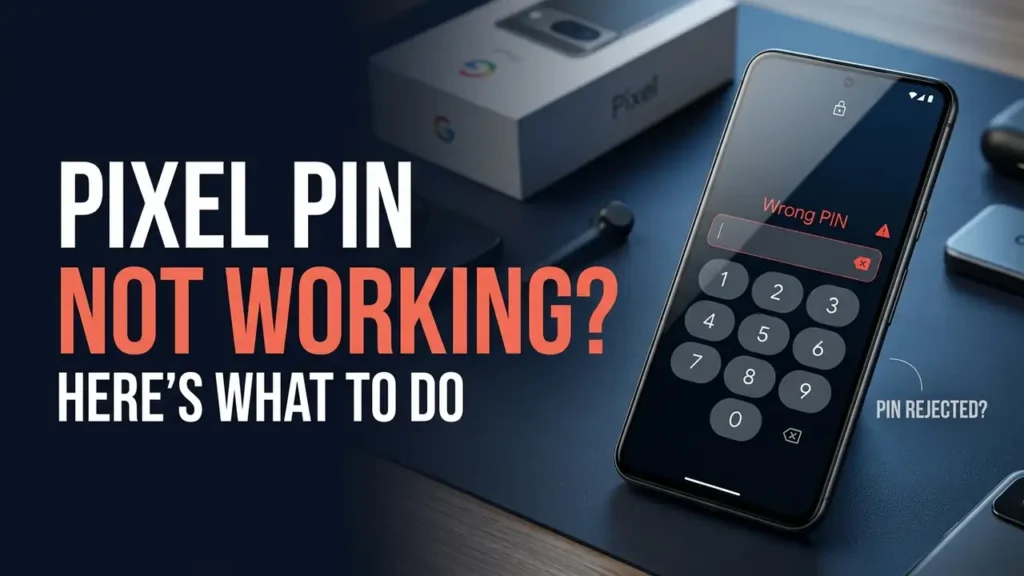

Pixel PIN Not Working? Here’s What to Do
Is your Pixel PIN not working even though you’re sure you’re entering the correct code? If your Pixel suddenly rejects the PIN, submits it after only one digit, or sends you back to the lock screen, don’t immediately assume you’ve forgotten your code.
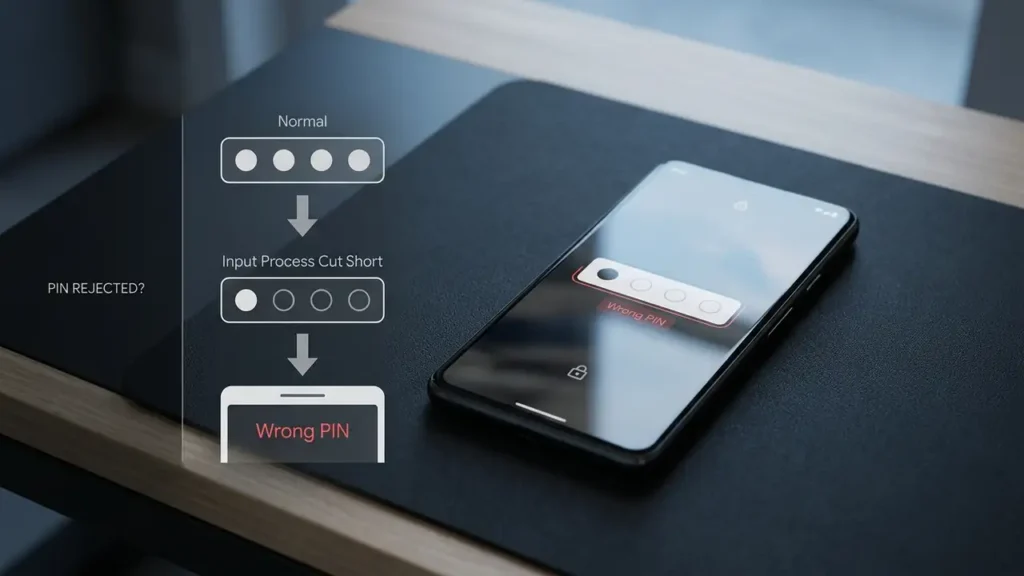
A small number of Pixel owners have reported unusual lock-screen behavior after a recent update. In one case, a Pixel 8a reportedly treated the first PIN digit as the complete code and immediately showed a wrong-PIN message. Other affected users couldn’t complete their unlock pattern because the phone stopped registering the gesture correctly.
The problem doesn’t appear to affect every Pixel, but if your PIN worked normally before and suddenly doesn’t, there are a few things worth checking before you erase the phone.
1. Check How the Pixel Is Reading Your PIN
First, don’t assume the PIN itself is wrong.
Enter it slowly and watch what happens after each number.
Check whether:
- Every digit appears when you tap it
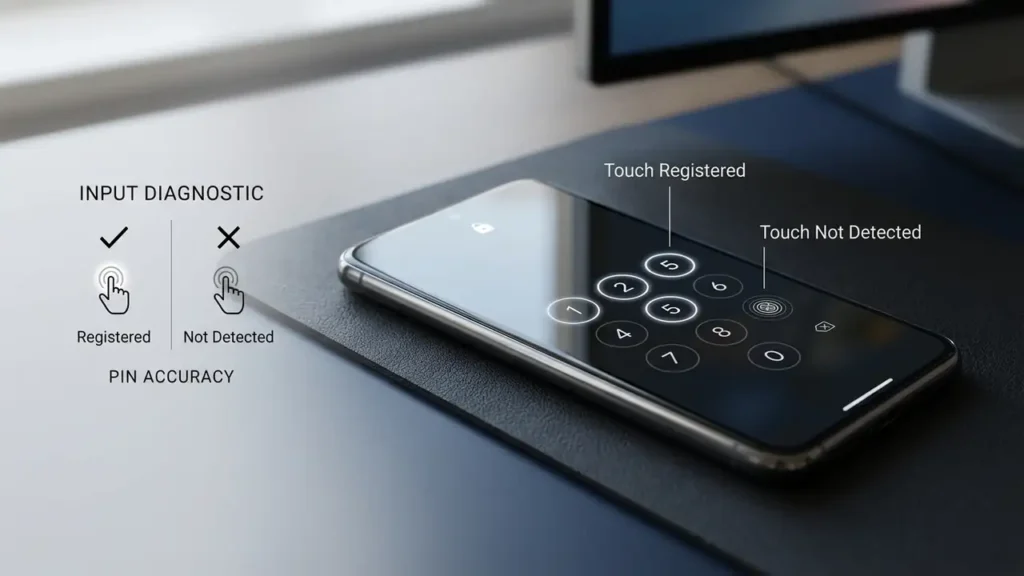
- The phone registers each tap
- The PIN is submitted before you’ve finished entering it
- The touchscreen responds normally
- You see Wrong PIN only after the complete code is entered
This distinction is important.
If you enter a six-digit PIN and the phone immediately rejects it after the first digit, you’re dealing with something very different from simply entering the wrong code.
If you’re certain your PIN is correct, don’t start guessing alternative codes.
2. Restart Your Pixel
If the PIN suddenly stopped working after your Pixel had been operating normally, restart the phone before trying anything more drastic.
Press and hold Power + Volume Up, then tap Restart.
After the phone starts again, wait a few seconds and enter your PIN normally.
A restart won’t fix a broken lock-screen component, but it can clear a temporary system problem.
If the same behavior returns immediately, pay attention to exactly what happens when you enter the PIN. Does the phone register every digit? Does it reject the PIN instantly? Or does it submit the code too early?
That pattern can help determine whether you’re dealing with a PIN problem or an input problem.
3. Don’t Keep Guessing the PIN
If you know the PIN is correct, don’t repeatedly enter it just to see whether it eventually works.
Repeated failed attempts can trigger a temporary lockout, which makes troubleshooting more difficult.
Instead, wait if the phone displays a Too many attempts message and then try the correct PIN once the timer expires.
Interestingly, one reported Pixel 8a case appeared to recover after the lockout timer expired. That doesn’t mean the same workaround will fix every affected Pixel, but it’s worth trying before considering a reset.
If the PIN is being submitted after only one digit, however, the issue may be with how the lock screen is processing your input rather than with the code itself.
4. Check the Touchscreen
A faulty or obstructed touchscreen can make a correct PIN appear to be wrong.
Try entering the PIN slowly and watch whether every number registers.
If some taps aren’t being recognized:
- Clean and dry the display
- Remove anything interfering with the touchscreen
- Check whether a damaged screen protector is affecting input
- Try tapping the numbers more deliberately
If the screen responds correctly everywhere else but the lock screen still processes the PIN incorrectly, a software issue becomes more likely.
If you’ve also experienced broader touch problems after Android 17, see our Android 17 Touch Screen Not Working? Here’s What to Check.
5. Think About When the Problem Started
Timing can provide one of the biggest clues.
Ask yourself:
- Did the Pixel install an update shortly before this started?
- Did the phone restart automatically?
- Was the PIN working normally before the update?
- Did other unusual problems appear at the same time?
Recent reports describe Pixel owners being unable to unlock their phones after a September 2026 update, including cases involving both pattern and PIN authentication. Reported devices include the Pixel 10 Pro XL, Pixel 8a and Pixel 8 Pro.
That doesn’t mean every Pixel with a rejected PIN has the same bug. The reports appear limited, and Google has not publicly confirmed a widespread lock-screen problem.
Still, if your PIN worked perfectly before an update and suddenly started behaving strangely afterward, the timing is worth considering.
6. Check for Another Pixel Update
If you can get back into the phone, check whether another system update is available.
Go to:
Settings → System → Software update
Don’t assume that being on the latest Android version means there can’t be another update waiting. Pixel updates can arrive in phases depending on the device and carrier.
However, don’t expect an update to automatically fix the PIN problem. The current reports have not been accompanied by an official Google confirmation of a dedicated lock-screen fix.
For another recent Android 17 performance problem, you can also check our Pixel Lagging After Android 17 QPR1? Here’s What to Check.
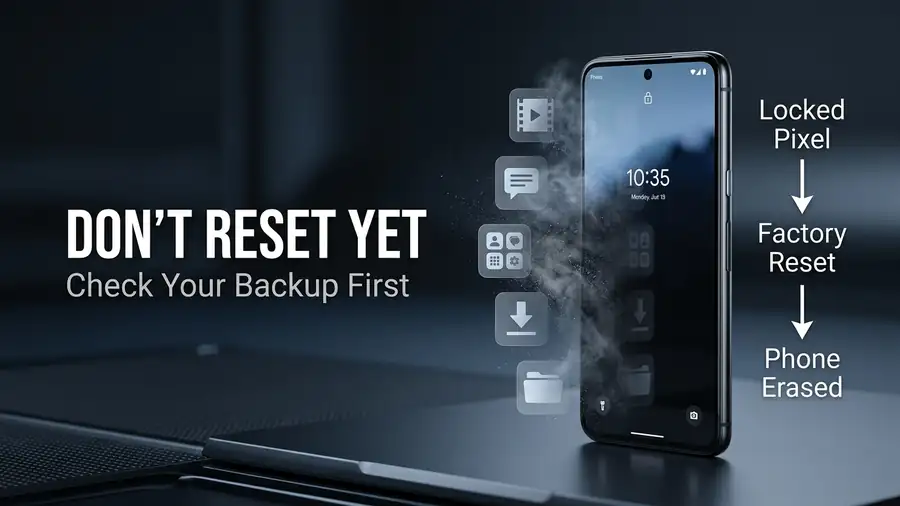
7. Don’t Factory Reset Too Quickly
This is the most important part.
If your Pixel contains photos, downloads, messages or other files that aren’t backed up, don’t immediately factory-reset it just because the PIN isn’t being accepted.
At least one reported Pixel owner tried restarting, Safe Mode and other troubleshooting steps without regaining access. A factory reset eventually restored access, but it also erased the data stored on the phone.
Google’s official guidance confirms that erasing a locked Pixel removes the data stored on the device. Backed-up data can be restored afterward, but anything that wasn’t backed up may be lost.
So treat a factory reset as the last resort, not the first fix.
What If You Actually Forgot Your PIN?
That’s a different situation.
If you genuinely don’t remember the PIN, there isn’t a legitimate setting that reveals or bypasses it.
Google’s official Pixel unlock guide says that if you can’t unlock the phone, you’ll need to erase it and set it up again with a new screen lock.
Before doing that, make sure you know the Google Account credentials associated with the phone. You’ll need them during the recovery process.
If you’re considering a reset, Google’s official Pixel factory reset guide also recommends checking your backups first because a factory reset erases the phone’s local data.
Could This Be a Pixel Software Bug?
Possibly.
The strongest clue is unusual behavior rather than simply seeing a Wrong PIN message.
For example, if your Pixel:
- Submits the PIN after only one digit
- Rejects a known-correct PIN immediately
- Stops recognizing part of an unlock pattern
- Started doing this immediately after an update
then the problem may be with the lock-screen software rather than your PIN.
Recent reports describe exactly these kinds of symptoms on a small number of Pixel devices. Google has reportedly been aware of affected-user reports, although it has not publicly confirmed the issue as a widespread bug.
Quick Diagnosis
| What you’re seeing | What it may indicate |
|---|---|
| PIN works after restarting | Temporary system glitch |
| Some numbers don’t register | Touchscreen/input problem |
| PIN submits after one digit | Possible lock-screen software issue |
| Problem began after an update | Possible update-related bug |
| Lockout timer eventually lets you in | Temporary authentication glitch |
| Correct PIN is always rejected | More serious lock-screen problem |
| You genuinely forgot the PIN | Recovery/reset may be required |
Bottom Line
If your Pixel PIN is not working but you’re certain the code is correct, don’t immediately assume you’ve forgotten it.
First, check whether the phone is registering every tap, restart the Pixel, and pay attention to exactly how the lock screen processes your PIN. If the problem appeared immediately after an update, a software issue is also worth considering.
Most importantly, don’t factory-reset the phone before checking your backups and trying the less destructive steps first. A reset can restore access, but it also erases local data that wasn’t backed up.
More Pixel & Android Guides
Having another Pixel or Android problem? Check out these related Neceb guides:
- Pixel Lagging After Android 17 QPR1? Here’s What to Check
- Android 17 QPR1 Apps Crashing? Here’s What to Do
- Android 17 Touch Screen Not Working? Here’s What to Check
- Android Connected to WiFi but No Internet? Here’s What to Try
FAQ
Why is my Pixel PIN not working even though it’s correct?
A temporary lock-screen, touchscreen, or software problem could be responsible. This is especially worth considering if the phone started behaving differently after an update.
Why does my Pixel reject the PIN after one digit?
That can indicate that the lock screen is incorrectly processing the PIN input. A similar behavior has been reported by a Pixel 8a owner following a recent update.
Should I keep trying my PIN?
No. If you’re certain the PIN is correct, avoid repeated attempts. Check how the phone is processing your taps and let any temporary lockout timer expire before trying again.
Will restarting fix a Pixel that won’t accept the PIN?
It may help if the problem is temporary, but it won’t fix every lock-screen issue.
Will a factory reset remove the PIN?
Yes, but it also erases the phone’s local data. Google says a locked Pixel may need to be erased before it can be set up again, so check your backups before taking this step.