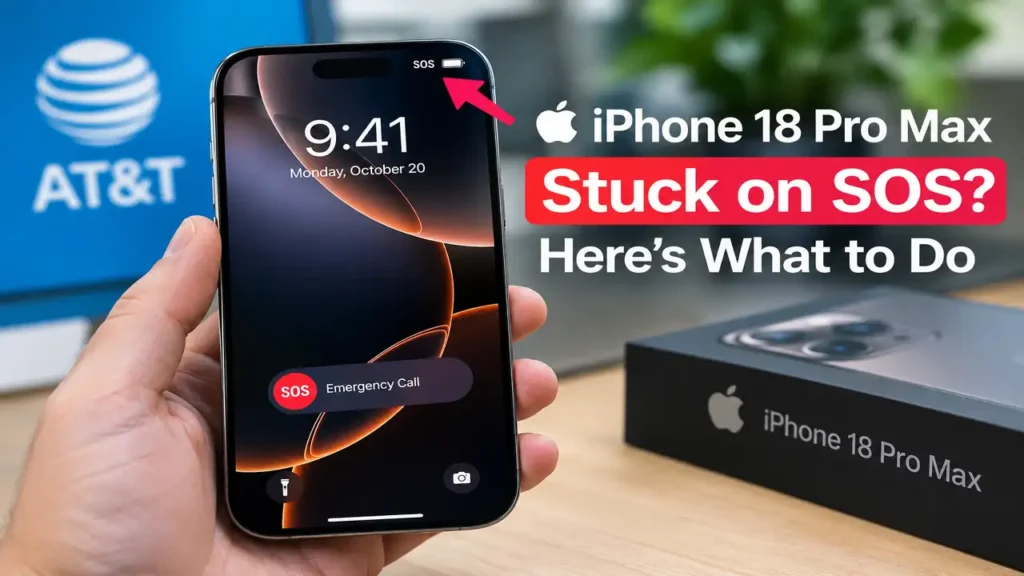

iPhone 18 Pro Max Stuck on SOS? Here’s What to Do
Is your iPhone 18 Pro Max stuck on SOS with AT&T? If you can’t make calls, send texts, or use cellular data, your phone could be affected by a connectivity issue Apple confirmed in October 2026.
Apple says a small number of iPhone 18 Pro Max devices on AT&T can lose cellular service. The company released iOS 27.0.1 and a carrier settings update to help prevent additional cases. However, devices that have already lost service because of this issue may require hardware replacement.
Here’s how to check your iPhone, rule out ordinary network problems, and find out what to do next.
1. Check Whether Your iPhone Matches the Issue
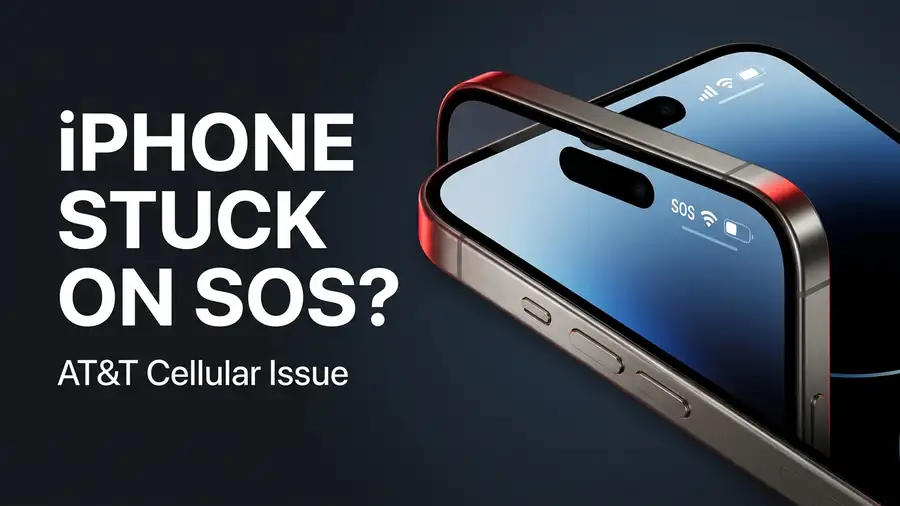
Before changing settings, check whether your situation matches Apple’s report.
Look for these symptoms:
- Your iPhone 18 Pro Max repeatedly displays SOS instead of its normal cellular signal.
- Calls and text messages stop working.
- Cellular data is unavailable despite having AT&T coverage.
- Restarting your phone doesn’t restore service.
- You use AT&T in the United States.
Apple has identified this issue in a small number of iPhone 18 Pro Max devices on AT&T. It doesn’t mean every iPhone displaying SOS has the same fault.
If you have another iPhone model or use a different carrier, follow Apple’s SOS, No Service, and Searching troubleshooting guide instead.
2. Install the Latest Available iOS Update
If your iPhone still has cellular service, updating it is an important precaution.
- Connect your iPhone to Wi-Fi.
- Open Settings.
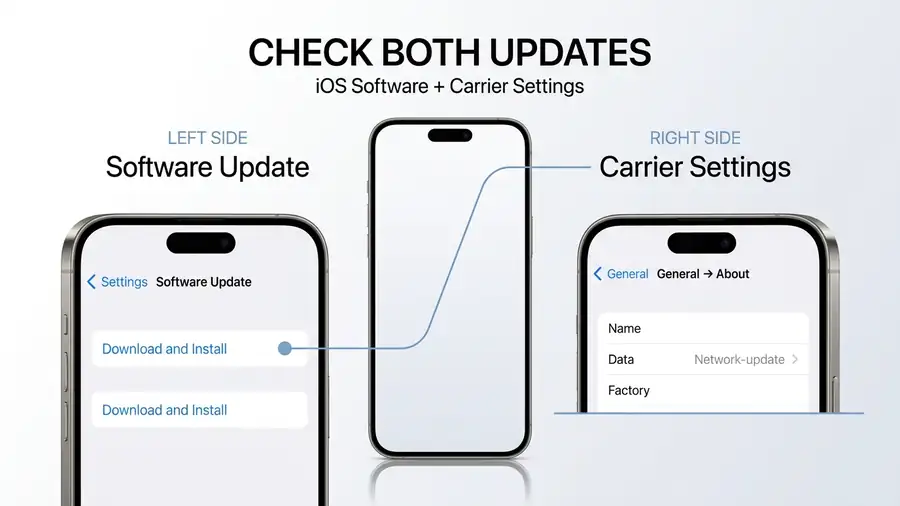
- Tap General → Software Update.
- Install the latest available compatible version.
Apple specifically encouraged iPhone 18 Pro Max owners to install iOS 27.0.1 after identifying the AT&T issue.
There’s an important distinction, though: the update is intended to help prevent additional cases. It isn’t a guaranteed fix for a phone that has already lost service because of the confirmed fault.
After updating, check whether calls, texts, and mobile data work normally.
3. Check for an AT&T Carrier Settings Update
Your iPhone also uses carrier settings to connect to the mobile network. Apple issued an AT&T carrier settings update alongside its software guidance.
To check for an available update:
- Connect your iPhone to Wi-Fi.
- Open Settings → General → About.
- Stay on the screen for a few seconds.
- Install the update if a prompt appears.
Apple said the carrier settings update would roll out automatically to affected-carrier devices. You can also check manually through the About screen.
If your phone is working normally, make sure you have the available updates. If it has already lost service because of the confirmed fault, however, installing them may not restore connectivity.
4. Rule Out a Temporary Network Problem
Not every SOS message indicates a hardware fault. Poor coverage, an account issue, or an eSIM activation problem can also interrupt cellular service.
If your situation doesn’t clearly match Apple’s report, try these checks:
- Toggle Airplane Mode: Turn it on, wait 15 seconds, and turn it off.
- Restart your iPhone: Check whether the cellular signal returns.
- Check your eSIM: Open Settings → Cellular and confirm your line is enabled.
- Check your AT&T account: Verify that your service is active and ask about local outages.
Recently transferred your number or activated an eSIM? Contact AT&T to confirm that activation completed correctly.
These steps can help with ordinary connectivity problems, but they’re not confirmed fixes for the specific iPhone 18 Pro Max fault.
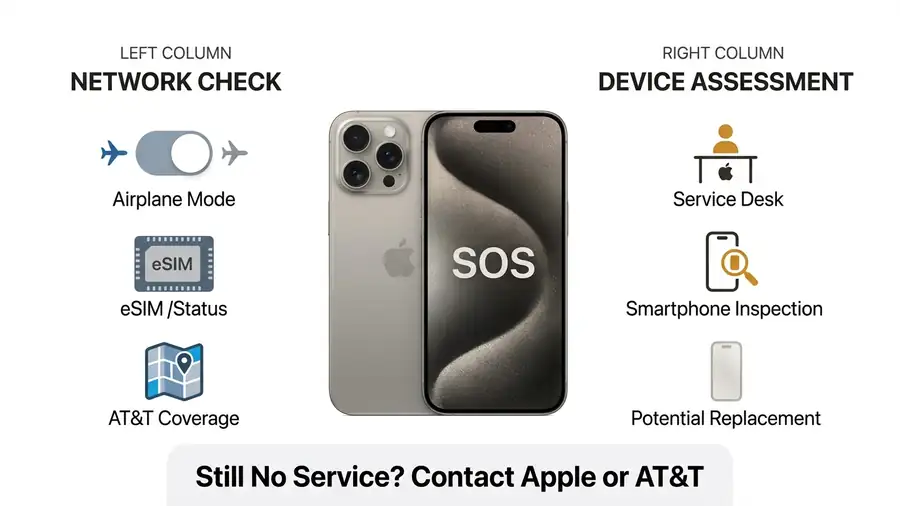
5. What If Your iPhone Is Still Stuck on SOS?
If you’re using AT&T, your iPhone matches the reported symptoms, and service hasn’t returned, contact Apple Support or AT&T.
Apple has stated that devices already affected by the confirmed issue require hardware replacement. Software and carrier updates are intended to help prevent additional cases, not necessarily repair devices that have already lost service.
When contacting support:
- Explain that your iPhone 18 Pro Max has lost AT&T cellular service.
- Describe whether calls, texts, and mobile data have stopped working.
- Mention which iOS and carrier settings updates you’ve installed.
- Ask Apple to assess your device and explain your replacement options.
Start through Apple Support or visit an Apple Store or AT&T location.
If your phone still connects to Wi-Fi, back up important information before handing it in for service. Don’t assume every device qualifies for the same replacement terms; confirm your options directly with support.
Frequently Asked Questions
Why is my iPhone 18 Pro Max stuck on SOS?
If you use AT&T in the United States, your phone could be affected by the cellular issue Apple confirmed in October 2026. Other possible causes include poor coverage, account problems, or eSIM activation issues.
Will iOS 27.0.1 fix the SOS problem?
The update is intended to help prevent additional cases. Apple says devices already affected by the confirmed fault may require hardware replacement.
Does the issue affect every iPhone 18 Pro Max?
No. Apple described it as affecting a small number of iPhone 18 Pro Max users on AT&T. Other models and carriers haven’t been identified as affected by this specific issue.
Can resetting network settings fix it?
It may help with some ordinary connectivity problems, but it’s not a confirmed fix for the reported fault. If service remains unavailable, contact Apple or AT&T rather than repeatedly resetting your phone.
More iPhone Guides
Dealing with another iPhone problem? These Neceb guides may help:
- iPhone Personal Hotspot Not Showing Up? — troubleshoot hotspot and cellular connection problems.
- iCloud Photos Not Syncing? Here’s How to Fix It — check why photos aren’t syncing between Apple devices.
- iPhone Storage Full but You Have Space? — troubleshoot confusing iPhone storage warnings.
Final Thoughts
If your iPhone 18 Pro Max is stuck on SOS, first check whether you’re using AT&T and experiencing the symptoms associated with Apple’s confirmed issue.
Install available iOS and carrier settings updates, and rule out ordinary network or eSIM problems. But if your device has already lost service because of the confirmed fault, repeated resets may not help.
Contact Apple or AT&T for an assessment. Identifying the likely cause early can save time and help you find the right next step.