
Windows 11 Apps Crashing After KB5124010? What to Do
Are your Windows 11 apps crashing after KB5124010 was installed? A game may close without warning, a media player may refuse to open, or an application may work normally until you play audio. If this started after a recent Windows update, the timing could be more than a coincidence.
Microsoft has confirmed a compatibility issue involving AC-3, also known as Dolby Digital, audio decoding. The problem mainly affects certain older applications that rely on Windows to decode this audio format. It does not mean every Windows 11 app is broken, and reinstalling your favorite program may not solve the underlying issue.
Here’s how to check whether your PC is affected and what you can safely try.
Why Are Windows 11 Apps Crashing After KB5124010?
Microsoft lists the issue for Windows 11 versions 24H2, 25H2, and 26H2 after installing KB5124010 or subsequent updates. Affected apps may fail to launch, close unexpectedly, or crash when a specific audio feature is used.
Games, media players, and some productivity applications may be affected. Many modern apps use their own audio-decoding components, so they may continue working normally.
Microsoft says it is working on a resolution through a future Windows update. You can check the latest status on its official KB5124010 support page.
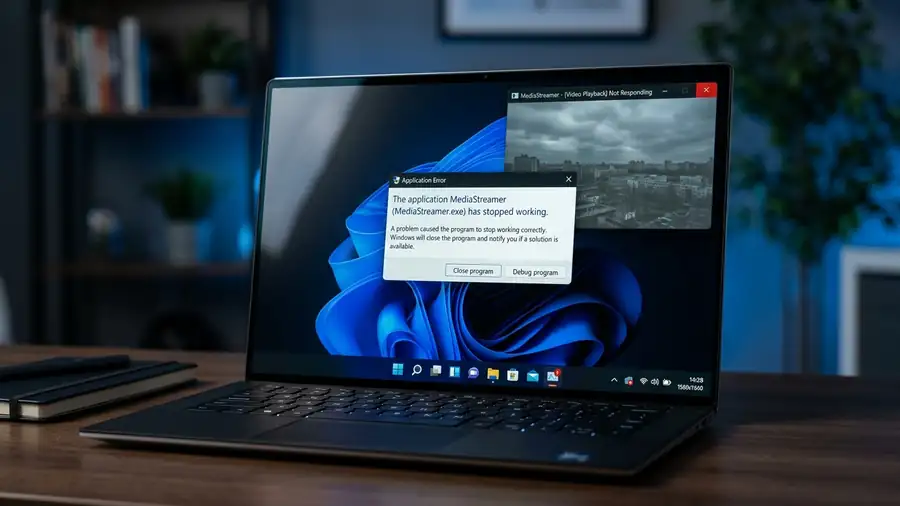
1. Check Whether KB5124010 Is Installed
Before changing system settings, check your update history. This helps establish whether the timing matches the reported issue.
- Press Windows + I to open Settings.
- Select Windows Update.
- Open Update history.
- Look under the quality updates section for KB5124010.
If the update appears and your apps started crashing afterward, the connection is worth investigating. Keep in mind that Microsoft also lists the issue after subsequent updates, so KB5124010 does not have to be the only update involved.
If you cannot find it, do not assume the audio issue is the cause. Continue with the checks below.
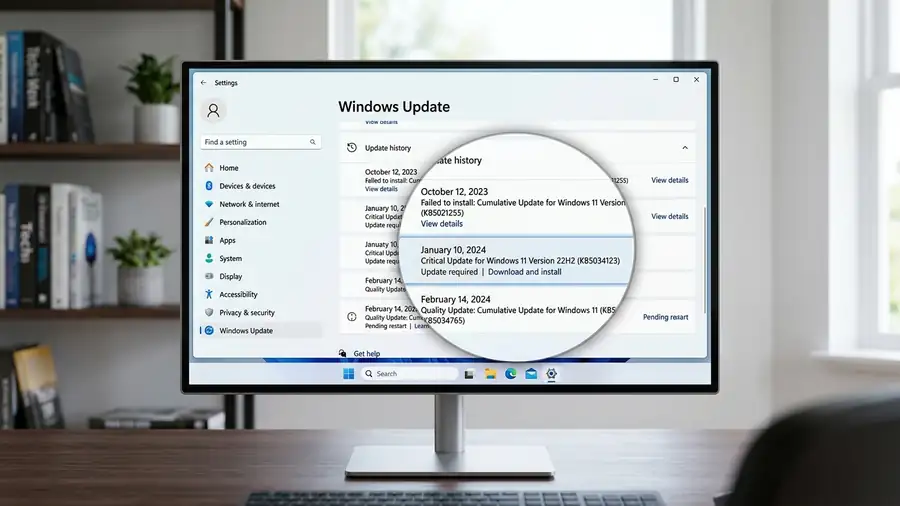
2. Check Whether Audio Triggers the Crash
Think about what happens immediately before the application closes. Does it crash when you start a game, play a video, open an audio track, or use a feature that plays sound?
Try these checks:
- Open the affected app without starting audio playback, if possible.
- Test a different file or activity that does not use the same audio feature.
- Check whether other apps still open and work normally.
- Note the exact app name and what you were doing when it crashed.
If the problem happens specifically when audio is involved, the AC-3 issue becomes a stronger possibility. This is a useful clue, not proof: other audio, driver, and application problems can cause similar symptoms.
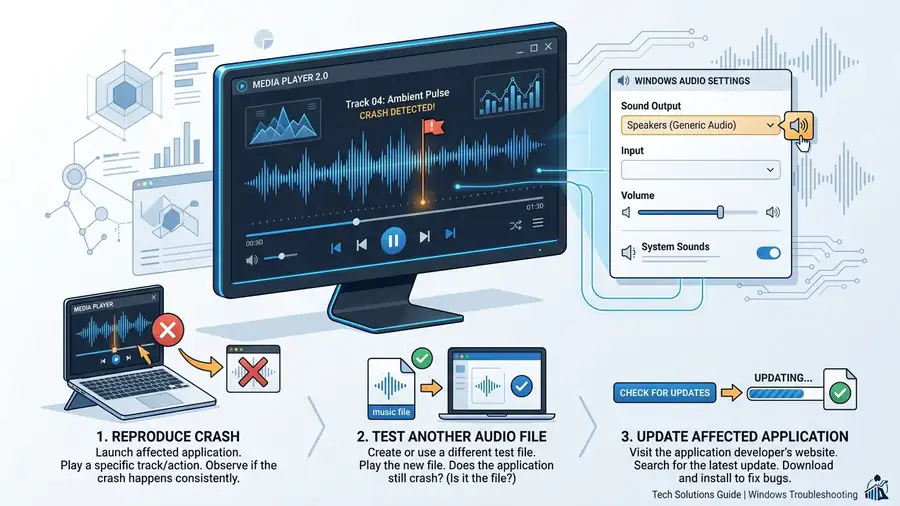
3. Update the App or Game
An application update may improve compatibility or fix an unrelated crash, even if it does not resolve the Windows-level issue itself.
Open the app’s built-in updater or visit the developer’s official website. If you installed it through Microsoft Store, open the Store and check Downloads or Library for available updates.
After updating, restart the application and repeat the activity that previously caused the crash.
Avoid downloading replacement DLL files or unofficial codec packages from random websites. These files may be unsafe and can create additional problems.
4. Check Windows Update for a Newer Fix
Microsoft is working on a resolution, so check whether a newer update is available for your device.
- Open Settings.
- Select Windows Update.
- Click Check for updates.
- Install available updates from Microsoft and restart if prompted.
Then test the affected app again.
Important: An Insider Preview build may contain a fix before it reaches the general public. That does not mean the same fix is available to every Windows 11 user. Do not install an Insider build just to troubleshoot one crashing app unless you understand the risks and specifically want to use preview software.
For the latest confirmed status, consult Microsoft’s Windows release health dashboard.
5. Should You Uninstall KB5124010?
Uninstalling an update may be an option if the crashes began immediately afterward and are seriously affecting your PC. However, it should not be your first step.
KB5124010 is an optional, non-security preview update. Removing it can also remove improvements included in that release, and uninstalling it may not help if a later update is involved.
If you decide to investigate this option:
- Open Settings → Windows Update → Update history.
- Select Uninstall updates.
- Look for the relevant update, if Windows offers it for removal.
- Read the confirmation carefully before proceeding.
If the update is unavailable for removal, do not use unofficial scripts or force-removal tools. On a work-managed PC, contact your IT administrator before changing updates.
6. If Other Apps Are Crashing Too
If unrelated applications are closing, or the crashes started well before KB5124010, the AC-3 issue may not explain everything.
Check whether Windows has pending updates, restart your PC, and install updates for the affected apps. If crashes continue across multiple programs, look for other symptoms such as error messages, display problems, or audio-device failures.
You can also review Microsoft’s guidance for Windows update issues before attempting more advanced repairs.
Frequently Asked Questions
Does KB5124010 make all Windows 11 apps crash?
No. The confirmed issue affects certain applications that rely on Windows’ built-in AC-3 audio decoding. Many modern apps are unaffected.
Will updating Windows definitely fix the crashes?
Not necessarily. Microsoft has said it is working on a fix, but check the current release-health information to confirm whether a generally available update addresses the issue on your system.
Should I reset Windows 11?
A full Windows reset is excessive as an initial response to this specific problem. First confirm the update history, test whether audio triggers the crash, and check for official app and Windows updates.
More Windows 11 Troubleshooting Guides
Still having problems after a recent Windows update? These Neceb guides can help you troubleshoot related Windows issues:
- Windows 11 Audio Not Working? Here’s What to Do
- How to Fix Windows 11 File Explorer Not Responding
- Windows 11 Taskbar Not Responding? Try These Fixes
Final Thoughts
If your Windows 11 apps started crashing after KB5124010, focus first on the timing and whether the affected program uses AC-3 audio decoding. Update the app, check for newer Windows updates, and avoid risky workarounds.
The key is to identify whether you are dealing with Microsoft’s confirmed audio-decoding issue or a separate application problem before making major changes to your PC.