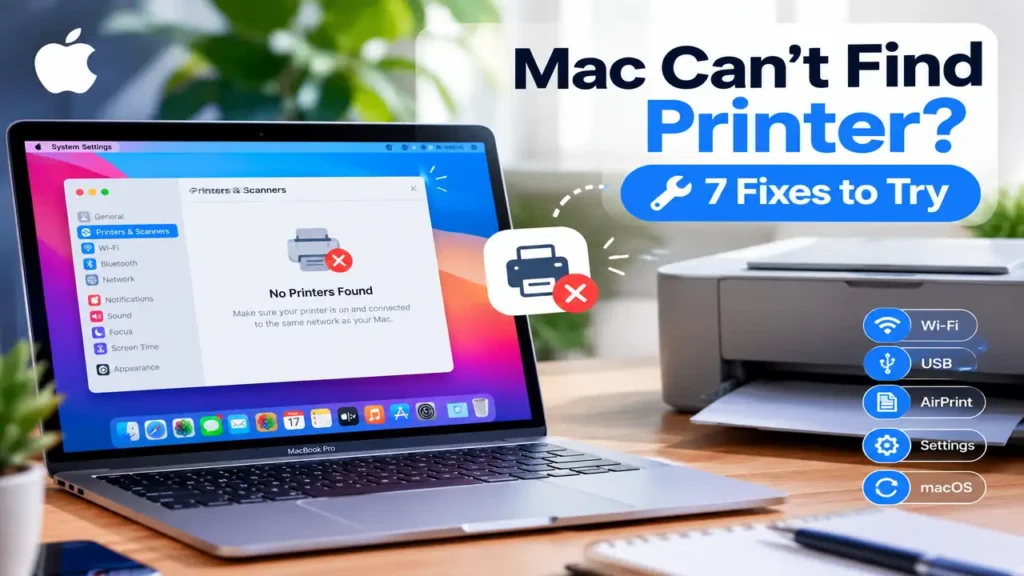

Mac Can’t Find Printer? 7 Fixes to Try
Is your Mac unable to find your printer, even though the printer is turned on? Maybe it disappeared from Printers & Scanners, AirPrint can’t detect it, or macOS stopped recognizing it after an update.
The cause isn’t always a faulty printer. A changed Wi-Fi connection, a USB issue, or an outdated printer setup can prevent your Mac from detecting a device that worked perfectly before.
Before reinstalling software or resetting your printer settings, try these seven fixes in order. The first few checks can often narrow down the problem without changing anything important.
1. Check Whether Your Printer Is Connected to Wi-Fi
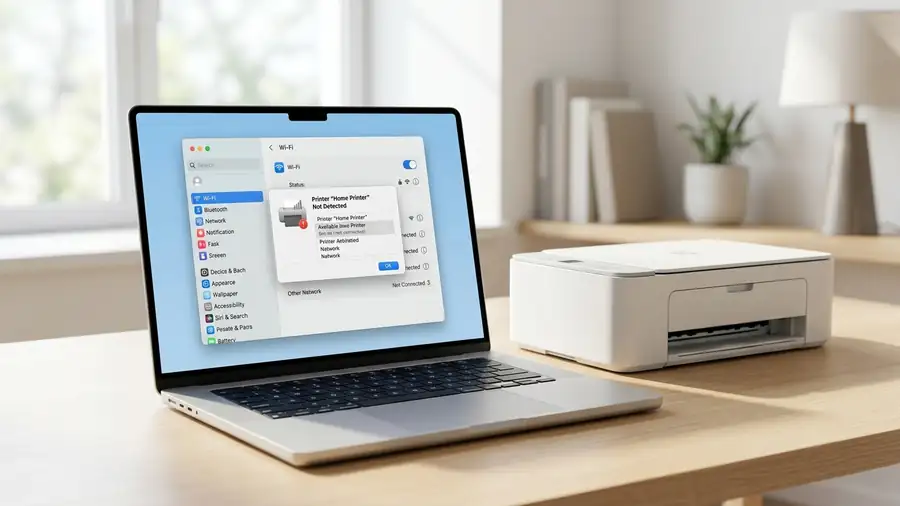
If you’re using a wireless printer, start with its network connection.
- Open Wi-Fi settings on your Mac and note the connected network.
- Check the printer’s display or network settings to confirm that it’s connected.
- Make sure both devices can communicate over the same local network.
- If you recently changed your Wi-Fi password or router, reconnect the printer.
One detail worth checking: a guest network or a router’s device-isolation setting can prevent your Mac from discovering a printer, even when both devices have internet access.
Once the printer reconnects, give it a moment and check the available printers again.
2. Add the Printer Again in macOS
Sometimes the printer is available, but its existing entry in macOS is no longer working.
- Open the Apple menu and select System Settings.
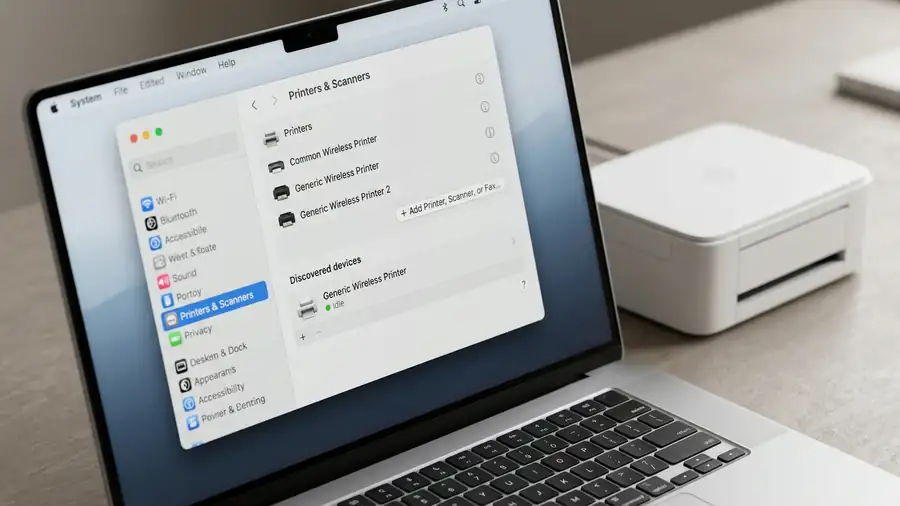
- Click Printers & Scanners.
- Select Add Printer, Scanner, or Fax.
- Wait for your printer to appear.
- Select it and click Add.
Try printing a test page or a simple document.
If the printer appears in the list but won’t print, don’t assume it’s an installation problem. Check the print queue before removing the existing printer.
Apple explains the process in its guide to adding a printer on Mac.
3. Restart the Devices That Handle the Connection
A temporary discovery problem can leave your Mac unable to see a printer that’s otherwise working.
Turn off the printer, restart your Mac, and then turn the printer back on. Wait until it finishes starting up and reconnects to the network.
If other devices are also having trouble connecting to your home network, restart the router as well. Otherwise, there’s little reason to interrupt the entire network just to troubleshoot one printer.
Check Printers & Scanners again after everything reconnects.
4. Troubleshoot the USB Connection
Using a cable instead of Wi-Fi? Focus on the physical connection rather than wireless settings.
Disconnect the USB cable and reconnect it securely. If the printer still doesn’t appear, try another compatible cable or USB port. If you’re using a USB hub, connect the printer directly to your Mac if possible.
Next, open System Settings → Printers & Scanners.
If the printer remains missing, test it with another compatible computer if one is available. This can help narrow down whether the problem lies with the cable, printer, or Mac.
5. Add a Network Printer Using Its IP Address
If your printer is connected to Wi-Fi but doesn’t appear in the discovery list, adding it by IP address is another option.
First, find the printer’s IP address in its network settings or your router’s connected-device list.
Then:
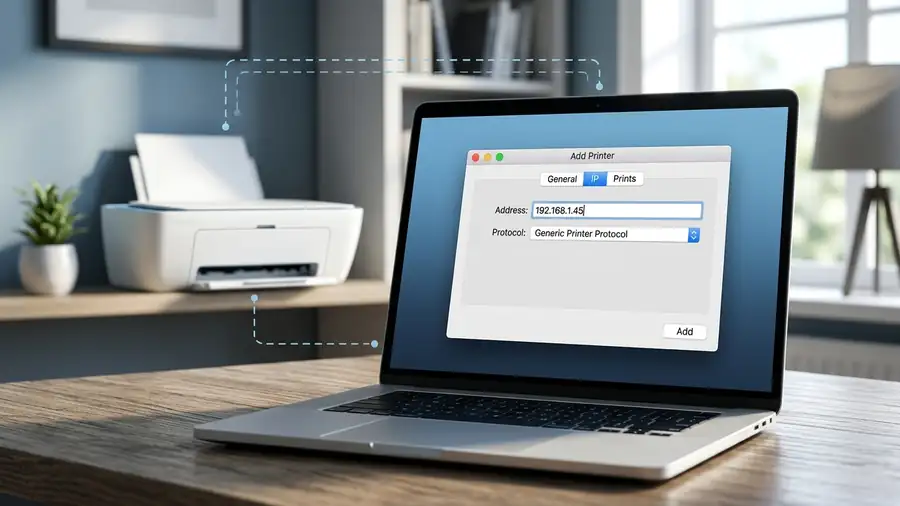
- Open System Settings → Printers & Scanners.
- Select Add Printer, Scanner, or Fax.
- Click the IP tab.
- Enter the printer’s IP address.
- Choose a protocol supported by your printer, such as AirPrint or IPP when available.
- Select the appropriate software and click Add.
This method won’t work with every printer or network configuration. Follow your manufacturer’s instructions if you’re unsure which protocol to select.
For more details, see Apple’s Mac printing troubleshooting guide.
6. Check for macOS and Printer Software Updates
If your printer disappeared after a macOS update, check compatibility before making bigger changes.
Open Apple menu → System Settings → General → Software Update and install any available compatible updates.
Then visit your printer manufacturer’s official support website and look for software or firmware updates for your exact model.
AirPrint-compatible printers generally don’t require a separate manufacturer’s driver for basic printing. Other models may need compatible software to work correctly.
Avoid downloading drivers from unfamiliar websites, especially when the manufacturer provides an official download page.
7. Reset the Printing System as a Last Resort
If none of the earlier steps works, a corrupted printer configuration may be contributing to the problem.
Resetting the printing system removes configured printers and print queues, so you’ll need to add your printers again. It should be a last resort, not the first troubleshooting step.
To check whether the option is available:
- Open System Settings → Printers & Scanners.
- Control-click the printer list, or the empty area if no printers are listed.
- Select Reset Printing System, if available.
- Confirm the reset.
- Add your printer again and test it.
If the option isn’t available in your macOS version, consult Apple’s instructions rather than trying unrelated Terminal commands.
See Apple’s guide to resetting the printing system on Mac.
Frequently Asked Questions
Why can’t my Mac find my wireless printer?
The printer may be disconnected from Wi-Fi, connected to an isolated network, or missing from your Mac’s printer list. Check the network first, then try adding the printer again.
Why did my printer disappear after a macOS update?
The update may have exposed a compatibility issue or left you with an outdated printer setup. Check for compatible printer software and confirm that your model supports your current macOS version.
My Mac detects the printer, but nothing prints. What should I do?
That’s a different problem from a printer that can’t be detected. Open the print queue and check for paused jobs or error messages before removing the printer.
Can I connect a printer to my Mac without AirPrint?
Yes, depending on the model. USB and supported network protocols may provide alternatives. Check the manufacturer’s instructions for your particular printer.
More Printer Troubleshooting Guides
Still dealing with a printing problem? These Neceb guides may help:
- Printer Not Showing Up in Windows 11 — for printer detection problems on Windows.
- Printer Offline in Windows 11 — for offline status and connection issues.
- Printer Not Printing From Word but Prints From Other Apps — for printing problems limited to Microsoft Word.
Final Thoughts
When your Mac can’t find a printer, start with the connection and check whether macOS can detect the device. If it can, focus on the printer setup or queue rather than repeating network fixes.
Work through the simpler checks first, update compatible software if needed, and reset the printing system only when other options have failed. That approach helps you troubleshoot the actual problem without unnecessarily removing working settings.