
Google Messages Not Sending Pictures? 7 Fixes to Try
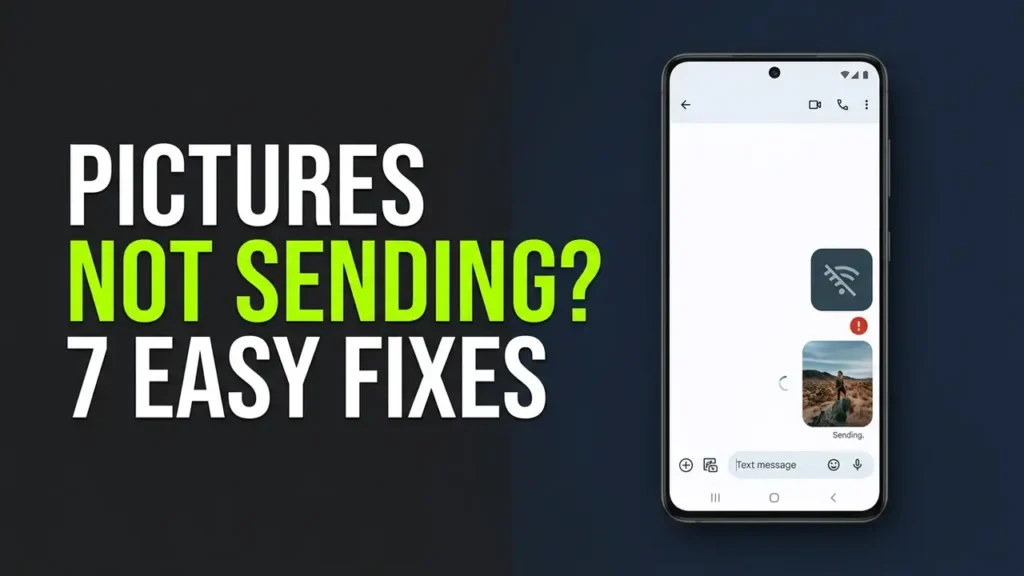
Is Google Messages not sending pictures on your Android phone? You might see a photo stuck on “Sending,” get an error when sharing an image, or find that regular text messages work while pictures refuse to go through.
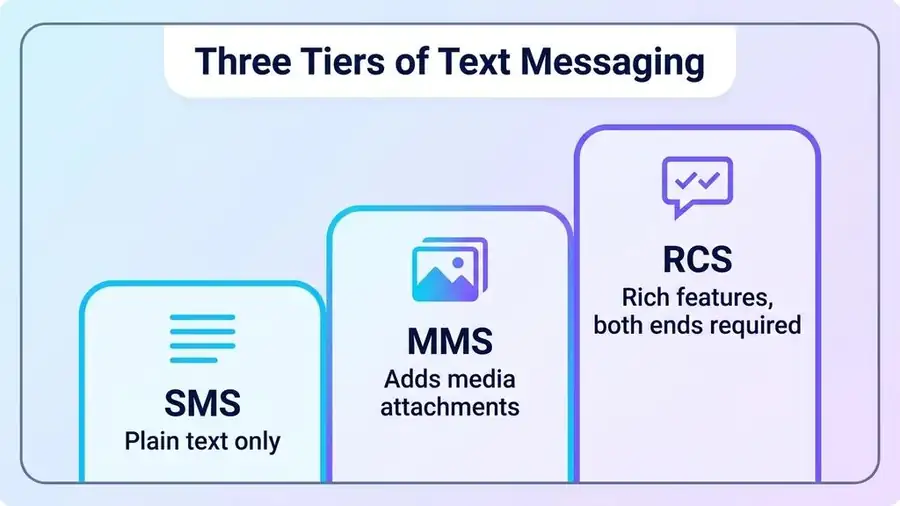
The cause often depends on how you’re sending the image. Google Messages can use RCS for internet-based messaging or MMS for traditional picture messages through your mobile carrier. A problem with your connection, RCS status, mobile data, or carrier settings can prevent either method from working.
Before resetting anything, try these seven fixes in order. They can help you identify the problem without deleting your conversations.
1. Check Whether the Picture Is Stuck on Sending
First, look at the affected conversation. Does the picture show “Sending,” “Not sent,” or an error icon? This can help narrow down the cause.
- Stuck on Sending: Your connection or the recipient’s availability may be causing the delay.
- Not sent: The message may have failed because of an RCS, MMS, or carrier issue.
- Pictures fail but texts work: Check RCS, mobile data, and MMS settings.
- Only one contact is affected: The issue may be related to that conversation, the recipient’s connection, or their messaging setup.
Try sending a small picture to another contact. If it works, your phone may not be the problem.
Avoid repeatedly tapping Send on a large image. Wait for the current attempt to finish or fail before trying again.
2. Check Your RCS Connection
If you use RCS chats, Google Messages needs an active RCS connection to send pictures through that service.
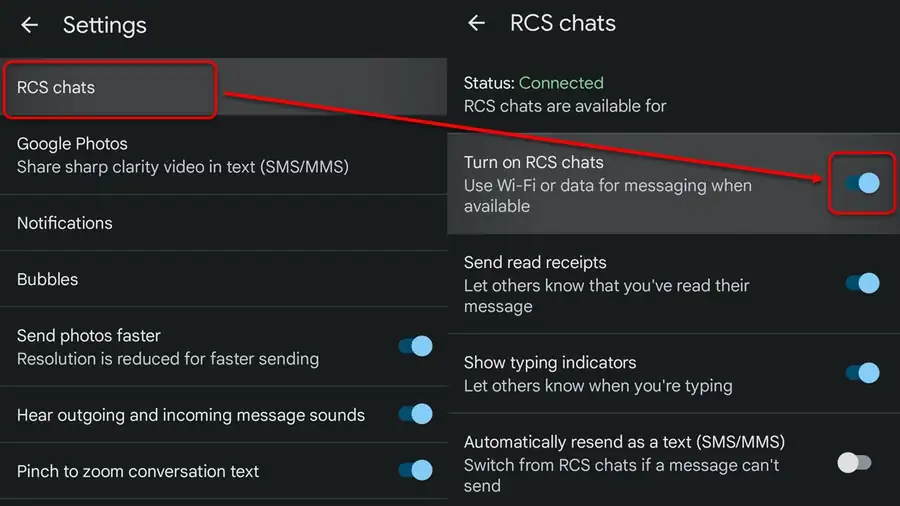
Open Google Messages, tap your profile picture, then go to Messages settings → RCS chats. The exact wording may vary by app version.
Check the connection status. If it says “Connecting” or “Trouble connecting,” RCS may not be ready to send messages.
Try these steps:
- Make sure your phone has a working internet connection.
- Turn Airplane mode on briefly, then turn it off.
- Reopen Google Messages and check the RCS status again.
- If RCS remains disconnected, follow Google’s troubleshooting instructions.
You can use Google’s official guide here: Fix problems with RCS chats.
Important: Don’t repeatedly toggle RCS on and off without checking its status first. If you recently changed phones or SIM cards, RCS registration may need additional time or troubleshooting.
3. Switch Between Wi-Fi and Mobile Data
A phone can appear connected to Wi-Fi while some internet services are failing. If Google Messages cannot upload a photo, the message may remain stuck even when other apps seem to work.
Try switching connections:
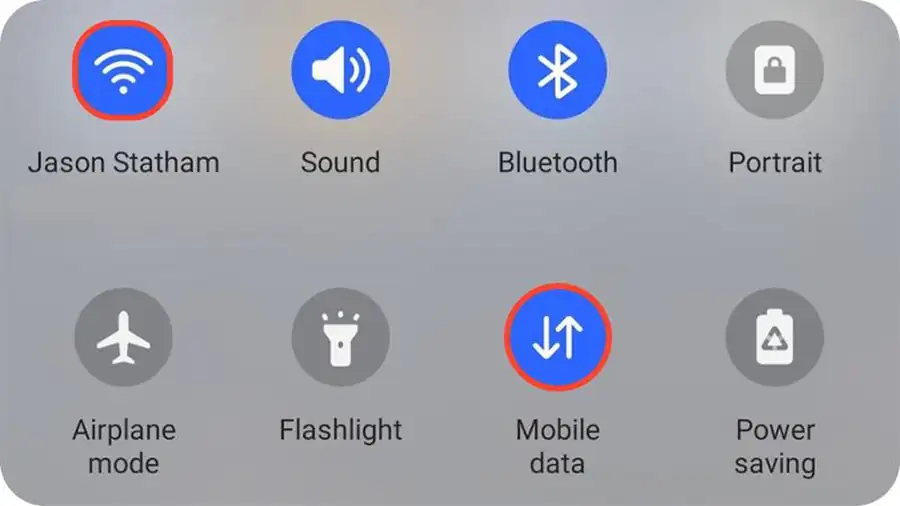
- Turn Wi-Fi off and use mobile data.
- Send a small picture again.
- If that fails, reconnect to Wi-Fi and test once more.
- Temporarily disconnect from a VPN if you’re using one.
If pictures send over mobile data but not Wi-Fi, investigate your Wi-Fi connection or network restrictions. If neither connection works, continue to the next steps.
You can also follow our guide to Android Connected to Wi-Fi but No Internet if your phone’s connection seems unreliable.
4. Check Mobile Data and MMS Settings
This step matters especially when RCS pictures work inconsistently or regular SMS texts send successfully but MMS pictures do not.
MMS usually depends on your carrier’s messaging service and mobile data configuration. Wi-Fi alone may not be enough for MMS on every carrier or device.
Check the following:
- Make sure mobile data is enabled.
- Confirm that your mobile plan supports picture messaging and that you have any required credit or allowance.
- If you’re traveling, check whether roaming restrictions affect mobile data.
- If MMS stopped working after changing carriers or SIM cards, ask your carrier to verify the APN and MMS settings.
Do not enter random APN settings from an unrelated website. Incorrect values can cause other mobile data problems.
Google’s official guide explains additional checks for sending and receiving messages: Troubleshoot Google Messages.
5. Update Google Messages
An outdated version of Google Messages may have bugs or compatibility problems that affect sending media.
Open the Google Play Store and search for Google Messages. If an Update button appears, install the available update.
After updating:
- Open Google Messages.
- Return to the affected conversation.
- Try sending a small picture.
- Check whether RCS still shows a connection problem.
If the issue started immediately after an update, check whether another update becomes available. Avoid installing unofficial APK files just to work around a messaging problem.
6. Clear the Google Messages Cache
Temporary app files can sometimes interfere with normal behavior. Clearing the cache is a reasonable next step if pictures still won’t send.
On most Android phones:
- Open Settings.
- Tap Apps, then Google Messages.
- Select Storage or Storage & cache.
- Tap Clear cache.
- Reopen the app and test picture messaging.
The menu names may differ slightly between Android brands.
Choose Clear cache, not Clear storage or Clear data. Clearing app data can reset app settings and may require you to configure the app again. It is not the first thing to try when pictures fail to send.
If other Android apps are also freezing or behaving strangely, see our guide: Android Apps Keep Crashing? Here’s Why and What to Do.
7. Check Photo Permissions and Try Another Delivery Method
If Google Messages cannot access the image you want to send, check its permissions.
Open your phone’s Settings, find Apps → Messages → Permissions, and review the available photo or video permissions. Allow the relevant access if it is disabled. Menu names vary by Android version.
Next, check whether the problem affects every picture or only one file. Try a smaller image or take a new photo and send it instead. If the new picture works, the original file may be unusually large or have a format-related issue.
If RCS is unavailable, Google Messages may offer an option to resend the message through SMS or MMS, depending on your settings and carrier. You can review the available options in Messages settings.
Keep in mind that MMS may compress pictures, and switching delivery methods is not guaranteed to fix the problem. If your carrier does not support the required service or your mobile data settings are incorrect, you may need help from the carrier.
Frequently Asked Questions
Why can I send text messages but not pictures?
Pictures may use RCS or MMS, which have different connection and carrier requirements from ordinary SMS texts. Check your RCS status, mobile data, MMS configuration, and carrier plan.
Why does Google Messages keep saying “Sending”?
The app may be unable to upload the image, RCS may be disconnected, or the recipient may be temporarily unavailable. Switch connections and check the RCS status before trying again.
Will clearing Google Messages data delete my texts?
Clearing cache is different from clearing storage or app data. Start with Clear cache, and avoid clearing app data unless you understand the possible effects on settings and app configuration.
Why are pictures blurry when I send them?
Some messaging methods compress images, particularly MMS. If image quality matters, check whether RCS is connected and available for that conversation. The options available depend on your device, recipient, and carrier.
More Android Troubleshooting Guides
If the problem continues, these related Neceb guides can help you troubleshoot other common Android issues:
- Android Apps Keep Crashing? Here’s Why and What to Do
- Android Connected to Wi-Fi but No Internet: How to Fix It
Final Thoughts
When Google Messages is not sending pictures, start by checking the message status and RCS connection. Then test Wi-Fi versus mobile data, verify MMS settings, update the app, and clear its cache.
If text messages work but pictures still fail over both RCS and MMS, contact your mobile carrier to check picture-messaging support and account settings. This can help you avoid unnecessary resets when the real problem is outside the app.