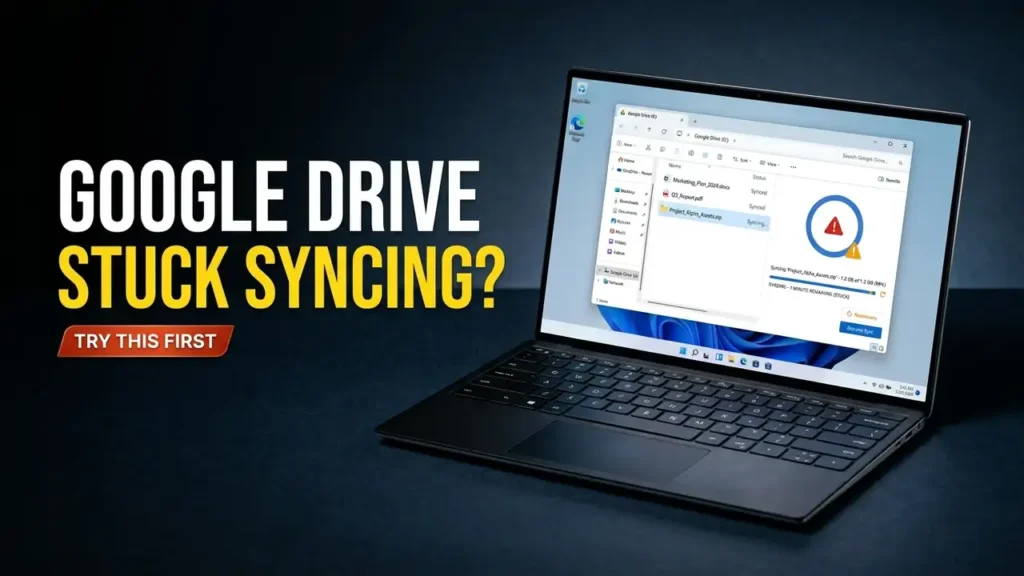

Google Drive for Desktop Stuck on Syncing? Here’s How to Fix It
You move a document into Google Drive, but it never appears online. The desktop app keeps showing syncing, or a folder stops updating even though your internet connection works.
If Google Drive for Desktop is stuck on syncing, the cause could be a paused upload, a file permission problem, limited storage, or an issue with the app itself.
But there’s one important detail: if your files already appear online with their latest changes, the syncing indicator doesn’t necessarily mean your files are still failing to upload.
Here’s how to identify what’s actually wrong before resetting Google Drive or risking unsynced files.
First, Check Whether Your Files Are Really Stuck
Open Google Drive on the web and find a file you’ve recently added or edited.
Compare the online version with the file on your computer.
- The latest changes appear online: Your upload succeeded. Check the desktop app’s sync status and whether it is still processing other files.
- The file exists online, but recent edits are missing: Those changes may not have synced yet.
- The file is missing online: The upload may have failed, or the file may be outside the folders being synced.
This quick comparison helps you avoid unnecessary troubleshooting when your files are already up to date.
1. Check Drive’s Sync Status and Restart the App
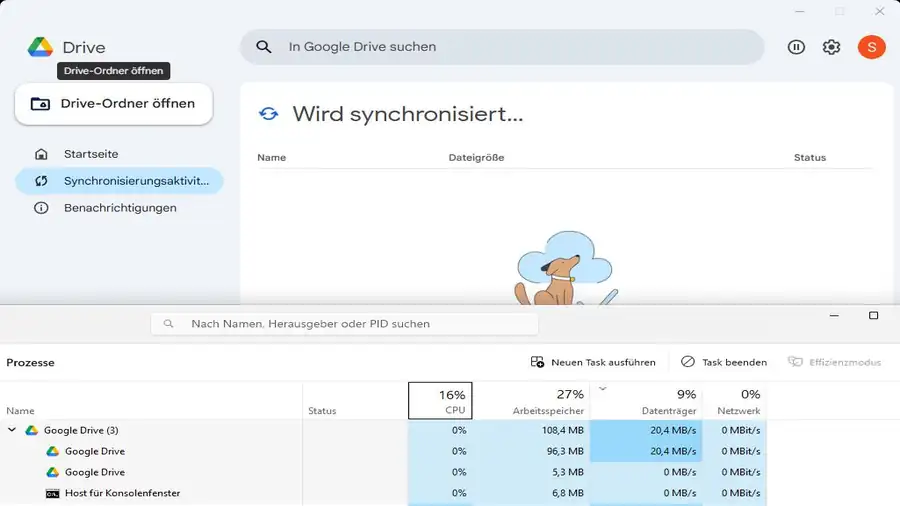
If Google Drive keeps syncing without finishing, start with the app’s own status information.
- Click the Google Drive icon in the Windows system tray near the clock. Check the hidden icons if necessary.
- Open the app’s sync status or recent activity and look for an error message.
- If syncing is paused, resume it.
- Confirm that your internet connection is stable.
- Open Drive’s settings, select Quit, and launch Google Drive for Desktop again.
If the problem continues, restart your PC and check the sync status once more.
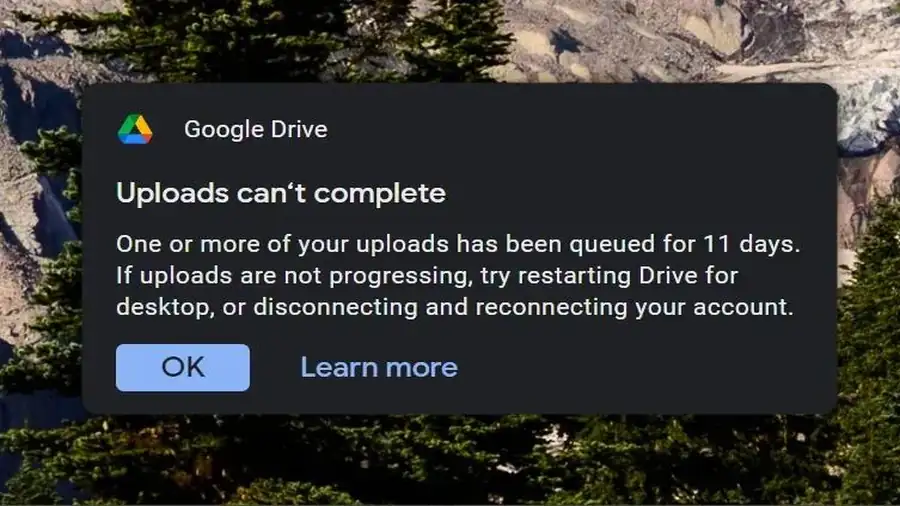
Don’t repeatedly restart the app without checking its notifications. A specific error can tell you whether the issue involves permissions, storage, or the connection.
For additional steps, see Google’s official guide to fixing Drive for Desktop problems.
2. Fix a File That Won’t Sync While Other Files Work
When only one document or folder is stuck, the problem may be specific to that item.
Check whether the original file still exists. If you moved or deleted the file or its parent folder, Drive may no longer be able to sync your changes. Restore the file if necessary.
Check your access permissions. If the file belongs to someone else, you may need editing permission from the owner. For a shared drive, contact its administrator if necessary.
Check Windows permissions. In File Explorer, right-click the affected file or folder, select Properties, and open the Security tab. Make sure your account has permission to read and modify it.
Look for a Lost & Found notification. In some cases, Drive for Desktop moves unsynced files into a local Lost & Found folder when it cannot upload them. If you see this notification, open the folder and copy important files to a safe location before trying account-level fixes.
These checks are particularly useful when the rest of your Drive continues to work normally.
3. Check Your PC and Google Account Storage
Google Drive needs sufficient local disk space for its syncing operations. Your Google account also needs available cloud storage.
Check both:
- Open File Explorer and check the free space on the drive used by Google Drive.
- Review your Google account’s storage usage.
- If your computer is running low on space, remove unnecessary files or move them to another safe location.
- If your Google storage is full, review unnecessary files and other items using Google One storage management.
After freeing local disk space, quit and reopen Google Drive for Desktop.
Remember that these are two separate limits. Freeing space on your PC does not increase your Google account’s cloud storage allowance.
4. Check Whether Another App Is Interfering
If syncing repeatedly fails despite a stable connection and sufficient storage, check whether security software, firewall rules, proxy settings, or another cloud-sync service could be interfering.
This is especially worth investigating if the problem started after installing new software or changing network settings.
If another synchronization service manages the same folders, review its configuration before making changes. Running multiple sync services on the same files can cause conflicts.
Don’t permanently disable your antivirus or delete Google Drive’s cache folders as a first step. Start with the error message and make only changes relevant to the problem.
5. Reconnect or Reinstall Google Drive Only as a Last Resort
If the earlier checks don’t help, reconnecting your account or reinstalling Drive for Desktop may be worth trying.
However, protect your files first.
Google warns that unsynced files may be moved to a local Lost & Found folder. Disconnecting your account deletes that folder, which means files stored there can be lost.
Before disconnecting:
- Check Drive’s notifications for a Lost & Found folder.
- Copy any important unsynced files to a separate, safe location.
- Confirm that important changes are available online whenever possible.
- Only then consider disconnecting and reconnecting your account.
If reinstalling is necessary, download the latest version from Google’s official Drive for Desktop page.
Avoid using system-cleaner tools to remove Google Drive’s configuration files. Google notes that some cleaner apps can modify Drive’s configuration and cause errors or data loss.
Frequently Asked Questions
Why is Google Drive stuck on syncing one file?
The file may have been moved, deleted, changed without permission, or affected by a local or cloud-side error. Check its location, access permissions, and Drive’s notifications first.
Why does Google Drive keep syncing when my files are already online?
The app may still be processing other files, or a particular item may have a sync issue. Compare recent changes online and review the desktop app’s sync status before assuming every file is affected.
Will disconnecting Google Drive delete my files?
Disconnecting can remove offline files and delete the local Lost & Found folder containing unsynced items. Protect important files before disconnecting your account.
More Guides
Having trouble with other Windows or cloud-storage problems? These related Neceb guides may help:
- OneDrive Not Syncing? Here’s What to Check First — Troubleshoot files that won’t upload or update in Microsoft’s cloud storage.
- Windows 11 Connected to WiFi but No Internet — Investigate connection problems that can affect cloud applications.
- Windows 11 File Explorer Not Responding — Troubleshoot a frozen File Explorer when accessing local files and folders.