
OneDrive Not Syncing? Here’s What to Check First
OneDrive usually syncs your files quietly in the background. So when a file stays stuck on “Sync pending,” changes don’t appear on another device, or the OneDrive cloud icon shows an error, it can be difficult to know where the problem actually is.
The good news is that you usually don’t need to reinstall Windows or delete your OneDrive folder.
The first step is to identify what OneDrive is doing right now. The icon and sync status can tell you whether you’re dealing with a connection problem, a single problematic file, an account issue, or a larger sync problem.
Here’s what to check, starting with the easiest possibilities.
First, Check the OneDrive Status
Look at the OneDrive cloud icon in the Windows notification area.
You may need to click the small arrow to show hidden icons.
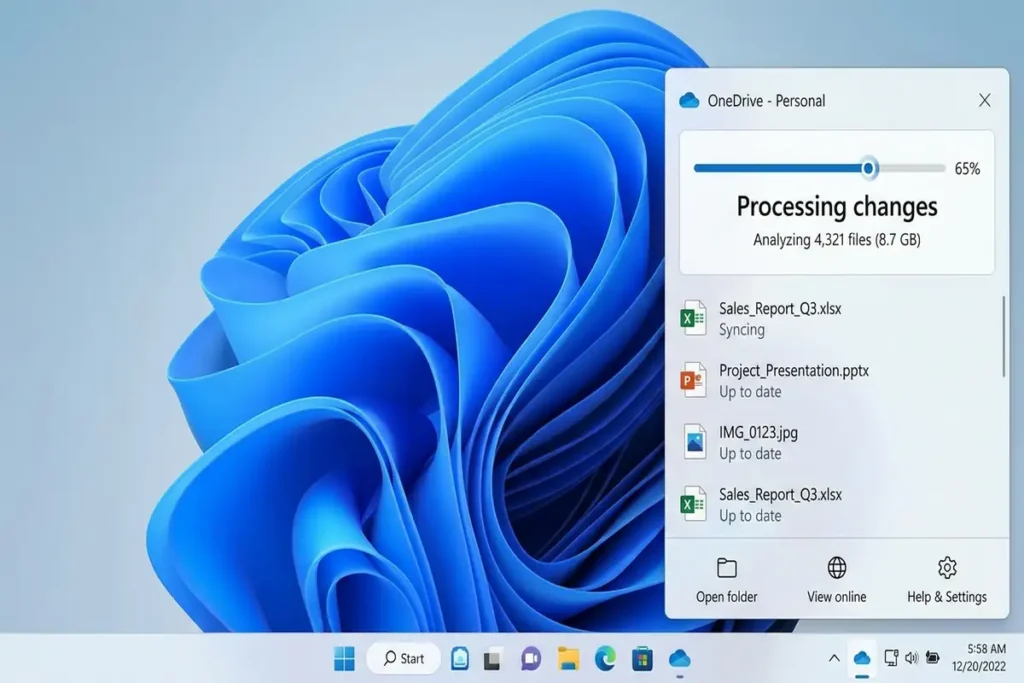
Open OneDrive and check its current message before changing any settings. The status can tell you whether syncing is paused, waiting, blocked by an account issue, or still processing changes.
For example:
- Up to date — OneDrive believes everything is synchronized.
- Processing changes — OneDrive is still working through files.
- Sync pending — something is waiting to be synchronized.
- Not signed in — your account needs attention.
- Paused — syncing has been temporarily stopped.
- Storage full — new files may not sync.
Microsoft specifically recommends starting with the OneDrive status/icon because the icon can indicate what type of sync problem you’re experiencing.
If OneDrive Is Paused
If the OneDrive status says Paused, syncing is simply stopped.
Select the OneDrive cloud icon and choose Resume syncing.
Then give OneDrive a moment and check whether the file status changes.
OneDrive can also pause syncing automatically in some situations, such as when your PC is using Battery Saver or a metered network connection.
1. Check Whether the Problem Is One File or Everything
This is one of the most useful tests.
Create or copy a small text file into your OneDrive folder.
Then wait a moment.
If the small file syncs but another file doesn’t, your OneDrive installation may be working correctly. The problem is probably related to that particular file.
A file may fail to sync because:
- It’s still open in another application.
- You don’t have permission to access it.
- Its name contains a character OneDrive doesn’t allow.
- It’s unusually large.
- Another process is using the file.
Microsoft confirms that an open file can prevent synchronization, while permissions and invalid file names can also cause individual files to fail.
2. If It Says “Processing Changes,” Give It a Moment
Don’t immediately reset OneDrive if you see:
Processing changes
This doesn’t always mean OneDrive is broken.
Microsoft says this status can appear when you’re:
- syncing many files,
- uploading a large file,
- working with a file that’s still open,
- signing in again,
- or syncing after a recent computer update.
A slow internet connection can also make the process take considerably longer.
If you recently moved hundreds or thousands of files into OneDrive, waiting may actually be the correct solution.
4. Make Sure You’re Still Signed In
If OneDrive suddenly stopped syncing after you changed your Microsoft password or account settings, check the account status.
A gray OneDrive icon with a line through it can indicate that you’re not signed in.
Select the OneDrive icon and follow the sign-in prompt.
If you can sign in but OneDrive still says it isn’t connected, Microsoft recommends checking the connection and restarting OneDrive.
[Screenshot 2 — OneDrive account/status window showing the sign-in or sync status]
5. Check Your Internet Connection
OneDrive needs an internet connection to synchronize changes with Microsoft’s servers.
Try opening a few websites.
Then try accessing your files through OneDrive online.
If the website works but the desktop application doesn’t sync, the problem is more likely related to the OneDrive app, account, or local Windows configuration.
6. Close the File That Won’t Sync
If only one document, image, or other file is stuck, close the application using it.
For example, if a Word document is open and being edited, OneDrive may wait until you’re finished before synchronizing it.
Save the file, close the application, and give OneDrive a little time to process the change.
Microsoft specifically lists files being used by another application as one reason a file may not sync.
7. Check the File Name
Sometimes the problem isn’t OneDrive itself.
The file name may contain characters that OneDrive doesn’t support.
Microsoft lists characters such as:
\ : / * ? < > " |
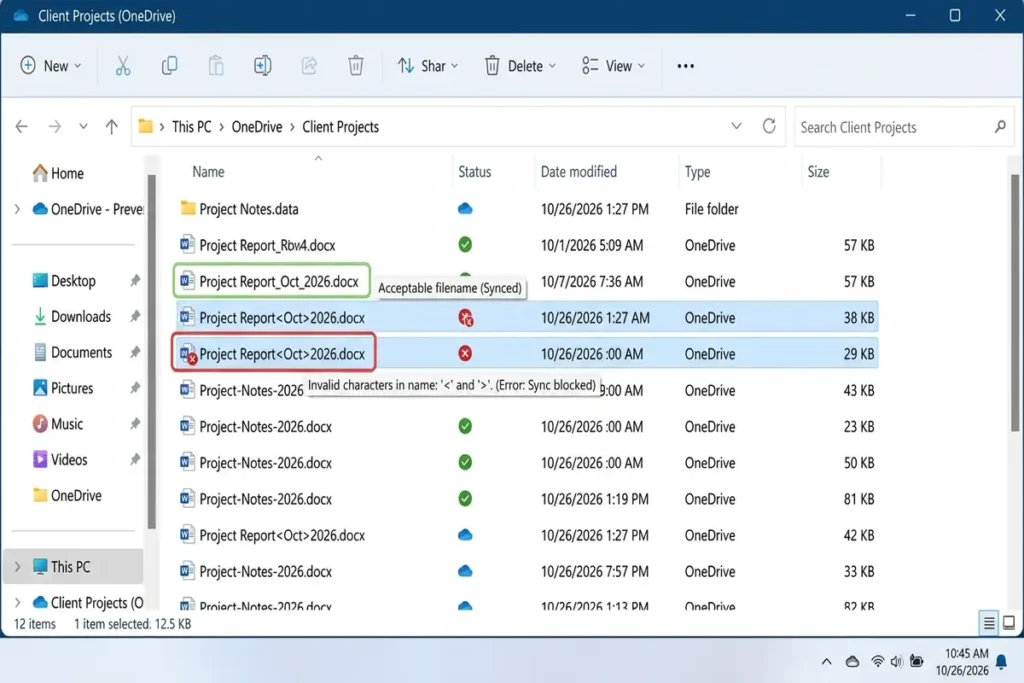
as invalid in OneDrive file names.
If one particular file refuses to sync, try renaming it with a simple name such as:
Project-Notes-2026.docx
Then wait and see whether synchronization resumes.
8. Restart OneDrive
If everything appears normal but syncing has stopped, restart the OneDrive application.
Open Start, type:
OneDrive
Then open it again.
Wait for the cloud icon to appear and check the sync status.
Microsoft also recommends restarting OneDrive in several connection and sync troubleshooting scenarios.
9. Still Stuck? Reset OneDrive
If OneDrive repeatedly gets stuck and the simpler checks haven’t helped, resetting the sync app is a stronger option.
Press:
Windows + R
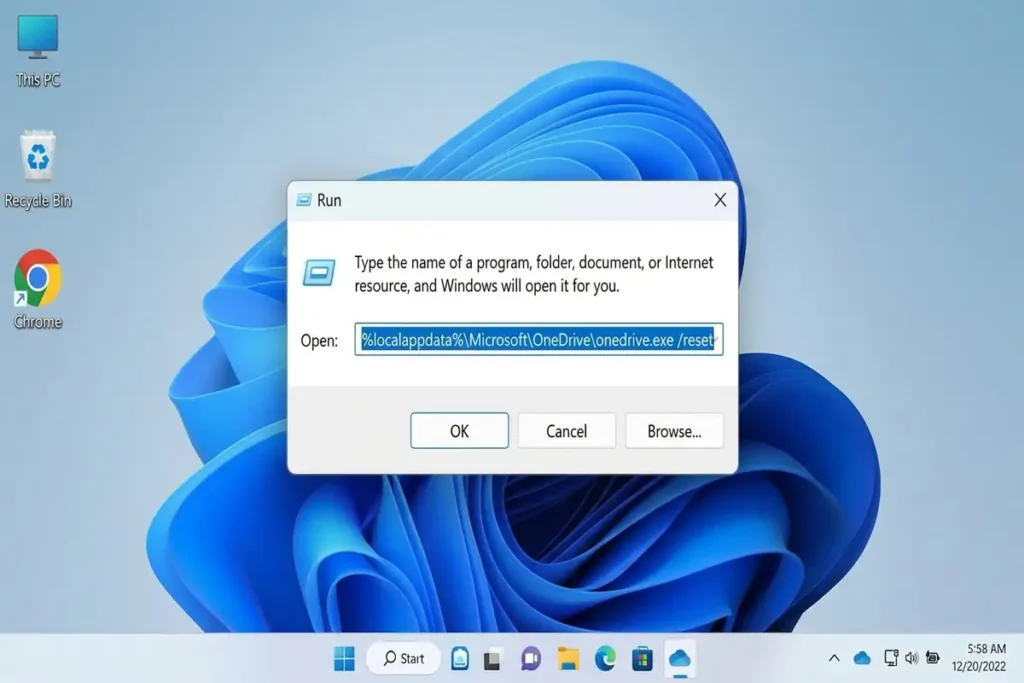
Enter:
%localappdata%\Microsoft\OneDrive\onedrive.exe /resetThen press Enter.
If Windows cannot find the file, Microsoft provides alternative paths, including:
C:\Program Files\Microsoft OneDrive\onedrive.exe /resetAfter the reset, OneDrive will restart and rebuild its synchronization state.
Resetting OneDrive does not delete your files or cloud data. It resets the OneDrive sync connections and then performs a full sync again.
[Screenshot 3 — Windows Run dialog with the OneDrive reset command]
10. Don’t Reinstall OneDrive Too Quickly
Reinstalling OneDrive can solve persistent problems, but it’s better treated as a later step.
Microsoft says reinstalling resets OneDrive settings and causes a full synchronization afterward. Your files should normally remain available in OneDrive online.
Before doing this, make sure you understand which files are local and which are already stored in the cloud.
Quick Diagnosis
| What you’re seeing | Most likely thing to check |
|---|---|
| One file won’t sync | File name, permissions, or file in use |
| “Processing changes” | Large file, many files, or open file |
| “Sync pending” | Check the affected file and OneDrive status |
| Nothing syncs | Account, connection, storage, or OneDrive app |
| Gray cloud icon | Sign-in/account issue |
| Storage warning | Microsoft storage limit |
| Started after an update | Restart OneDrive and check for updates |
| Keeps happening | Reset OneDrive |
When You Should Reset OneDrive
Don’t reset OneDrive just because synchronization takes a few minutes.
If you’re uploading a large number of files, Processing changes can be normal.
Reset becomes more reasonable when:
- syncing repeatedly gets stuck,
- restarting OneDrive doesn’t help,
- the problem affects multiple files,
- your connection and account are working,
- and there isn’t an obvious file-specific problem.
FAQ
Why is OneDrive not syncing?
The cause can range from a full Microsoft storage account or connection problem to a single file that is open, has an invalid name, or cannot be accessed. Start by checking the OneDrive status icon.
Why does OneDrive say “Processing changes”?
It can happen when OneDrive is handling many files, a large file, an open file, or changes following an update or sign-in. Waiting may be enough in these situations.
Will resetting OneDrive delete my files?
Resetting the OneDrive sync application is designed to reset the synchronization process, not delete your cloud files. Microsoft provides the reset procedure for persistent sync problems.
Why is only one file not syncing?
Check whether the file is open, whether you have permission to access it, and whether its name contains unsupported characters.
Final Thoughts
When OneDrive isn’t syncing, the fastest solution isn’t always a reset or reinstall.
Start by looking at the OneDrive status, then determine whether the problem affects one file or your entire OneDrive folder.
If it’s one file, check the file itself. If everything is stuck, check your account, storage, connection, and OneDrive application.
Only move to a reset or reinstall when the simpler checks don’t explain the problem.
That approach can save you time—and, more importantly, helps you fix the actual cause instead of simply restarting OneDrive and hoping it works.