
IPhone Notifications Not Showing? Here’s How to Fix It
You unlock your iPhone and discover messages you never saw, missed alerts from important apps, or notifications that appear only after you open the app. If your iPhone notifications are not showing, the problem can be frustrating—especially when you’re waiting for a message or time-sensitive update.
Before blaming an iOS update or resetting your phone, check what kind of notification problem you’re experiencing. Alerts may be disabled for one app, silenced by Focus, delayed by Scheduled Summary, or appearing somewhere you don’t normally look. The best fix depends on whether the problem affects one app or your entire iPhone.
Work through these checks in order, starting with the settings that are easiest to verify.
1. Check Notification Settings for the Affected App
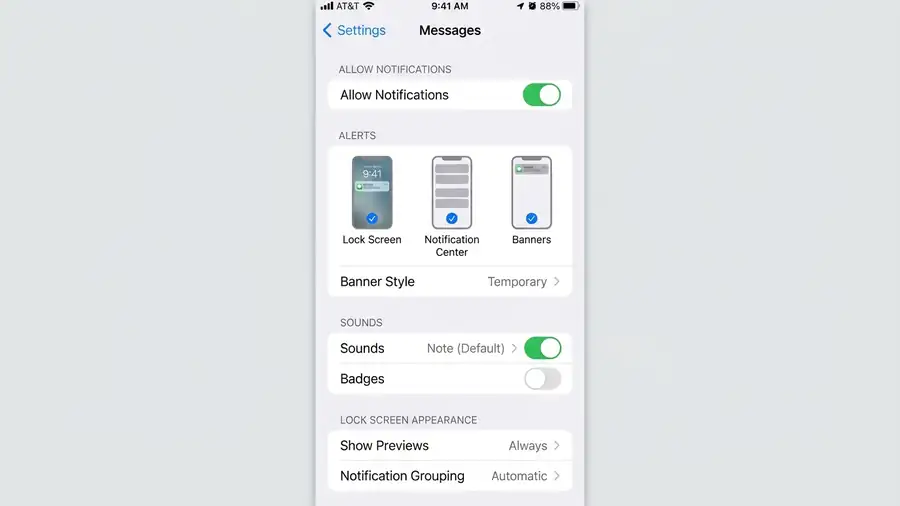
If notifications are missing from just one app, start here. Its alerts may be disabled or configured not to appear on your Lock Screen.
- Open Settings.
- Tap Notifications.
- Select the affected app.
- Turn on Allow Notifications.
- Enable Lock Screen, Notification Center, and Banners as needed.
If several apps are affected, check more than one before moving on. This helps you determine whether the problem is limited to a particular app or involves system-wide settings.
You can also consult Apple’s guide to changing notification settings on iPhone.
2. Turn Off Focus and Do Not Disturb
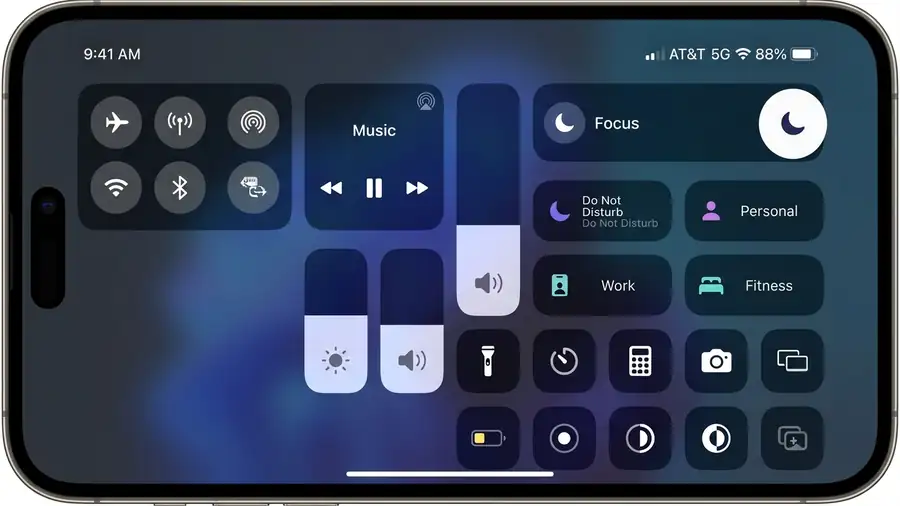
Notifications that disappear at certain times of day may be getting silenced by Focus.
Open Control Center and check whether Do Not Disturb, Sleep, Work, or another Focus mode is active. Turn it off temporarily and ask someone to send you a test message.
If the alert appears, open Settings → Focus and review the allowed apps, people, and automatic schedules. You can adjust the rules without giving up Focus entirely.
3. Check Scheduled Summary for Delayed Alerts
If notifications arrive in batches rather than immediately, check Scheduled Summary.
Go to Settings → Notifications → Scheduled Summary. If it’s enabled, look for the affected apps in the summary list. Temporarily remove one app from the summary and test whether its notifications arrive promptly.
Scheduled Summary groups selected notifications for delivery at scheduled times. It may explain delayed alerts, but it won’t necessarily explain notifications that never arrive at all.
4. Make Sure Notifications Appear on the Lock Screen
Sometimes an alert arrives, but you don’t see it where you expect.
Open Settings → Notifications, select the app, and confirm that Lock Screen is enabled. Then check Notification Center for alerts you may have missed.
If the notification appears without its message content, review Show Previews. Depending on your settings, previews may appear only when your iPhone is unlocked.
If alerts appear but make no sound, check the app’s sound setting, your iPhone’s silent mode, and volume. A missing sound is different from a notification that never appears.
5. Restart Your iPhone and Update the App
If the notification settings look correct, restart your iPhone and test again. A restart is a simple step to try before changing more settings.
Next, open the App Store, tap your account picture, and install any available update for the affected app.
If multiple apps still have notification problems, go to Settings → General → Software Update and check whether a newer iOS version is available. Review Apple’s release notes rather than assuming a particular update caused the issue.
6. Find Out Whether One App or Every App Is Affected
Your symptoms can help narrow down the next step.
- Only one app misses alerts: Check its notification permissions, in-app settings, and account status.
- Several apps are affected: Recheck Focus and system-wide notification settings.
- Notifications arrive late: Review Scheduled Summary and Focus.
- Alerts appear without sound: Check sound settings and silent mode.
- Notifications appear only after opening an app: Verify its notification permissions. If this happens across multiple apps, investigate system-wide settings and seek further support if needed.
This distinction is important: reinstalling one app is unlikely to fix a problem that affects notifications from several unrelated apps.
7. Contact Apple Support if Notifications Still Don’t Work
If notifications remain missing across multiple apps after these checks, contact Apple Support for further troubleshooting.
Avoid erasing your iPhone as an early step. A full reset takes time and can require restoring your data. Back up your device before attempting a reset, and try the simpler checks first.
Frequently Asked Questions
Why are my iPhone notifications not showing?
Possible causes include disabled app permissions, Focus modes, Scheduled Summary, and app-specific problems. Check these settings first to identify the likely cause.
Why do notifications only appear when I open an app?
Start by checking notification permissions for that app. If several apps behave this way, review system-wide settings and contact Apple Support if the problem continues.
How do I get notifications back on my iPhone Lock Screen?
Go to Settings → Notifications, select the app, and enable Lock Screen alerts. If the message content is hidden, review Show Previews.
Can updating iOS fix missing notifications?
An update may resolve some software problems, but it won’t fix every cause. Check Apple’s release notes and install available updates when appropriate.
More iPhone Guides