
PDF Preview Disappears in Windows 11? 5 Fixes That Work
Does your PDF appear in the Windows 11 File Explorer Preview pane for a second, then disappear? You may not need to reinstall your PDF reader. The problem can come from conflicting preview handlers, File Explorer settings, or Windows security restrictions on downloaded files.
A Windows 11 user reported this exact behavior in Microsoft Q&A. Disabling the PDF preview handler in PowerToys fixed it in that case, making it a useful first check if you have PowerToys installed.
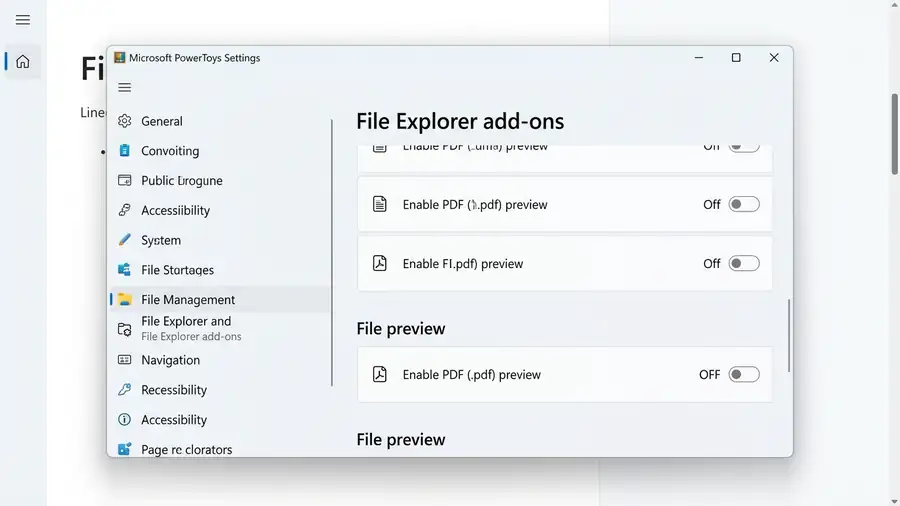
1. Disable the PowerToys PDF Preview Handler
PowerToys can add its own PDF preview handler. Microsoft warns that PowerToys preview handlers can override other handlers, and incompatibilities have been reported.
- Open Microsoft PowerToys.
- Go to File Management > File Explorer Add-ons.
- Find Enable PDF (.pdf) preview.
- Turn it off if it is enabled.
- Close File Explorer, reopen it, and test a PDF.
Press Alt + P to show the Preview pane if necessary.
This is especially worth trying if the preview appears briefly and disappears, or if the problem started after installing PowerToys or changing PDF software.
Official guide: Microsoft PowerToys File Explorer add-ons.
2. Check File Explorer’s Preview Settings
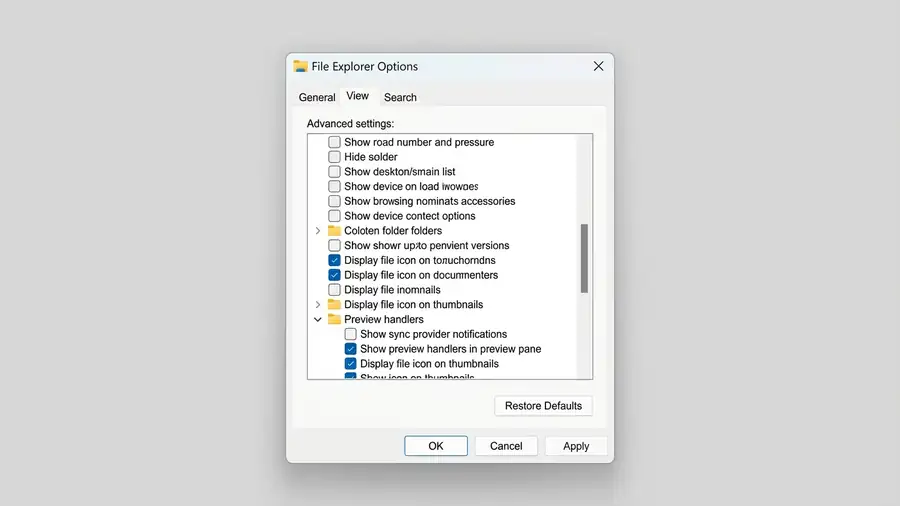
If the Preview pane is disabled or preview handlers are turned off, PDFs may not display correctly.
- Open File Explorer.
- Select View > Show > Preview pane.
- Open File Explorer Options and select the View tab.
- Make sure Show preview handlers in preview pane is checked.
- Select Apply, then test your PDF again.
If the setting was already enabled, continue to the next fix rather than repeatedly changing it.
3. Restart Windows Explorer
A temporary Explorer problem may affect PDF previews across multiple folders.
- Press Ctrl + Shift + Esc to open Task Manager.
- Find Windows Explorer under Processes.
- Right-click it and select Restart.
- Open a folder containing PDFs and test the Preview pane again.
If the preview works briefly but the problem returns, note whether it happens after restarting the computer. That detail can help distinguish a temporary Explorer issue from a persistent preview-handler conflict.
4. Check Whether Windows Is Blocking a Downloaded PDF
Windows security updates released from October 14, 2025, introduced restrictions on previewing certain files marked as downloaded from the internet. This is a security protection, not necessarily a broken PDF viewer.
If Windows displays a warning instead of the PDF preview:
- Right-click the PDF and select Properties.
- On the General tab, check whether an Unblock option is available.
- Only if you trust the file and its source, select Unblock and apply the change.
- Sign out and back in if the preview does not return immediately.
Important: Do not unblock files from unknown or suspicious sources. This step is intended for the security warning on downloaded files; it is not a universal fix for PDFs that appear and then disappear.
Read Microsoft’s explanation: File Explorer automatically disables preview for files downloaded from the internet.
5. Test Another PDF and Check Your Default PDF App
Try previewing a different PDF stored in a local folder. If only one document fails, the file itself may be damaged or protected. If every PDF disappears, the issue is more likely related to a preview handler or Windows configuration.
You can also open Settings > Apps > Default apps, search for .pdf, and check which app handles PDF files. If the issue began after installing or updating a PDF reader, test another trusted PDF app to see whether the behavior changes.
Avoid reinstalling applications or changing advanced security settings until you have tried the simpler checks above.
Frequently Asked Questions
Why does my PDF preview appear and then disappear?
A preview-handler conflict is one possible cause. If PowerToys is installed, try disabling its PDF preview option first.
Why can I preview local PDFs but not downloaded ones?
Windows may block previews for files marked as originating from the internet. Check for a security warning and only unblock a file if you trust its source.
Does this mean my PDF file is corrupted?
Not necessarily. Test another PDF. If several files show the same behavior, investigate File Explorer settings and preview handlers before assuming the documents are damaged.
More Windows Guides From Neceb
- Windows 11 File Explorer Not Responding
- Windows 11 Taskbar Not Responding
- OneDrive Not Syncing? How to Fix It
Final Thoughts
If PDF previews disappear in Windows 11, start with PowerToys if it is installed, then check File Explorer settings and restart Explorer. Treat security warnings on downloaded PDFs separately, and never disable Windows protections just to restore a preview.