

Outlook Search Not Showing Recent Emails? 7 Fixes
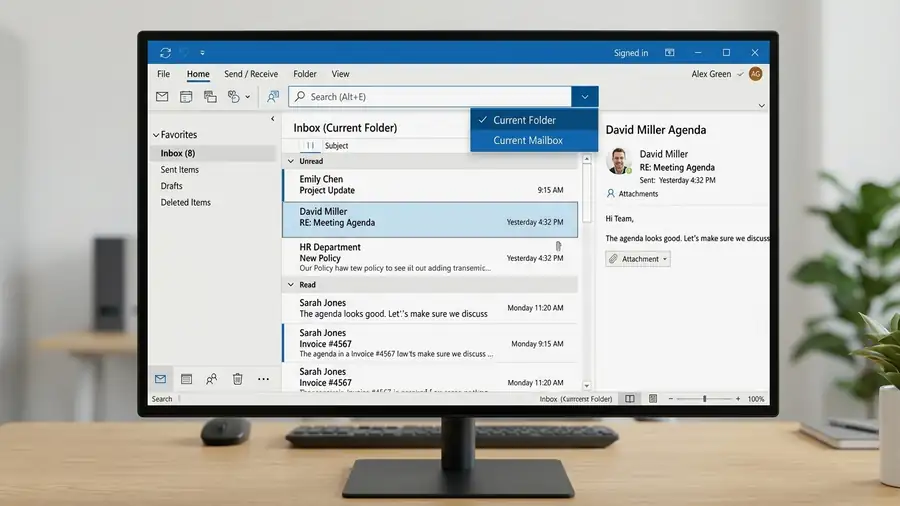
When Outlook search is not showing recent emails, you might find older messages but miss emails received today or within the last few days. The problem may be caused by your search scope, incomplete email syncing, or Windows Search indexing in classic Outlook.
Before changing advanced settings, check whether the missing email exists in your mailbox. Then try these fixes in order.
1. Check Your Outlook Search Scope
Outlook might be searching only the current folder instead of your entire mailbox.
In new Outlook:
- Open Settings and select General > Search.
- Check the default search scope.
- Choose a suitable scope and search again.
In classic Outlook: Click the search box and check the search scope on the Search ribbon. Try Current Mailbox or All Outlook Items, depending on where the message should be.
New Outlook doesn’t support searching multiple accounts simultaneously in the same way as a single mailbox. Select each account and search its folders separately.
2. Search by Sender or Subject
A broad search can make the missing message harder to find.
Try searching for the sender’s full email address, a distinctive subject phrase, or a unique word from the message.
You can also try from:sender@example.com, replacing the example address with the actual sender.
If the message appears with a more specific query, review your original search terms and filters.
3. Check Outlook on the Web
Open Outlook on the web and search for the same email.
- Found online but missing in desktop Outlook: Focus on desktop search, syncing, or indexing.
- Missing online too: Check Archive, Junk Email, Deleted Items, and other folders. If the message is absent everywhere, investigate whether it was delivered.
This test helps you identify the likely source of the problem before changing Windows settings.
4. Check Email Sync Settings
In new Outlook, go to Settings > General > Offline. Find Days of email to save, select a suitable period, and save your changes.
In classic Outlook, go to File > Account Settings > Account Settings. If your account offers the Download email for the past slider, increase the period and restart Outlook.
These options depend on your Outlook version and account type. Allow syncing to finish before testing search again.
5. Check Indexing Status in Classic Outlook
If classic Outlook returns incomplete results, its search index may still be processing messages.
- Click the Outlook search box.
- Open Search Tools > Indexing Status from the Search menu or ribbon.
- Check how many items remain to be indexed.
Wait a few minutes and check again. If the number is decreasing, allow indexing to finish.
If it stays unchanged, continue to the next step.
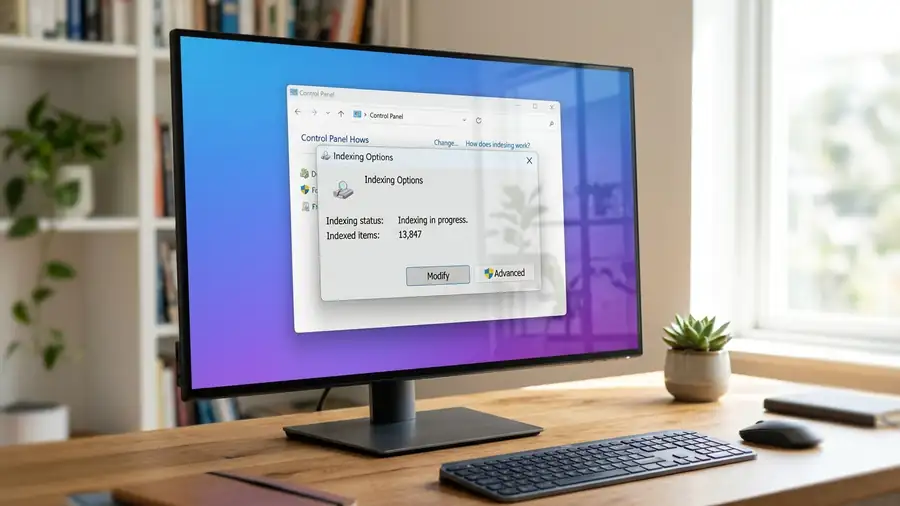
6. Check Windows Search Settings
This fix applies mainly to classic Outlook on Windows.
- Close Outlook and open Control Panel.
- Search for Indexing Options.
- Select Modify and confirm that Microsoft Outlook is included in the indexed locations, if listed.
- Open the Windows Services app by searching for
services.msc. - Find Windows Search and check that the service is running.
On Windows 11, you can also open Settings > Privacy & security > Searching Windows and run the Indexer troubleshooter if available.
7. Rebuild the Search Index
If classic Outlook still misses messages, rebuilding the Windows search catalog may help.
- Close Outlook.
- Open Control Panel > Indexing Options.
- Select Advanced.
- Under Troubleshooting, select Rebuild.
- Wait for indexing to finish before testing search again.
Rebuilding can take considerable time, and results may remain incomplete while it runs. Don’t use this as your first fix.
For more help, follow Microsoft’s official Outlook search troubleshooting guide.
Frequently Asked Questions
Why does Outlook only show old emails?
Your search scope may be too narrow, syncing may be incomplete, or classic Outlook’s search index may need attention.
Why can I see an email in my inbox but not in search?
Try searching by sender or subject, check your search scope, and allow syncing or indexing to finish.
Does rebuilding the Outlook index delete emails?
Rebuilding the Windows search index recreates search data; it is not intended to delete mailbox messages. Allow the process to finish before testing again.
What if Outlook search still doesn’t work?
Check Outlook on the web first. If the message is online but missing from classic Outlook search, continue with Microsoft’s indexing troubleshooting steps.
Bottom line: Check your search scope first, verify that the message exists online, and investigate Windows indexing only when the problem points to classic Outlook on Windows.