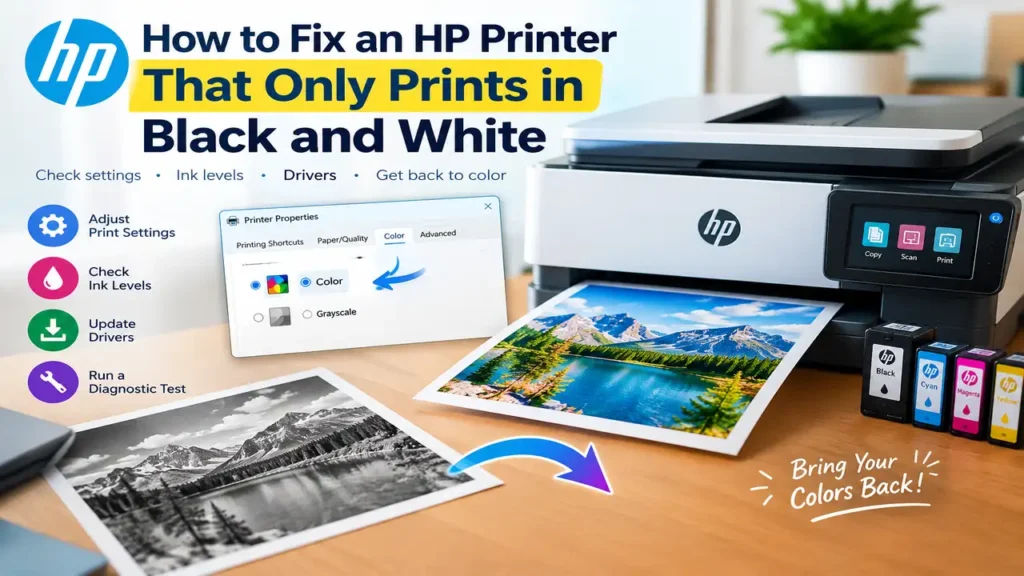

How to Fix an HP Printer That Only Prints in Black and White
Is your HP printer only printing in black and white even though you selected color printing? The problem may come from your print settings, an application-specific option, low color ink, or a printhead issue.
Before replacing an ink cartridge or reinstalling your printer, check whether the problem affects every document or just one application. This simple test can help you find the right solution faster.
1. Turn Off Grayscale Printing
Your HP printer may be configured to print using black ink only, even when color ink is available.
On Windows 11:
- Open the document you want to print.
- Press Ctrl + P and select your HP printer.
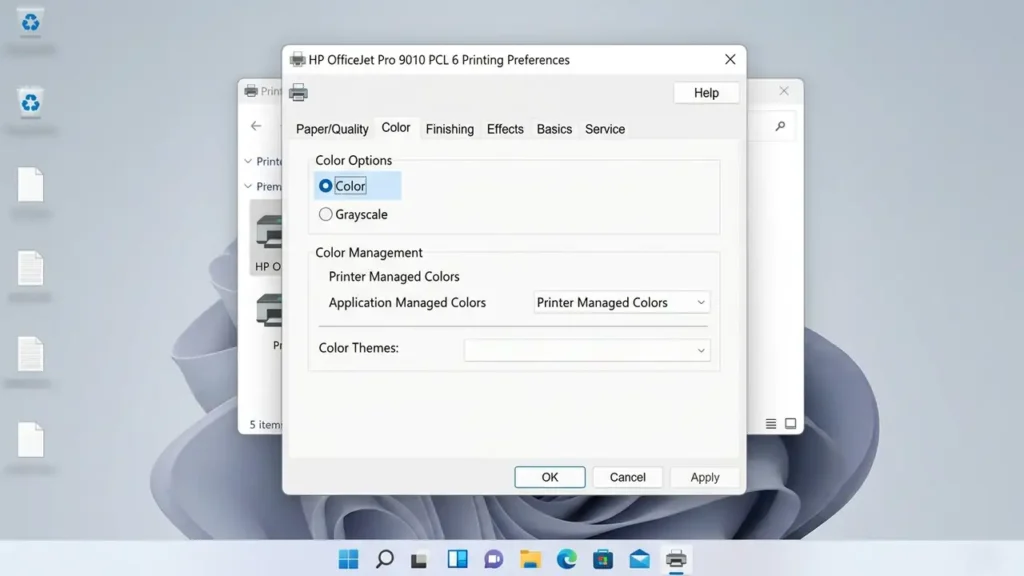
- Open Printer Properties, Preferences, or a similarly named option.
- Look for the Color, Paper/Quality, or Advanced tab.
- Select Color instead of Grayscale or Black Ink Only, if available.
- Click Apply, then print a test page.
The exact options vary by printer model and driver. If you cannot find a color setting, check HP’s official printing in black and white guide.
2. Check the Print Settings in Your App
If your HP printer prints in color from one application but not another, the issue may be specific to that application.
For example, check the print dialog in Microsoft Word, Adobe Acrobat, or your browser. Look for options such as Print in Grayscale, Black and White, or Monochrome.
On a Mac:
- Open the document and select File > Print.
- Expand the print options if necessary.
- Look for color settings in the printer-specific options.
- Choose Color if the option is available.
- Print the document again.
Some applications remember their own print preferences, so changing the printer’s default settings alone may not fix the problem.
3. Check Your Color Ink Levels
Your printer might have low or empty cyan, magenta, or yellow ink. Depending on the model, it may continue printing with black ink while color output is missing or incomplete.
Open the HP Smart app, now called the HP app in supported versions, or use your printer’s built-in ink-level display if available.
Check the color cartridges and replace one only if it is empty, faulty, or the printer indicates that replacement is needed. If the levels appear normal, continue to the next step.
4. Print a Quality Diagnostic Page
A print-quality report can help you determine whether the problem comes from the printer itself or your computer’s settings.
- Open the HP app or your printer’s control panel.
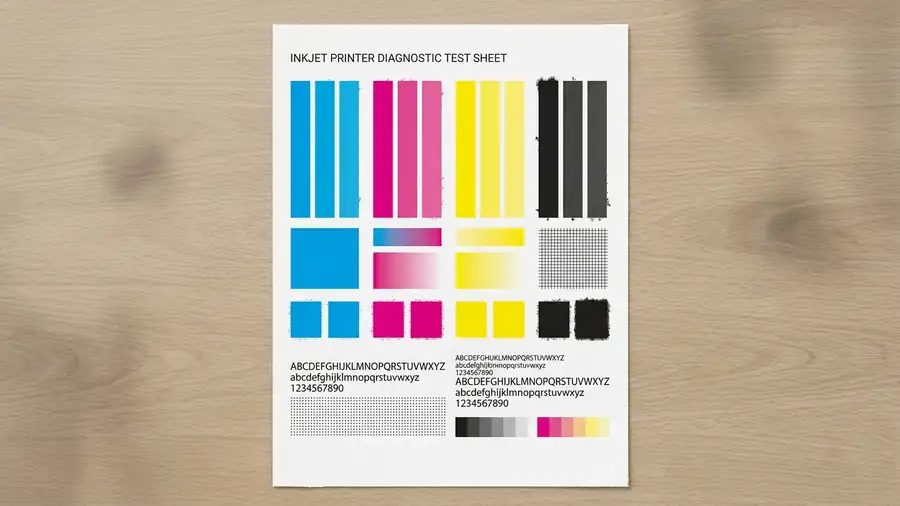
- Find the option for Print Quality Report, Print Quality Diagnostic Page, or a similar test.
- Print the report and inspect the color sections.
If the test page has missing colors, streaks, or blank color blocks, follow the cleaning or printhead maintenance instructions for your specific model.
If the diagnostic page prints correctly in color but your documents do not, focus on application settings, the selected printer driver, or the connection.
Important: Avoid repeatedly running printhead cleaning cycles. They consume ink, and the available maintenance options differ by model.
5. Update or Reinstall the HP Printer Driver
A missing or incorrect driver can sometimes cause color options to disappear or prevent the printer from following your selected settings.
First, download the correct software for your exact printer model from the official HP software and driver page.
Install the recommended driver for your operating system, then restart the computer and try printing again.
If you use Windows 11 and the Color option is missing for a supported HP printer, consult HP’s troubleshooting guidance for affected printers. Some model-specific issues require a particular driver or connection configuration, so avoid applying a workaround intended for a different printer.
6. Test Another Document and Connection
Before making more changes, print a simple document containing colored text or shapes from another application.
- Only one document prints in black and white: Check that document’s print settings.
- Every document prints in black and white, but the diagnostic page has color: Investigate the driver, application settings, or connection.
- The diagnostic page also lacks color: Follow the model-specific ink and printhead troubleshooting steps.
This comparison helps narrow down the cause without changing several settings unnecessarily.
Frequently Asked Questions
Why is my HP printer printing black and white when color is selected?
The application may have its own grayscale setting, the printer driver may be configured for black-only printing, or the printer may have a color ink or printhead issue.
Can I print in color if one cartridge is empty?
It depends on your HP printer model and cartridge system. Some models restrict printing when a cartridge is empty. Check the instructions for your specific printer before replacing cartridges.
Why is the Color option missing from my HP printer settings?
The installed driver, printer model, or connection configuration may affect which options appear. Install the appropriate software from HP’s official driver page and check your model’s support documentation.