

Pixel Always-On Display Not Working With Android Auto? November Bug Explained
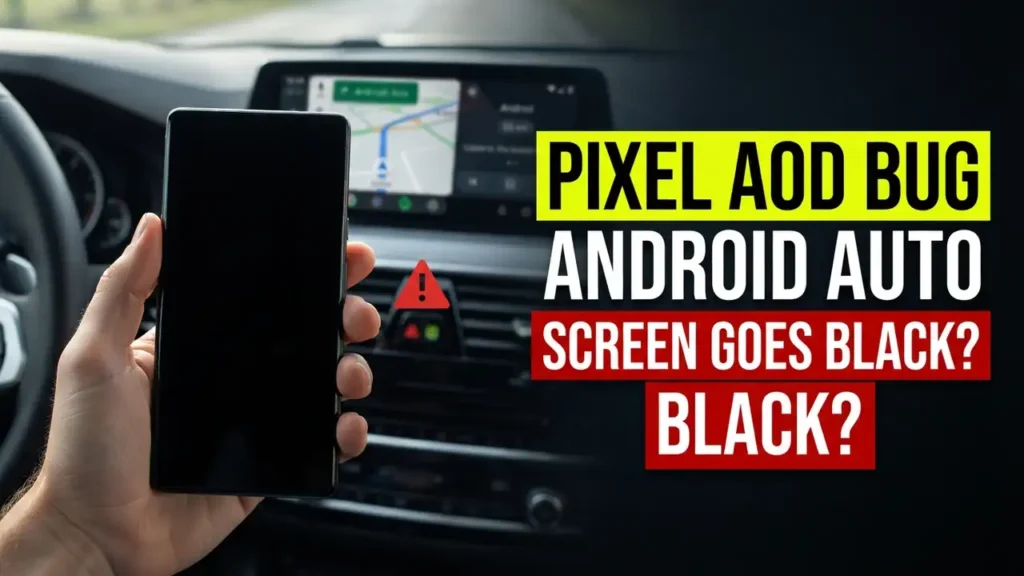
Is your Google Pixel screen going completely black when you connect Android Auto? Instead of showing the time, notifications, and other information, your phone’s Always-On Display (AOD) disappears while you’re driving.
You’re not alone. Pixel owners have recently reported this problem after installing Google’s November 2026 update. Reports include several Pixel generations, and the issue appears to happen specifically when Android Auto is connected.
If your Always-On Display works normally when disconnected from your car but disappears as soon as Android Auto connects, here’s what you should check.
Why Is Pixel Always-On Display Not Working With Android Auto?
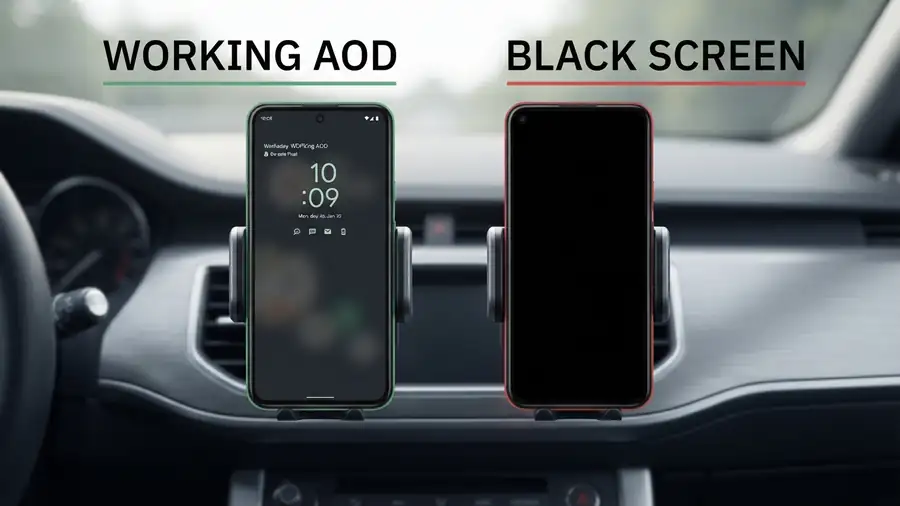
Always-On Display normally shows useful information on your locked Pixel screen, such as the time, date, and notifications.
However, affected users report that their phone screen stays completely black when Android Auto is running. Disconnecting Android Auto can bring the display back to normal.
Reports include the Pixel 9 Pro, Pixel 10 Pro, Pixel 11 Pro, and Pixel 11 Pro XL. Some users have also noticed a strange message suggesting Bedtime Mode is disabling the display, even when the mode isn’t active.
This appears to be a software bug related to the November update, rather than a damaged screen.
You can follow the Google Pixel Community discussion for reports and updates from affected users.
1. Check Your Always-On Display Settings
Before trying more complicated fixes, make sure Always-On Display is enabled.
- Open Settings on your Pixel.
- Tap Display & touch.
- Select Lock screen.
- Find Always show time and info.
- Make sure the option is enabled.
Lock your phone and check whether the clock appears before connecting Android Auto.
If it already works outside the car, your settings are probably not the main problem.
For more information about Pixel lock-screen settings, visit Google’s official Pixel lock screen guide.
2. Check Bedtime Mode and Driving Mode
Some Pixel users have noticed that their phones incorrectly indicate Bedtime Mode is responsible for disabling Always-On Display.
Check whether any modes are active:
- Open Settings and search for Modes.
- Check whether Driving Mode is enabled or automatically scheduled.
- Review your Bedtime Mode settings in Digital Wellbeing.
If a mode is unexpectedly active, temporarily disable it and test your phone again.
However, don’t expect this to solve the issue. Some affected users have already disabled Driving Mode without restoring their Always-On Display.
3. Disconnect Android Auto and Test Your Screen
This is one of the most useful checks because it helps you identify whether the problem is related to Android Auto.
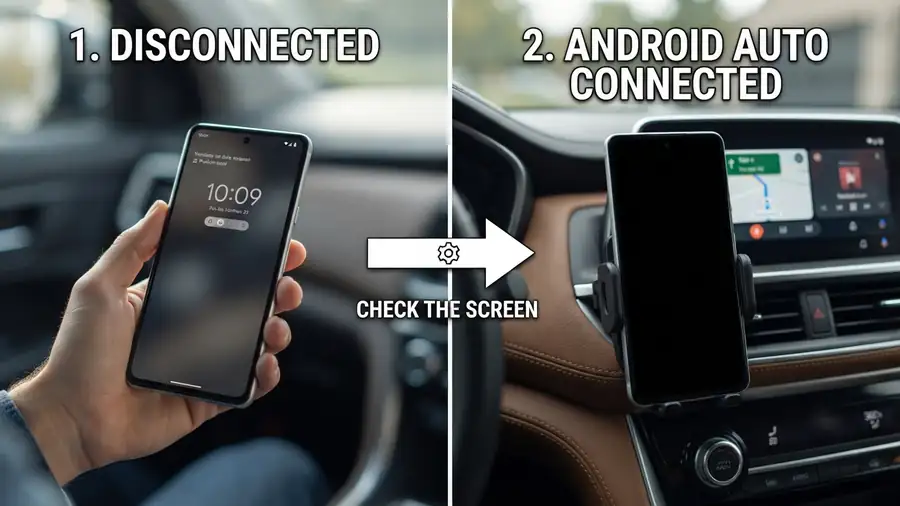
- Disconnect your Pixel from Android Auto.
- Lock your phone.
- Wait several seconds.
- Check whether the clock and notifications appear.
- Reconnect Android Auto and observe what happens.
If the Always-On Display works normally when disconnected but disappears immediately after reconnecting, your phone is experiencing the same behavior reported by other Pixel owners.
If your display remains black even without Android Auto, you may have a separate display or lock-screen issue.
4. Restart Your Pixel and Check for Updates
A restart is worth trying if your phone’s display behavior seems unusual.
Restart your Pixel, reconnect Android Auto, and see whether the display returns.
You should also check for updates:
- Android update: Settings > System > Software updates.
- Google Play system update: Search for Google Play system update in Settings.
- Android Auto: Open the Google Play Store, search for Android Auto, and check for an available update.
Installing available updates is a good troubleshooting step, but neither restarting nor updating has been confirmed as a permanent fix for this specific bug.
5. Report the Problem to Google
If your Pixel’s Always-On Display still disappears whenever Android Auto connects, send Google a bug report.
- Open Settings.
- Tap About phone.
- Scroll down and select Send feedback about this device.
- Describe the problem.
- Follow the instructions to submit your feedback.
Include your Pixel model, Android version, Android Auto version, and whether you’re using wired or wireless connectivity.
Google explains the process in its official Pixel feedback guide.
Is There a Fix for the Pixel Android Auto AOD Bug?
As of November 28, 2026, there is no confirmed public fix or announced release date for this specific issue.
Google’s Android Auto support team has requested diagnostic information from affected users and contacted some users for further investigation.
For now, keep your Pixel updated and avoid factory-resetting your phone just to fix this issue. A factory reset has not been established as a solution, and it could erase your personal data.
Frequently Asked Questions
Why does my Pixel screen go black when connected to Android Auto?
Some Pixel owners report that Always-On Display stops working when Android Auto connects following the November 2026 update. The exact cause has not been confirmed.
Which Pixel phones are affected?
Reports include the Pixel 9 Pro, Pixel 10 Pro, Pixel 11 Pro, and Pixel 11 Pro XL. This doesn’t mean every device from these generations is affected.
Does disabling Driving Mode fix the issue?
Not reliably. Some users have already tried disabling Driving Mode without fixing the black screen.
Will Google release an update to fix this bug?
A fix has not been officially announced. Check your Pixel’s software updates and Google’s support discussions for new information.